
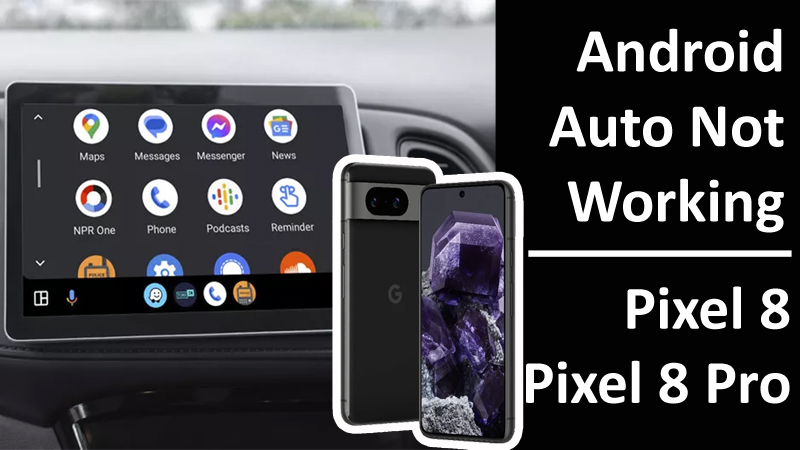
Is your Android Auto not working on your Google Pixel 8 and Pixel 8 Pro?
Is your Pixel 8 series phone unable to use Android Auto in your car?
Is your Android Auto stopped working after the update?
Is it unable to establish a connection with the vehicle head unit?
If so, you are not only alone. There are several users out there facing with Android Auto not working issues.
In this article, you will learn how to fix Android Auto not working on Google Pixel 8 or Pixel 8 Pro.
How To Fix Android Auto Not Working on Google Pixel 8 or Pixel 8 Pro
To fix Google Pixel 8 series Android auto not working issues, you have to follow these solutions:
- Check Your Vehicle Compatibility
- Restart Your Phone
- Check Your Connection
- Update Both Android Auto App and Phone
- Clear Cache and Clear Data of Android Auto and Google Play Services App
- Forget and Re-add Your Car
- Restart Your Car Infotainment System
- Uninstall and Re-Install Android Auto App
- Contact Help Support
Fix 1. Check Your Vehicle Compatibility
Go to Android Auto compatibility page – https://www.android.com/auto/compatibility/.
Here find out if your vehicle and stereo are compatible or not.
If it is not compatible then you can’t do anything about it.
Fix 2. Restart Your Phone
This is another simple, yet effective solution to fix several issues, including Android auto not working problem.
- Press and hold Power button.
- From the appeared Power Menu tap on “Restart” option.
Fix 3. Check Your Connection
Whether you are using a cable or a wireless connection, make sure everything is connected correctly and working properly.
- If you are using a cable check if it is not damaged.
- You can try to connect with another cable.
Fix 4. Update Both Android Auto App and Phone
To update Android Auto: Open Play Store. Search Android Auto. Tap on “Update” if available.
To update phone software: Go to Settings > System > Software Update > System update > Check for update > Tap on “Download and Install”.
Fix 5. Clear Cache and Clear Data of Android Auto and Google Play Services App
- Go to Settings > Apps > See all apps.
- Look for Android Auto and tap on it.
- Tap Storage.
- Tap “Clear Cache” and “Clear Data”.
Similarly, clear cache and data of Google Play Services app.
Fix 6. Forget and Re-add Your Car
- Go to Android Auto app settings > Connected devices > Connection preferences > Android Auto > Previously connected cars.
- Tap on the right menu (3 vertical dots).
- Tap on “Forget all cars”.
- Now, try to plug in or connect your phone to the car.
Fix 7. Restart Your Car Infotainment System
In some cases, restarting the infotainment system creates a fresh connection between your Android auto app and Android device, which can fix the issue and get things going.
Fix 8. Uninstall and Re-Install Android Auto App
- Tap and hold Android Auto app icon, tap on App info, tap on “Uninstall”.
- Open Play Store > Search for Android Auto > Tap on “Install”.
- Open Android Auto app and try to connect.
Fix 9. Contact Support
If all solutions fail, then you need to contact support and report the issue.
- Open Android Auto app.
- From the app menu, tap on Help & Support.
- Create a support ticket by describing your issue and then send it.
- Now, wait for the response from the support team.
Wrap Up
I hope these solutions have helped you in solving your Android Auto not working issue on Google Pixel 8 and Pixel 8 Pro.
If you have found this article helpful, then please share it as it can help other users!
Please support us by subscribing to our YouTube Channel.
You May Also Like:
- How To Fix Green Line Issue On Pixel 8 or Pixel 8 Pro
- How To Fix WiFi Issues on Google Pixel 8/Pixel 8 Pro
- Google Pixel 8 or Pixel 8 Pro Overheating? Here What To Do!
- How To Fix App Crashing on Google Pixel 8/8 Pro

Max Field is a founder of Recover Android Data. He is an Android lover and loves to write tips, tricks, fixes for errors, data recovery solutions and more related to Android. Provide Gaming Tips, Tricks, Game Error/Issues Solutions (PC/Xbox/PlayStation/Mobile). He has 11+ years of experience in this field.