


Learn Effective Solutions To Fix Android System WebView Causes Apps To Crash!
Overview: If your Android apps keep crashing due to Android System WebView, then this article is for you. In this guide, we are going to provide solutions that will help you to fix Android System WebView crashing apps on Android phones or Tablets.
Let’s start with the real user practical scenarios!
Practical Scenario 1: Apps Crashing On Samsung S22 Ultra After Android System WebView Update
The Android system webview update has completely broken more than half of the apps on my S22 Ultra. (SM-S908U1). All of my apps and firmware are up to date. I have tried uninstalling the Android system webview update and it still did not fix the problem. I tried wiping the cache, tried repairing the apps, nothing is fixing the issues. I even tried using the beta version of the app. This is the 3rd time this year this app updating has broken my device. Even a factory reset did not fix the issue. What are my options to get this working again. Mor than happy to work with the Google team and provide logs if needed so they can get a fix in place. Thanks! Source: Google Community
Practical Scenario 2: Latest Android System WebView Update Crashing Some Apps
Samsung prompted to uninstall the latest Webview update because detected below apps are crashing including: In addition, apps such as Discord may crash on startup unless the cache is cleared manually from settings. Source: Reddit
Similarly, there are many users out there encountering such issues.
Solutions To Fix Android System WebView Crashing Apps
If you are also noticing that apps keep crashing after Android System WebView update on your phone, then you need to fix the issue as soon as possible.
It is highly recommended that you must try each and every solution mentioned below and check if that helps you to fix and get rid of the problem.
Note: The solutions are applicable for all Android versions including Android 14/13/12/11/10/9/8/7. The settings and steps may vary depending on the Android version and phone brands and models such as Samsung, Google Pixel, OnePlus, LG, Huawei, Moto, Vivo, Realme, etc.
Solution 1: Uninstall Updates For Android System WebView
Most of the users report that their device’s app is suddenly crashing after the latest update to Android System WebView. It happens because the update must have a bug in it.
To fix this issue you have to downgrade the Android System WebView to the earlier version. For this, you have to uninstall the updates.
- On your phone, go to Settings > Apps > App Manager/App Management.
- Look for Android System WebView and tap on it.
- Now, tap on 3 dot vertical line located at the upper right corner of the screen and tap on Uninstall updates > OK.
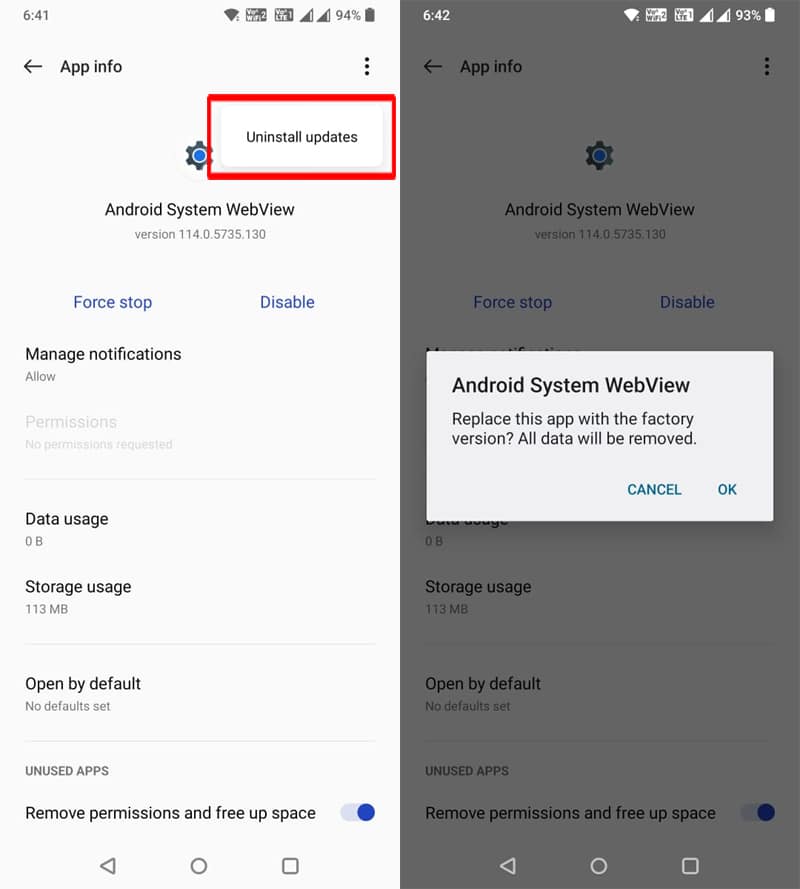
After this, I hope the problem will get solved.
Also Read: How Do I Fix Android System Update Failed To Install?
Solution 2: Uninstall Updates For Google Chrome
Since WebView is powered by Chrome, uninstalling the updates for the Chrome app might help resolve the issue.
- Go to Settings > Apps > App Manager/App Management.
- Look for Chrome and tap on it.
- Now, tap on 3 dot vertical line located at the upper right corner of the screen and tap on Uninstall updates > OK.
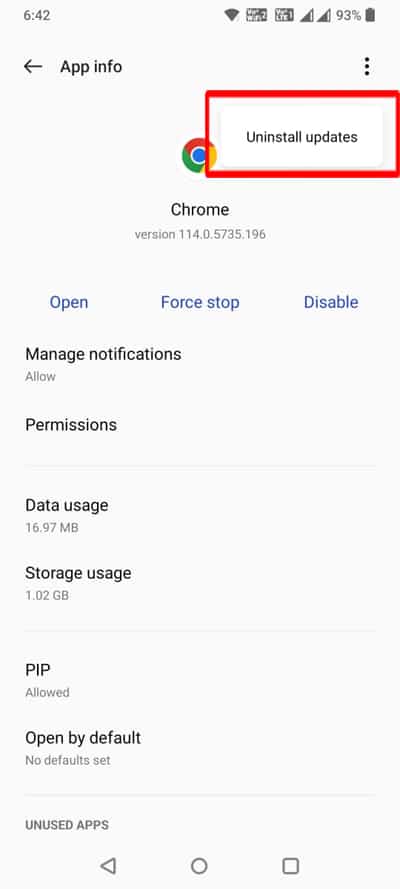
If that doesn’t fix the issue, then check the update for the Chrome app in the Play Store, if any update is available, then update it and then check, if that fixes the problem.
Alternatively, you can simply disable the Chrome app, it has also fixed the issue for several users.
Also Read: How To Fix Android System Recovery 3e Stuck Screen Issue
Solution 3: Update Android System WebView
Google releases the next update in quick intervals for Android System WebView, if there is any bug found in the previous release.
So, check for any new updates and if available then you must update it.
- Go to Play Store.
- Type Android System WebView in the search box.
- If you see an update, then simply tap on Update button.
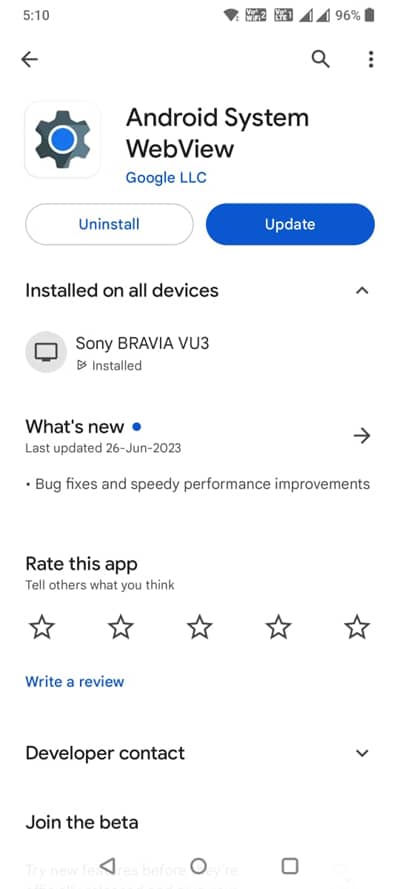
Alternatively, you can also download the latest version of the Android System WebView from the APK Mirror website. And then install it on your phone.
Also Read: How To Fix Android Error “Process System Isn’t Responding”
Solution 4: Clear Cache and Data Of Android System WebView, Play Store and Play Service
This specific issue can also occur if the WebView data or temporary cache files get corrupted. Similarly, if Play Store or Play service data and cache files get corrupt, then you may experience such a problem.
- On your phone, go to Settings > Apps > App Manager/App Management.
- Look for Android System WebView and tap on it.
- Tap on Storage/Storage usage.
- Tap on “Clear Data” and “Clear Cache”.
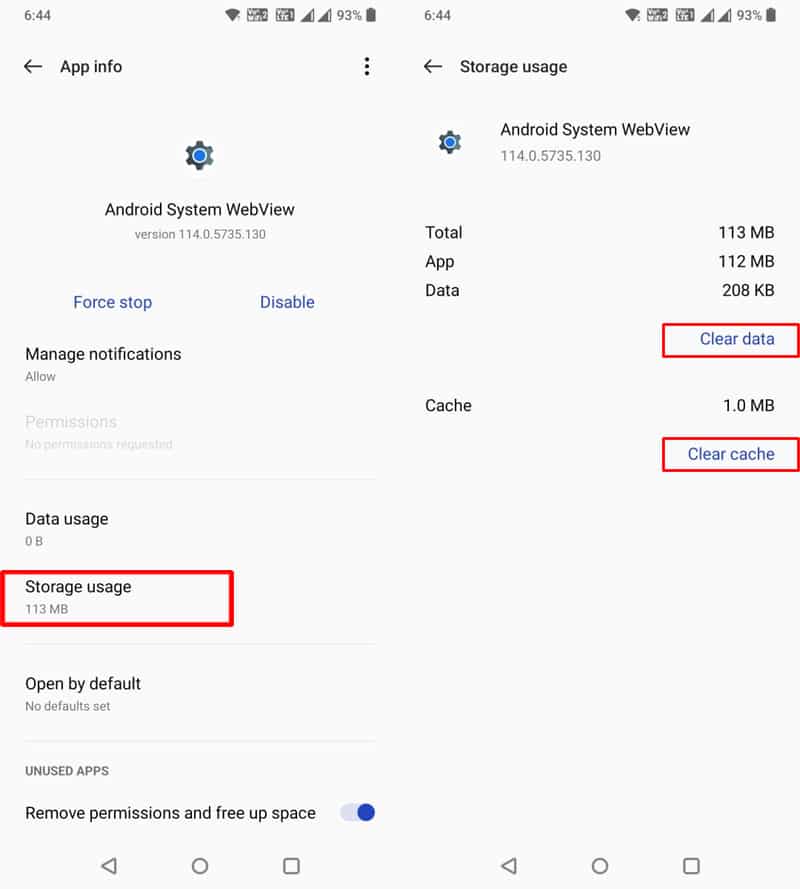
Similarly, follow the same steps and clear data and cache for Google Play Store and Play Service.
Once done, check if the apps stopped crashing and it is not happening again and again.
Also Read: How To Fix Grindr App Not Working (Crashing/Not Loading)
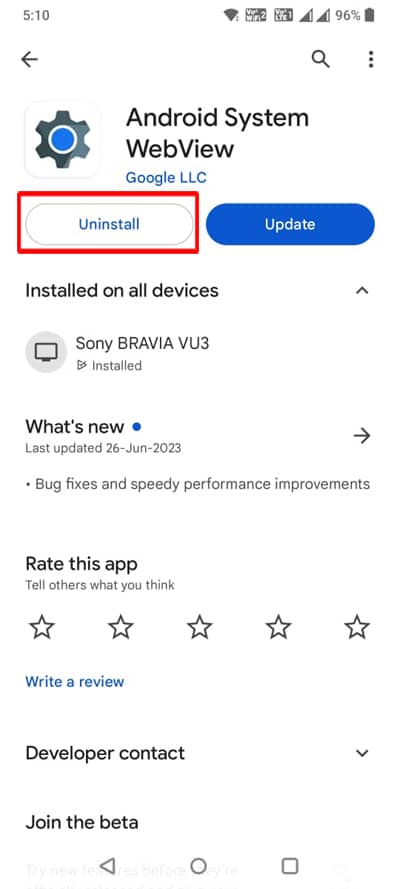
Solution 5: Uninstall Android System WebView
Another effective solution to fix Android System WebView crashing multiple apps is to uninstall the WebView.
Here how to do that:
Open Play Store > Type Android System WebView in the search box > tap on Uninstall button.
Wrap Up
Following those solutions should help you to fix and stop the series of app crashes on your Android phones and Tablets that were occurring due to Android System WebView.
If you have found this post helpful or useful, then please share it as it can help others as well!
Please support us by subscribing to our YouTube Channel.
You May Also Like:
- Global | How To Fix YouTube Keeps Crashing On Android
- If Your Chrome Keeps Crashing, Stopping Or Won’t Open On Android
- How To Stop Games From Crashing On Android
- Is Your WhatsApp Not Working? Here What You Need To Do!

Max Field is a founder of Recover Android Data. He is an Android lover and loves to write tips, tricks, fixes for errors, data recovery solutions and more related to Android. Provide Gaming Tips, Tricks, Game Error/Issues Solutions (PC/Xbox/PlayStation/Mobile). He has 11+ years of experience in this field.