


Learn Quick And Effective Solutions To Backup And Restore Data Like Photos, Videos, Contacts, Messages, Call Logs, Notes, App And More From Samsung Galaxy S21, S21 Plus Or S21 Ultra!
Overview: If you have purchased a new Samsung Galaxy S21, S21 Plus or S21 Ultra and want to back up your device’s data so that your data will be safe in case the worst happens. If “YES“, then read this full guide, here you will find different solutions on how to backup and restore Samsung Galaxy S21/S21 Plus/S21 Ultra.
 Expert Tip: The most appropriate way to backup and restore Samsung Galaxy S21/S21 Plus/S21 Ultra is by using Android Data Backup & Restore tool which is also known as Samsung Galaxy S21/S21+/S21 Data Recovery software.
With the help of Samsung Galaxy Data Recovery, you can:
- Easily backup almost all data types from your Galaxy S21 series phone to computer and when you need those data then you can restore them to your Galaxy or any other Android phone.
- Backup and restore data like messages, contacts, videos, audios, photos, WhatsApp conversations, documents, etc.
- Allow users to selectively backup and restore the device’s data.
- Supports almost all Android devices.
- 100% read-only program. Safe, secure and easy to use.
Free Download Trial Version/Buy Now Samsung Galaxy S21/S21 Plus/S21 Ultra Backup And Restore Tool
 |
 |
Samsung is a top-rated company and they have launched many good quality smartphones. Recently, they have launched Samsung Galaxy S21, S21+ and S21 Ultra phones.
Samsung Galaxy S21 and S21 Plus is described as – “Everyday epic. Introducing Galaxy S21 5G and S21+ 5G.1, Super high-resolution camera and 8K video. Galaxy’s fastest processor yet. All-day intelligent battery. A striking new design. Everyday just got epic. Total eye candy, Brilliant and protected in every way. The toughest Gorilla Glass yet.”
Samsung Galaxy S21 Ultra is described as – “Introducing Galaxy S21 Ultra 5G. Designed with a unique contour-cut camera to create a revolution in photography — letting you capture cinematic 8K Video and snap epic stills, all in one go. And with Galaxy’s fastest chip, strongest glass, 5G and an all-day battery, Ultra easily lives up to its name. Take epic portraits right out of 8K Video. ”
Though these smartphones provide amazing features and superb quality but data can get deleted from your phone anytime. So, let us learn how to backup Samsung Galaxy S21 (Plus) or S21 Ultra and how to restore the backup file.
Also Read: Transfer Data From Android or iOS To Samsung Galaxy Note 10/10+
Solution 1: Backup And Restore Samsung Galaxy S21/S21 Plus/S21 Ultra Using Samsung Account
You can create a backup of your Galaxy S21 series data to Samsung account and later you can easily restore them back to your phone.
So, follow the below-mentioned steps to backup Galaxy S21, S21+ or S21 Ultra 5G data via Samsung account:
Steps To Backup Samsung Galaxy S21/S21 Plus/S21 Ultra Via Samsung Account
Note: Below mentioned steps will work for devices running on Android Pie and above.
If your phone is running on Nougat or Oreo then go to Settings > Clouds and accounts > Backup and restore > Back up data > Select the data > BACK UP
If it is running on Marshmallow/Lollipop/Katkat then go to Apps > Settings > Cloud > Backup > Select the data > Back up now
Step 1: On your Galaxy phone go to “Settings” and then tap on “Account and backup”.
Step 2: After that tap on “Backup and restore” option.

Step 3: Then tap on “Back up data” under Samsung account section.

If you have not synced to your Samsung account then you will be asked to sync it by entering username and password and then tap on “Sign in”.
Step 4: Choose the app that you wish to backup and tap on “Back up”.

Step 5: After few minutes your deleted data will be backed up. The time duration depends on how much data you are backing up. Once the process gets completed tap on “Done”.
Now, let us learn the steps to restore Galaxy S21 (Plus) (Ultra) data using Samsung account.
Steps To Restore Samsung Galaxy S21, S21 Plus or S21 Ultra Data Via Samsung Account
Note: Below mentioned steps will work on devices running on Android Pie and above.
If your Samsung phone is running on Nougat or Oreo then you need to go to Settings > Clouds and accounts > Backup and restore > Restore data > Select the backup, then the data to restore > RESTORE.
If your phone is running on Lollipop/Marshmallo/KitKat then go to Apps > Settings > Cloud > Restore > OK > Select the backup > OK > Restore now.
Step 1: On your Galaxy S21 series phone go to “Settings” and then tap on “Account and backup”.
Step 2: Then tap on “Back and restore”.
Step 3: Now, tap on “Restore data”.
Step 4: If you have previously backed up multiple Samsung Galaxy devices to the same account then each of your backups will be shown on the screen. Choose the relevant backup that you want to restore.
Step 5: Choose the apps that you want to restore.
Step 6: Tap on “Restore”.
Step 7: If asked, tap on “Install” to restore your Apps screen and Home screen.
Also Read: Backup or Restore Data On Your Samsung Galaxy S10e/S10/S10+
Solution 2: Backup And Restore S21/S21+/S21 Ultra Using Samsung Cloud
Samsung provides 15GB of free cloud storage in Samsung Cloud where you can backup data from your Samsung Galaxy phone. And when you need to restore them then you can easily restore them.
Now, follow the below steps to back up your Samsung Galaxy S21/S21 Plus/S21 Ultra using Samsung Cloud:
Steps To Backup Samsung Galaxy S21/S21 Plus/S21 Ultra Using Samsung Cloud
Step 1: Open Settings on your Galaxy phone and then go to “Cloud and account” and choose “Samsung Cloud” to manage your files instantly. If you have not sign in to Samsung Cloud then you need to sign in.
Step 2: After that tap on three dots and from there choose “Settings” and then tap “Sync and auto backup settings”.
Step 3: Now, under “Sync” tab you need to scroll down and slide the toggle switch to select the data type that you want to stay synchronized.
Step 4: Next, you need to tap on “Auto Backup” and then scroll down and slide the toggle switch to select the data type that you want, like contacts, calendar, or Gallery.

Now, let us see how to restore Samsung Galaxy S21/S21 Plus/S21 Ultra data from Samsung Cloud.
Steps To Restore Galaxy S21/S21 Plus/S21 Ultra Using Samsung Cloud
Step 1: Open Settings on your Galaxy phone and then tap on “Samsung Cloud”.
Step 2: After that, you need to scroll down to choose “Restore data”.
Step 3: Select the data individually which you wish to restore or you can choose to Select all if you want to restore all backed up data.
Step 4: Lastly, tap on “Restore”.

Also Read: How To Recover Deleted or Lost WhatsApp Messages On Samsung
Solution 3: Backup And Restore Samsung Galaxy S21/S21 Plus/S21 Ultra Data Using Samsung Smart Switch
You can easily backup your Galaxy smartphone data like contacts, messages, pictures and other files by using Samsung Smart Switch. Smart Switch also helps you in transferring data or syncing data of your Galaxy phone.
Now, follow the below steps to back up your Samsung Galaxy S21/S21 Plus/S21 Ultra using Samsung Smart Switch:
Step 1: Install Smart Switch on your PC or Mac and then by using USB cable connect your Galaxy phone to it.

Step 2: Click on Backup.

Step 3: Then tap on Allow option on your Galaxy phone to give essential permissions.
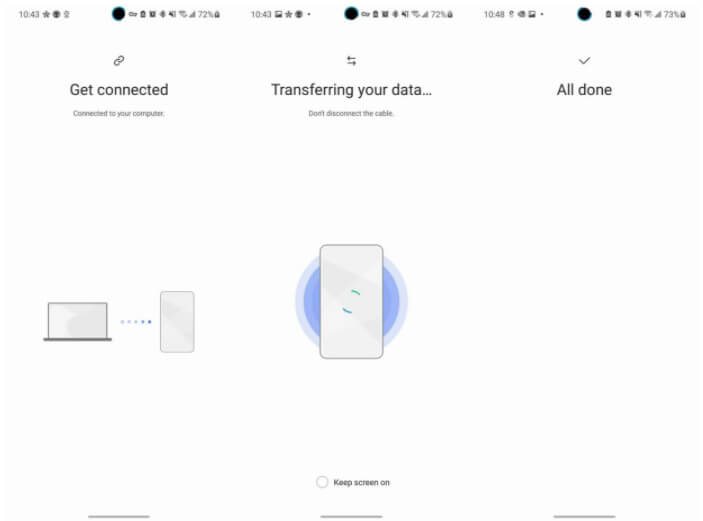
Step 4: When the backup is completed, you will receive a notification that all your data is successfully backed up. Lastly, click on OK button to finish the process.

Now, let us learn the solutions to restore Samsung Galaxy S21/S21 Plus/S21 Ultra using Samsung Smart Switch backup.
Steps To Restore Galaxy S21/S21+/S21 Ultra Via Smart Switch Backup
Step 1: First, open Samsung Smart Switch app on your computer that you have used to create backup and use USB to connect your Galaxy phone to it.
Step 2: Then click on “Restore” button on your computer.
Step 3: If you have created a backup of your Galaxy data previously and you want to restore that backup then you need to click on Select a different backup. But if you want to restore the recent backup then click on “Restore now”.

Step 4: Now, you will be asked to allow permissions on your Samsung Galaxy phone.
Step 5: When the backed-up file is transferring to your phone, you need to tap Allow to start the restoration process.

Step 6: Once the process is finished, you will receive a notification on your phone that the data has been restored. Click on OK to complete the restoration process.

Also Read: How To Recover Deleted Photos From Samsung Galaxy Phone?
Solution 4: Backup And Restore Galaxy S21/S21 Plus/S21 Ultra Data Using SHAREit
Every smartphone user is aware of SHAREit app which can be used to backup and restore Galaxy data by transferring the Galaxy data to the computer and when needed you can transfer it to your phone.
Follow, the below-mentioned steps to backup/share data from Galaxy S21/S21 Plus/S21 Ultra using SHAREit app.
Step 1: Install SHAREit app on both of your Galaxy phone and PC/Mac computer.
Step 2: Now, on your Galaxy phone, tap on Send button to find a Select Files page.
Step 3: After that select the data that you want to backup and then tap on “Next” option.

Step 4: Now, launch SHAREit on your computer and click on Receive button. The hit on Search Hotspot of Mobile option. Next, on your phone under Connect to PC, tap on PC Search Mobile option. Wait, then click the searched avatar to connect and start the transfer process.
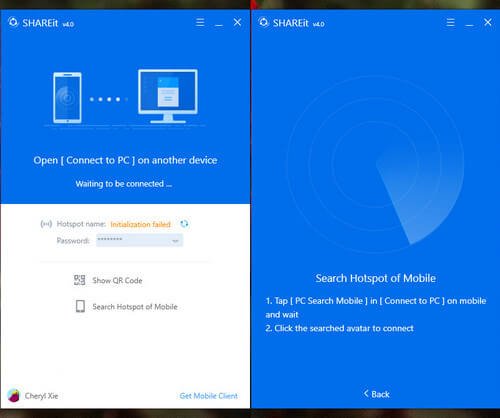
When you want to restore that backed-up data to your phone then you can easily restore the backup file to your Galaxy phone.
To restore Galaxy S21, S21 Plus or S21 Ultra from your computer to your Galaxy S21 series phone, you need to follow the same steps mentioned above. Only one thing you need to change, which is to select Send option on your computer and Receive option on your Galaxy phone.
Also Read: Transfer Data From An Android To Samsung Galaxy S10/S10+/S10e/Fold
Solution 5: Backup & Restore Galaxy S21/S21 Plus/S21 Ultra Using Google Drive
Google Drive provides 15GB of free storage space where you can backup photos, videos and documents of your Galaxy phone. And when you accidentally or due to any reason lost them, then at that time you can restore the backup to your phone.
Below, follow the steps to backup Galaxy S21, S21 Plus or S21 Ultra data with the help of Google Drive.
Steps To Backup Galaxy S21/S21 Plus/S21 Ultra Using Google Drive
Step 1: On your Galaxy phone download and install Google Drive app from Google Play Store.
Step 2: After the open the installed Google Drive app and log in to it with your Google account.
Step 3: Choose the photos, videos and documents that you wish to backup to Google Drive.
Step 4: Lastly sync the phone and all the selected files will be uploaded to Google Drive.
Next, learn the steps to restore Galaxy S21/S21 Plus/S21 Ultra from Google Drive backup.
Steps To Restore Galaxy S21/S21 Plus/S21 Ultra Via Google Drive Backup
Step 1: Open Google Drive app or you can visit Google Drive webpage in any browser.
Step 2: If needed, login to your Google account using the same ID and password.
Step 3: Once you successfully logged in, you will find all the backed-up data.
Step 4: Choose the desired data type and download them from there.
You May Also Like:
- How To Recover Deleted Data From Samsung Galaxy S10e/S10/S10+
- Fixed: Samsung Phone Stuck On Odin Mode
- Tips To Extend/Improve Samsung Galaxy Battery Life
- Samsung Galaxy S6 Contacts Disappeared? Here How To Recover!
Solution 6: Backup And Restore Galaxy S21/S21 Plus/S21 Ultra Via Android Backup & Restore Tool
Android Data Backup & Restore software helps you to backup and restore different types of data from your Galaxy phone such as messages, contacts, pictures, videos, audios, documents, etc. You can use this tool very easily to create a backup and while restoring the backup file.
The Samsung Data Backup & Restore tool allows you to backup and restore the whole files or if you can also selectively backup and restore your Galaxy data.
It also allows you to preview the backed-up data into the software’s preview screen so that you can easily find the correct file.
|
|
This Backup and Restore tool works on all models of Samsung Galaxy Phone such as Samsung Galaxy S20/S20 Plus/S2o Ultra/A12/A21 S/Note 3o/M31s/M11/F41/Galaxy Z Fold 2, etc. and also other Android phone models.
Follow, the complete steps to backup and restore Galaxy S21/S21 Plus/S21 Ultra Data using Samsung Data Backup & Restore software.
Wrap Up
Well, these are the 6 different solutions to backup and restore Samsung Galaxy S21/S21 Plus/S21 Ultra. If you want to backup and restore different file types without losing data then I would suggest you to use Android Data Backup & Restore software.
Please support us by subscribing to our YouTube Channel.

Max Field is a founder of Recover Android Data. He is an Android lover and loves to write tips, tricks, fixes for errors, data recovery solutions and more related to Android. Provide Gaming Tips, Tricks, Game Error/Issues Solutions (PC/Xbox/PlayStation/Mobile). He has 11+ years of experience in this field.