

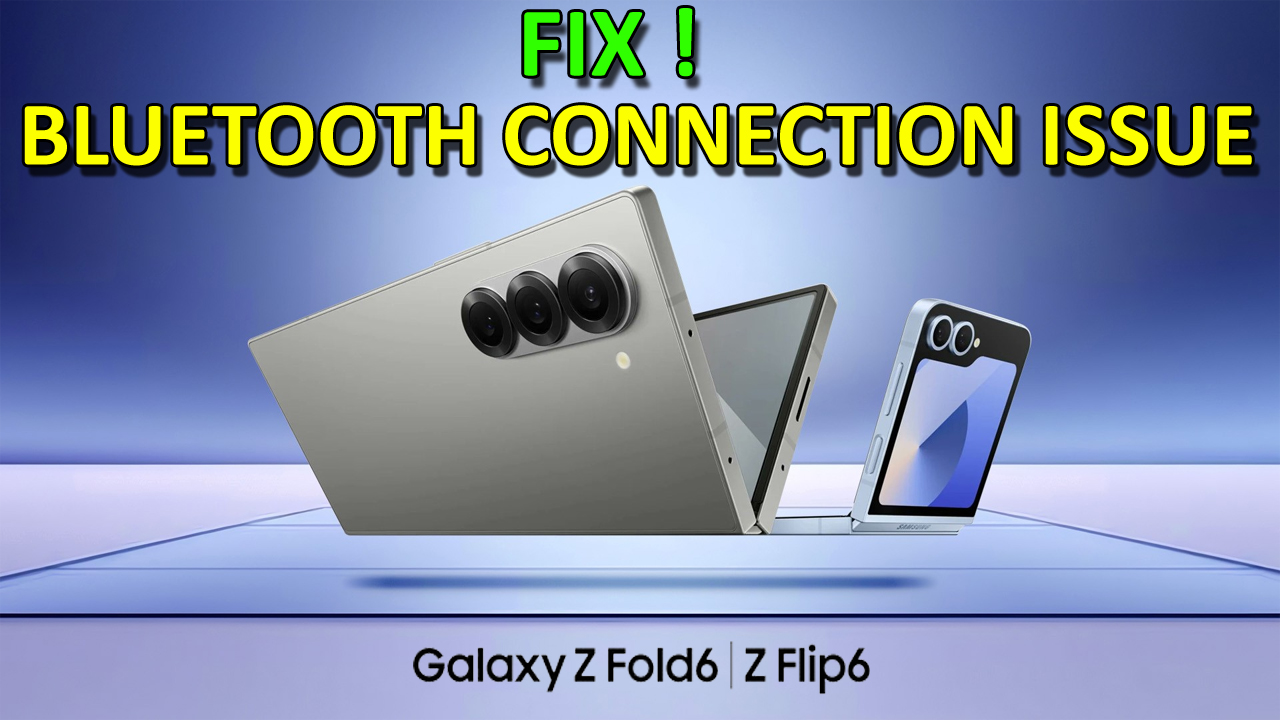
Are you having Bluetooth Connection issues on the Samsung Galaxy Z Fold 6/Flip 6?
With the recent launch of Samsung Galaxy Z Fold 6/Flip 6, many users are amazed by the features it possesses.
The great camera quality with AI zooming effect powered by ProVisual that gives you crystal clear images.
It has an upgraded NPU and the fastest processor among all the Galaxy smartphones. Isn’t it fascinating?
Well, it’s more fascinating if we study these smartphones even more deeply. But we are not going to discuss that deep about these phones in this context.
This article is prepared for people worrying about the Bluetooth connectivity issue on Galaxy Z Fold 6/Flip 6.
Recently, I was exploring through internet and I found tons of users complaining about their Bluetooth connection issues on Galaxy phones.
However, some fixes will potentially solve this issue and we are going to discuss those fixes one-by-one in this guide.
So, let us start the tutorial without wasting any time.
How To Fix Bluetooth Connection Issues on Samsung Galaxy Z Fold 6/Flip 6
Fix 1: Restart Your Samsung Device
The very first thing to do when you encounter Bluetooth connection issues on the Samsung Galaxy Z Fold 6/Flip 6 is to restart your device.
By restarting your device, you can get rid of any glitches or bugs that are causing the Bluetooth connection issue on your Samsung device.
So, you are suggested to restart your phone and attempt to connect with any Bluetooth device.
Fix 2: Update Your Samsung Phone
You don’t want to face the Bluetooth connection problem just because of outdated software, right? So, you should update your Samsung device’s software before it becomes a huge factor causing this issue.
After updating the firmware, try to reconnect the Bluetooth device and see if you can do so or not.
If not, you may read further to solve this issue.
Fix 3: Toggle Bluetooth Option
Another thing you can do to fix this problem is to turn OFF Bluetooth (If turned ON to connect) and wait for some time.
After waiting a couple of minutes, turn the Bluetooth option ON again.
By doing so, the interference between the connection of your device and Bluetooth will be eliminated and you can connect them without any obstacle.
Fix 4: Forget and Re-connect Bluetooth Device
If you have already connected to any Bluetooth device but still it isn’t working then try another method.
In this method, you have to disconnect the connection between your device and Bluetooth.
Here’s how you can disconnect the Bluetooth device:
- Go to the Settings on your Samsung phone.
- Navigate to the Connected devices > Bluetooth.
- Now, tap on the Settings (Gear icon) right next to the Bluetooth device you wish to forget.
- Lastly, tap on Forget or Unpair.
After doing so, you have to wait for some time and after that re-establish the connection between the two devices.
And make sure to connect with the correct Bluetooth device carefully without any mistakes.
Fix 5: Disconnect Another Bluetooth Device (If connected)
Maybe, you have already connected to another Bluetooth device other than the Bluetooth device you want to connect.
In such a case, you won’t be able to connect with the Bluetooth device you want to connect with unless you disconnect the connected device.
So, first, disconnect the unwanted Bluetooth device by following the steps given in the above fix.
After that connect your Samsung device with the wanted Bluetooth device.
Fix 6: Clear the Cache of The Bluetooth
If you are still unable to fix the issue despite the above fixes then try clearing the cache of the Bluetooth.
This will give a fresh beginning to your device’s Bluetooth.
Go through the steps to do so:
- Navigate to Settings on your Samsung phone.
- Tap on Apps > Sort icon (Down arrow) > Show system apps.
- Tap OK to see all the apps on your system.
- Next, tap on Bluetooth > Storage > Clear data > OK to clear the cache.
Now, you can connect with the Bluetooth device without any difficulty.
Fix 7: Boot Your Samsung Device into Safe Mode
It could also be possible that the third-party app that you have downloaded on your phone is the reason behind the Bluetooth connectivity issue.
To verify this, you should boot your Samsung Z Fold 6/Flip 6 into the Safe Mode.
Here you can learn How to boot into Safe Mode.
After booting into Safe Mode, connect to the Wi-Fi network. If you can connect to the Bluetooth device, it must be the third-party app(s) causing this problem.
So, uninstall the third-party app after exiting the Safe Mode. Restart your Samsung device to exit the Safe Mode.
Fix 8: Factory Reset Your Samsung Galaxy Z Fold 6/Flip 6
If any of the methods didn’t work for you then you should perform a Factory Reset on your phone.
Note: Before opting for this method, keep one thing in mind and that is to have a backup for your data as Factory Reset will delete all of the data from your device.
Here’s how to do a Factory Reset:
- Open Settings and tap on General Management > Reset.
- Tap on Factory data reset > Reset > Delete All > Confirm.
After the Factory Reset, try to connect with the Bluetooth device and check if it works.
Fix 9: Contact Samsung Support
Despite following all the fixes, if you are still dealing with the Bluetooth Connection issue on the Samsung Galaxy Z Fold 6/Flip 6. Then the only option you will be left with is to contact the smartphone manufacturers.
So, contact Samsung Support and explain to them what is the problem that you have been facing lately. They will guide you to take helpful steps through which you can fix the problem.
Wrap Up
Nowadays, almost everyone is using wireless Bluetooth devices such as Air pods, Earbuds, Headphones, Speakers, and many more.
To use these devices, you need to connect them via Bluetooth. But what if, you can’t connect any devices with your Samsung device?
It will be annoying, right? But, no worries because in this guide, you can learn the various ways to Fix Bluetooth Connection issues on Samsung Galaxy Z Fold 6/Flip 6.
So, do consider reading this article to help yourself. I hope you followed the steps completely and were able to fix the issue successfully.
You May Also Like:
- Fix Wi-Fi Connection Issues on Samsung Galaxy Z Fold 6/Flip 6
- How To Recover Deleted Data From Samsung Z Fold6/Z Flip6
- How To Wipe Cache Partition on Samsung Galaxy Z Fold 5
- How To Fix Samsung Galaxy Z Flip 5/Z Fold 5 Overheating Issues

Max Field is a founder of Recover Android Data. He is an Android lover and loves to write tips, tricks, fixes for errors, data recovery solutions and more related to Android.