
Several Discord users are facing various Voice connection issues and voice connection errors.
Instead of talking to their friends, they have been seen sitting and staring at the error.
There are different errors and issues that they are experiencing due to which they are failing to connect to voice.
In this guide, you will learn how to fix voice connection issues or voice connection errors in Discord.
Type of Voice Connection Errors or Issues
These types of voice connection errors and issues users are facing:
- RTC Connecting
- ICE Checking
- No Route
- Connecting
How To Fix Voice Connection Issues/Errors In Discord
Below are some of the solutions that can help you to fix Discord voice connection and errors.
Fix 1: Check Discord Server Status
Go to – https://discordstatus.com/.
Or go to Twitter page – https://twitter.com/Discord_Status.
If you find that its server status is down or having an outage, then you have to wait until it is fixed by Discord.
Fix 2. Restart Your Devices
Restarting the device can help you fix several issues because it gives a fresh start to the device.
So, restart your computer. Unplug it, wait for a few seconds and then turn it back on.
Fix 3. Check Your Internet Connection
Make sure there is no internet outage in your area.
Restart your Router and Modem. Unplug it, wait for a few seconds, and then plug it in.
Make sure you are connected to a properly working internet connection and is stable.
Do an online speed test. If you find it slow or weak, then contact your Internet Service Provider (ISP).
Fix 4. Temporarily Disable Firewall/Antivirus
Temporarily disable your Firewall or antivirus.
Make sure the Firewall is not blocking Discord. You can allowlist Discord to allow access.
Fix 5: Check Your VPN
Let me make it clear that Discord only works on VPNs that have UDP.
If you are connected to a VPN, then disconnect it.
If you are not connected to VPN, then connect to one and then check.
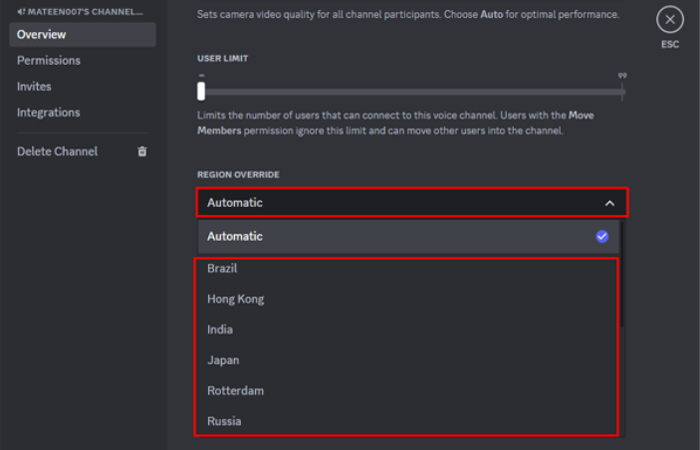
Fix 6: Change The Voice Region
If you are an Admin, then temporarily change the voice region.
Go to Voice Channel Settings > Overview > Region Override.
You can also change the voice region in private calls.
Fix 7. Contact Discord Support Team
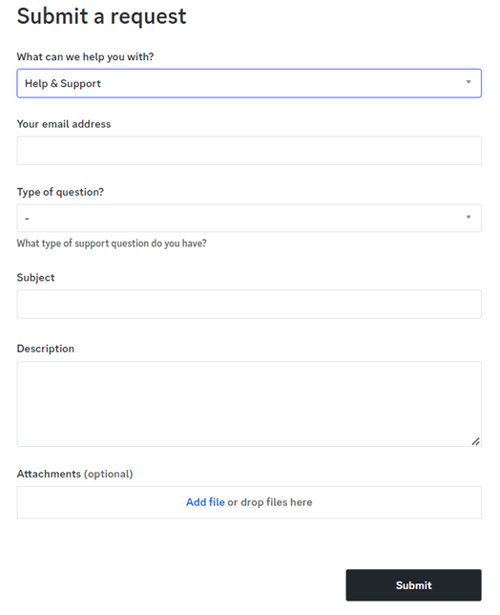
If all fixes fail, then you must contact Discord Support Team, here – https://dis.gd/support.
You need to provide a screenshot of your error and explain your issue.
Wait for the response from the Discord team.
Wrap Up
So, I hope that following the solutions mentioned in this article has helped you in fixing the voice connection issues/errors in Discord.
If you have found this article helpful, then please share it as it can help others!
Please support us by subscribing to our YouTube Channel.
You May Also Like:
- How To Fix Discord Mobile Stream Zoomed In
- Solved The Error “Sorry, You Have Been Blocked” on Discord
- How To Fix For The King 2 Multiplayer Not Working
- How To Fix Apex Legends Infinite Loading Screen (Spinning Circle)

Max Field is a founder of Recover Android Data. He is an Android lover and loves to write tips, tricks, fixes for errors, data recovery solutions and more related to Android. Provide Gaming Tips, Tricks, Game Error/Issues Solutions (PC/Xbox/PlayStation/Mobile). He has 11+ years of experience in this field.