
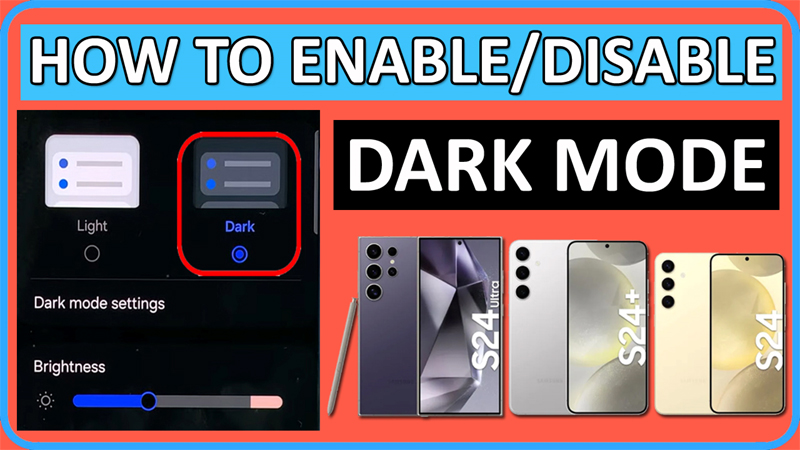
In This Article, You Will Learn How To Enable/Disable Dark Mode or Dark Theme on SAMSUNG Galaxy S24 Ultra, Samsung S24 Plus or Samsung S24.
Steps To Enable/Disable Dark Mode on SAMSUNG Galaxy S24 Ultra/S24 Plus/S24
Below, follow the steps on how turn on/off dark mode on SAMSUNG Galaxy S24 Ultra, S24 Plus or S24.
So, here we go!
Step 1: On your S24 device, go to Settings > Display.
Step 2: Tap on “Dark” option to enable Dark Mode/Theme on your device.
That is how, you can turn on Dark mode.
Step 3: Tap on “Light” option to disable Dark Mode/Theme on your S24 device.
That is how, you can turn off or disable Dark mode.
That’s It.
If you have found this post helpful, then please share it as it can help other users!
Please support us by subscribing to our YouTube Channel.
You May Also Like:
- How To Fix WiFi Issues on Samsung S24 Ultra/S24 Plus or S24
- Fix Overheating on Samsung Galaxy S24/S24 Plus/S24 Ultra
- How To Share WiFi Password on Samsung S24 Ultra/S24 Plus/S24

Max Field is a founder of Recover Android Data. He is an Android lover and loves to write tips, tricks, fixes for errors, data recovery solutions and more related to Android. Provide Gaming Tips, Tricks, Game Error/Issues Solutions (PC/Xbox/PlayStation/Mobile). He has 11+ years of experience in this field.