

Follow Effective and Working Solutions To Fix Android Haptic (Vibration) Feedback Not Working!
Overview: Is your Android Keyboard haptic feedback not working? Are you looking for a solution to solve this problem? Well, you have landed on the right webpage. Here you will find effective solutions to fix haptic feedback not working on Android when typing.
So, let’s begin with the real user practical scenarios!
Practical Scenario 1: Haptic Feedback Not Working On Pixel 5 After Android 13 Update
Practical Scenario 2: Haptic Feedback Not Working On Samsung Keyboard
Those were two examples.
Now, the question is – Why haptic feedback stops working?
Well, find out the reasons by yourself!
Also Read: What To Do When Samsung Touch Screen Not Working After Update
Reasons: Why Haptic Feedback Not Working On Android?
One of the most common causes could be the bugs in the third-party keyboard apps.
If there is a bug in the Android OS, then it can easily cause you to encounter haptic feedback not working on Android device.
On the other hand, if you have purchased a second-hand phone from someone and the earlier owner have disabled the haptic feedback on the keyboard, then you will not be able to feel it.
Besides, these two causes, there can be several other reasons.
Anyway, let’s find out the solutions to fix haptic feedback not working on Android.
Video Tutorial: How To Fix Haptic Feedback Not Working On Android
Solution 1: Turn On Haptic Feedback For Gboard
If Haptic feedback for Gboard is disabled, then you have to enable it. Also, check if you have accidentally disabled this feature.
Well, not to worry! Simply follow the steps below to turn on the feature.
- On your phone, go to Settings> System> Language & Input.
- Tap on “Virtual keyboard/Onscreen keyboard”.
- Here, select the Gboard.
- Tap on Preferences. Now, turn ON the switch next to “Haptic feedback on keypress”.
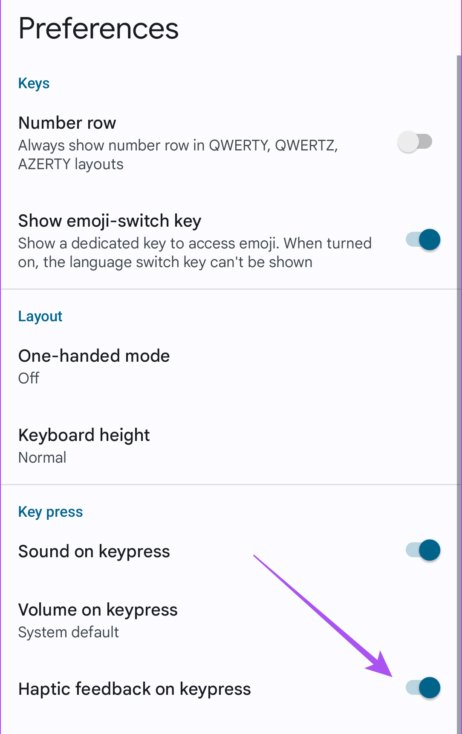
There is also another option “Vibration Strength on the Keypress”. You can keep this option as “System default” or you can increase it as per your need. It defines the intensity of the vibration when you type a key on the on-screen keyboard.
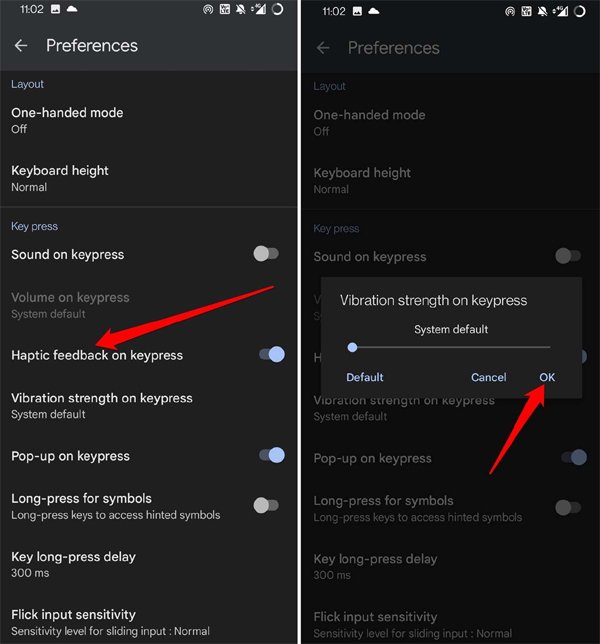
If you are using any other keyboard, other than Gboard, even then also you can repeat the same steps mentioned above.
Also Read: How To Fix Unresponsive Touch Screen Issues Of Android
Solution 2: Update The Keyboard App
It doesn’t matter whichever keyboard app you are using currently, if you do not see the haptic feedback, then look for the update for the app.
Maybe updating the app can solve the haptic feedback not working on Android.
- Open Play Store> tap on the Profile.
- Tap on “Manage Apps & Device” and then tap on “Updates Available”.

- Now from the list for app waiting to be updated, look for Gboard app. If there is an update available, then kindly update.
Solution 3: Update Your Android OS
Outdated Android OS can have bugs. So, as intelligent users, it is your duty to watch out for system updates regularly that is released by Google and your phone manufacturer.
Simply download and install the system update in order to prevent any bugs or glitches that can cause apps like Gboard to not work properly.
Here how to update phone system OS.
Note: Make sure your Android is connected to mobile data or Wifi.
- On your phone, go to Settings> System> System Update.
- Tap on “Check for update”.
- Thereafter, simply follow the on-screen steps to simply install the update.
You May Also Like:
- What Is Bixby Routines & How To Use It On Samsung Phone
- How To Fix Phone Camera Making Buzzing Noise
- [Solved] Wireless Charging Not Working After Android 13 Update
- Android 13 Bluetooth Not Working – Fix Connection, Pairing, Reconnect Issue
Solution 4: Turn On Touch Vibration
Similar to the Haptic Keyboard for the Gboard, you also have to see whether the Touch Vibration for your Android phone is turned on or not.
Here, follow the steps to check and enable it.
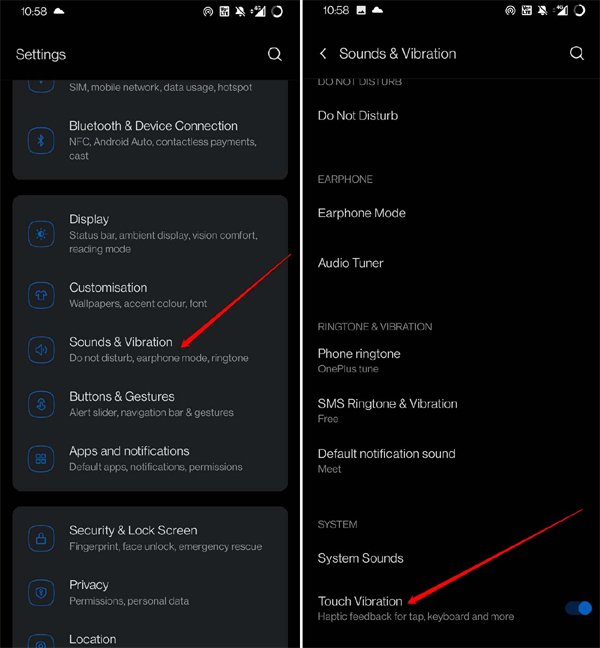
- On your phone, go to Settings> Sounds & Vibration.
- Now, see the button next to “Touch Vibration” is enabled. If it is not then Turn It ON. At the time as you turn on the feature, you will feel the haptic feedback.
Solution 5: Reset All Settings
Sometimes resetting all the settings can fix the issue. It might fix your problem of haptic feedback not working on Android.
System Settings can be modified by any of the third-party apps or by itself, unknowingly.
Luckily, all of these issues can be fixed one-click. Simply, Reset All Settings in order to change the settings back to default.
Here follow the steps to reset all Settings.
- On your phone, go to Settings app > General management> Reset> Reset all settings.
Also Read: Fix Picture/Video Distortion Issue From A Samsung Phone’s Camera
Solution 6: Change To A Different Keyboard
If you are still facing the same issue, then you can change to another keyboard.
You can either use Google Keyboard or Samsung Keyboard. Below, follow the steps to change default keyboard.
- On your phone, go to Settings> System > Languages & input.
- Tap on-screen keyboard.
- Toggle On the keyboard that you want to use and Toggle OFF the default one.
- Finally, tap on “OK” when prompted.
Additional Quick Fixes:
- Restart your phone.
- Make sure battery saver or battery optimization is not enabled.
- Check if it is working in safe mode or not. If it is working in Safe mode, then maybe any third-party app is interfering. Simply uninstall the interference apps.
- The last thing you should do is to factory reset your device and see if this fixes it or not.
Also Read: Microphone Not Working On Snapchat? Here How To Fix!
Frequently Asked Questions [FAQs]
Answer 1 – Well, there are few examples, where users reported that Haptic Feedback is not working for Snapchat, IMO, Viber, WhatsApp Messages app or any other apps. Well, in that case, make sure that the specific app is up-to-date and if that doesn’t fix your issue, then simply uninstall and re-install the app.
Answer 2 – It’s very simple to switch on the Haptic feedback on Android.
Answer 3 – In order to turn on the haptic feedback on Samsung keyboard follow the below steps:
Wrap Up
Most users get habituated to feel the haptic vibration while they type. And if your haptic feedback has stopped working on your Android device, then simply follow the solutions provided in this guide to fix the haptic feedback not working on Android as quickly as possible.
Please support us by subscribing to our YouTube Channel.

Max Field is a founder of Recover Android Data. He is an Android lover and loves to write tips, tricks, fixes for errors, data recovery solutions and more related to Android. Provide Gaming Tips, Tricks, Game Error/Issues Solutions (PC/Xbox/PlayStation/Mobile). He has 11+ years of experience in this field.