
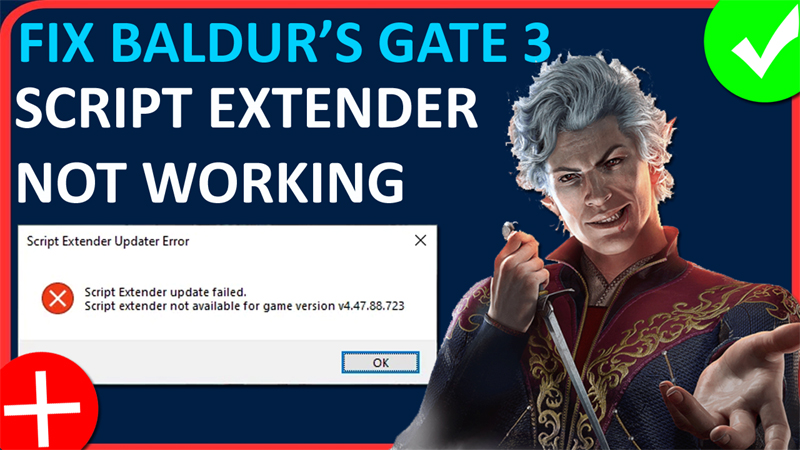

In This Article, You Will Learn How To Fix Baldur’s Gate 3 (BG3) Script Extender Not Working. With These Steps, You Can Easily Fix BG3 Script Extender Not Working Issue.
These Fixes Also Apply To Fix BG3 Script Extender Update Failed or Script Extender Update Error: Script Extender Not Available In Baldur’s Gate 3.
Steps To Fix BG3 Script Extender Not Working Issue
You have to download previous bin files using the Steam console. So, here how to do it.
Step 1: Press “Windows + R” to open “RUN” box.
Step 2: In RUN box, type “steam://open/console” and hit ENTER. It will then open the Steam Console.
Step 3: In the Steam Console, enter the following command:
download_depot 1086940 1419652 8231067205656009020 [] []
Step 4: It will download the previous unbroken exe files. Just copy and paste them into BG3 bin folder, and everything will work.
BG3 Bin folder can be found here – C:\Program Files (x86)\Steam\steamapps\common\Baldurs Gate 3\bin
Check For Game Update
If that doesn’t fix the issue, then check for Game updates or patches.
If any are available then download and update your game and then check problem is solved or not.
If you have found this post helpful, then please share it as it can help other users!
Please support us by subscribing to our YouTube Channel.
You May Also Like:
- How To Fix Steam “Captcha Not Working” Error
- How To Fix Steam Games Not Launching
- Fix Tomb Raider I-III Remastered Not Launching or Not Loading On PC
- How To Fix Helldivers 2 Not Launching or Won’t Launch on PC

Max Field is a founder of Recover Android Data. He is an Android lover and loves to write tips, tricks, fixes for errors, data recovery solutions and more related to Android. Provide Gaming Tips, Tricks, Game Error/Issues Solutions (PC/Xbox/PlayStation/Mobile). He has 11+ years of experience in this field.