

Google Map has many great features and Rerouting feature is one of them. But many iPhone and Android users report that the Google map keeps changing the original route without any input or cause. Well, the most common cause is Google Maps not able to calculate your exact location properly and rerouting the correct location.
- Solution 1 – Check Your Device Internet Connection
- Solution 2 – Recalibrate Compass
- Solution 3 – Update Google Maps App & Phone Operating System
- Solution 4 – Enable Google Location Accuracy (For Android)
- Solution 5 – Enable Precise Location Feature For Google Map
- Solution 6 – Shift To Offline Maps
- Solution 7 – Clear Google Maps App Cache File (For Android)
- Solution 8 – Download Alternative Maps Of Google Maps
If you are also facing the rerouting problem on your iPhone and Android. Don’t worry! In this article you will learn how to fix Google Maps keeps rerouting on Android or iPhone. We provided some effective solutions to stop Google Maps from rerouting on Android or iPhone.
Before going to the solutions, let’s check out what are the causes of Google Maps keeps rerouting on iPhone and Android.
Causes of Google Map Rerouting Issue
These are the common causes of the rerouting problem: –
- Due to an out-of-date software version.
- An out-of-date or corrupted app can also cause the issue.
- Changes in the device system settings.
These are the common causes of the rerouting issue. Let’s move to the solutions to stop Google Maps from keep rerouting on Android or iPhone.
Also Read: How To Import Birthdays From Facebook To Google Calendar
Video Guide: Fix Google Maps Keeps Rerouting on Android and iPhone
Solution 1 – Check Your Device Internet Connection
Google Maps needs your mobile internet to work properly. It might be your unsteady mobile internet causing the rerouting problem on your Android or iPhone. So, make sure your phone’s internet speed is not causing the rerouting issue. If your mobile internet works perfectly and not causing the issue, then move to the other solution to fix the rerouting issue on your iPhone or Android.
Solution 2 – Recalibrate Compass
Google Maps use the magnetometer sensor on your device to calculate your directions. But, if the magnetometer sensor does not work properly, then Google Maps can reroute you in the wrong direction. Follow the below-mentioned steps to fix the rerouting problem on your phone.
For iPhone users,
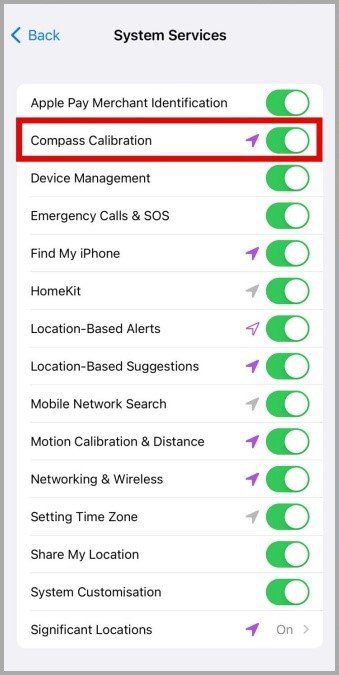
- Navigate to Settings and tap on Privacy.
- Select Location Services, then tap on System Preferences.
- Press on Switch, located next to the Compass Calibration.
For Android Users,
- Open Google Maps and tap on Blue Dot located at the center.
- Select Calibrate, at the last tap on Done.

Also Read: (Solved) “Unfortunately, Google Play Services Has Stopped” On Android
Solution 3 – Update Google Maps App & Phone Operating System
An out-of-date Google Maps app or software version can also cause the rerouting problem on Android and iPhone. So, it’s better to update the Google Maps app and software version. Check if the updates are available, then update to the latest version. Here are the steps to follow.
To Update Google Maps App On Android,
- Navigate to the Google Play Store, then simply search Google Maps.
- Now, simply tap on Green Update button.
To Update Software Version On Android,
- Open Settings and tap on Software Update.
- Now, tap on Download & Install.
To Update Google Maps App On iPhone,
- Open App Store, then simply search Google Maps.
- Now, simply tap on the Update option, if the update is available.
To Update Software Version On iPhone,
- Navigate to Settings and tap on General.
- Choose Software Update, then tap on Download & Install.
After the completion of the procedure, simply open Google Maps and check whether the issue is fixed or not. If the problem still exists, then move to the other solution.
Also Read: Google Calendar Not Syncing With Android? Here Is The Fix!
Solution 4 – Enable Google Location Accuracy (For Android)
If you are an Android user and facing a rerouting problem on your Android phone, then enabling Google Location Accuracy is the best solution to stop Google Maps from rerouting. Because it permits your device to use nearby signals of the cell towers and Wi-Fi networks to calculate your location accurately. Follow the below-mentioned steps to enable Google Location Accuracy.
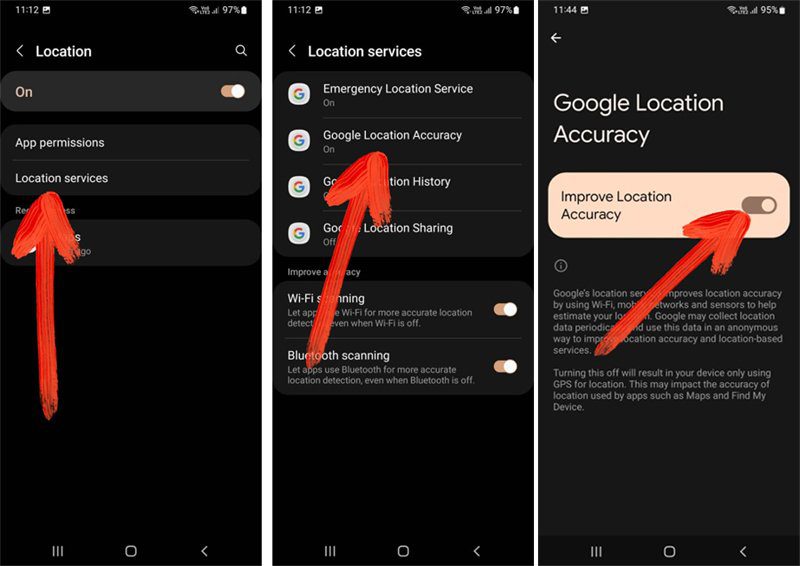
- Open Settings and tap on Location.
- Navigate to Location Services, then tap on Google Location Accuracy.
- Now, simply turn on the toggle located next to Improve Location Accuracy.
After the completion of the procedure, check whether the Google Maps rerouting issue is solved or not. If the issue still exists, then move to another solution.
Also Read: How To Fix Google Pixel 6/6 Pro Screen Wakes Up Automatically/Randomly
Solution 5 – Enable Precise Location Feature For Google Map
If the rerouting problem still exists and not going away, then try to enable Precise Location feature from the Google Maps. It can increase the performance and track your location perfectly and precisely. But the Precise Location feature only supports for Android phones using Android 12 version or higher version and iPhone running with iOS 14 or higher OS. These are the steps to follow.
For Android Users,
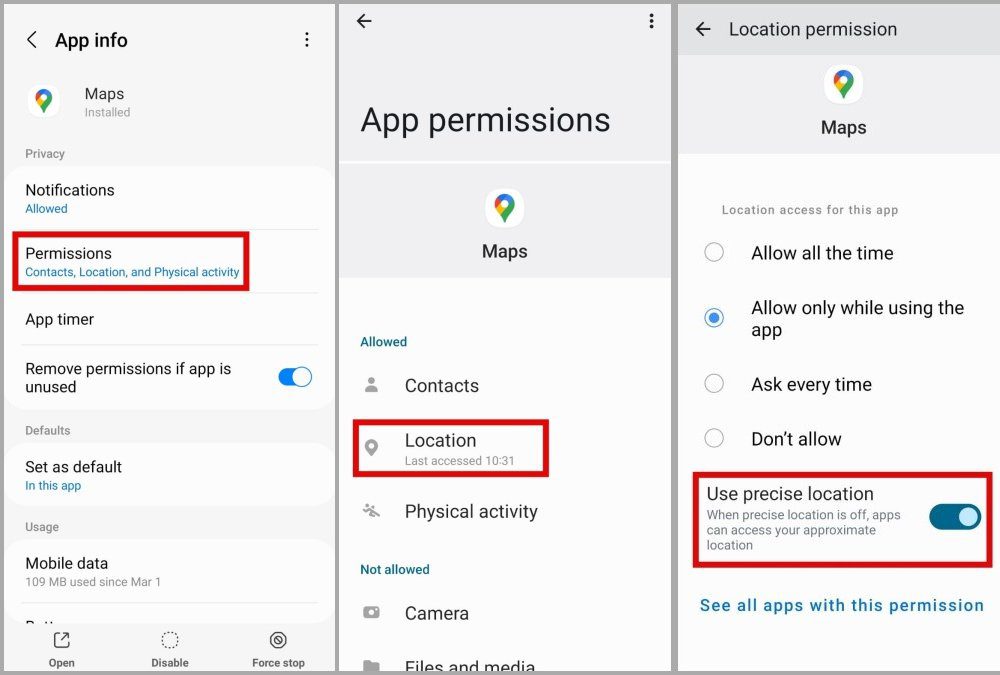
- Press and hold the Google Maps icon until the pop-up appears, then simply tap on the Info (i) Icon.
- Select Permissions, then simply tap on Location.
- Put the toggle to the on position located beside Use Precise Location.
For iPhone Users,
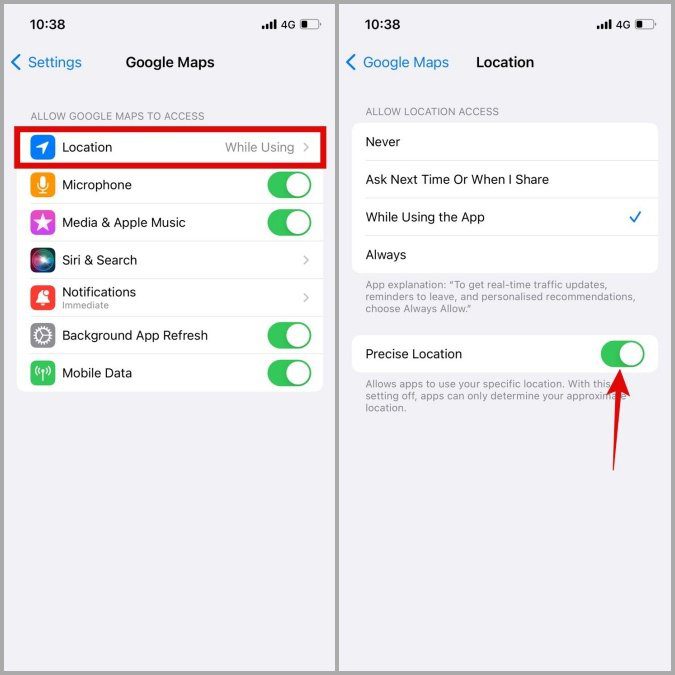
- Navigate to Settings and tap on Google Maps.
- Go to Location and turn on the Precise Location.
After the completion of the process, always check whether the problem is solved or not. It might not be a beneficial outcome for some users, for them, moving to the other solution would be better.
Also Read: Google Contacts Not Syncing On Android? Here’s How To Fix!
Solution 6 – Shift To Offline Maps
Well, you can download an offline map from Google Maps. Google Maps allows you to download an offline map for your desired location. You can use the offline map without using your mobile data, then you will not encounter the rerouting problem. So, it’s better to download and use the offline map for your desired location. These are the steps to download an offline map for your route.
- Go to the Google Maps.
- Now, search for the desired location, you want to download.
- When the location appears, then swipe up on the screen.
- Select 3 Dots symbol present on the top-right corner of your phone screen.
- Now, simply tap on Download Offline Maps > Download.
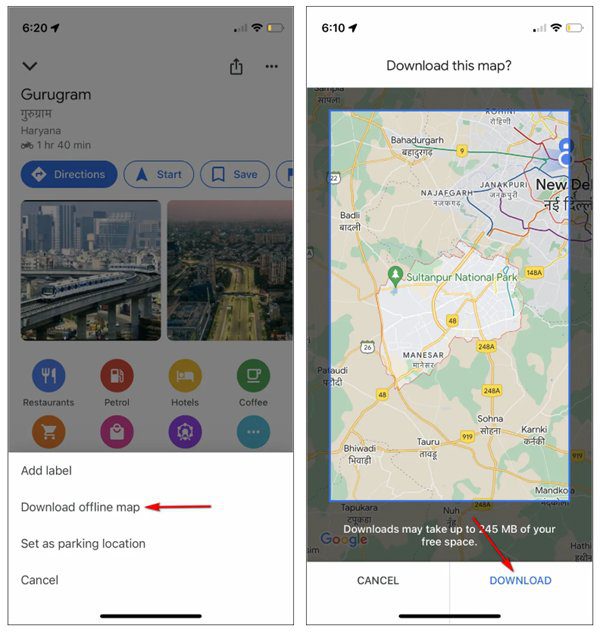
After downloading the offline map, search any place and route within the area without using your mobile internet.
Solution 7 – Clear Google Maps App Cache File (For Android)
The cache file helps the app to run faster and better. If the cache file gets corrupted, then it might be the cache file causing the rerouting problem on iPhone or Android. So, it’s better to clear the cache file of Google Maps app. It can clear the corrupted cache file and restart with a new cache file. These are the steps to clear the cache file of Google Maps app.
- Tap and hold the Google Maps icon to bring the App Info pop-up.
- Go to Storage and tap on Clear Cache.
Solution 8 – Download Alternative Maps Of Google Maps
If the above-mentioned solutions may not help you to fix the rerouting issue on your Android or iPhone, and the issue still exists and not going away, then try to download alternative maps of Google Maps.
Wrap Up
Google Maps is one of the most helpful apps for navigation. But sometimes, it can also cause such issues as rerouting. Well, this is the complete guide on how to fix Google Maps keeps rerouting on Android, iPhone. You can follow the effective solution one by one to fix Google Maps keeps rerouting on iPhone or Android.
Please support us by subscribing to our YouTube Channel.
If you find this article helpful, then share it, as it can help others.

Max Field is a founder of Recover Android Data. He is an Android lover and loves to write tips, tricks, fixes for errors, data recovery solutions and more related to Android. Provide Gaming Tips, Tricks, Game Error/Issues Solutions (PC/Xbox/PlayStation/Mobile). He has 11+ years of experience in this field.