
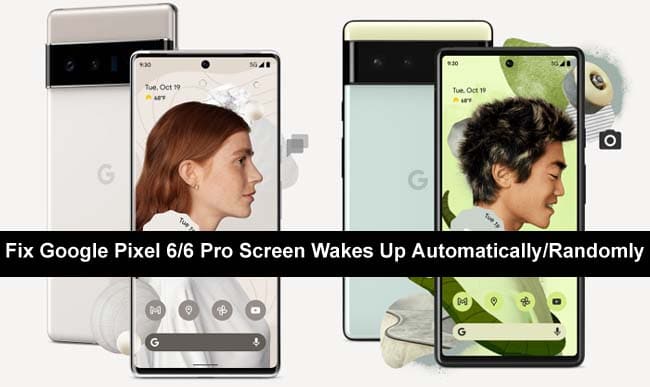
Learn 10 Effective And Working Solutions On How To Fix Google Pixel 6 And Google Pixel 6 Pro Screen Waking Up Automatically/Randomly!
Have you bought Google Pixel 6 or 6 Pro? Everything is functioning well but the phone’s screen is waking up randomly. There will be no problem if it wakes up if any notification comes. You are irritated and wanted to fix it. But you don’t know how to do it. Keep Calm! In the tutorial, you will learn 10 effective fixes for Google Pixel 6/6 Pro screen wakes up automatically/randomly.
- Solution 1: Restart Your Google Pixel 6/6 Pro
- Solution 2: Turn Off Wake Lock Screen For Notification
- Solution 3: Remove Phone Cover/Case
- Solution 4: Disable Fingerprint Unlocking
- Solution 5: Run ADB Command
- Solution 6: Put Google Pixel 6/6 Pro In Safe Mode
- Solution 7: Update Your Google Pixel 6/6 Pro
- Solution 8: Check NFC Settings And Debit Cards
- Solution 9: Disable Ambient Display
- Solution 10: Repair Your Phone
Before we begin the solutions to fix Google Pixel 6 (Pro) screen flickering issue. Let us first look at a real user practical scenario below.
Practical Scenario: A Google Pixel 6/6 Pro User Is Asking Solutions To Fix Screen Wakes Up Automatically Issue
My Google Pixel 6 pro screen wakes up even though I’ve turned off “Always on display”, “tap to wake” and “lift to wake” I have been through all possible settings. So far I had no luck. Every time I nudge/move anything surrounding the device like when placing something on the table, the phone display would show up. Is there a solution? If not there needs to be a settings toggle for this to be optional for users. It’s sometimes disruptive when working especially when theres no notification to prompt it.
Thanks!
Source: Google Help
So, like the above practical example, there are other Google Pixel 6 or 6 Pro users who are going through the same problem and finding solutions to fix it.
Also Read: Solutions To Recover Deleted Data From Google Pixel 6/6 Pro
Video Guide: Fix Google Pixel 6/6 Pro Screen Wakes Up Automatically/Randomly
Solution 1: Restart Your Google Pixel 6/6 Pro
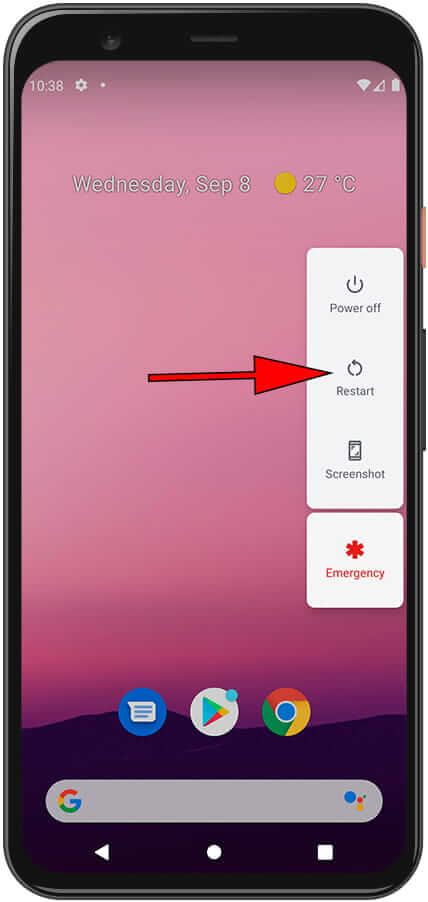
The first and most simple way to fix this issue is to restart your Google Pixel phone. Doing this will fix any bugs due to which your phone’s screen is waking up randomly.
To restart your Google Pixel 6/6 Pro, press and hold both Power and Volume Up keys simultaneously. Then, you will find various options on the screen. From there, tap on Restart option.
Solution 2: Turn Off Wake Lock Screen For Notification
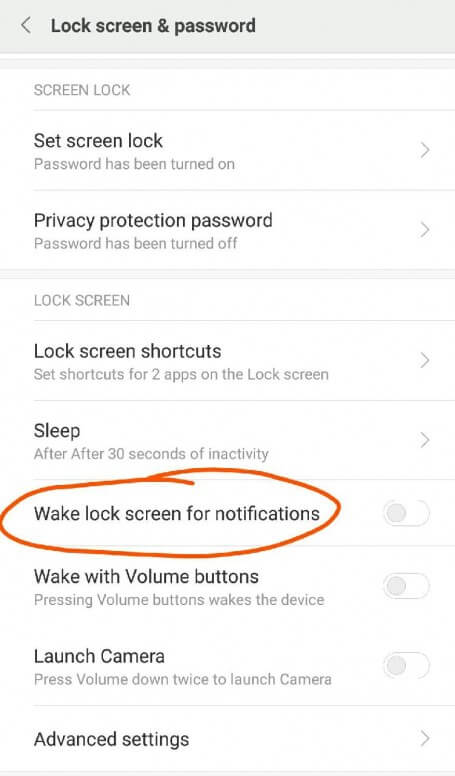
If you have enabled “Wake screen for notifications” feature then this can also cause your phone’s screen to wake up. So, to fix this you can disable this feature.
Follow the below steps to disable “Wake screen for notification” on Google Pixel 6 or 6 Pro.
Step 1: On your Pixel phone, go to Settings app.
Step 2: Then scroll down and tap on Display.
Step 3: Now, tap on Lock screen.
Step 4: Then you will see the Wake lock screen for notifications option, toggle the switch to off position to disable the feature.
Also Read: How To Get Pictures Off A Phone With A Black Screen On Android
Solution 3: Remove Phone Cover/Case
It is possible that your phone case is touching the phone’s screen and due to this your device’s screen wakes up randomly. Sometimes it also happens if the phone cover is too hard. If this is the case, then you need to remove the phone’s cover and then check the issue is fixed or not.
If it solved the issue then it is clear that your phone cover is the culprit and you need to change your phone cover.
Solution 4: Disable Fingerprint Unlocking
There are lots of users who use fingerprint locks to keep their phones secure from unauthorized access.
If you have also locked your phone using fingerprint lock then this can also cause screen waking issues on your Pixel 6/6 Pro.
So, in order to fix it, you need to disable the fingerprint lock on your phone. You can lock your phone using pattern, password or PIN.
Now, check the issue is fixed or not. If not then move to the next method.
Solution 5: Run ADB Command
If you don’t like to lock your phone without a fingerprint then you can run an ADB (Android Debug Bridge) command on your Pixel 6 (Pro) phone. For doing this, you need a computer.
You have to set up your phone and computer. For that, you can read the complete guide on ADB setup from XDA Developers. Once you set up ADB, run the following command – adb shell settings put secure doze_quick_pickup_gesture 0
Solution 6: Put Google Pixel 6/6 Pro In Safe Mode
If there are some apps that contain bugs then your Google Pixel or Android screen wakes up by itself. So, to check this you can enter your phone into safe mode. This will disable all the third-party apps except the preinstalled apps.
Below, follow the steps to boot your Google Pixel 6/6 Pro into safe mode.
Step 1: On your Pixel phone, press and hold the Power key.
Step 2: Now, you will get different options on the screen, tap on Power Off option and hold it until you get the safe mode pop-up.
Step 3: Tap on OK to allow your device to enter safe mode.

Once your phone boot into safe mode, you will see the safe mode test in the bottom left corner of the screen.
Now, see if this fixes the issue. If it fixes, then any third-party faulty app is creating the issue. Simply uninstall the faulty app.
Also Read: Samsung S10 Screen Rotation Not Working
Solution 7: Update Your Google Pixel 6/6 Pro
If you are running your phone in an older version of OS when the new update is available then your phone screen turns on by itself.
Thus, you need to check the update of your Android OS and if it is available then update it immediately to stop your phone from turning on by itself.
Here are the steps to update your smartphone.
Step 1: Tap on Settings app from the Home screen to open it.
Step 2: Then, hit on System option and then on System update.
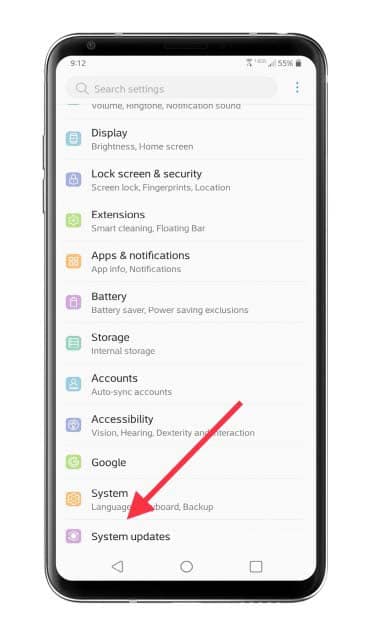
Step 3: Next, tap on Check for update option.
Step 4: If there is any new version of OS is available for your Google Pixel phone then simply download and install it.
Once the installing process is completed, reboot your device and check your phone randomly wake up or not.
Solution 8: Check NFC Settings And Debit Cards
If you have enabled NFC (Near Field Communication) settings and have a habit to keep your credit/debit cards inside the back cover of your phone then your smartphone’s screen turns on randomly.
When the NFC settings are enabled on your phone and the debit or credit card is on the back of the cover then your phone will try to read your card and make the connection. Therefore, you are advised to remove the cards and turn off NFC settings on your phone.
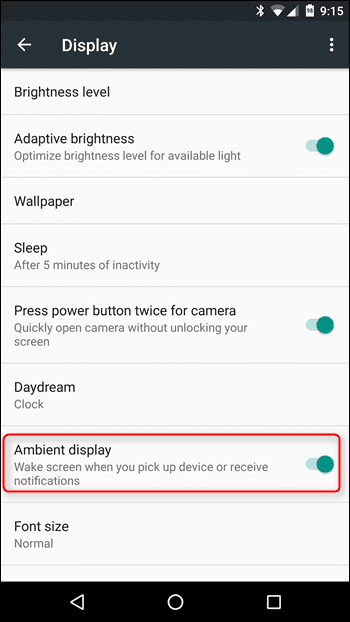
Solution 9: Disable Ambient Display
You can also disable the Ambient display to fix screen wakes up automatically issue on Google Pixel phone.
Here, follow the simple steps to disable Ambient feature.
Step 1: Open Settings app on your Pixel 6/6 Pro phone.
Step 2: Now, find and tap on “Display” option.
Step 3: Then scroll down and you will find “Ambient Display” toggle.
Step 4: Toggle the slider to the off position.
Also Read: How To Fix Unresponsive Touch Screen Issues Of Android
Solution 10: Repair Your Phone
If you are unable to fix Google Pixel 6 or 6 Pro screen wakes up randomly/automatically then there is a higher possibility that a faulty or damaged hardware component is responsible for it. Therefore, you need to visit the official service center or nearest repair center and repair your phone.
Simply visit the service center and tell them the issue you are facing on your Pixel phone. They will check it and if there is any hardware damage then they will fix it for you.
Wrap Up
I know when your phone wakes up randomly then it irritates you very much and you want to fix it as far as possible. In this regard, we have collected 10 different and effective fixes for Google Pixel 6/6 Pro screen wakes up automatically/randomly.
We hope the solutions we’re able to fix the phone screen turns on repeatedly issue.
Please support us by subscribing to our YouTube Channel.

Max Field is a founder of Recover Android Data. He is an Android lover and loves to write tips, tricks, fixes for errors, data recovery solutions and more related to Android. Provide Gaming Tips, Tricks, Game Error/Issues Solutions (PC/Xbox/PlayStation/Mobile). He has 11+ years of experience in this field.