

Are you receiving an error message “Unfortunately, Google Play Services has stopped” on your Android phone or tablet? If Yes, and you are looking for solutions to fix it then you have landed on the right web page. In this troubleshooting guide, I will share some easy and proven solutions to fix “Unfortunately, Google Play Services has stopped” on Android.
- Basic Tips To Troubleshoot Google Play Services Has Stopped On Android
- Solution 1: Clear Cache Of Google Play Services App
- Solution 2: Uninstall Google Play Services Updates
- Solution 3: Disable Google Play Services
- Solution 4: Wipe Cache Partition
- Solution 5: Downgrade Google Play Store
- Solution 6: Disable And Re-Enable Google Chrome
- Solution 7: Remove And Re-Add Google Account
- Solution 8: Use Android Repair Tool To Fix Google Play Service Has Stopped On Android
- Solution 9: Factory Reset
 Expert Tip: The best and easy method to fix error “Unfortunately, Google Play Services has stopped” on Android is to use Android Repair tool.
With the help of Android System Repair software, one can:
- Easily solved error “Unfortunately, Google Play Services has stopped” on Android.
- Also, fix multiple types of Android errors such as black screen, stuck in bootloop, system crash, apps keep crashing, etc.
- Available for all models of Samsung phones and tablets.
- 100% safe, secure, and read-only program.
Free Download Trial Version/Buy Now Android Repair Tool To Fix “Unfortunately, Google Play Services Has Stopped” On Android!
 |
 |
Now, we will first check out a real user practical scenario.
Practical Scenario: An Android User Experiencing This Error 50 Times A Day “Unfortunately, Google Play Services Has Stopped”
I have been experiencing this error (usually about 50 times a day!!) since the last update. All my apps, OS and security are up to date. I have tried looking for options to fix it. All the android sites say to for to Settings -> App -> google Play service and use the Force stop and clear the cache. My force stop is greyed out so it doesn’t seem to be an option.
The error has a “report” option but I gave up on reporting….any suggestions would be appreciated…makes me crazy especially at night when it pops up in front of my alarm clock to brighten the whole room….ugh!
PS …I did try searching this forum and didn’t seem to find anyone else posting the same question so yeah me 😛
Source: BlackBerry Forums
Also Read: Solved: There Was A Problem Communicating With Google Servers
Why Do You Get Error “Unfortunately, Google Play Services Has Stopped” On Android?
You can get this issue on your device due to various causes that are mentioned below:
- If you have turned off Download Manager.
- When you make some changes in the OS settings.
- If you are using an older version of Google Play Services and Google Play Store.
- If your device has lack of storage space.
- When you have set wrong date and time on your phone.
- If your internet connection is not working fine.
- If the latest version of Google Play Services has some bugs and glitches.
- Corrupted cache data of Google Play Services app.
Once you know why your device sends this error message, now it’s time to fix it.
So, first I will show you some basic tips that you should follow first and then move to other solutions to fix error “Unfortunately, Google Play Services has stopped” on Android, mentioned in this article.
Basic Tips To Troubleshoot Google Play Services Has Stopped On Android
- Restart your Android phone or tablet.
- Make sure there is no problem with your internet connection.
- Update your Android OS to the latest version.
- Eject and re-insert SD memory card.
- Reset all app preferences by going to Settings > Application Manager > All > Menu > Reset App Preferences. Then restart your device.
- Update all apps on your phone.
- Check storage space on your phone.
- Update Google Play Services app from Google Play Store.
- Ensure date and time are correct.
- Log out and login to your Google account.
First, use these tips and if they failed to solve the issue then move to the below solutions.
Also Read: Here How To Fix Outlook Keeps Stopping On Android
Video Guide: Fix Unfortunately Google Play Services Has Stopped On Android
Solution 1: Clear Cache Of Google Play Services App
Every app stores cache file to reduce load time but sometimes these cache data gets corrupted and result this type of error. So, to fix it, you need to clear the cache of Google Play Services.
Here, follow the steps to do this.
Step 1: Go to Settings > Apps.
Step 2: Scroll down and tap on Google Play Services app.
Step 3: Then tap on Clear Cache button.
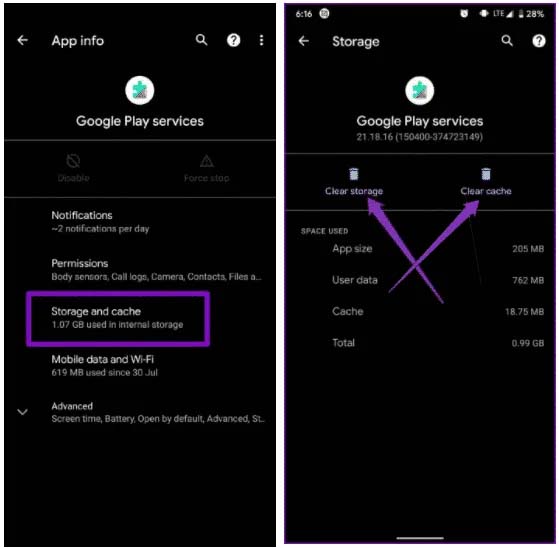
Now, follow the same steps to clear cache of Google Service Firmware, Google Play Store, and Download Manager.
Solution 2: Uninstall Google Play Services Updates
It is possible that the current update of the app has some bugs and due to this, you are facing this error. In this case, you need to uninstall the update for the app.
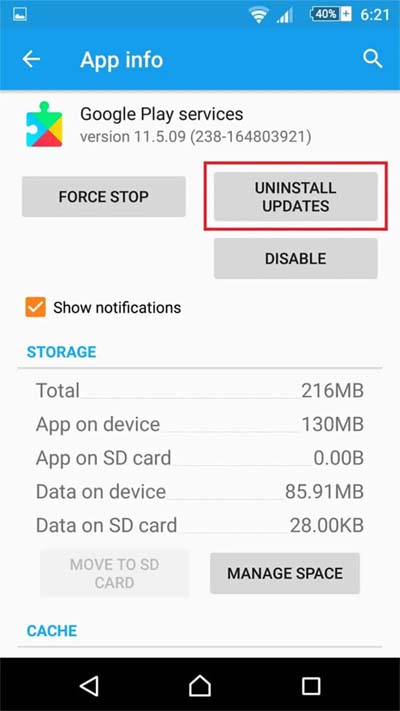
Here, learn how to uninstall update.
Step 1: Go to Settings.
Step 2: Tap on Apps and then choose Google Play Services app.
Step 3: Open it and tap on Uninstall Updates option.
Also Read: [FIXED] “Unfortunately, Facebook Lite Has Stopped” On Android
Solution 3: Disable Google Play Services
Another easy way to get rid of this problem is to disable Google Play Services app. But this method will only help you to solve the error temporary, you won’t fix it completely.
However, below learn how to do the same.
Step 1: Navigate to Settings > Apps.
Step 2: Find and tap on Google Play Services app and hit on “Disable” button.
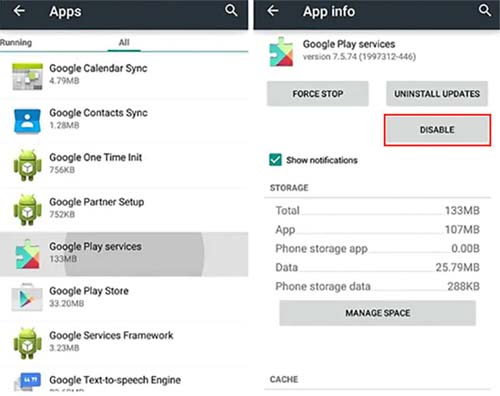
Note: If you get the “Disabled” option grayed out then first disable Android Device Manager by going to Settings > Security > Device Administrators > Android Device Manager.
Solution 4: Wipe Cache Partition
As you know that Google Play Services is a core app that controls other applications to operate. And if the other Google app cause problem then it can result in this error message. Hence, by wiping cache of all apps you can solve the problem.
Follow the below steps to wipe cache partition.
Step 1: First, you need to boot your device into Recovery mode. For this, you can search the specific key combination for your particular phone model.
Step 2: After this, use Volume down key to highlight “Wipe cache partition” option and select it using Power key.

Step 3: Once the process completes. Select “Reboot system now“. Now, your mobile will restart in normal mode.
Note: Sometimes, the above steps do not remove the apps from your phone. But it wipes the temporary files and solves the issue.
Also Read: How To Fix Microsoft Teams Keeps Stopping On Android
Solution 5: Downgrade Google Play Store
Go back to the older version of Google Play Store to fix Google Play Services error prompt.
Follow the below steps to proceed.
Step 1: Go to Settings > Apps.
Step 2: Tap on Google Play Store.
Step 3: Hit on Uninstall button.
Solution 6: Disable And Re-Enable Google Chrome
Some users have reported that they fixed this issue by disabling Google Chrome. So, you can also try it.
Note: Before doing this, ensure that you have turned on Chrome sync to back up the Google Chrome data. If you don’t do this then it will clear bookmarks, saved passwords, etc. from Chrome.
Now, here learn the steps to disable Google Chrome.
Step 1: Navigate to Settings > Apps.
Step 2: Hit on Chrome app.
Step 3: Tap on Disable button.
Now, you can re-enable it by tapping on Enable button.
Also Read: How To Fix “Unfortunately, Twitter Has Stopped” On Android
Solution 7: Remove And Re-Add Google Account
Step 1: Open the phone’s Settings app.
Step 2: Then hit on your Accounts.
Step 3: Tap on it and all the accounts will be displayed that you have linked on that phone.
Step 4: Hit on Google and choose Google account.
Step 5: Then hit on More button.
Step 6: Now, hit on Remove Account option.
After this, restart your phone and again add your Google account.
Solution 8: Use Android Repair Tool To Fix Google Play Service Has Stopped On Android
If you are using a Samsung phone or Samsung tablet and getting this error on it due to some issues with your Android OS then you are highly recommended to try Android Repair software to fix “Unfortunately, Google Play Services has stopped” on Android.
|
|
Note: You can only use this Android Repair tool on Samsung phones and Samsung tablets.
You can use this program to solve many other issues of Android including black/white screen of death, Google Play Store not responding or working, system crash, Android OTA update failed.
Below, learn how to fix the error message “Unfortunately, Google Play Services has stopped” on Android via Android Repair tool.
You May Also Like:
- How To Fix “Unfortunately, Google App has Stopped” Error on Android
- How To Fix “Unfortunately, Messenger Has Stopped” Error on Android
- Skype Video Not Working On Android? Here How To Fix!
- How To Fix Tinder Not Opening On Android [14 Fixes]
Steps To Fix “Unfortunately, Google Play Services Has Stopped” On Android
Step 1: Connect Your Android To PC
First download and install Android Repair on your computer and launch it.
Next, select the “Repair” from the available options.

Now connect your Android phone or tablet to computer and select “Android Repair” among the available options.

In next Window, select the correct brand name, model number, country/region, carrier. After that confirm the warning message and click “Next”.

The Android Repair software may delete all data on your device. Simply, type in “000000” to confirm to continue.

Note: It is strongly recommended that you must back up your Android data before repairing your Android using Android Repair Tool.
Step 2: Repair Android Phone In Download Mode
Prior to Android Repair, it is important that you must boot your Android device in Download Mode.
Below follow the steps to boot Android phone/tablet in DFU mode!
For Android phone/tablet with home button:
- Power off your device.
- Press and hold “Home + Power + Volume Down” button for few seconds (5-10 seconds).
- Release all the buttons and press “Volume Up” button to enter Download Mode.

For Android phone/tablet with no home button:
- Power off your device.
- Press and hold “Power + Volume Down + Bixby” buttons for few seconds (for 5-10 seconds).
- Release all the buttons and press “Volume Up” button to enter Download Mode.

After that click “Next”. The software will start to download the firmware.

After the download and verification of the firmware, the software will automatically start to repair your Android device.

In just few minutes of time, your Android phone or tablet will have all the system issues, errors, problems fixed.

|
|
Also Read: FIXED: Google Play Store Error DF-DFERH-01
Solution 9: Factory Reset
Last but very effective solution to fix Google Play Services crashing/freezing issue is by doing a factory reset.
Before you follow the steps, create a backup of all important data as this will erase all saved files on your phone.
Here, follow the steps to proceed.
Step 1: Go to Settings > About Phone.
Step 2: Hit on Factory Reset.
Step 3: Then tap on Erase all data.
Step 4: Enter your device password.
Step 5: After this, tap on Factory Reset.
Wrap Up
I hope this guide was able to fix “Unfortunately, Google Play Services has stopped” on Android. Firstly, use the basic solutions. Then go to main solutions. And if the issue is caused due to issue with your Android OS then to fix it, you are recommended to try Android Repair tool.
Please support us by subscribing to our YouTube Channel.

Max Field is a founder of Recover Android Data. He is an Android lover and loves to write tips, tricks, fixes for errors, data recovery solutions and more related to Android. Provide Gaming Tips, Tricks, Game Error/Issues Solutions (PC/Xbox/PlayStation/Mobile). He has 11+ years of experience in this field.