


Many Snapchat users have reported that they are not able to log in to their Snapchat and they have been logged out. They are getting Snapchat error – “Support Code SS07”.
The full error message that is displayed is as follows:
“Due to repeated attempts or other suspicious activity, your access to Snapchat has been temporarily disabled.
Support Code: SS07”
So, in this article, you are going to learn how to fix Snapchat support code SS07.
What Is Snapchat Support Code SS07?

Support code SS07 is an error that occurs when Snapchat detects suspicious activity in your account or you have tried too many login attempts or entered wrong password multiple times.
As a security measure, your account gets disabled temporarily by Snapchat.
Also Read: Microphone Not Working On Snapchat? Here How To Fix!
Causes Behind The Occurrence Of Support Code SS07 On Snapchat
There are a few reasons due to which you might be facing “Support code SS07” error on Snapchat.
Some of the causes can be:
- Suspicious activity.
- Trying to log in multiple times but can’t able to login.
- Entering the wrong password too many times.
- Trying to reset your password.
How To Fix Snapchat Support Code SS07 (100% Solved)
In order to fix Snapchat Support code SS07, you can try to unlock your account.
Unlink or uninstall third-party apps linked to Snapchat and unroot your Android phone if it is rooted.
Check your internet connection and make sure it is working properly. You can switch internet connection (Wi-Fi to mobile data or vice versa).
If your issue is not yet resolved, then you have to wait a couple of hours to a few days until your Snapchat account gets enabled by itself. If not, then you need to contact the Snapchat support team by submitting a request.
Also Read: Snapchat Not Working On Android
Fix #1: Try To Unlock Your Snapchat Account
Learn the steps to unlock your Snapchat account and fix support code SS07 on iPhone or Android.
- Go to accounts.snapchat.com/accounts/unlock.
- Log in to your account.
- Click on “Unlock” to unlock your account.

Now, restart your device, open Snapchat app and try logging in.
Fix #2: Switch Your Network Connection
If you are connected to Wi-Fi then switch to mobile data.
If you are connected to mobile data then switch to Wi-Fi.
If that doesn’t help then you can also try to connect to another network connections/WiFi.
Tip: After switching the network connection. Force close Snapchat, re-open it and then login to your account.
Also Read: Snapchat Recovery: Recover Deleted/Destroyed Snapchat Photos & Videos
Fix #3: Check Your VPN Connections
If you are using any VPN service, then turn it OFF and then check.
If you are not using any VPN service, then try connecting to one.
Tip: After disabling/enabling the VPN. Force close Snapchat, re-open it and then log in to your account.
Fix #4: Clear Cache and Clear Data Of Snapchat App
On your Android phone, go to Settings > Apps > All Apps > Tap Snapchat > Storage > Tap on Clear Cache and Clear Data.

On your iPhone, go to Settings > General > Tap on iPhone Storage > Tap on Snapchat > Tap on Offload App.
Fix #5: Unlink/Uninstall Third-Party Apps And Unroot Your Android
First, unlink or uninstall all of the third-party apps/plugins that are linked with Snapchat.
Then, unroot your Android phone, if it is rooted.
Next, uninstall Snapchat and re-install it and then try to login.
Also Read: How To Recover IMO Account
Fix #6: Contact Snapchat Support Team
If none of the solutions work for you, then in such case you can wait for a couple of hours to a few days (2-3 days) and then you can reset your new password to your Snapchat account.
After that, if Snapchat Support Code SS07 still persists, then you need to contact the Snapchat support team for further help and regain access to your account.
- Go to https://help.snapchat.com/hc/en-us/requests/new.
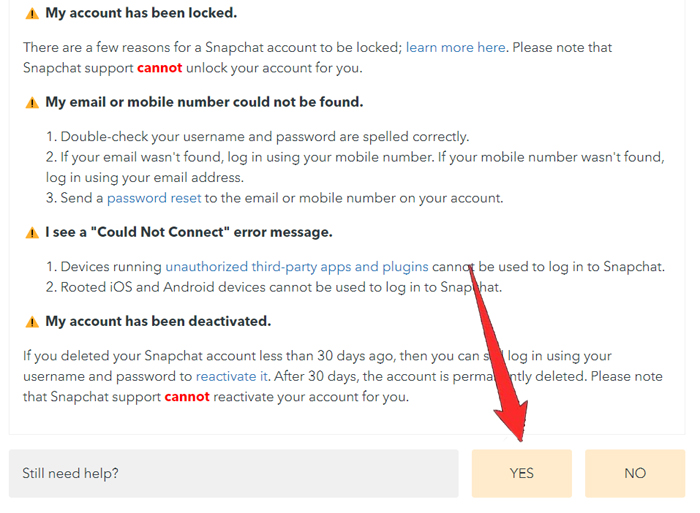
- Click on “I can’t access my account”.
- Select the option “I see an error message when I log in”.

- Click on “Yes”, next to “Still need help”.
- Next, fill in all the details in the form. Enter the email address associated with your Snapchat account. Enter your mobile number, describe your issues and submit the form.

After submitting the form, you will receive the confirmation of your ticket via email. And you have to wait for 1-3 working days for Snapchat’s reply via email with further instructions on how to get back your account.
Tip: You can also contact Snapchat on Twitter and send them a direct message.
Also Read: Fix Instagram Reels Not Working On Android/iPhone
How To Fix Support Code SS07 Error on Snapchat App?
You can also contact Snapchat support for help to fix Support Code SS07 on your Snapchat app.
Here follow the steps:
- Open Snapchat Tap on Help.
- Tap on the link to report. Tap on “I cannot access my account”.
- From the available option select “I see an error message when I log in”.
- Snapchat will ask you “Still need help”, and tap on “Yes”.
- Now, fill up the details in the form. Describe the problem you are facing and then tap on “Submit” button.
Wrap Up
The support code SS07 on Snapchat is an error that helps to keep your account safe from unauthorized access.
But when you experience such an error, you should not get worried. You can follow the solutions mentioned in this article above that would definitely help you to fix Snapchat Support Code SS07.
If this article helped you, then please share it as it can help others.
Please support us by subscribing to our YouTube Channel.
You May Also Like:
- How To Fix Snapchat Support Code SS06
- Snapchat Camera Zoomed In? Here’s How To Fix
- Fix Snapchat “Oops! Something Went Wrong. Please Try Again Later”
- Fix Snapchat Filters Not Working On Android

Max Field is a founder of Recover Android Data. He is an Android lover and loves to write tips, tricks, fixes for errors, data recovery solutions and more related to Android. Provide Gaming Tips, Tricks, Game Error/Issues Solutions (PC/Xbox/PlayStation/Mobile). He has 11+ years of experience in this field.