
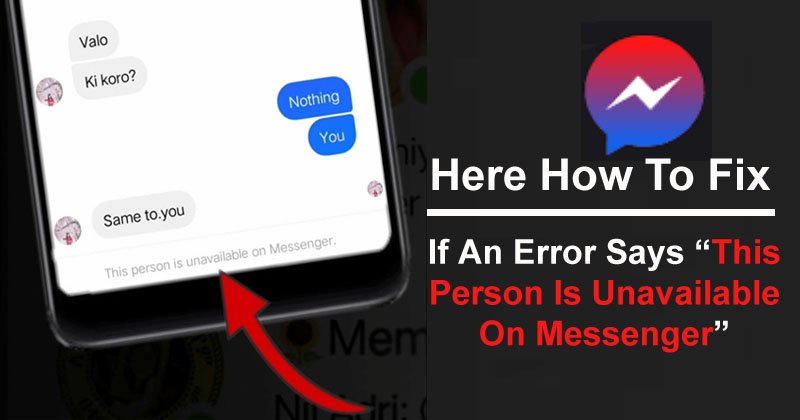
Here Are The Effective Solutions To Fix Error Message That Says “This Person Is Unavailable On Messenger”!
Overview: Are you getting an error “This person is unavailable on Messenger” on your Facebook Messenger? You don’t know what this error means and why it is occurring. And how you will fix it. Just keep calm, and read this tutorial, here I will share 9 effective solutions to fix error that says “This person is unavailable on Messenger” on your Android device.
- Solution 1: Make Sure Your Internet Connection Is Not Poor
- Solution 2: Install Update For Facebook Messenger App
- Solution 3: Clear Cache and Data Of Messenger App
- Solution 4: Uninstall And Reinstall Messenger App
- Solution 5: Check If The Recipient Has Blocked You On Facebook
- Solution 6: Check You Haven’t Blocked The Person By Mistake
- Solution 7: Check If The Recipient’s Account Was Deleted Or Deactivated
- Solution 8: Ignore Message
- Solution 9: Check Your Facebook Memories
- Solution 10: Try To Message Through Facebook Web
- Solution 11: Report Technical Problem
- Solution 12: Try Facebook Lite
What Does “This Person Is Unavailable On Messenger” Mean?
“This person is unavailable on messenger” means that the person you are trying to send a message is not available on messenger. You will get this message unless the person unblocks you or re-installs messenger, or his/her Facebook ID got recovered or an app problem gets fixed.
Usually, this error message appears when the user has deactivated either his or her Facebook account or FB messenger and you are not able to send a message.
Facebook developer page says when you get “this person is unavailable on messenger” on a chat usually means that the user has deleted the conversations and deactivated his or her account. You can check whether the problem is only on your smartphone app or not. For this, you need to login into your account on the Facebook web and then try to send a message to the person.
If you are able to send a message using the Facebook web but if you are facing a problem with the mobile app then it could be a minor signal issue due to which the Messenger app or the recipient has uninstalled his messenger.
Also Read: How To Recover Deleted Facebook Messenger Messages From Android Phone
Practical Example: A Users Is Asking Help To Fix “This person is unavailable in messenger”
Can someone help me, I cant send message my friend but she doesnt block me or anything. I can chat her if I create group chat. She said to me that all of her friends cant send her message back while she can message them? I try m.facebook.com to message her and it works but in messenger I cant,
Source: Reddit
Just like the above practical example, there are many users who are going through this warning message due to some reason. So, let’s know why “This person is unavailable in messenger” error occurs.
Reasons For “This Person Is Unavailable In Messenger”
There are some common reasons why you get “This person is not available on Messenger” error message. The reasons are as follows:
- The recipient has blocked you.
- The poor internet connection can also cause this issue.
- If you are using an outdated Messenger app.
- If the recipient might have deleted his/her Messenger application or Facebook account.
- When Facebook authority has disabled or removed the recipient account.
- Corrupted cache data of Messenger app can also cause this error.
- You can also get this error message in chat if the recipient has deleted the chats.
- Maybe there is some problem with the Messenger app on your device (very less possibility of this.)
So, these were some of the common reasons for this error message. Now, we will directly jump to the solutions to fix the error “This Person Is Unavailable In Messenger”.
Also Read: How To Fix “Unfortunately, Messenger Has Stopped” Error on Android
Video Tutorial: Fix Error “This Person Is Unavailable On Messenger”
Solution 1: Make Sure Your Internet Connection Is Not Poor
You should first check your internet connection strength. If the Facebook Messenger app does not get sufficient bandwidth to work then it does not work properly and you will get this error message.
So, you should check the internet connection by running a speed test on any web browser or by sending a message to another person. If you are not able to send it then it means that your device has connected to a poor internet connection or a temporary app bug is causing this problem.
Solution 2: Install Update For Facebook Messenger App
Another easy way to fix “This person is unavailable on Messenger” is by checking the update for Facebook Messenger app. The latest app update brings various fixes. Maybe this can also work for you to solve this problem.
Simply, open Google Play Store app on your Android phone. Then enter the name of the app in the search tab. Now, hit on Update button next to the app to install the latest update of the Messenger app.

You should also check that you have allowed all the required permissions for the Messenger app.
Also Read: How To Fix Messenger Bubble/Chat Head Not Showing
Solution 3: Clear Cache and Data Of Messenger App
This issue can also occur if the temporary data of Messenger app gets corrupted. If the problem is caused due to this then you will need to clear the cache and data of the Messenger app.
Follow the below steps to clear cache and clear data of Messenger app.
Step 1: Run Settings app on your phone then tap on Apps.
Step 2: After that, hit on Manager apps.
Step 3: Now find Messenger app and tap on it to open.
Step 4: Next, tap on Clear Data and Clear Cache.
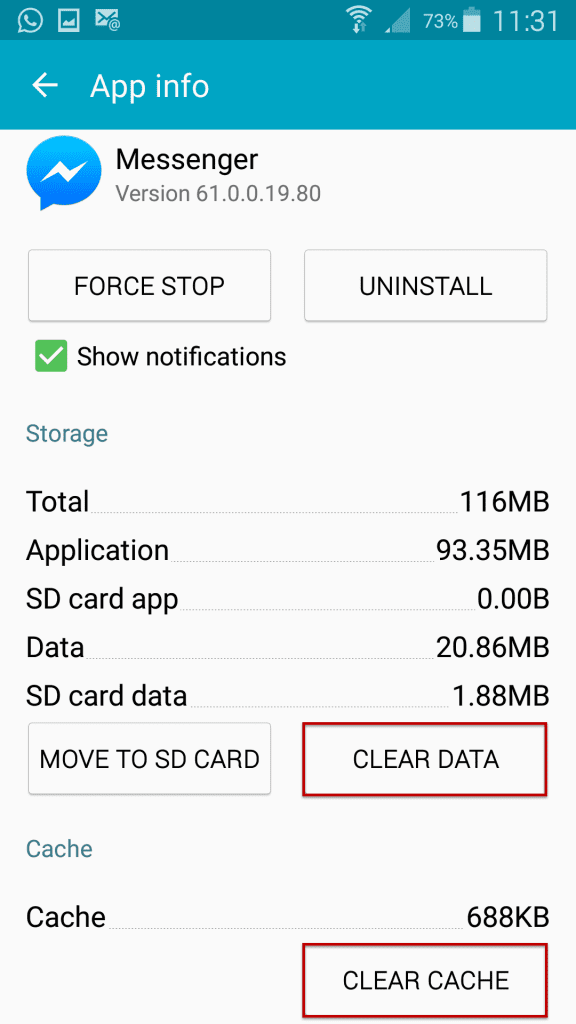
Now, try to send a message to see if the issue is resolved or not.
Also Read: How To Turn Off End to End Encryption on Messenger
Solution 4: Uninstall And Reinstall Messenger App
You can also uninstall Messenger app and then reinstall it from Google Play Store to fix “this person is unavailable on messenger” or “Can’t reply to this conversation” error message.
Follow the below steps to uninstall Messenger app.
Step 1: Go to Settings > Apps > Manage apps.
Step 2: From there, find Messenger app and tap on it.
Step 3: Then, tap on Uninstall at the bottom of the screen.

After this re-install Facebook messenger app from Play Store and see if this solves your problem or not.

Solution 5: Check If The Recipient Has Blocked You On Facebook
Users can block you on Facebook in 2 ways, through Messenger or Facebook.
Here is what happens when someone blocks you on Messenger:
- Both you and the person will remain friends on Facebook.
- All posts of the user will be present on your Facebook.
- Being friends, both you and your friend will be able to like the post, comment, and share each other posts.
- You will be not able to send messages on Messenger. In this situation, it becomes difficult to know whether the user has blocked you or not.
And here is what happens when a user blocks you through Facebook:
- You will not able to view the user’s profile on Facebook with the message “content not found”.
- You will be able to see the earlier messages but can’t send a new message and you can get the error message “This person is unavailable on Messenger”.
- You will not able to send a friend request to the user.
You can check a full block on Facebook by tapping on the person’s profile and then see if you are able to view his/her profile or not. If you are blocked then you will get this error message.
Content not found
The page you requested cannot be displayed at the moment. It may be temporarily unavailable, the link you clicked on may be broken or expired, or you may not have permission to view this page.
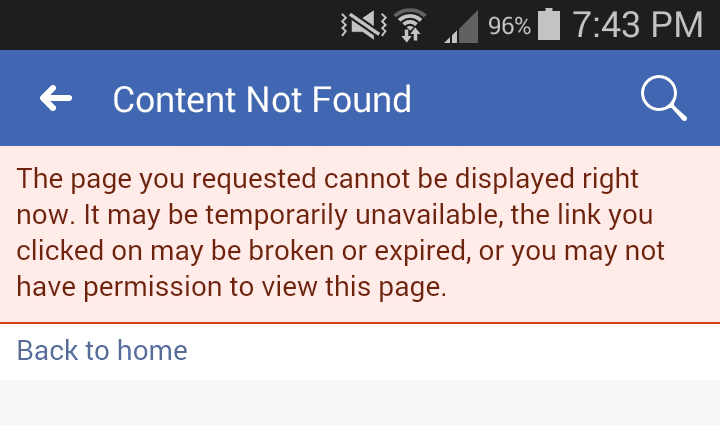
So, you can check the user’s profile and from there you will be able to know whether you are blocked on Facebook or on Messenger.
Solution 6: Check You Haven’t Blocked The Person By Mistake
You should also check that you have not blocked the recipient by mistake. Though it has less chance, but you can recheck it to confirm.
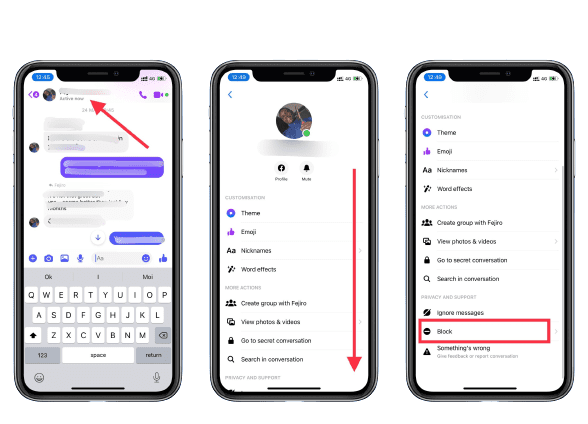
Follow the below steps to check if you have blocked a user on Facebook:
Step 1: Launch Facebook Messenger and open that chat.
Step 2: After that, hit on chat name and this will take you to the specific chat control menu.
Step 3: Now, scroll down to the bottom and check under privacy and support section.
Step 4: If you find Unblock option, then it means that you have blocked that person.
Step 5: And if you find “Block” option then it indicates that you have not blocked that person.
Also Read: How To Fix Security Policy Prevents Use Of Camera On Android
Solution 7: Check If The Recipient’s Account Was Deleted Or Deactivated
It can be also possible that the recipient’s account was deleted or deactivated by the owner for some reason. If Facebook finds that account as fake then they will ban it.
If the user has violated the rules on Facebook like posting violent content, spamming, etc. then Facebook will deactivate that account.
So, you can check your active friend list to find out whether an account is active or deleted. Search by the user’s name or email (if you know that person’s email address). If you find that account in the search result then it means that the account has not been deactivated or deleted.
This will not work if you are blocked by that users. So, you can check it on your friend’s Facebook.
If the person is your close friend then you can ask him/her directly about his/her account status or ask a mutual friend if they are able to view his/her account on their friend list.
This will check 2 conditions:
- If your mutual friends can’t find that account then it means that the recipient has his/her account deleted or deactivated on Facebook.
- If that person is available on your friend’s account and not on your account then make sure that person has not blocked you.
Solution 8: Ignore Message
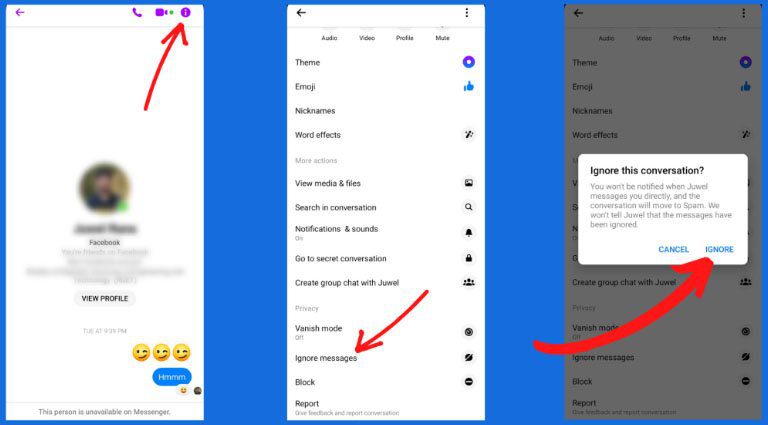
You can take your friend’s chat to a spam message, to do this open your friend’s chat then follow the below steps.
Step 1: Hit on the “i” icon on the top left corner of the chat and then tap on Ignore messages option.
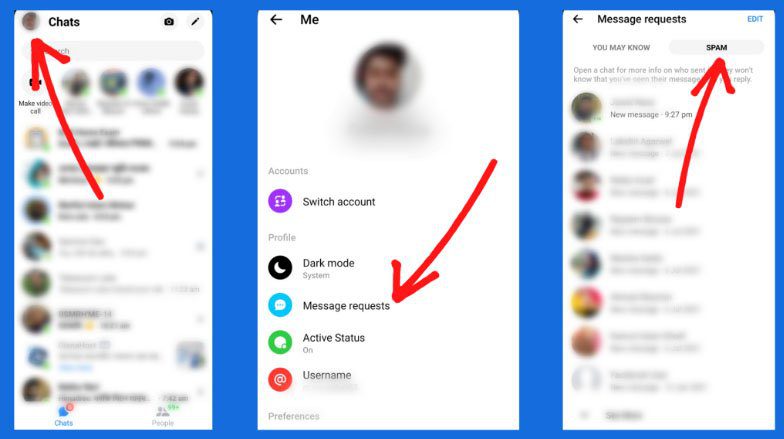
Step 2: Next, hit on your Profile icon and then open Message requests.
Step 3: Here, you may find the Spam option, simply tap on it and then try to send a message to your friend from here.
Also Read: Solved: Instagram Error “Sorry, There Was A Problem With Your Request”
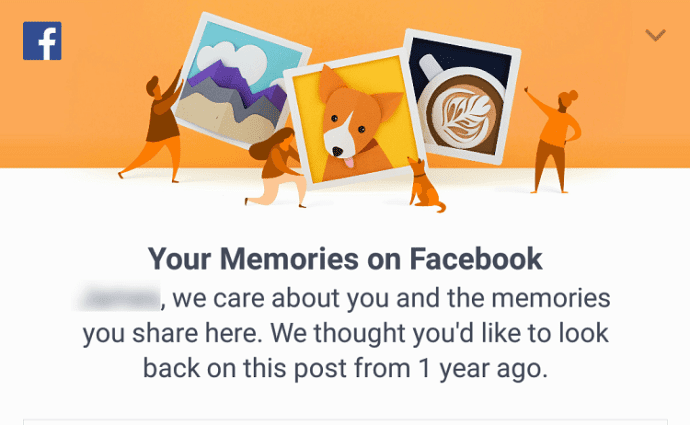
Solution 9: Check Your Facebook Memories
You can check an account status through Facebook memory. On Facebook memories, you can find the likes, and comments by the user earlier.
If you find the user name clickable or blue that takes you to his/her Facebook profile then it means that you are not blocked by the user.
If you can’t click on the profile name and it displays black then it means the opposite.
Now, follow the below steps to check the Facebook memories on your phone.
Step 1: On your phone, open the Facebook app.
Step 2: Now, search for Memories in the search bar.
Step 3: Next, hit on Memories.
You can also check your Facebook memories on your computer by following the below steps.
Step 1: Open Facebook’s main page sidebar. Then under Explore option click on “See More”.
Step 2: Now, scroll down and click on Memories.
Note: You can also send message to archived chats and then search her/his name up. This can also help you to fix the error.
Also Read: [Fast Fixes] 6 Android Problems and Possible Solutions
Solution 10: Try To Message Through Facebook Web
If still, you are receiving “this person is unavailable on messenger” in the chat then it can be possible that there is some app bug or any issue with your smartphone. In this case, you can try sending messages using the Facebook web.
On your computer, log in to your Facebook account on any web browser and then try to send messages to that person.
May users have reported that they can send messages on Facebook web but not in Messenger. If you are able to send a message to that person on Facebook web then it is confirmed that it was an app bug or some problem with your smartphone.
Solution 11: Report Technical Problem
You can report a technical problem on Facebook.
Here, follow the steps to do so.
Step 1: Open Messenger app and hit on your Profile icon.
Step 2: Now, scroll down and hit on the Report technical problem.
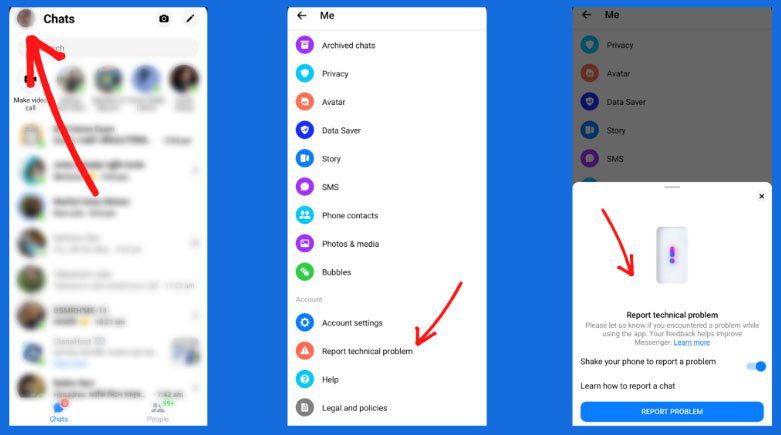
Step 3: Next, shake your smartphone to report a problem or simply hit on Report problem.
Step 4: You can add a screenshot of this error and write about the problem briefly. Then submit this report to the Facebook support team. I hope they will fix the error soon.
Also Read: How To Fix Wi-Fi Stuck On Obtaining IP Address On Android
Solution 12: Try Facebook Lite
Facebook Lite app has important features packed together that allow you to surf Facebook. The Lite version of Facebook has the Messenger within it and due to this, you don’t need any additional Messenger app for personal or group chats.
Install Facebook Lite app from Google Play Store and send a message to that person. Now notice whether you get the error message “This person is unavailable on Messenger” or not. If not then it indicates that there is some problem with the Messenger app itself that needs to be fixed.
Wrap Up
“This person is unavailable on Messenger” error message can be very frustrating, especially when you are trying to get in touch with someone urgently. We hope the 12 solutions above will fix error “This person is unavailable on Messenger”.
Please support us by subscribing to our YouTube Channel.

Max Field is a founder of Recover Android Data. He is an Android lover and loves to write tips, tricks, fixes for errors, data recovery solutions and more related to Android. Provide Gaming Tips, Tricks, Game Error/Issues Solutions (PC/Xbox/PlayStation/Mobile). He has 11+ years of experience in this field.