

Did you encounter the error message “Unfortunately, Facebook Lite has stopped” on your Android device? You don’t have any idea why the error is occurring and how you can solve it. Don’t Worry! Here in this guide, you will find all potential solutions to fix “Unfortunately, Facebook Lite has stopped” on Android. Just go through the solution one by one and check whether your problem gets fixed or not.
 Expert Tip: One of the easy and hassle-free ways to fix “Unfortunately, Facebook Lite has stopped” on Android phones or tablets is by using Android Repair software, if the error is occurring due to OS issues.
With the help of Android System Repair tool, one can:
- Easily fix Facebook Lite has stooped on Android.
- Fix other Android issues like system crash, black screen, stuck in bootloop, system update failure, etc.
- Only support all Samsung phones and tablet models.
- Very easy to use and has the highest success rate.
- 100% safe, secure, and easy to use.
Free Download Trial Version/Buy Now Android Repair Tool To Fix Error “Unfortunately, Facebook Lite Has Stopped” On Android
 |
 |
Facebook Lite app is a version of Facebook that uses a smaller amount of data and works in all network conditions. It lets you save storage space on your smartphone. Though it provides many great features but there are more Facebook Lite users who are complaining that they are getting the error message “Unfortunately, Facebook Lite has stopped” on Android.
There are some users who want to know why they are receiving “Unfortunately, Facebook Lite has stopped” error on Android.
So, let us know the reasons first. And then we will share the solutions to fix the problem.
Also Read: How To Import Birthdays From Facebook To Google Calendar
Why You Are Getting Error Message “Unfortunately, Facebook Lite Has Stopped” On Android?
There could be a variety of causes due to which Facebook Lite app may stop working on Android. But here, I will share some of the significant reasons.
They are as follows:
- If you have not updated the Facebook Lite app.
- When there is not enough storage space and RAM on your smartphone.
- Internet connection issue.
- If you are running an outdated Android Operating System.
- The cache files of Facebook Lite app get corrupted.
So, these are the major causes for Facebook Lite not working or sending the error messages “Unfortunately, Facebook Lite has stopped” on Android.
Now, it’s time to learn the solutions to fix “Unfortunately, Facebook Lite has stopped” on Android.
Solution 1: Restart Your Android Device
The first and most simple way to fix “Unfortunately, Facebook Lite has stopped” error or Facebook Lite keeps crashing is by restarting the device.
So, to restart your Android device, you need to press and hold the Power key until you see the options on the screen. Now, from there, tap on Power off option. Once your phone powered off, press and hold Power key again to switch on your phone.

Also Read: How To Fix “Unfortunately, Messenger Has Stopped” Error on Android
Solution 2: Check Internet Connection
You need to check that the internet connection which you are using is working. To check this, you can run anything on chrome. If it is still not opening then it means that that there is some problem in internet connecting.
So, to fix this, you can turn on and off Wi-Fi or restart the Wi-Fi router. If you are using mobile data then ensure that you have an active data plan.
You should also check that you are not running any antivirus programs or extensions that block Facebook Lite.
Solution 3: Update Facebook Lite App
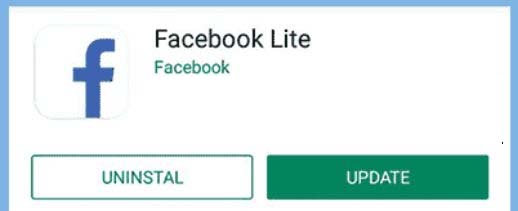
Check whether you have a pending update for the Facebook Lite app or not. If you have then update it.
Below, learn how to update the app.
Step 1: Open Google Play Store app on your Android device.
Step 2: Then, enter the name of the app (Facebook Lite) in the search box.
Step 3: Now, if you get Update button next to Facebok Lite app then tap on it to install the latest update. But if you get the Open button instead of Update then it means that the app is up to date.
Also Read: How To Fix Messenger Bubble/Chat Head Not Showing
Solution 4: Force Stop Facebook Lite And Delete Data
Another way to solve this problem is by force-stopping the Facebook Lite app and then deleting the data. This will erase all data stored in FB Lite including your account that have been logged in.
Below, learn the simple steps to force stop the app and delete data.
Step 1: Go to Settings > Apps & notifications/Apps > All Apps.
Step 2: Now, find Facebook Lite app from the app’s list and tap on it.
Step 3: Next, hit on Force Stop option.
Step 4: Then tap on Delete Data.
Alternatively, you can press and hold the Facebook Lite app for a few seconds. After this, tap on App info and then tap on Force Stop and then hit on Delete Data.
Now open the Facebook Lite app again and check if you have solved the issue or not. If it is fixed then login to it again. But if not, then move to the next solution.
Solution 5: Check Storage Space And RAM
The apps will not work properly if your device has a lack of storage space or RAM. Hence, you should ensure that your smartphone has sufficient storage. If you have low storage space then make some storage space by deleting unwanted data and apps.
Also, check that, you are not running so many background apps or processes on your phone.
Solution 6: Clear Cache Of Facebook Lite App
It may be possible that the cache files of the Facebook app get corrupted and due to this Facebook Lite not working or sending you an error message. In this situation, you need to clear the cache of the app to solve the error.
Here’s how to clear the cache of Facebook Lite app.
Step 1: Launch the Settings app on your phone.
Step 2: Then, hit on Apps & notifications/Apps/Applications.
Step 3: Now, find the Facebook Lite app and hit on it to open the app details.
Step 4: From there, tap on Clear Cache button.

After this, restart your phone and then check if it is still sending the error prompt.
Also Read: If An Error Says “This Person Is Unavailable On Messenger”
Solution 7: Have You Register With Your Phone Number
You need to check a few things to fix Facebook Lite has stopped working on Android. They are mentioned as follows:
- Check that you have entered the country code when logged in.
- If you have recently signed up for Facebook then you may need to verify your account first. For this, you need to use the email that you have registered with Facebook. If you have just changed your password, then check that you try to log in with a new password (not with the old one).
- If you are asked to update your email address, this is most likely because your email server labels your Facebook email as spam.
- If you have logged in to Facebook Lite using a browser then check that you have enabled cookies and facebook.com is added to the list of secure sites.
Solution 8: Verify Facebook Account
You need to also verify your Facebook account, to ensure that the error is coming due to this. For instance, you share pictures, statuses, or videos that can violate Facebook’s provisions and for this, your account is temporarily disabled and you must verify in the form of a friend’s photo ID or mention the date of birth and security question.
You want to know why this happens. This happens as Facebook Lite doesn’t have a feature to check whether your account is deactivated. To check if your Facebook Lite account is disabled or not, you must open Facebook using a browser on your Android phone as well as on your computer. Verify first and then try again to log in to Facebook Lite.
Solution 9: Uninstall Android System Webview Update
Some users have reported that after uninstalling a recent Android System Webview update they were able to fix Facebook Lite not opening/unfortunately, Facebook Lite has stopped. So, you can also try this to solve the issue.
Note: The steps may be different on different phones.
However, follow the below steps to do the same.
Step 1: Head to Settings > Apps.
Step 2: Now find Android System Webview app and hit on it.
Step 3: Next, tap on 3 dots on the top right corner of the screen and then tap on Uninstall updates.
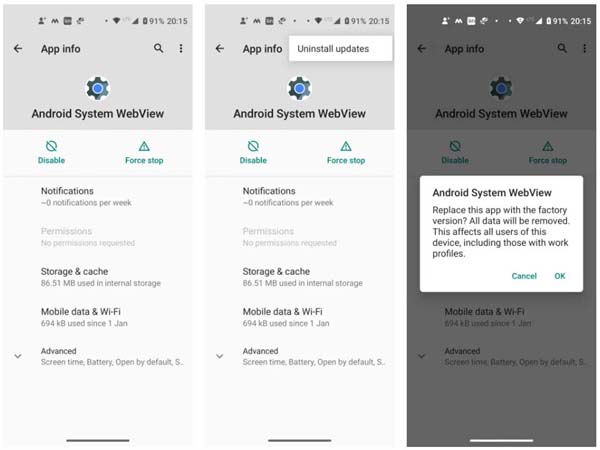
Step 4: Now, you will get a pop-up message. Here, tap on OK.
Now, try to open Facebook Lite app, if still you are unable to open it due to the error message then you can again install the latest update for Android System Webview.
Also Read: Turn OFF Facebook “Suggested For You” Posts On Android, iPhone
Solution 10: Sync Your Android Device With Google Servers
If the phone’s date and time are not synced with Google Servers then it can also create an error like this.
Below, follow the steps to sync your Android device to the Google server.
Step 1: Go to Settings > System.
Step 2: Choose Date & Time option and disable Automatic Time Zone/Use network-provided time zone.
Step 3: Now, type the wrong date and time.
Step 4: Again, enable Use Network provided Time Zone.
After this, restart your Android device and check whether the error message is occurring or not.
Solution 11: Update Your Android Device
If still the issue is not fixed then you should look update for your Android Operating System (OS).
Below, follow the steps to update your Android OS to the latest version.
Step 1: Open the phone’s Settings.
Step 2: After this, tap on System and then choose System Update.
Step 3: If the latest update is available then follow the on-screen steps to download and install it.
Solution 12: Uninstall And Reinstall Facebook Lite App
You can also uninstall Facebook Lite app and then reinstall it again from Google Play Store to fix the problem.
To uninstall the Facebook Lite app, go to Settings > Apps. Choose Facebook Lite app and open it. Now, tap on Uninstall.
Once you deleted the app, open Google Play Store and search for Facebook Lite app and tap on Install button to install it again.

You May Also Like:
- How To Fix “Unfortunately, Voice Command Has Stopped” On Android?
- How To Fix “Unfortunately Settings Has Stopped” On Android
- [Fixed] “Unfortunately, the process android.process.media has stopped”
- How To Fix “Unfortunately, Gallery Has Stopped” On Android
Solution 13: Fix “Unfortunately, Facebook Lite Has Stopped” On Android Via Android Repair Tool
If there is some problem in your Android OS and due to this you are facing error message “Unfortunately, Facebook Lite has stopped” on Android then you are highly suggested to try Android System Repair software to fix the issue.
|
|
Please note that Android Repair tool only works on all models of Samsung phones and tablets.
You can also use this program to fix other Android issues like Play Store stopped working, stuck in black/white screen, Android system UI stopped working, Samsung phone stuck at Samsung logo, Android OTA update failed, etc.
Here, follow the steps to fix “Unfortunately, Facebook Lite has stopped” on Android using Android Repair software.
Solution 14: Factory Reset Your Android Device
If you are not a Samsung user or if the above solutions failed to solve the problem then lastly you need to factory reset your Android device. But before doing this, you must backup your device as this will erase all your device data, apps, and settings.
Now, follow the below steps to factory reset your Android device.
Step 1: Navigate to Settings > System.
Step 2: Select Reset options.
Step 3: After this, choose Erase All Data (factory reset).
Step 4: Then, choose Reset Phone or Reset Tablet at the bottom of the screen.
Step 5: Confirm the process by tapping on Erase Everything.
The factory reset process may take a few minutes. Your Android device should restart and display a progress screen indicating that it is erasing the data.
Once the process gets completed, the operating system will start again and you will get the same screen when you first unboxed your phone.
Wrap Up
So, in this guide you have learned 14 different solutions to fix Unfortunately, Facebook Lite has stopped” on Android. You should keep following the solutions until you solve the issue.
If you are a Samsung user and the error message is occurring due to some problem in your Android OS then you should try Android System Repair software to fix the problem.
Please support us by subscribing to our YouTube Channel.

Max Field is a founder of Recover Android Data. He is an Android lover and loves to write tips, tricks, fixes for errors, data recovery solutions and more related to Android. Provide Gaming Tips, Tricks, Game Error/Issues Solutions (PC/Xbox/PlayStation/Mobile). He has 11+ years of experience in this field.