

Learn Easily Solutions To Fix Android Accessibility Service Not Working Issue!
Overview: Is your Android accessibility service not working? In this guide, we will show you some effective solutions to fix Android accessibility service not working issue.
What Is An Accessibility Service On Android?
An accessibility service is an app that allows users to improve the interface to help with disabilities or help those users who are at some point unable to fully interact with their smartphone.

Here are some of the common accessibility service are:
Talkback: Give permission to Android users to read the screen. Generally, visionless Android users use this service.
Voice Access (Beta): Give permission to Android users to control their Android smartphone with spoken commands.
Switch Access: Give permission to Android users to interact with smartphone by using one or multiple touches.
Though, this Android Accessibility Service doesn’t work well every time. Most of the time it automatically turned off and start hanging at the midpoint.
Well, you don’t have to get panic as you can fix Android accessibility service not working issue by following the below-mentioned solutions. So, let’s start it.
Also Read: Fixed: Dead Android And Yellow Triangle Exclamation Mark
Solution 1: Verify Settings
You should first set up your Android’s Accessibility setting according to your choice. So, to do this, you need to go to Settings > Select Accessibility > check that all the options which you need are turned on. Then choose “Enhance Web Accessibility”, for instance, to permit Google website to install browser script to support accessibility. Also, check that you have installed the latest version OS on your Android device by going to Settings > About Phone > System Update.
Solution 2: Check And Uninstall Culprit Apps
You can fix accessibility on Android by uninstalling the third-party apps which are creating bugs as these apps can disturb the accessibility feature and stop them to work properly. So, just check out the installed apps on your device and uninstalled them to fix the problem.
Solution 3: Report Bug
Android permits you to enter its built-in accessibility options within third-party apps, which means these applications can take benefit of features like magnifications gestures and TalkBack without any additional coding. You can face Android accessibility issue if the accessibility service has consolidated incorrectly by the developer. You should report the developer from the support link from Google Play Store.
You should also update the app so that you can take the benefits of the latest version of Android to fix Accessibility problem.
Solution 4: Factory Reset Your Android Device
If Android’s Accessibility issue still coming then lastly you should factory reset your Android phone or tablet. Before you reset your phone to default settings, keep a backup of all the valuable data because it will erase all data and installed apps from your phone.
Now, follow the steps to factory reset your Android device:
Step 1: Go to Settings > System > Advanced.
Step 2: Now, tap on Reset options and then tap on “Erase all data (factory reset)”
Step 3: Now, tap on “Erase All Data” button.
Step 4: If it is asked to enter the PIN then do it.
Also Read: How To Fix Unresponsive Touch Screen Issues Of Android
Android Accessibility Related FAQs
Question: How to Fix Android Accessibility Settings That Turn off Automatically
Answer: You may have different phone’s settings as it depends on its built and model. If you can’t get the option directly then you can find them from the device’s settings.
Check Battery Optimization
You will get the battery optimization option under Battery or Power. Once you get the option hit on Battery optimization and then choose the applications and tap Don’t optimize.

Disable Battery Saver
You should also disable the phone’s battery saver if it is on. In most Android device the battery saver option disables the accessibility services which make the apps unusable.
You need to go to the battery setting option to disable it. For Samsung, go to Quick Settings menu to disable it.

Lock App
To lock an Android phone running on Android 9.0 Pie, you need to activate an overview by swiping up from the bottom of the screen and scroll horizontally unless you see the app. Then tap on three vertical dots and hit Lock.
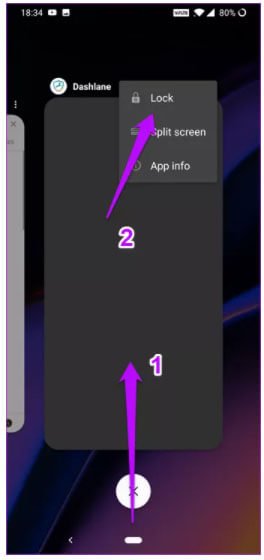
For Android 8.0 Oreo, lock the app by long-pressing the app from Overview menu.
Enable Device Administration
Go to the Device Administration menu. The apps with device administration privileges stay in the memory and are disabled in the Accessibility settings.
You can also open security settings on your device and search for Device Administration. Once you reach, tap on it to view a supported app’s list. When you get the app, toggle the switch to on position.

You May Also Like:
- Best Solutions On How To Fix Android Stuck On Bootloop
- How To Fix Android White Screen Of Death (WSOD)
- How To Fix Front Camera Not Working On Android
- How Do I Get My Android Phone Out Of Headphone Mode?
Question: How Do I Access Accessibility On Android?
Answer: Follow the steps below to Access Accessibility on Android:
Step 1: From Home screen, go to Apps Icon > Settings > Accessibility. If, you don’t find then swipe the screen from right/left or hit the Arrow icon to see all apps.
Step 2: Hit on Select to Speak.
Step 3: Then tap Select to Speak to turn on or off.
Android Enable Accessibility Service Programmatically
Intent intent = new Intent (android. provider. Settings. ACTION_ACCESSIBILITY_SETTINGS); startActivityForResult(intent, 0)
Wrap Up
So, whenever you face Android accessibility service not working issue on your Android device then by using the above-discussed solutions you can easily solve it.
Please support us by subscribing to our YouTube Channel.

Max Field is a founder of Recover Android Data. He is an Android lover and loves to write tips, tricks, fixes for errors, data recovery solutions and more related to Android. Provide Gaming Tips, Tricks, Game Error/Issues Solutions (PC/Xbox/PlayStation/Mobile). He has 11+ years of experience in this field.