
Many Players of Fortnite are getting Matchmaking errors and thereby, they are not able to play the game.
Some of the Matchmaking errors that players are getting are as follows:
- Matchmaking Error #4
- Matchmaking Error #3
- Matchmaking Error #2
- Matchmaking Error #1
It doesn’t matter, whether they are playing the game on PC, Xbox or PlayStation, they are getting such errors.
So, in this guide, you will learn how to fix matchmaking errors in Fortnite on PC, Xbox or PlayStation.
How To Fix Fortnite Matchmaking Error #4, #3, #2, #1
To fix matchmaking errors in Fortnite, you can follow these solutions:
- Check Fortnite Server Status
- Adjust In-Game Settings (Includes Part 1, 2, 3 and 4)
- Delete Cache Files of Fortnite and Epic Games
- Uninstall and Re-Install Fortnite
Fix 1. Check Fortnite Server Status
Go to – https://status.epicgames.com/
Or go to – https://downdetector.com/status/fortnite/
Check for server status. If you find that the Fortnite server is down, under maintenance or having an outage, then in such case, you have to wait until the server issue is fixed by the Fortnite Team.
Fix 2. Adjust In-Game Settings
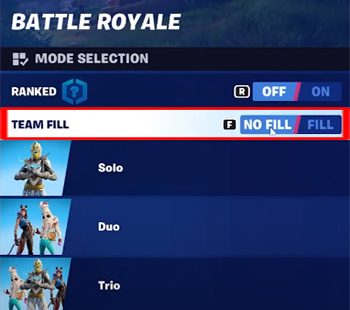
Part 1. Set Team Fill To NO FILL
- Launch the Fortnite game and set team fill to “NO FILL”.
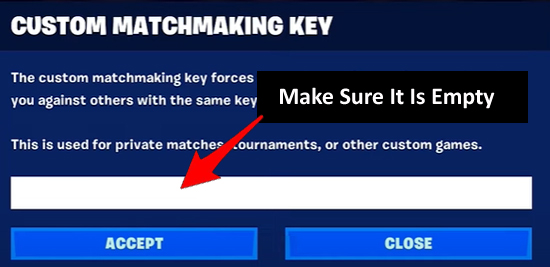
Part 2. Delete Custom Matchmaking Key
- Scroll down and click on Custom Key and make sure that the Custom Key section is empty.
- If anything is entered there, just delete it and click on “ACCEPT”.
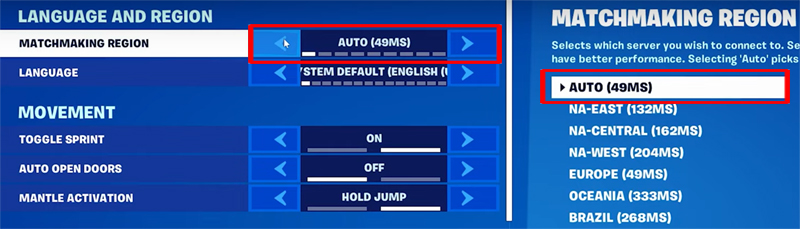
Part 3. Change The Region
- Now, go to Profile > Menu > Settings.
- Click on “Game Settings” icon from the top.
- In LANGUAGE AND REGION section, select the region with the lowest ping if the matchmaking region is “Auto”. If it is not, then set it to “AUTO” and click on “Apply”.
Part 4. Turn ON Crossplay On Xbox and PlayStation
On Xbox:
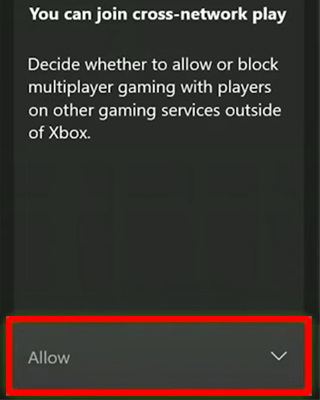
- Press the Xbox button on your controller to open the guide, then go to Profile & system > Settings > Account > Privacy & online safety > Xbox privacy > View details and customize > Communication & multiplayer.
- Here, set “You can join cross-network play” to “Allow”.
On PlayStation:
- From the Fortnite lobby, go to Menu > Settings > Account And Privacy.
- Scroll down to Gameplay Privacy to find Allow Cross Platform Play and set it to “Yes”.
This was FIX 2, which includes Part 1, 2, 3, and 4.
Now, check if the matchmaking error in Fortnite is solved or not.
Fix 3. Delete Cache Files of Fortnite and Epic Games
- Close Fortnite game and Epic Games.
- Press “Windows + R” key on your Keyboard to open RUN command.
- Type “%localappdata%” in the box and hit ENTER.
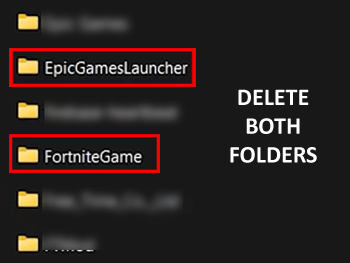
- In the opened folder, look for “EpicGamesLauncher” and “FortniteGame” folders and delete both folders.
Now, launch the Fortnite game and see if the matchmaking error is solved or not.
Fix 4. Uninstall and Re-Install Fortnite
- If still, your problem is not solved then uninstall and re-install the Fortnite game.
- Sometimes, re-installing the game solves this kind of issue.
If you have found this post helpful, then please share it as it can help other players!
Please support us by subscribing to our YouTube Channel.
You May Also Like:
- How To Fix “Unable to sign in to your account for PlayStation network” In Fortnite
- How To Fix “Login Failed” Error In Fortnite on Xbox
- How To Fix Athena Crash Reporter In Fortnite
- Fix Fortnite “Out of video memory trying to allocate a rendering resource”

Max Field is a founder of Recover Android Data. He is an Android lover and loves to write tips, tricks, fixes for errors, data recovery solutions and more related to Android. Provide Gaming Tips, Tricks, Game Error/Issues Solutions (PC/Xbox/PlayStation/Mobile). He has 11+ years of experience in this field.