
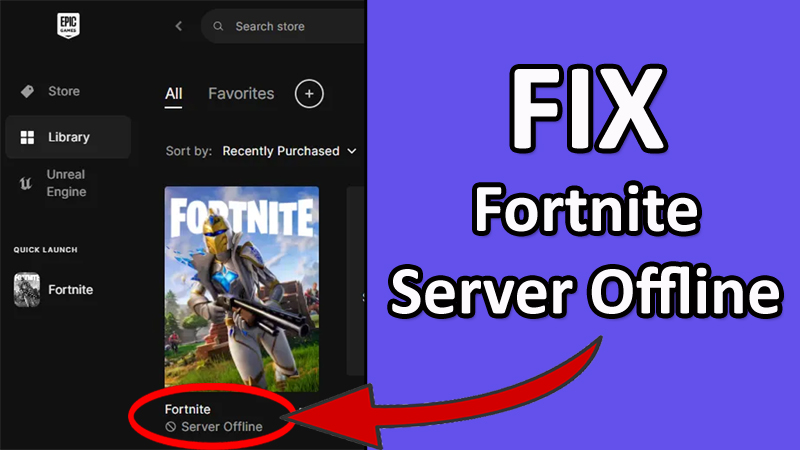
Are you seeing the Fortnite Server Offline error in Epic Games Launcher?
If “Yes”, then you are not alone.
When the Fortnite server shows offline, the players will not be able to access the game.
Fortnite is a battle royale game where 100 players fight against each other.
The gameplay is to loot, craft, team up with a squad, build up and shoot, and stand as the last man.
Unfortunately, players are encountering with “Server Offline” issue.
In this article, you will learn how to fix Fortnite “Server Offline” error on PC, PlayStation or Xbox.
Also Read: How To Fix Monster Hunter Now Not Working
How To Fix Fortnite Server Offline
To fix server offline error in Fortnite, you have to follow these fixes:
- Check Epic Games Server Status.
- Wait For Maintenance To Complete.
- Verify The Game Files.
- Clear Cache of Epic Games.
-
Sign out and Sign in To Your Epic Games Account.
Fix #1: Check Epic Games Server Status
Go to https://status.epicgames.com/.
Here check Fortnite status is operational or not.
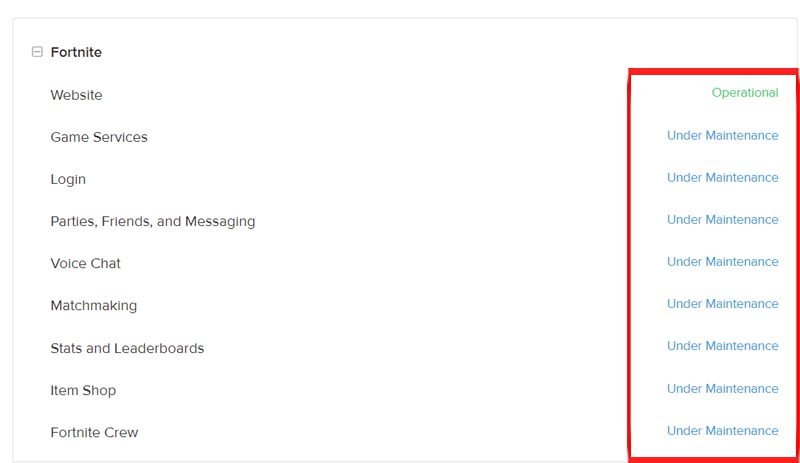
You can also check the Fortnite server status at – https://downdetector.com/status/fortnite/.
If you find that it is down, then in such case, you can’t do anything but to wait until the server issue is fixed by Fortnite.
Fix #2: Wait For Maintenance To Complete
- Go to https://status.epicgames.com/.
- Here check Fortnite status is operational or under maintenance.
- If you find it is under maintenance, then wait until the maintenance is complete.
Also Read: How To Fix Athena Crash Reporter In Fortnite
Fix #3: Verify The Game Files
- Open Epic Games Launcher and click on “Library”.
- Then click on 3 dots next to “Fortnite”.
- Select “Manage” and then click on “Verify”.
- Try to launch Fortnite again.

Fix #4: Clear Cache of Epic Games
Sometimes the issue can occur due to accumulated cache files of the game. Simply clear the Epic games cache.
- Open Task Manager by pressing CTRL + ALT + DEL.
- Select all Epic Games Launcher processes and end the task.
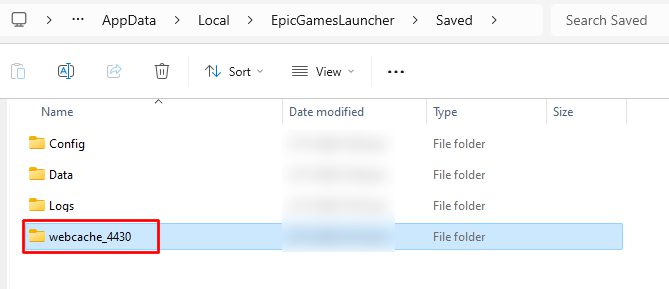
- Use Windows Search and search for “%localappdata%”.
- Open the “EpicGamesLauncher” folder and open the “Saved” folder.
- Now, delete the “webcache”, “webcache_4147”, and “webcache_4430”.
- Head back to Epic Games Launcher and launch Fortnite.
Fix #5: Sign out and Sign in To Your Epic Games Account
Sometimes a simple Sign out Sign in fixes several issues.
- Open Epic Games Launcher.
- Click on your Profile icon and click on “Sign Out”.
- Close and Re-open Epic Games Launcher.
- Sign in to your Epic Games account.
- Launch the Fortnite game.

Wrap Up
So, those are the solutions that you can follow to fix Fortnite “Servers Offline” error.
If you have found this article helpful, then please share it as it can help others!
Please support us by subscribing to our YouTube Channel.
You May Also Like:
- How To Fix Fortnite Servers Not Responding
- Fortnite Guide For Beginners: 12 Tips for Your First Match
- How To Fix Pokemon TCG Live Error 10099
- How To Fix “Out of video memory trying to allocate a rendering resource” error in Fortnite

Max Field is a founder of Recover Android Data. He is an Android lover and loves to write tips, tricks, fixes for errors, data recovery solutions and more related to Android. Provide Gaming Tips, Tricks, Game Error/Issues Solutions (PC/Xbox/PlayStation/Mobile). He has 11+ years of experience in this field.