

Google Calendar is one of the famous multiplatform organizers, as it offers great performance and usability. On Google Calendar, many users plan events that they are going to have. But sometimes users fail to do this because Google Calendar stop syncing with Android device. But, now you don’t need to worry as this guide will teach you how to fix Google Calendar not syncing with Android.
- Solution 1: Check That Your Android Device Is Connected To Internet
- Solution 2: Update Google Calendar App
- Solution 3: Refresh Google Calendar App
- Solution 4: Make Sure You Are Using Right Calendar
- Solution 5: Make Sure You Have Enable The Calendar Sync On Your Android
- Solution 6: Turn On Syncing For Your Google Calendar
- Solution 7: Check Storage Permissions For Calendar Storage
- Solution 8: Check Storage Space On Your Android Device
- Solution 9: Clear Calendar App Cache
- Solution 10: Unsync Google Calendar Temporarily
- Solution 11: Remove And Re-add Your Gmail Account
- Solution 12: Force Stop Other App From Background
- Solution 13: Check Google Calendar Has All Necessary Permissions
- Solution 14: Factory Reset Android Device [The Last Resort]
We will first know the reasons why Google Calendar is not syncing with Android.
Why Is Google Calendar Not Syncing With Android?
There are multiple factors that can cause Google Calendar not syncing on Android. Some of the common reasons are mentioned below.
- If the sync feature on Calendar app is disabled.
- When your device has low storage space.
- Corrupted cache files of Google Calendar app.
- Outdated Google Calendar app can also cause this problem.
- If you have not enabled Calendar storage permission.
Now, we will see a real user practical example and then we will move to the solutions to fix this issue.
Also Read: How To Import Birthdays From Facebook To Google Calendar
Practical Example: A Moto Z2 User Has Tried Some Solutions To Fix Google Calendar Syncing Issue On Android But Unable To Fix It
About an hour ago my calendar began having problems synching on my phone. I had a Moto Z2 and am using the native calendar app. This isn’t an account issue because events I put on my calendar my wife sees when she syncs her iPhone. I’ve tried force-stopping the app, clearing the cache, turning sync on and off… Nothing seems to work.
Source: Reddit
Like the above example, many users are also facing this problem and wanted to fix it as soon as possible. If you are also facing the same problem then read the below-listed solutions to fix Google Calendar not syncing with Android.
Video Guide: How To Fix Google Calendar Not Syncing With Android
Solution 1: Check That Your Android Device Is Connected To Internet
When your Google Calendar is not syncing with Android device then you should check that it is connected to internet connection. To check this, you can search anything on any web browser.
If it is not opening then check that your mobile data and Wi-Fi is enabled and your device is not in Airplane mode.
Solution 2: Update Google Calendar App
You should regularly update your Google Calendar and other apps. Because when you don’t update it then the app may cause compatibility issues and due to it you need to face many issues with the app.
Hence, I would suggest you to check update for Google Calendar app and if the latest update is available then update it.
Here’s the steps to update Google Calendar app.
Step 1: Open Google Play Store App on your device.
Step 2: Then, enter the name of the app in the search bar.
Step 3: Now, if you find Update button next to Google Calendar app then hit on it to install the latest update for Google Calendar app.
Also Read: If An Error Says “This Person Is Unavailable On Messenger”
Solution 3: Refresh Google Calendar App
Google Calendar needs a stable internet connection to sync events and when you have a slow internet connection then you can encounter Google Calendar not syncing problem. So, you can refresh the Google Calendar app to solve the error (if it is happening due to a slow internet connection).
Here are the steps to refresh Google Calendar app on Android.
Step 1: Launch the Google Calendar app on your phone.
Step 2: Then, hit on menu icon or 3 vertical dots.
Step 3: Then tap on Refresh option.

Step 4: This will take a few minutes depending upon the number of pending emails that it needs to go through.
After the Calendar app gets refreshed, you will find all your events updated and you can sync your Google Calendar with Android.
Solution 4: Make Sure You Are Using Right Calendar
Android devices come with pre-installed Google Calendar. You can sync it with your Google account. You should not use third-party Calendar app for the same. So, check that you are using the native Google Calendar app on your Android device.
To confirm which Calendar app is Google Calendar app, you can check the app link – HERE.
You can also visit the official site to download Google Calendar.
Also Read: How To Restore Calendar Events On Android
Solution 5: Make Sure You Have Enable The Calendar Sync On Your Android
Many Android devices allow their users to enable and disable sync for different applications and features. So, it may be possible that the sync for Calendar app is disabled on your Android smartphone.
To check this, you can follow the below steps.
Step 1: On your Android phone, open the Settings app and then hit on Accounts.
Step 2: Now, select Google account from the list.
Step 3: Then hit on Account sync option to see the sync settings.
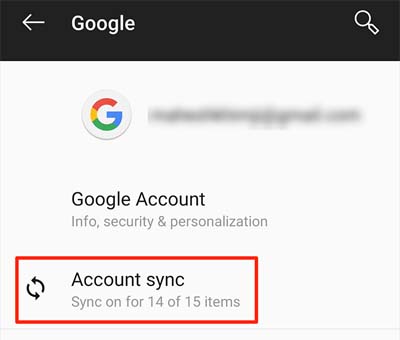
Step 4: Here, check that Calendar is toggled on.
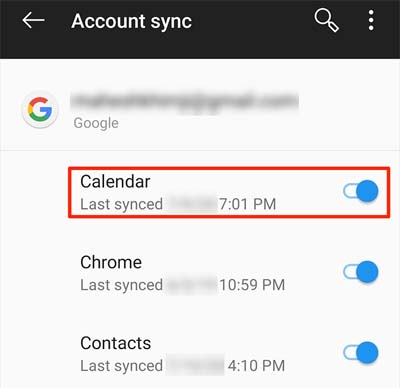
This will enable Google Calendar sync on your smartphone.
Solution 6: Turn On Syncing For Your Google Calendar
Google Calendar has the option to turn on and off sync for particular calendars. If this option is turned off for your calendar then your Google Calendar will not sync on Android. So, to fix it you need to enable this option. This will make that calendar sync with the Google servers.
Here, follow the steps to do the same.
Step 1: Launch the Google Calendar app.
Step 2: Then hit on menu icon or 3 dots then scroll down and tap on Settings.
Step 3: Here, you will see lists of your Google calendars. Tap the calendar that is not syncing.
Step 4: After this, toggle on Sync option.

Solution 7: Check Storage Permissions For Calendar Storage
You need to allow storage permissions for apps so that they can use your device storage. If this permission is not enabled for Google Calendar app on your device then it can cause Google Calendar not syncing issue on Android.
Below follow the steps to allow device’s storage permissions for Google Calendar app.
Step 1: Run the Settings app and then tap on App & notifications.
Step 2: After this, hit on App permissions.
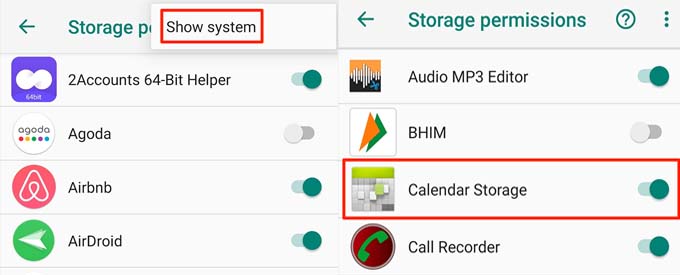
Step 3: By default, you will not be able to see the system options where you see the item located. You can enable these options by tapping on three dots at the top right corner and choose Show system.
Step 4: Scroll down and find Calendar Storage and enable it.
Solution 8: Check Storage Space On Your Android Device
Your Android device must have sufficient storage space as when you sync your calendar then new information will be added to your calendar and to store that updated Google Calendar your device needs storage space. Hence, you need to check the storage space on your device.
Here, learn the simple steps to check storage space on your Android device.
Step 1: On your Android phone, open the Settings app.
Step 2: Then you need to scroll down and tap on Storage option.
Now, your device will show you the storage space. If you find low storage space then make some storage space by deleting unwanted data and apps.
Solution 9: Clear Calendar App Cache
If the temporary cache files of Calendar app get corrupted then it can cause problems while syncing Google Calendar with Android. Therefore, you need to clear the cache of Calendar app to fix it.
Below, follow the simple steps to clear Google Calendar app’s cache.
Step 1: Go to Settings > Apps & notifications.
Step 2: Now, scroll down and find Calendar app from the app’s list. Tap on it to open the Calendar app details.
Step 3: Next, tap on Storage.
Step 5: Here, you need to hit on Clear Cache button.

Also Read: How To Fix Incoming Call Not Showing On Android Phone Screen
Now, restart your device and check if you are able to sync Google Calendar with Android or not.
Solution 10: Unsync Google Calendar Temporarily
It is also possible that there is some issue in the malfunctioning of all-around synchronization and due to this you may face syncing problem on Google Calendar app. In this case, you can reset it or unsync it.
Below, follow the steps to do the same.
Step 1: Go to Settings > Accounts.
Step 2: Then tap on Google and then select your account.
Step 3: Uncheck Calendar.

Now, restart your device and then follow the same steps to check the Calendar.
Solution 11: Remove And Re-add Your Gmail Account
Another simple way to get rid of Google Calendar not syncing with Android is by removing and re-adding Gmail account. This will fix the issue with your Gmail synchronization due to which you can’t sync your Google Calendar on Android.
Below, learn the simple steps to do the same.
Step 1: Navigate to Settings > Accounts.
Step 2: Tap on Google.
Step 3: Select your account.
Step 4: Then, hit on Remove account.
After this, follow the same steps to re-add your Gmail account.
Solution 12: Force Stop Other App From Background
Many users have reported that social media applications as the cause of this issue. These applications use lots of system resources while running in the background. And this can cause problems while syncing Google Calendar with Android.
Hence, you can stop the apps from working in the background in order to fix the issue.
Below follow the steps to force stop the app.
Step 1: Launch the Settings app on your phone.
Step 2: Then, tap on Application Manager/Applications/Apps.
Step 3: Now, select the preferred app and tap on it.
Step 4: Then, tap on Force Stop.
Solution 13: Check Google Calendar Has All Necessary Permissions
You need to provide all necessary permission to sync events from your Google account, Gmail, and other 3rd party apps such as Facebook’s data. So, make sure that you have allowed all important permissions to access the app’s data or phone’s hardware.
Here, follow the steps to allow all necessary permissions.
Step 1: On your phone, run the Settings.
Step 2: Then tap on Apps/Apps & notifications.
Step 3: Now, find Google Calendar app from the app’s list. You can also find it using the search box.
Step 4: Tap on Permissions.
Step 5: Now, check that you have given all permissions that it needs. If not, then toggle it on.
Also Read: [Samsung] Failed To Download Attachment From Multimedia Message
Solution 14: Factory Reset Android Device [The Last Resort]
If still, you can’t sync Google Calendar app with Android phone then you can factory reset your Android device. As you know a factory reset will erase all your device data hence you should first back up all important data and then reset your device.
Here, learn the simple steps to factory reset your Android device.
Step 1: Go to Settings > Backup and Reset.
Step 2: Then, hit on Factory Data Reset.
Step 3: Now, hit on Reset Device.
Step 4: After this, hit on Erase Everything.
Wrap Up
So, these are the 14 different solutions to fix Google Calendar is not syncing with Android. Try these solutions one by one until you are able to sync Google Calendar on Android.
Please support us by subscribing to our YouTube Channel.

Max Field is a founder of Recover Android Data. He is an Android lover and loves to write tips, tricks, fixes for errors, data recovery solutions and more related to Android. Provide Gaming Tips, Tricks, Game Error/Issues Solutions (PC/Xbox/PlayStation/Mobile). He has 11+ years of experience in this field.