
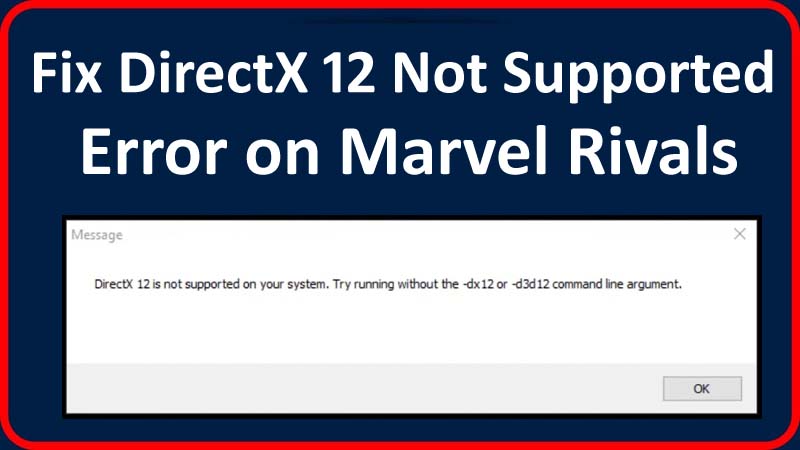
Are you facing the “DirectX12 not supported” error in Marvel Rivals? If yes, then you are not alone. Many users are also experiencing the same error. But you don’t need to worry; you can solve this issue by yourself. This guide will provide you with some solutions on how to fix Marvel Rivals DirectX 12 not supported error.
How To Fix Marvel Rivals DirectX 12 Not Supported Error
If you are getting the error “DirectX 12 is Not Supported on Your System. Try running Marvel Rivals without the -dx12 or -d3d12 command line argument”, then follow the below methods to resolve this problem.
Fix 1: Restart Your PC
- Click on the Windows icon.
- Then hit on Power button icon.
- After this, click on Restart option.
- Now, your laptop will automatically power off and then power on.
Fix 2: Add -dx12 Or -d3d12 To Your Launch Options
- Go to your Steam library.
- Then right-click on Marvel Rivals.
- After this, click on Properties and then on Launch Options.
- Now, type “-dx12” and try to launch the game.
- If still the game crashes, then type “-d3d12” and launch the Marvel Rivals game.
- If still the game crashes, then enter “-windowed” and launch the game.
Fix 3: Update Your Graphics Card
For AMD Graphics Card:
If you have an AMD graphics card then follow the below steps to update it:
- Go to – https://www.amd.com/en/support.
- After this, click on the Download button to download it.
- Next, open the app.
- Now, follow the on-screen steps to update your graphics card.
For Nvidia Graphics Card:
If you have a Nvidia graphics card, then follow the below steps to update it:
- Go to – https://www.nvidia.com/en-us/geforce/geforce-experience/download/.
- After this, hit on Download Now
- Next, open the app.
- Now, you need to log in to it.
- Then tap on Drivers.
- At last, hit on Download.
Fix 4: Verify Game Files
- Open the Steam.
- Then go to the Library.
- Right-click on Marvel Rivals and select Properties.
- Next, go to Installed Files and then click on “Verify integrity of game file”.
Fix 5: Install Latest Update For Windows
- Go to the Windows Search section on your PC.
- Then type “Check for update” and then tap on Open.
- If the latest update is available then download and install the latest version.
- After this, launch the Marvel Rivals.
Note: When you update your Windows, it will also update DirectX to its latest version.
Now, check whether the issue is fixed or not. If not, then simply uninstall Marvel Rivals from your computer and then reinstall it.
Wrap Up
No user wants to face any problem while playing a game as it irritates them a lot. DX12 not supported error is also faced by many users. But after reading this guide you will be able to fix Marvel Rivals DirectX12 not supported error.
You May Also Like:
- How To Fix Outdated Graphics Card Driver (1400030) In Delta Force
- How To Fix WWE 2K24 Not Launching on Steam
- How To Fix CS2 Packet Loss Problem After Update (2024)
- How To Fix “Experiences failed to load” In Roblox [2024]

Max Field is a founder of Recover Android Data. He is an Android lover and loves to write tips, tricks, fixes for errors, data recovery solutions and more related to Android.