
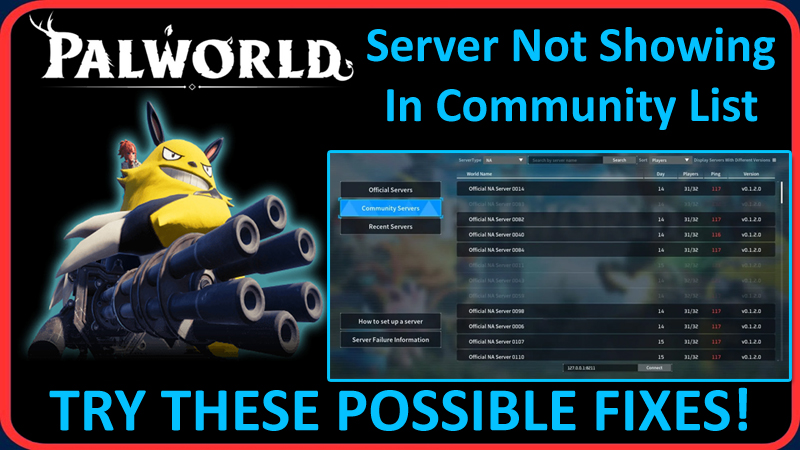
In This Article, You Will Learn How To Fix Palworld Server Not Showing In Community List.
How To Fix Palworld Server Not Showing In Community List
Fix 1. Add Launch Parameter
If you want your server to show up in the community list, then you have to add the following launch parameter when running PalServer.exe
EpicApp=PalServer
This will then allow a user to enter the server password if there is one set.
Currently, there is a bug with the community server search as it only searches within the 200 results you get. Hence, you have to manually go through the page for the rest of the results.
Fix 2. Pick Any Random Password-Protected Server
This has worked for many users:
- Find a random password-protected server.
- Enter Your password for Your server.
- Click NO, so you don’t join.
- Then paste your IP address at the bottom and click “Connect”.
- Now Play and enjoy!
Fix 3. Change Region and Relaunch
If you are on Xbox, then:
- Go to Profile and System.
- Settings > System.
- Then Language and Location.
- Select a new region from the drop-down list and restart your console.
If you are on PC, then:
- Use a VPN program to change the region/location and see if that helps.
Fix 4. Private Server Workaround
If you are trying to set-up a private server, but you are getting issues with friends not being able to join, then one workaround is to set up the server as a community with a password.
This will then make it accessible within the game community server list, asking players to enter a password upon joining.
Fix 5. Community Server List Showing But Connection Timeout
If your server is showing in the community server list, but you are not able to join and it throws a connection timeout error and you have already tried adjusting the IP and port.
Then in such case, you will need to further troubleshoot the server settings or contact Palworld support for help.
Fix 6. Connect To Your Palworld Game Server
If you’re facing a problem connecting to your Palworld game server, GTXGaming suggests a series of steps: https://www.gtxgaming.co.uk/how-to-connect-to-your-palworld-game-server/
These include stopping the server, editing the Start.bat file, and then restarting the server.
If you have found this article helpful, then please share it as it can help others!
Please support us by subscribing to our YouTube Channel.
You May Also Like:
- How To Fix World Saving InProgress Cannot Start Save World Data In Palworld
- How To Fix Palworld Error “Failed to host multiplayer session”
- How To Fix Palworld Memory Leak Issue
- How To Fix “Your device cannot be used to host multiplayer matches” in Palworld

Max Field is a founder of Recover Android Data. He is an Android lover and loves to write tips, tricks, fixes for errors, data recovery solutions and more related to Android. Provide Gaming Tips, Tricks, Game Error/Issues Solutions (PC/Xbox/PlayStation/Mobile). He has 11+ years of experience in this field.