
Photos and videos are essential for every smartphone user. But when they get deleted, you feel very upset. So, if you have also lost your pictures and videos from your Samsung S24 series phone, don’t worry. Simply, follow the solutions listed below to recover deleted photos and videos from Samsung S24/S24 Plus/S24 Ultra.
But before exploring the solutions to retrieve lost videos or images, it is important to know the reasons why photos or videos get deleted or lost from your Galaxy S24 (Ultra) (Plus).
Causes For Deletion Of Pictures And Videos From Samsung S24/S24 Ultra/S24 Plus
There could be several reasons why your videos or photos get deleted or lost from your smartphone. But, here we will discuss some of the common causes.
- Accidentally tap on the wrong file and the photos or videos get deleted.
- If the viruses or malware entered into your phone and its data including images and videos get corrupted.
- When your screen gets damaged, and its data disappears.
- If you have dropped your phone into water and the photos or videos stored on it get corrupted.
- You have performed a factory reset and all the device’s data including videos and pictures were erased.
So, these are some of the causes due to which your videos and images get deleted from your smartphone. Now,m we will move to the solutions.
How To Retrieve Lost/Deleted Photos And Videos From Samsung S24/S24 Plus/S24 Ultra
There are different ways to restore the missing photos and videos from your Galaxy device. We will learn all the important methods that will help you to retrieve disappeared or lost files.
Method 1: Restore Deleted Photos And Videos From Samsung S24/S24+/S24 Ultra’s Recycle Bin
If you have accidentally deleted the photos or videos from your phone’s Gallery app and they are deleted under 30 days then you can undelete the data from Recycle Bin.
Here, learn how to restore photos and videos from Galaxy 24 Ultra, S24, S24 Plus using a recycle bin:
- On your phone open the Gallery app.
- Then tap on three horizontal lines.
- Next, tap on Recycle Bin.
- Now, select the pictures or videos that you want to recover and then hit on the Restore All button.
Method 2: Recover Lost/Deleted Pictures And Videos From Samsung S24/S24 Plus/S24 Ultra Via Samsung Cloud Backup
If you regularly backup your Samsung phone’s data including images and videos to Samsung Cloud then you can retrieve missing data by restoring the previous backup.
Here are the steps to recover lost photos from Galaxy S24 series phone using Samsung Cloud backup:
- Open the Settings app on your smartphone.
- Then tap on your profile.
- Next, hit on Samsung Cloud.
- After this, tap on Restore Data and select the desired backup.
- Now, you need to choose the desired photos and videos and then hit on Restore.
- If it shows you a prompt to “Install” then tap on it.
- Once the restoring process is completed, tap on Done.
Method 3: Recover Samsung S24/S24 Plus/S24 Ultra Photos And Videos From Google Drive Backup
Google Drive provides 15 GB of free storage space to back up photos, videos, and documents.
So, if you have created a backup of your Samsung phone’s pictures and videos before they get deleted then you can easily recover them from the Google Drive backup.
Here are the steps to retrieve deleted data from Google Drive backup:
Step 1: Open the Google Drive app or visit the Google Drive web page.
Step 2: Log in to your account (if you are not logged in) using the same ID and password that you have used at the time of backup.
Step 3: Now, all your backups will be shown on the screen, choose the file that you wish to recover.
Step 4: After this, tap on 3 dots and then hit on the Download option.
Method 4: Restore Deleted Photos/Videos From Galaxy S24/S24 Plus/S24 Ultra Using Samsung Smart Switch
Samsung phone users have the Samsung Smart Switch feature where they can backup their device data into their computer whether it is Mac or Windows.
So, if the deleted pictures and videos are backed up in Samsung Smart Switch then you can easily restore them.
Here, follow the steps to use the Samsung Smart Switch to restore lost pictures and videos from the Samsung 24 Ultra:
- Launch Samsung Smart Switch on your computer (on which you have created a backup earlier) and when it prompts you to connect your phone to it, then connect it using a USB cable.
- When you see the Samsung Smart Switch screen, click on Restore.
- Select the relevant backup file and then choose the desired videos and images by clicking on “Select Your Backup Data”.
- Now, to start the restoring process, click on “Restore Now”.
- Once the process gets completed click on OK.
Method 5: Get Back Deleted Photos And Videos From Samsung S24 Series Using Samsung Kies
Have you backed up your Samsung Galaxy S24 series phone data to Samsung Kies? If yes, then you can get back the missing or disappeared files from it.
For this, you need to follow the below steps:
- Run the Samsung Kies app on your computer and connect your phone to it using a USB cable.
- Then click on the Backup/Restore tab and click on Restore.
- Next, click on the latest backup file and then click on Next.
- Now, select relevant photos and videos to restore and click on Start Restore to begin the restoration process.
- When the restoration process is completed click on Complete.
Method 6: Recover Permanently Deleted Photos And Videos From Samsung S24, S24 Plus, S24 Ultra Without Backup
If you don’t have the back of the deleted pictures and videos or if the above methods failed to work then you can try professional and the world’s trusted Android Data Recovery software to retrieve deleted/missing photos and videos from Samsung S24 series phone.
 |
 |
Using Samsung S24/S24+/S24 Ultra Data Recovery you can recover multiple types of data like photos, videos, documents, contacts, call logs, text messages, WhatsApp messages and attachments, and audio.
The best part about the Samsung Data Recovery tool is you can recover deleted photos from Samsung phone internal memory without any backup.
Note: Please don’t add any new data on your Galaxy S24 phone after the data loss as it will overwrite the existing data and you will lose chances for successful photos and video recovery.
Steps To Use Samsung S24 Data Recovery Tool To Recover Deleted Photos And Videos
Step 1 – Download, install and launch Android Data Recovery software on your computer and then go to Toolbox and select “Data Recovery” option.

Step 2 – In a new window, you will be asked to select your Phone System. Simply click on “Android” to recover data from your phone.

Step 3 – In the next window, continue to select “Recover Android Data” from the available options.
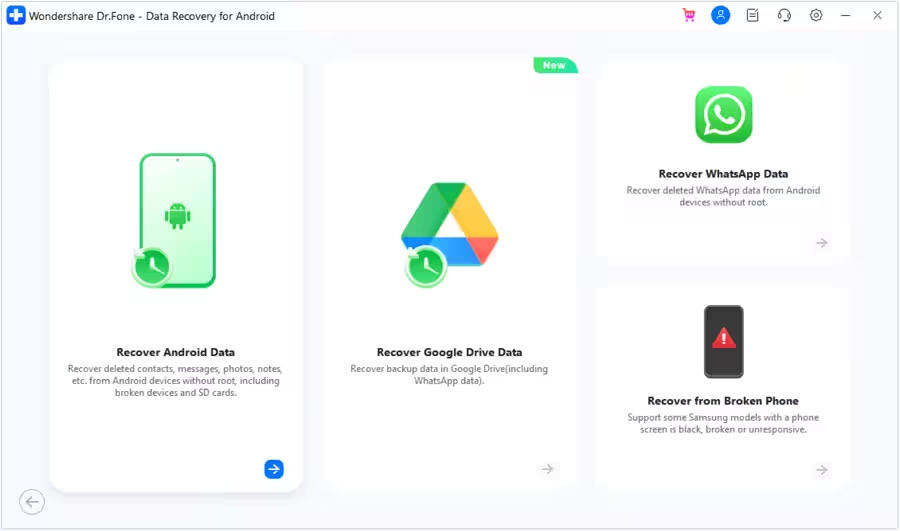
Step 4 – You will then be asked to connect your Android phone to computer to recover data from it. Connect your device with the help USB cable and allow the software to detect it.

Step 5 – In the next window, select all the file types that you want to recover from Android. Click on “Start Scan” located at the bottom right of the screen to continue.

Step 6 – The tool starts to recover data from Android device and displays it on the preview screen. Just wait until the entire device is scanned.

Step 7 – Once the device appears on the screen, you can select and view the data. You can also click on the filter options located at the top. Here, you can select any suitable option to change the viewing parameters.

Step 8 – Finally, select the data that you want to recover and click on “Recover” button. Continue to set the desired location to save the recovered data and click on “Recover” to begin the process to save files.

|
|
Wrap Up
It is easy to recover deleted photos and videos from Samsung S24/S24+/S24 Ultra when you have a backup. But if you don’t have a backup of deleted pictures and videos then you can try the third-party Samsung S24/S24+/S24 Ultra Data Recovery tool. Using it you can get back permanently deleted files in just a few steps.
You May Also Like:
- How To Fix Samsung S24/S24+/S24 Ultra Screen Flickering Issue
- Fix Wi-Fi Authentication Issue on Samsung S24/S24+/S24 Ultra
- Fix Samsung S24/S24 Ultra Camera Unable To Save Photos
- How To Set Up and Use Samsung Pay on Samsung S24/S24 Ultra

Max Field is a founder of Recover Android Data. He is an Android lover and loves to write tips, tricks, fixes for errors, data recovery solutions and more related to Android.