
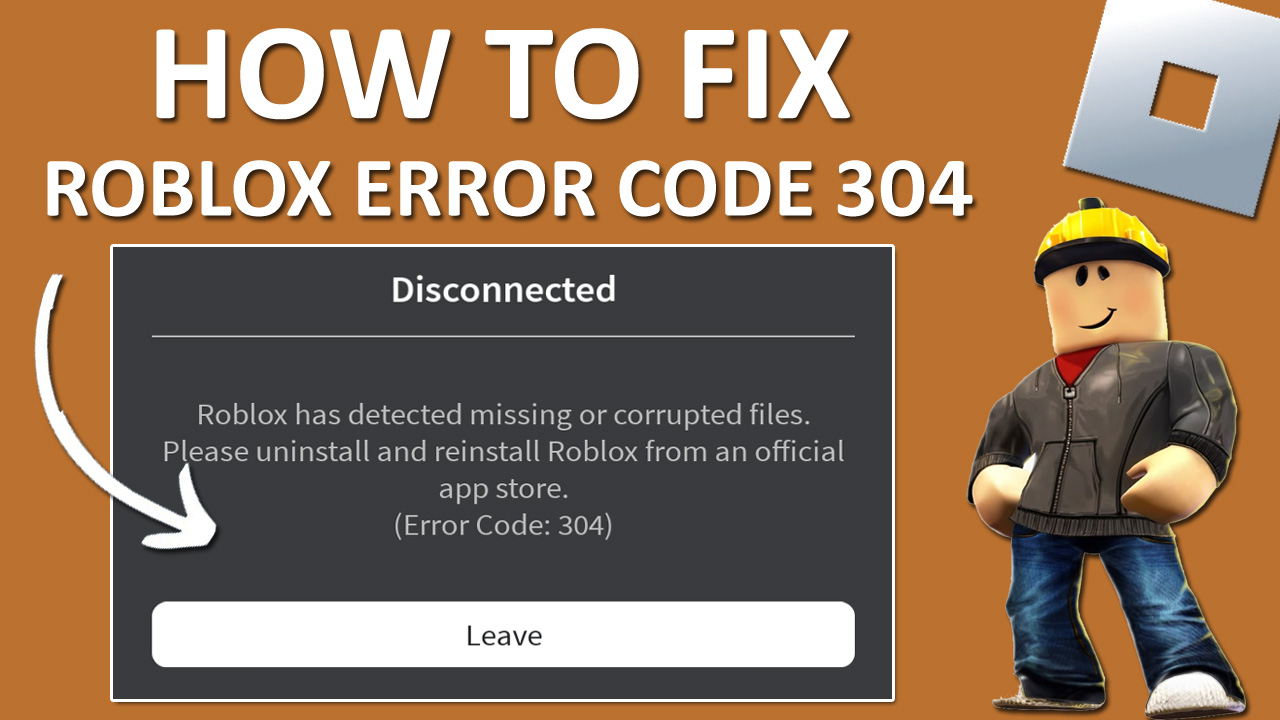
Are you getting an error code 304 on Roblox?
Don’t worry! You are not the only one who is getting this error, there are many other users facing this issue.
This is what the error message says: “Disconnected. Roblox has detected missing or corrupted files”.
Players often face several error codes while playing or launching Roblox.
If you are wondering, “How do I fix error code 304?” then follow this complete guide on how to fix Roblox error code 304 on Android, iOS, and PC.
Before you move to the solution section, make sure to check out the reason behind this issue so that you don’t repeat the same mistake again.
Why Am I Facing Error Code 304 on Roblox?
The reason behind the appearance of this error is using hacks or an unofficial Roblox app.
It can be a mod APK or exploit such as Fluxus, Delta, Krnl, or launchers.
If you are not using any sort of thing and still facing the issue, then you might have received the error by mistake.
Read through this guide to learn how you can fix this.
How to Fix Roblox Error Code 304 on Android/iOS/PC
To fix it, you need to download the official Roblox launcher.
Fix 1: Uninstall and Download Official Roblox
As we mentioned above, the error is occurring due to the unofficial app or launcher. So you should download the official launcher from the store to fix the issue.
On Android:
- First, uninstall the app from your device and go to the Play Store.
- Search for Roblox and tap on the Install button.
Wait for it to be installed. Once done, open the app, log in to your account, and check if this solves the problem or not.
On iOS:
- After uninstalling the app, open the App Store and search for Roblox.
- Tap on the Install or Get option and wait for it to be installed.
Once done, open it and log in to your account, then check if the error is fixed or not.
On PC:
- First, remove or uninstall the unofficial app from your PC, then head to the Microsoft Store.
- Search for Roblox and click on the Install button.
Once done, launch the app, log in to your account, and check if the problem is now solved or not.
Fix 2: Try Uninstalling Executors
Using executors on Roblox is strictly prohibited, and if you are using it to unlock unfair or extra features, then you may get this error.
Roblox does not allow any players to use executors and cheats, it needs to be played fairly and properly.
However, if you have used it before and got this error, then uninstall the executors and clear the app data from your device.
Once you do this, launch it again, log in to your account, and check to see if this helps or not.
Fix 3: Force Restart Your Device
If you have installed the official app from the store and do not use any kind of executors but are still facing such issues, then you might have gotten this error by mistake.
To fix it, you can try force restarting the device. Don’t worry, this will not delete your data, it just forces your phone to restart.
This will fix the existing problem. To do this, follow the below steps.
On Android:
- Press and hold the Power, Volume Down, and Volume Up buttons simultaneously until the logo appears.
- Wait for it to be powered on again.
Once your phone is powered on, open Roblox and check if the issue is solved or not.
On iOS:
- Press the Volume Up button and quickly release it.
- Press the Volume Down button and quickly release it.
- Long press the Side button and release it when you see the Apple logo.
Once done, check by opening Roblox to see if the problem still exists or not.
On PC:
- You can just restart your PC. To do this, click on the Windows logo, then click on the Power icon.
- Click on Restart.
Once done, Launch Roblox and check if the error is gone or not.
Fix 4: Contact Roblox Support
If you have tried all the above methods, but the issue still exists, then the last option left for you is to contact Roblox Support.
Go to the support page, fill in your details, describe the issue in detail, and submit the report.
Wait for a few days until the support team responds.
Wrap Up
Roblox is a fun-to-play game that you can play with your friends to enjoy in your free time, and no one wants to play with a player who is using hacks or any kind of executors to unlock extra features.
So, make sure to play the game fairly and do not use any mod APK or executors.
In case you get the error by mistake, then you can read the above guide to solve the issue.
We have covered all the possible ways to fix error code 304 on Roblox.
If you find this guide helpful, then do share it with your friends who are also facing such issues.
You Might Also Like:
- Fix “To access this experience, first update your content maturity setting” In Roblox
- How To Fix “Content not accessible” In Roblox
- How To Fix “Experiences failed to load” In Roblox
- Fix Roblox Error “Failed To Reach. Please Check Your Internet Connection”

Max Field is a founder of Recover Android Data. He is an Android lover and loves to write tips, tricks, fixes for errors, data recovery solutions and more related to Android.