

Does your Samsung Galaxy S24 keep rebooting after update?
Many users have reported that their Samsung phone keeps restating after the recent update or we say randomly restarting.
It’s a bug that restarts your device randomly, doesn’t matter if you are watching a movie, content, or on an important call.
It becomes very frustrating at a certain point and it needs to be fixed quickly, otherwise, we won’t be able to use the smartphone properly.
Don’t worry! In this guide, we have covered all the possible ways to fix Samsung S24, S24 Plus, S24 Ultra, keeps rebooting after update.
Fortunately, there are a few troubleshooting methods that you can try to solve the issue.
So, let’s check out those solutions.
How To Fix Samsung S24/S24 Plus/ S24 Ultra keeps Rebooting After Update
Check if any update is available and try clearing the cache partition.
Fix 1. Check For Another Software Update
If users are facing such issues, Samsung will provide another update to fix it. So, you should always check if there is a new update available or not.
Here’s how you can check for future upcoming updates.
Step 1: Open Settings and select Software Update.
Step 2: The new updates will be available here; you can simply tap on Download and Install to install it on your phone.
Fix 2. Force Restart Your Device
Force restarting the device may help in fixing the ongoing bugs and glitches and give your phone a fresh start.
To do so, simultaneously, press and hold the Volume Down and Side key on your phone.
Release the keys when it starts rebooting.
Once the phone restarts, check if it solves the problem or not.
Fix 3. Reset App Preferences
If there is a specific app causing such errors, then you should reset app preferences. It will fix the app-related issues.
Follow the below-mentioned steps to do so.
Step 1: Open Settings and navigate to Apps.
Step 2: Tap on 3 Vertical Dots > Reset App Preferences.
Step 3: Tap on Reset to confirm.
Check if the issue persists, then move to another solution.
Fix 4. Reset All Settings
Misconfigured settings can also cause such issues on your Samsung phone.
To fix it, you can try resetting all settings. It will reset the settings and bring the default one back.
Follow the below steps to do so.
Step 1: Open Settings and select General Management.
Step 2: Tap on Reset > Reset all settings > Reset Settings.
Step 3: Tap on Reset to confirm the process.
Fix 5. Boot Your Phone In Safe Mode
3rd party apps can also interrupt the latest update and cause restarting problems on Samsung phones.
To check, if it’s caused by third-party apps or not. Boot your device in safe mode, only system apps are allowed to work in this mode.
Follow the below steps to do so.
Step 1: Long press the Power button and release it when the Power Off option prompts.
Step 2: Select the Power Off option and touch and hold it until you see the Safe Mode icon.
Step 3: Tap on the Safe Mode icon.
Check if the issue is solved in this mode, then you need to uninstall recently installed 3rd party apps.
Restart your phone to exit safe mode and uninstall them one by one.
Fix 6. Clear Cache Partition
Clearing a corrupted device cache always helps in fixing such issues. You need to boot your phone in recovery mode and clear the cache partition from there.
It sounds complicated but we have explained the steps in simple language. Follow them to clear the cache.
Step 1: Power Off your phone then press and hold the Power + Volume Up button simultaneously.
Step 2: When the Samsung logo appears, release the button. (Your phone will be in recovery mode)
Step 3: Select the Wipe cache partition using the Volume Up and Down button.
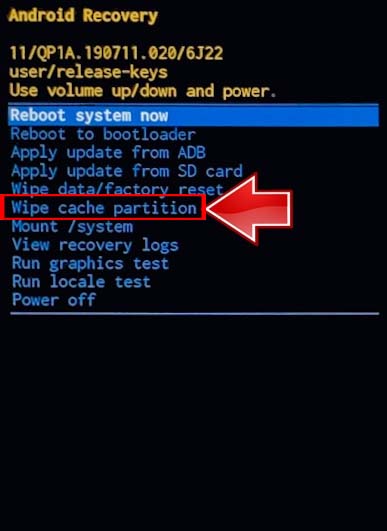
Step 4: Press the Power button to confirm the action.
Try using your phone and check if the issue is fixed or not.
Fix 7. Try Factory Reset
One of the most effective and aggressive methods to solve any problem on the device is performing a Factory data reset.
Doing this workaround will remove all your existing data on your phone but fix any software-related bugs and glitches.
Note: Make sure you backup your data on Samsung S24 Ultra before you follow the steps so that you can restore them once the issue is solved.
Step 1: Open Settings and select General Management.
Step 2: Tap on Reset and select Factory data reset.
Step 3: Select Reset and enter your phone password, if asked.
Step 4: Tap on Delete All to confirm the action.

If the issue is fixed now, then restore the data that you have backed up before.
Fix 8. Contact Samsung Support
If the issue persists even after performing all the above methods, then you should contact Samsung Support for further assistance.
Explain the issue to them and they will guide you with proper methods.
Wrap Up
This was the complete guide on how to fix Samsung S24, S24 Plus, S24 Ultra keeps rebooting or restarting after update.
We recommend, checking for upcoming software updates and try clearing the cache partition.
If doing this does not fix the issue, then you should try factory data reset and contact Samsung Support.
I hope this guide has helped you in fixing the issue.
Do not forget to share this guide with others, if it helps you.
You may Also Like:
- Fix Google Account Not Syncing with Samsung S24 Series
- Fix Poor Signal Reception on Samsung S24, S24 Plus, S24 Ultra
- Fix Proximity Sensor Issues On Samsung S24, S24 Plus, S24 Ultra
- Fix No SIM Card Detected Error On Samsung S24 Ultra, S24 (Plus)

Max Field is a founder of Recover Android Data. He is an Android lover and loves to write tips, tricks, fixes for errors, data recovery solutions and more related to Android.