
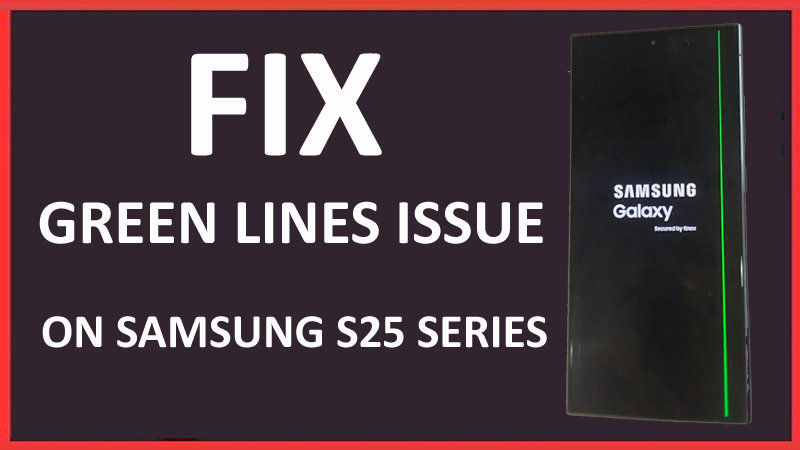
A phone’s screen or display is the most important component of any smartphone and when green lines occur, it starts creating problems in accessing the phone’s data or doing other tasks. Sometimes the green line captures the whole screen, making it uneasy to use the phone. If you are going through the same problem, read this guide to fix the green line issue on Samsung S25/S25+/S25 Ultra.
Why Does Green Line Occurs On Galaxy S25, S25 Plus, Or S25 Ultra?
There could be several reasons behind the occurrence of the green line on the Samsung phone’s screen. But here we have mentioned the common causes:
- If your phone is water-damaged.
- When you keep corrupted or faulty apps on your phone.
- If your phone’s display has been damaged.
- When the configuration of your device is not correct.
- If the display connector has been damaged or the connection is loose.
So, these are the common causes behind this issue. Now, let us move to the solutions to solve the green line on the Galaxy S25 series phone’s display.
How To Fix Galaxy S25 (Plus) (Ultra) Green Line Issue
Here you will find 7 different and effective solutions to solve horizontal or vertical green lines on Galaxy S25 Ultra, S25 Plus, or S25.
Fix 1: Restart Your Galaxy Device
The most simple and powerful method to fix the Galaxy S25 green line issue is to restart your phone. Doing this will let your mobile remove temporary bugs and glitches and hence resolve the problem.
To restart your smartphone, simply press and hold the Power button and then hit on Restart Button from the Power Off Menu.
Fix 2: Update Your Galaxy S25 Series Phone
Are you facing a green line issue after updating your smartphone? If yes then you should check the latest update for your phone’s OS as they might have released the latest update to fix the issue.
Here, follow the steps to install the update for Samsung S25 series phones:
Step 1: Open the Settings app on your phone.
Step 2: Then tap on System/Software update.
Step 3: Now, if the latest version of OS is available then it will show you the steps to download and install it.
Step 4: Once the download is completed, restart your phone and then check the issue is solved or not.
Fix 3: Boot Your Galaxy S25 (Plus) (Ultra) Into Safe Mode
Another way to get rid of vertical green lines on Galaxy S25 Ultra phone is to boot your device into safe mode.
When your mobile is in safe mode, all third-party apps get disabled which helps you to know whether the problem is caused due to faulty apps or not.
If the horizontal green color lines are not showing in safe mode, then it means that the problem is occurring due to 3rd party apps and resolve it you need to uninstall the recently installed apps.
Fix 4: Uninstall Recently Installed Apps
If you have installed any app on your phone recently and after this your phone’s screen starts showing green line issues then you should uninstall that app. Doing this will help you to know if the problem is causing due to incompatible apps or not. You can also change the phone’s settings to see if it helps to get rid of this error or not.
To uninstall an app, simply press and hold the corrupted app and then tap on the Uninstall icon.
Fix 5: Perform A Factory Reset
If uninstalling the apps didn’t help then you should factory reset your phone. But always remember that it will erase all your device’s data, apps, and settings. Therefore, it is a high recommendation from us to create a backup of all important data.
Once, you created a backup, follow the below steps to factory reset your mobile:
- Navigate to Settings > General management > Reset.
- Select Factory data reset.
- Next, hit on Reset.
- If asked enter your Password, PIN, or Pattern.
- At last tap on Delete all.
Fix 6: Rush To Samsung Service Centre
If you are finding it hard to resolve the issue by yourself then you can contact Samsung Support or you can visit the nearest Samsung Service Centre.
If your mobile is in warranty period, then they will fix it for free, or else they will replace the device.
Fix 7: Fix Green Line Issue On Galaxy S25 Series Phones Using Android Repair Tool
If you have tried all the above-mentioned solutions but still the issue is not solved then it means that the problem is causing due to some problem in your phone’s OS. In this case, you are highly recommended to try Android Repair software to fix Samsung Galaxy S25/S25+/S25 Ultra green line issue.
 |
 |
Using the Samsung Repair tool, you can solve other system issues like the black screen of death, Google Play Store not working, apps keeps crashing, phone stuck in boot loop, etc.
This software has a high success rate and to use it you don’t need any extra skills.
Now, follow the below steps to use the Samsung S25 Repair tool to fix vertical/horizontal green lines on Galaxy S25+.
Steps To Fix Green Lines On Galaxy S25, S25 Plus, Or S25 Ultra
Step 1: Connect Your Android To PC
First download and install Android Repair on your computer and launch it.
Next, select the “Repair” from the available options.

Now connect your Android phone or tablet to computer and select “Android Repair” among the available options.

In next Window, select the correct brand name, model number, country/region, carrier. After that confirm the warning message and click “Next”.

The Android Repair software may delete all data on your device. Simply, type in “000000” to confirm to continue.

Note: It is strongly recommended that you must back up your Android data before repairing your Android using Android Repair Tool.
Step 2: Repair Android Phone In Download Mode
Prior to Android Repair, it is important that you must boot your Android device in Download Mode.
Below follow the steps to boot Android phone/tablet in DFU mode!
For Android phone/tablet with home button:
- Power off your device.
- Press and hold “Home + Power + Volume Down” button for few seconds (5-10 seconds).
- Release all the buttons and press “Volume Up” button to enter Download Mode.

For Android phone/tablet with no home button:
- Power off your device.
- Press and hold “Power + Volume Down + Bixby” buttons for few seconds (for 5-10 seconds).
- Release all the buttons and press “Volume Up” button to enter Download Mode.

After that click “Next”. The software will start to download the firmware.

After the download and verification of the firmware, the software will automatically start to repair your Android device.

In just few minutes of time, your Android phone or tablet will have all the system issues, errors, problems fixed.

|
|
Final Words
Now, we have come to the end of this article.
you should first try the other methods which are discussed above to fix green line issue on Samsung S25/S25 Plus/S25 Ultra.
But if they fail to work then we recommend using the Android System Repair tool to resolve vertical green lines on Galaxy phone’s screen.
So, if this guide has helped you then you can share it with others who are going through the same problem.
You May Also Like:
- How To Fix Green Line Issue On Pixel 8 or Pixel 8 Pro
- Solutions To Fix Green Line Issue on OnePlus Phone
- Fix White/Pink/Green/Red/Purple Vertical Line On iPhone Screen
- How To Fix Samsung S24 Ultra/S24 Plus/S24 Green Line Issue

Max Field is a founder of Recover Android Data. He is an Android lover and loves to write tips, tricks, fixes for errors, data recovery solutions and more related to Android.