
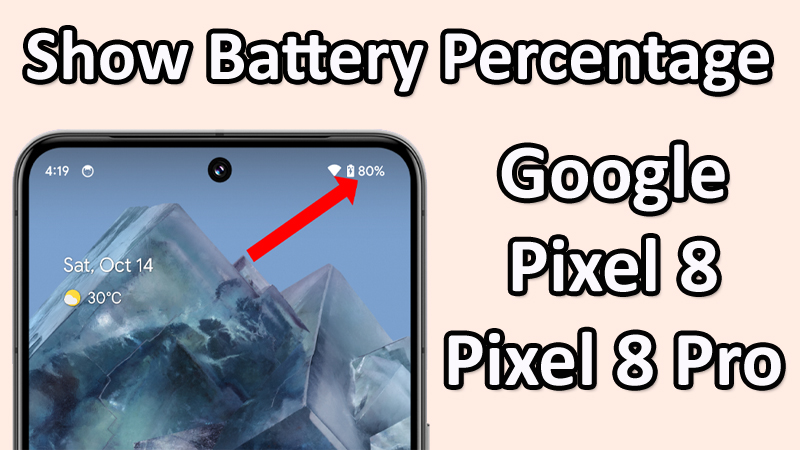
Do you want to see the battery percentage on your Google Pixel 8 or 8 Pro?
Showing the battery percentage can help you determine the battery life as well as estimate how long your phone battery will last on a single charge.
So, in this guide, you will know how to show battery percentage on Google Pixel 8 or Pixel 8 Pro.
As well as you will also know what are the benefits of showing battery percentage, how to add a battery widget to Home Screen, and where to see the cycle count on Pixel 8 series phones.
How To Show Battery Percentage on Google Pixel 8/8 Pro
- Open the Settings app on your phone.
- Tap Battery.
- Toggle the switch to the ON position next to Battery Percentage.

Once you enabled it, you will see the battery percentage displayed in the status bar at the top right corner of the screen.
Advantages of Showing Battery Percentage
There are a couple of benefits of showing battery percentage on Pixel 8 series phones. They are as follows:
Estimate How Long Your Battery Will Last: By seeing the battery percentage, you can estimate how long your battery power will last on a single charge. This will help you when to charge your battery.
Track Your Phone’s Battery Life: Seeing the battery percentage will help you track your battery life. This is useful when you are planning for your day and making sure that you have enough battery power that last all day.
Troubleshooting Battery Issues: If you are facing any battery issue such as when you see that your battery is draining quickly, then you can check which app is consuming more power and take necessary steps to reduce battery usage.
How To Turn ON/OFF Battery Percentage on Pixel 8 Series Phones
- Go to Settings > Battery > Toggle the switch ON/OFF next to Battery Percentage.
How To Add Battery Widget To Home Screen on Pixel 8/8 Pro
- Go to Settings > Battery.
- Tap on Battery Widget > Add to home screen.
Now, you will see the battery widget added to your Pixel home screen.
Where To See Battery Cycle Count on Pixel 8 or 8 Pro?
- Go to Settings > About phone > Scroll down and tap on Battery information.
- Here you can see the Cycle count.
Wrap Up
That’s all in this guide. It is easy to show or hide battery percentage on the status bar in Google Pixel 8 or Pixel 8 Pro.
If you have found this guide helpful, then please share it as it can help others!
Please support us by subscribing to our YouTube Channel.
You May Also Like:
- How To Fix WiFi Issues on Google Pixel 8/Pixel 8 Pro
- Google Pixel 8 or Pixel 8 Pro Overheating? Here What To Do!
- How To Fix Pixel 8 Pro Uneven Discoloration on AOD
- How To Fix App Crashing on Google Pixel 8/8 Pro

Max Field is a founder of Recover Android Data. He is an Android lover and loves to write tips, tricks, fixes for errors, data recovery solutions and more related to Android. Provide Gaming Tips, Tricks, Game Error/Issues Solutions (PC/Xbox/PlayStation/Mobile). He has 11+ years of experience in this field.