

Facebook helps us to remember our friend’s birthdays. But many of my friends have stopped using Facebook for the past few years. However, we can still take benefit of our Facebook friend’s list and import all of my friend’s birthday lists to my Google Calendar which I am using regularly.
So, currently, if you and your friends are not using Facebook then it’s better to import birthdays from Facebook to Google Calendar. It can help you to remember your friend’s birthday. Here is the complete guide on how to import birthdays from Facebook to Google Calendar.
Video Tutorial: Import Birthdays From Facebook To Google Calendar
1. Importing Birthdays From Facebook To Google Calendar
The method of importing birthdays from Facebook to Google Calendar was much easier in the past. You just have to take the Facebook birthday events URL and paste it into Google Calendar. But that is not possible in the current version of Facebook. So, you can use Chrome extension to import the birthdays to Google Calendar.
Here are the steps to sync Facebook birthday with Google Calendar. [Pics Credit Goes To: TechWiser]
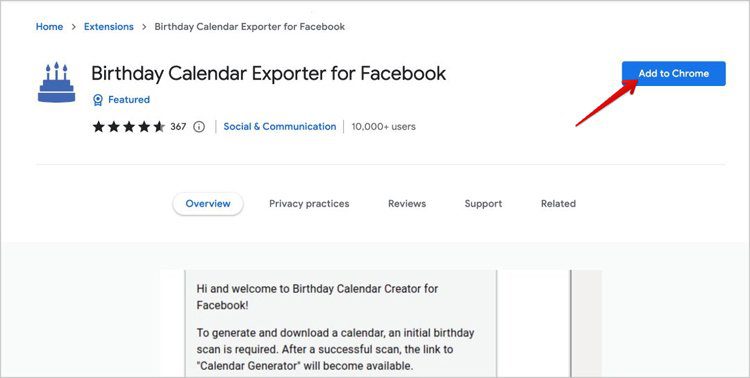
- Go to the Birthday Calendar Exporter For Facebook Chrome Extension, then simply click on the Add to Chrome.
- Now go to the Facebook profile from which you want to export your friend’s birthday list.
- Now click on the Extension icon located at the top right corner and choose the Birthday Calendar Exporter.
- Now the extension popup will appear, click on the Start Scan.

- It will take a few seconds depending on your number of friends you have on your friend list. After that, a pop-up will appear where you can click on the preview button and check your friend’s list in the calendar view.
- Then click on Generate option to export.
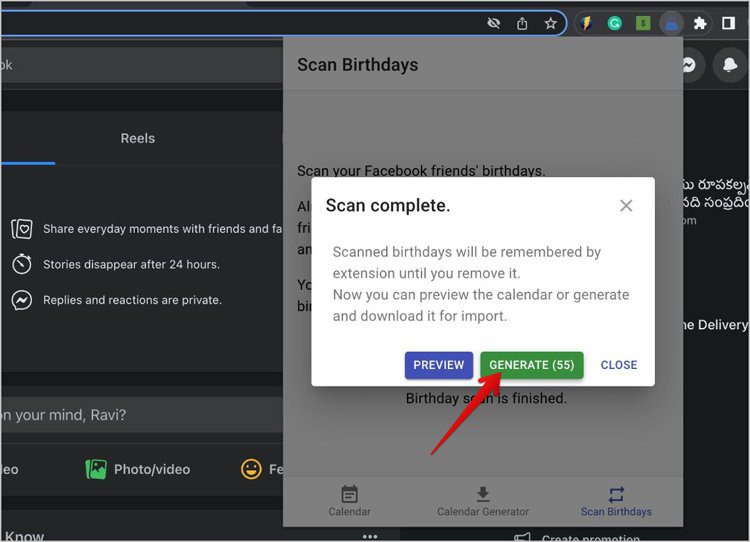
- The pop-up will appear on the next page, under the Export birthdays as ICS file, click on the Generate and Download The ICS file will get downloaded with all your Facebook friend’s birthdays.

- Now to add your friend’s birthdays open Google Calendar. First, you have to make a new calendar for it. To make a new calendar, tap on the “+ icon” next to the Other calendars option.
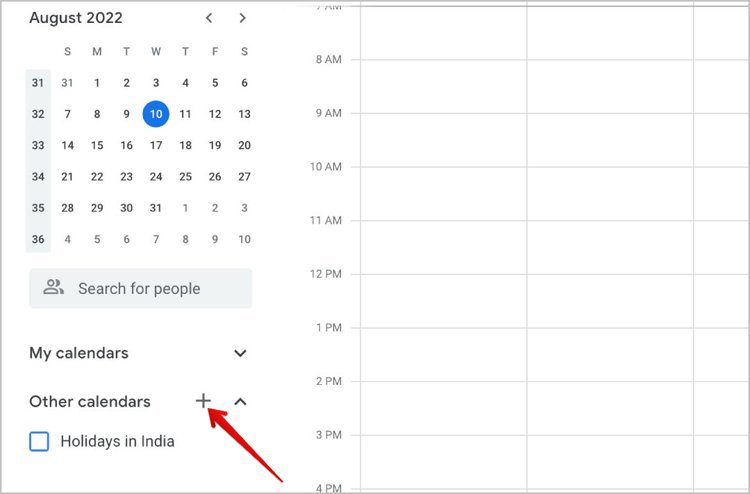
- Then the pop-up will appear, simply choose the Create New Calendar.

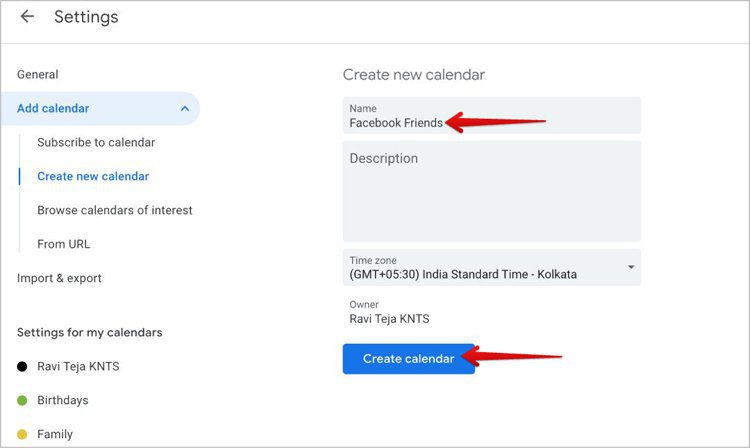
- Now give a name and description to your calendar, and click Create Calendar.
- After that click on the Import & export button in the sidebar.
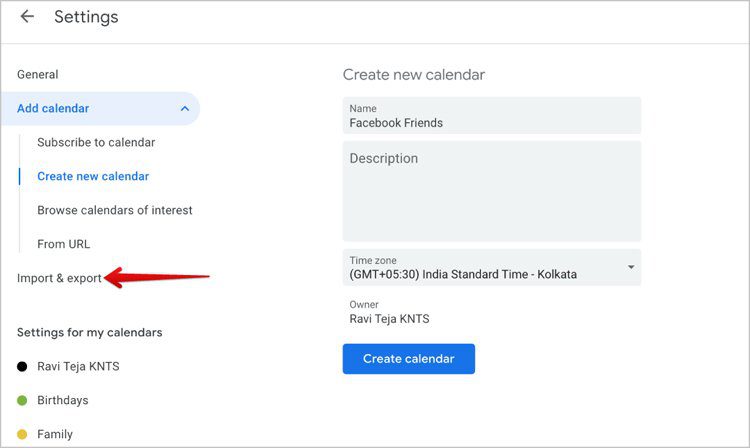
- Now click on Select file from your computer and choose the birthday list file that you have exported from Facebook.
- Then click on the Add to Calendar button and choose the calendar you have made to import birthdays of Facebook.
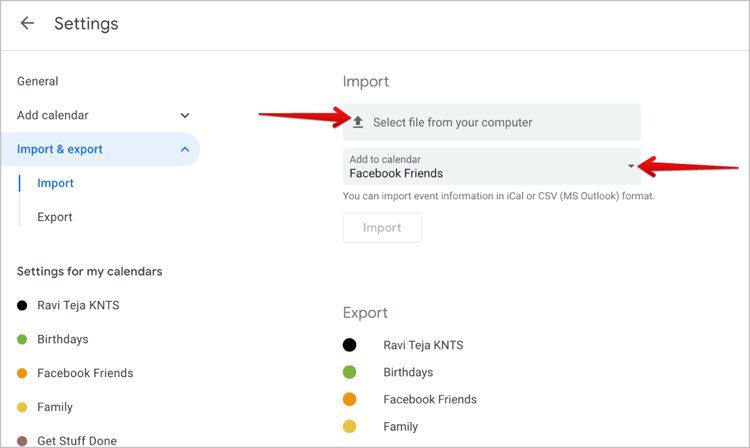
- Finally, click on the Import option to import friend’s birthdays to Google Calendar from Facebook.
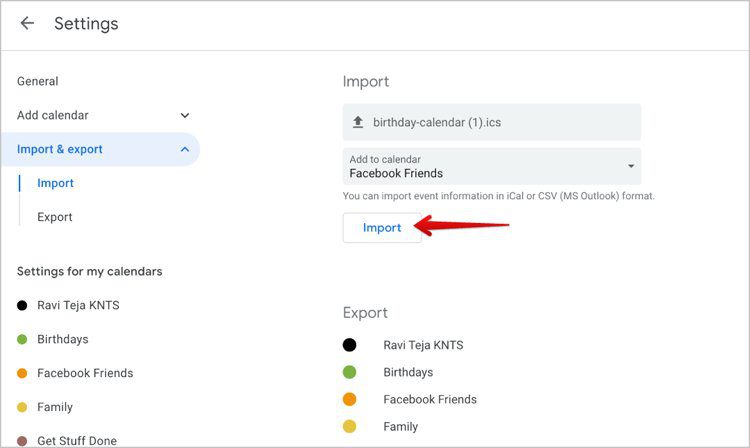
That’s It! Isn’t that easy to transfer Facebook birthday to Google Calendar?
Also Read: Google Calendar Not Syncing With Android? Here Is The Fix!
2. How To Delete/Re-add Birthdays In Google Calendar Downloaded From Facebook
The above-mentioned solution will only import and export, so, when you make new friends on Facebook, it will not sync automatically on the Google Calendar. If you rescan and upload the imported file again, then it will make duplicate entries. To prevent that, you need to delete all the current birthdays that you have imported on the Google calendar.
So, these are the steps to remove all entries in a Google Calendar so you can re-add the new birthdays list imported from Facebook. [Pics Credit Goes To: TechWiser]
- Click on Birthday Calendar Exporter extension icon and choose the Birthday Calendar Exporter
- Then the pop-up will appear, simply click on the Calendar Generator button located at the bottom.
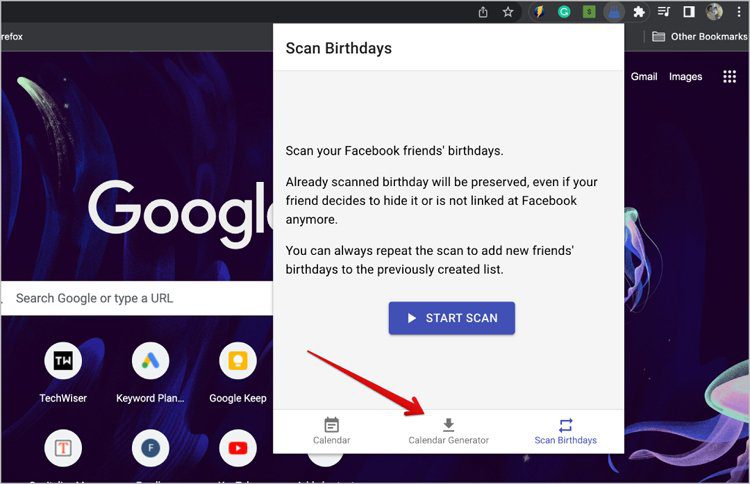
- Now choose Delete Imported ICS from the Google Calendar.
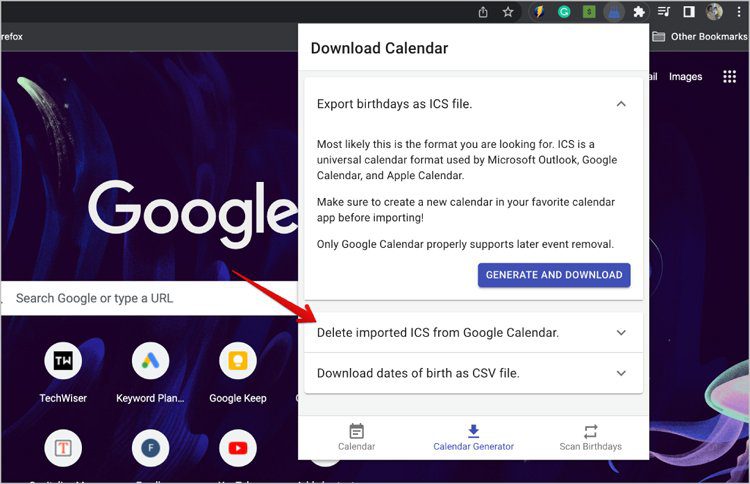
- Then simply click on the Generate and Download.
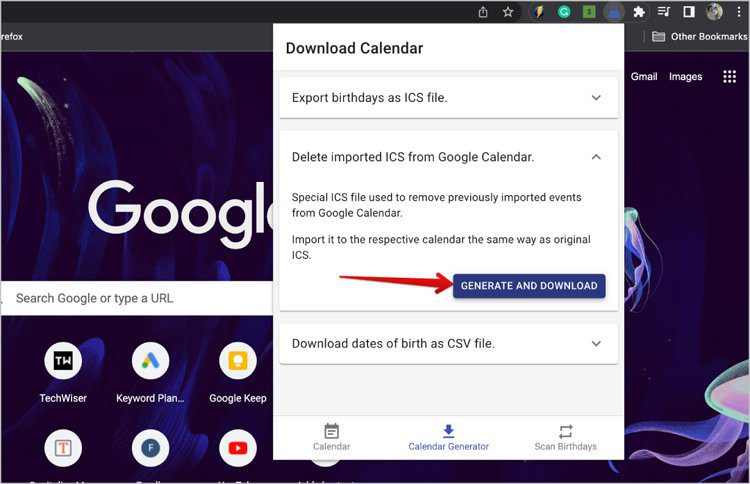
- Now it will download an ICS file. Import the file to the Google Calendar with the same process that we learned above and also to the same calendar.
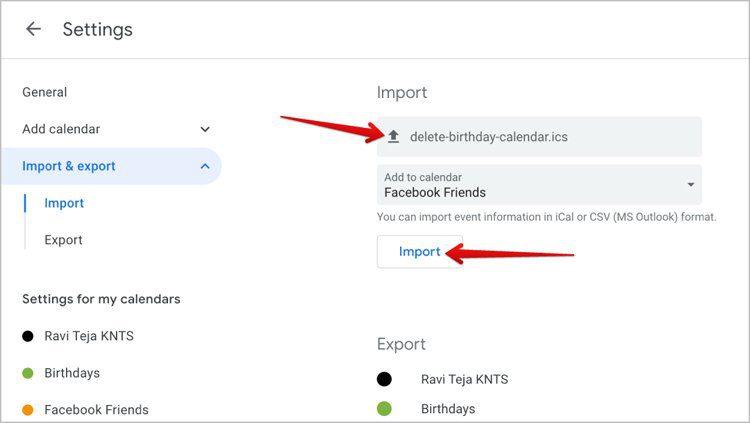
Doing so will remove all the previous imported Facebook birthdays on the Google Calendar. Now you can re-scan the birthdays of Facebook and import the newly created birthdays list.
You May Also Like:
- [FIXED] “Unfortunately, Facebook Lite Has Stopped” On Android
- How To Recover Deleted Facebook Messenger Messages From Android Phone
- Turn OFF Facebook “Suggested For You” Posts On Android, iPhone
- How To Restore Calendar Events On Android
- How To Fix Messenger Bubble/Chat Head Not Showing
People Also Ask
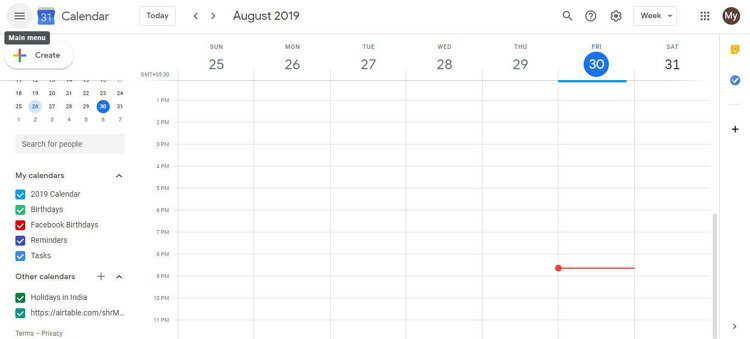
To unsync Facebook birthdays from Google Calendar follow the mentioned steps given below: (Pic Credit: Karenapp) (Pic Credit: Karenapp)

Wrap Up
In this article I have provided two methods, so, you can use them according to your need. I hope this guide helped you to import Facebook birthdays to Google Calendar.
Please support us by subscribing to our YouTube Channel.
If you find this article helpful then please share it, as it can help others.

Max Field is a founder of Recover Android Data. He is an Android lover and loves to write tips, tricks, fixes for errors, data recovery solutions and more related to Android. Provide Gaming Tips, Tricks, Game Error/Issues Solutions (PC/Xbox/PlayStation/Mobile). He has 11+ years of experience in this field.