

Many players are reporting that their voice chat is not working in Call of Duty: Modern Warfare 3 on Xbox.
Some players are complain that they can’t hear the player’s voice, some say that the microphone doesn’t appear next to their name while others are saying game chat (audio) is completely not working in MW3 on Xbox.
If you are also experiencing the same problem, don’t worry, in this article, you will learn how to fix Modern Warfare 3 (MW3) voice chat not working on Xbox.
How To Fix Modern Warfare 3 (MW3) Voice Chat Not Working on Xbox
To Fix Call of Duty: Modern Warfare 3 (MW3) Voice Chat Not Working on Xbox, you can follow these solutions:
- Adjust Microphone Settings
- Clear Persistent Storage and Alternate Mac Address
- Restart MW3 and Xbox
- Check Microphone and Your Headset
- Contact MW3 Support
Fix 1. Adjust Microphone Settings [Includes Part 1, 2 and 3]
Part 1. Check Headset Mic Is ON
Step 1: Go to Xbox Menu > Audio option.
Step 2: Here, make sure “Headset mic is on”.
Step 3: Set your Headset volume, Headset chat mixer, and Mic monitoring to high.

Part 2. Set Party Chat Output To Headset and Speakers on Xbox
Step 1: Click on “Parties & chats” and if you are in a party then leave it.
Step 2: Go to “Profile & system” and click on “Settings”.
Step 3: Click on “Volume & audio output” in the General tab.
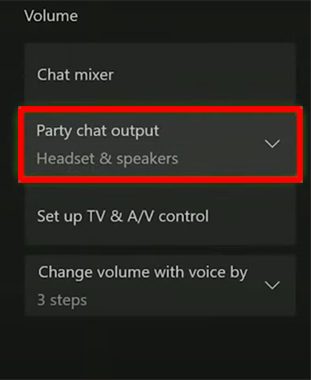
Step 4: Click on “Additional options” located on the right side and then set Party chat output to “Headset & speakers”.
Part 3. Adjust In-Game Microphone Settings
Step 1: Press Menu button and go to Settings, click on “Audio” and set the Audio mix to “Headphones”.
Step 2: Then go to “Volumes” and press the X button and make sure that the chat volume is high.

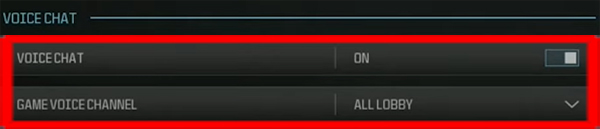
Step 3: Next, turn on the Voice Chat and set the Game Voice Channel to “All Lobby”.
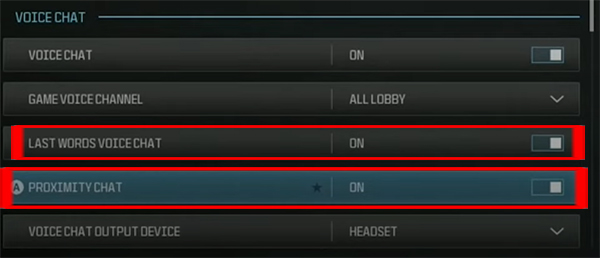
Step 4: Next, turn on both “Last Words Voice Chat” and “Proximity Chat”.
Step 5: Turn off “Mute Yourself When Connecting To Channel”.
Step 6: Set “Microphone Level” to high.
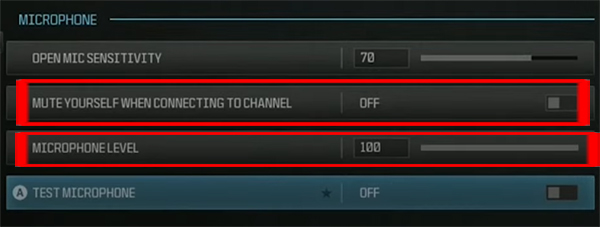
Finally, we are done with Part 1, 2 and 3 of FIX 1.
Now, check if the MW3 voice chat is working or not.
Fix 2. Clear Persistent Storage and Alternate Mac Address
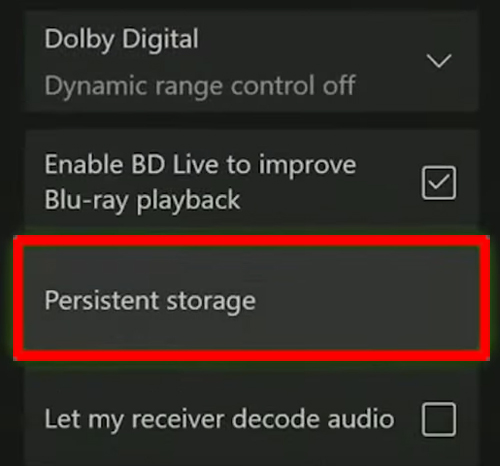
Step 1: Press Guide button and go to Settings > Devices & connections > Blu-ray > Persistent storage and click “Clear persistent storage”.
Step 2: Head back to Settings > General > Network settings > Advanced settings > Alternate mac address and click on “Clear” and then on “Restart”.
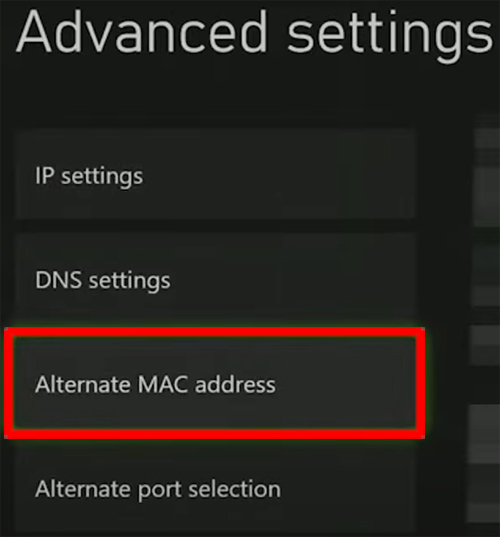
Once, your console restarts, check if the game/voice chat is working or not.
Other Solutions To Fix MW3 Voice Chat Not Working on Xbox
- Restart MW3 and Xbox: If voice chat not working, then restart MW3 and Xbox and then check.
- Check Microphone and Your Headset: Make sure there is no physical/internal damage to your microphone and headset.
- Contact MW3 Support: If nothing works, then contact MW3 Support for further help.
If you have found this article helpful, please share it as it can help other players!
Please support us by subscribing to our YouTube Channel.
You May Also Like:
- How To Fix “Your profile was signed out” In MW3
- How To Fix Skin Not Showing Up In Modern Warfare 3 (MW3)

Max Field is a founder of Recover Android Data. He is an Android lover and loves to write tips, tricks, fixes for errors, data recovery solutions and more related to Android. Provide Gaming Tips, Tricks, Game Error/Issues Solutions (PC/Xbox/PlayStation/Mobile). He has 11+ years of experience in this field.