
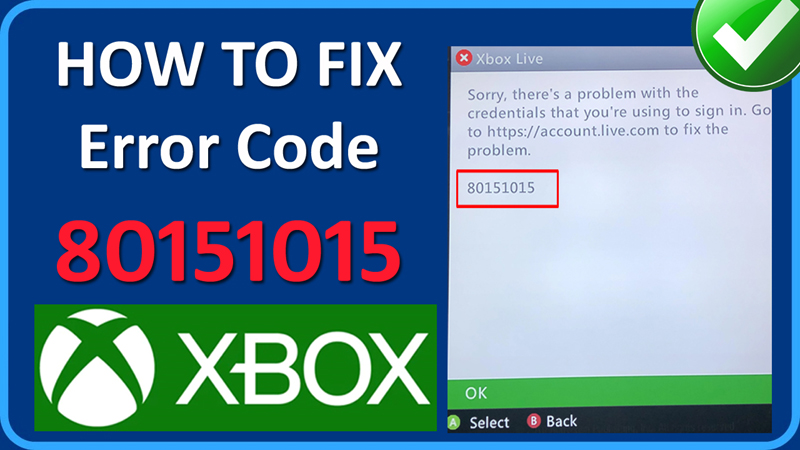

In This Article, You Will Learn How To Fix Error Code 80151015 on Xbox.
How To Fix Error Code 80151015 on Xbox
Fix 1. Make Sure Your Xbox Is Up-To-Date
- Press Xbox Guide button.
- Go to Settings > System.
- Click on “Updates” and make sure it is up-to-date. If it is not, then update it.
Fix 2. Update Your Security Information
- Login to your Microsoft account.
- Click on “Security” at the top.
- Click on “Update my info”. If asked, enter your password.
- Make sure your security information is correct and up-to-date.
- Now, try to sign-in your account again.
Fix 3. Delete The Profile Data For The Game That You Want To Play
- Press Xbox Guide button
- Go to My games & apps > See all.
- Now, go to the game for which you have problem with and press the “Menu” button.
- Click on Manage game and add-ons > Saved data.
- Here, click on your Profile and then select “DELETE FROM CONSOLE”.
Fix 4. Clear Persistent Storage & Clear Alternate Mac Address
4.1. Clear Persistent Storage
- Press Xbox Guide button.
- Go to Settings > Devices & connections > Blu-ray.
- Click on Persistent storage and then click “Clear persistent storage”.
4.2. Clear Alternate Mac Address
- Press Xbox Guide button.
- Go to Settings > General > Network settings.
- Navigate to Advanced settings > Alternate MAC address.
- And then click on “CLEAR” and then Restart your console.
Fix 5. Log Out of Account & Log In Back On Xbox
- Press Xbox Guide button.
- Go to Settings > Remove accounts.
- Select the account that you want to remove.
- Click on “REMOVE” to log out of account.
- Now, under Profile & system on Xbox, click on “Add new” to login back.
- Enter your email id and password and login.
- Now, check if your problem is solved or not.
Fix 6. Reset Console Without Deleting Games
- Press Xbox Guide button.
- Go to Settings > System.
- Then click on Console info > Reset console.
- Click on “RESET AND KEEP MY GAMES & APP”.
- After this check if your issue is fixed or not.
If you have found this post helpful, then please share it as it can help other users!
Please support us by subscribing to our YouTube Channel.
You May Also Like:
- How To Fix 100% Packet Loss On Xbox
- How To Fix Fortnite “An Unexpected Error Occurred while Signing in to your Account for Xbox Live”
- How To Fix Xbox High Wait Time With Cloud Gaming
- How To Fix Xbox App for PC Not Installing

Max Field is a founder of Recover Android Data. He is an Android lover and loves to write tips, tricks, fixes for errors, data recovery solutions and more related to Android. Provide Gaming Tips, Tricks, Game Error/Issues Solutions (PC/Xbox/PlayStation/Mobile). He has 11+ years of experience in this field.