
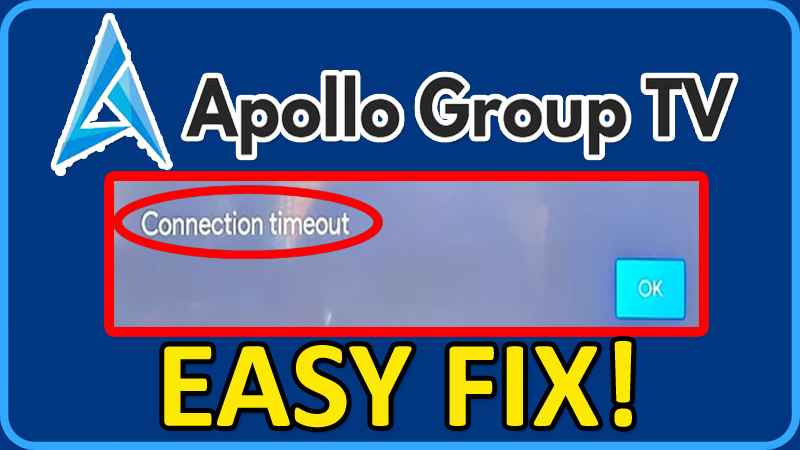

In This Article, You Will Learn How To Fix Apollo Group TV Connection Timeout.
How To Fix Apollo Group TV Connection Timeout
Fix 1. Turn OFF and Turn ON Your Device
Switch off your device. Unplug all wires and cables and wait for 1 minute.
Plug all wires and cables. Turn on your device and then try connecting again to Apollo Group TV.
Fix 2. Clear Firestick Cache
- Launch Firestick, navigate to the Settings menu.
- Select Applications, then Manage Installed Applications.
- Find the Apollo Group TV app and click on it.
- Select “Clear Cache” and “Clear Data” followed by “Force Close”.
Fix 3. Switch Players (On Android)
- From the main menu of the app and navigate to the Settings menu.
- Scroll down and select the Player Settings menu.
- Click to the right and change the player from EXO to VLC or VLC to EXO.
- Here you can change both the VOD player and LIVE TV player.
Fix 4. Update Apollo Group TV App
- On Firestick: From Main menu, navigate to Settings > Applications > Manage Installed Applications > Apollo Group TV > Click on “Update”, if any are available.
- On Android: Open Play Store > Search for Apollo Group TV > tap on “Update” if any is available.
Fix 5. Try VPN
- If you are not connected to VPN, then install one and connect to VPN and then try.
- You can connect to one of these VPNs: Finland, USA, Denmark, Canada, Sweden, Norway, Switzerland.
Fix 6. Uninstall and Re-Install Apollo Group TV App
- Uninstall Apollo Group TV App from your device.
- Restart your device and then re-install the Apollo Group TV App.
- Now, check if your issue is fixed or not.
Fix 7. Contact Apollo Group TV Support
If all fixes fail, then it is recommended that you must contact Apollo Group TV Support.
- You can contact Apollo Group TV support via email: support@apollogroup.tv
- Or you can create a support ticket: https://help.apollogroup.tv/support/tickets/new
If you have found this article helpful, then please share it as it can help other users!
Please support us by subscribing to our YouTube Channel.
You May Also Like:
- How To Fix NBC App Not Working on Samsung Smart TV
- How To Fix Showmax Not Working On Smart TV
- How To Fix Netflix Not Working On Smart TV
- Crave TV App Not Working on Samsung TV? Here’s What I Did!

Max Field is a founder of Recover Android Data. He is an Android lover and loves to write tips, tricks, fixes for errors, data recovery solutions and more related to Android. Provide Gaming Tips, Tricks, Game Error/Issues Solutions (PC/Xbox/PlayStation/Mobile). He has 11+ years of experience in this field.