
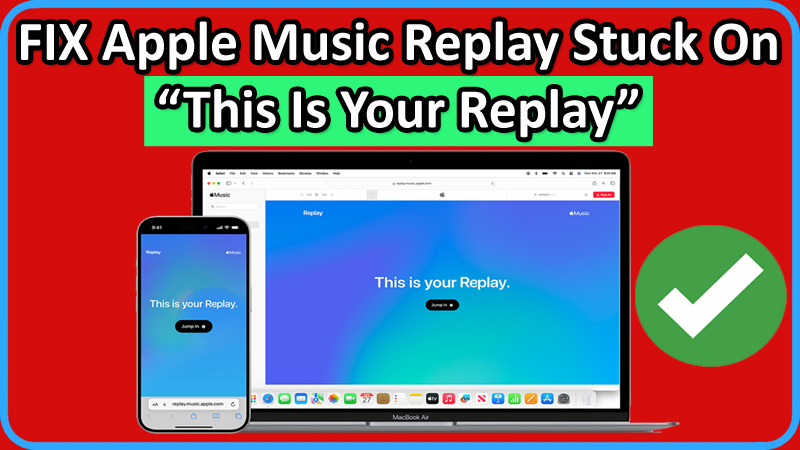
After doing some research I have found that there are many people out there facing issues with Apple Music Replay.
Their Apple Music Replay is not working or not loading.
It is stuck on “This Is Your Replay” blue screen.
If you are also facing such issues, then do not worry. In this article, you will learn how to fix Apple Music Replay stuck on “This Is Your Replay” or Apple Music Replay not updating or loading.
How To Fix Apple Music Replay Stuck On “This Is Your Replay”
To fix Apple Music Replay not working, not loading or stuck in “This Is Your Replay” blue screen, you can follow these solutions:
- Enable Listening History
- Refresh/Reload The Page
- Update Apple Music App
- Restart Your Device
- Sign Out and Sign In Back To Your Apple Music
- Change Device Orientation
- Access Apple Music Replay On Browser
- Contact Apple Support
Fix 1. Enable Listening History
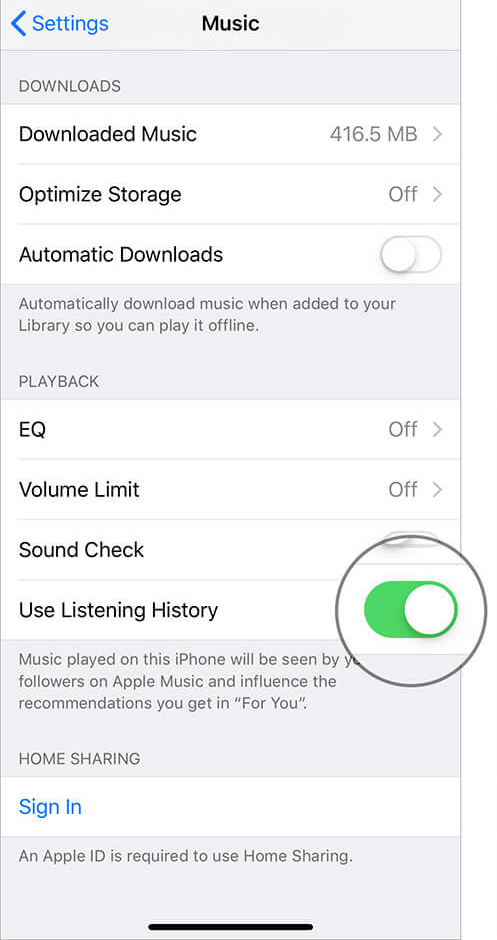
Make sure “Use Listening History” is enabled on every device you use for listening Apple Music.
On iOS: Go to Settings > Music > Toggle on “Use Listening History”.
On macOS: Open Apple Music app > Click on “Music” from the Menu bar > Preferences > Go to Playback tab and make sure “Use Listening History” is checked.
Fix 2. Refresh/Reload The Page
Just refresh or reload the page and see if that fixes the issue.
If you are using Apple Music Replay on the web browser, then refresh the page by pressing “CTRL + R” (on Windows) or “Cmd + R” (on Mac).
Tip: You can also try using different web browsers.
Fix 3. Update Apple Music App
- On iOS: Open App Store > Search for “Apple Music” > Tap on “Update” button if any available.
- On macOS: Open App Store > Search for “Apple Music” > Click on “Update” button if any available.
Fix 4. Restart Your Device
Simply Restart your iOS device (iPhone/iPad) or Mac device and then see if it fixed the problem.
Sometimes, restarting the device solves several problems.
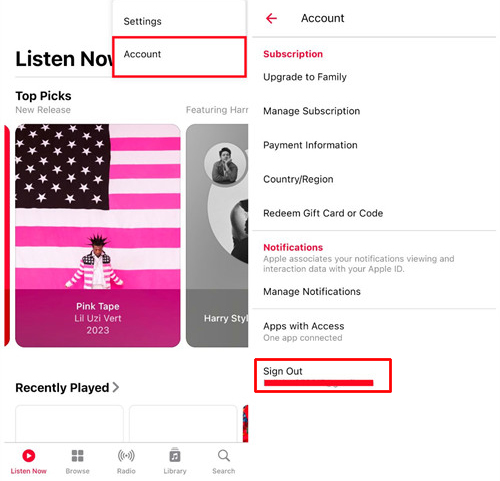
Fix 5. Sign Out and Sign In Back To Your Apple Music
- Sign out of your Apple Music account.
- Restart your device.
- Launch Apple Music app and then sign-in.
- Now, check if your problem is resolved or not.
Fix 6. Change Device Orientation
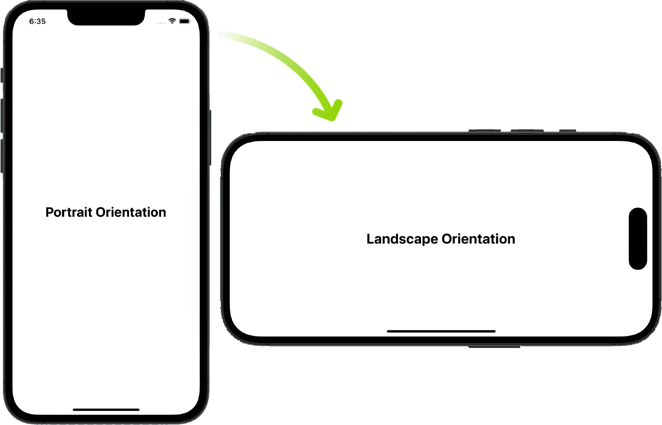
If you are using Apple Music on Mobile device, then rotate your device to landscape mode.
After the screen adjusts, try to refresh the app or page.
Fix 7. Access Apple Music Replay On Browser
- Go to: https://replay.music.apple.com/ on Chrome or Safari.
- Login with your Same Apple ID that you use with your Apple Music Subscription.
- Click on “Jump in” button and then select “Play Highlight Reel” to view your Apple Music Replay.
Fix 8. Contact Apple Support
If nothing seems to work, then you can contact Apple Support for further help.
If you have found this post helpful, then please share it as it can help other players!
Please support us by subscribing to our YouTube Channel.
You May Also Like:
- Fix Instagram Reels Not Working On Android/iPhone
- Vertical Lines On iPhone Screen – Here How I Fixed It!
- Turn OFF Facebook “Suggested For You” Posts On Android, iPhone
- How To Fix Spotify Wrapped 2023 Not Showing Up

Max Field is a founder of Recover Android Data. He is an Android lover and loves to write tips, tricks, fixes for errors, data recovery solutions and more related to Android. Provide Gaming Tips, Tricks, Game Error/Issues Solutions (PC/Xbox/PlayStation/Mobile). He has 11+ years of experience in this field.