
Is the auto-rotate feature not working on your Samsung Galaxy S24 series phone? Sometimes the screen gets stuck in portrait mode and doesn’t rotate automatically despite changing the smartphone’s orientation.
If yes, then this can be very irritating when you wish to watch content on a wider landscape screen. But now you don’t need to worry as this guide will teach you how to fix Samsung S24/S24 Plus/S24 Ultra auto rotate not working issue.
How To Solve Auto-Rotate Not Working Issue On Samsung S24, S24+, Or S24 Ultra
Fix 1: Restart Your Samsung Phone
The simplest working solution to solve the auto-rotation not working issue is by restarting your phone.
Doing this will refresh the entire screen and solve minor glitches and bugs that can prevent the auto-rotate feature from working properly.
Here, follow the steps to restart your Samsung S24 series phone:
- Press and hold the Power button.
- Now, you will see some options on the screen, hit on Restart option.
- The device will power off and restart automatically.

Fix 2: Check App Permissions For Auto-Rotate
You need to allow permission for the apps to use the feature of your Galaxy S24.
So, if you have not allowed the auto-rotate feature for apps on your Samsung S24 then this feature will not work. And to solve this issue you need to grant the permissions.
Below, follow the steps to check it and if the permission is not allowed then allow it:
- Open the Settings app on your Galaxy phone.
- After this, tap on Apps.
- Next, hit on Permission manager.
- Choose Rotate screen to check which apps are allowed for auto-rotate permission.
- Now, tap on the slider button next to specific apps to allow auto-rotate permission. You can also turn off auto permission for unnecessary apps.
Fix 3: Make Sure Auto-Rotate Is Not Disabled In Quick Settings
If you have accidentally turned off the auto rotate feature from the Quick settings menu then this also doesn’t rotate the Galaxy S24 screen automatically.
So, you should check it and if you find it disabled then enable it.
Here are the steps to do the same:
- Go to the Quick Settings menu by swiping down from the top of the screen.
- Now, find the Auto-Rotate icon.
- If you find it disabled then tap on it to turn on Auto-rotate feature.
Fix 4: Clear Cache Partition of Your Samsung Device
If the cache partition of your phone is corrupted then this can also slow down the system and prevent the auto-rotate feature from working on your phone.
Here, follow the below steps to clear cache partition of Galaxy S24 series phone in Recovery mode:
- Firstly, boot your Samsung S24/S24 Plus/S24 Ultra into Recovery mode.
- After this, use the Volume Down button to highlight “Wipe cache partition” option.

- And select it using the Power button.
- After this, highlight “Reboot system now” option via the Volume key and select it using the Power key.
This will clear the corrupted caches related to system files, app data, etc. Once the reset process is completed, try to check the auto-rotate is working or not.
Fix 5: Disable Auto-Rotate For Camera App
Some Samsung users have reported that they have solved the issue just by turning off the auto-rotate feature for the Camera app. So, you should also try it.
Here are the steps to do this:
- Open the Camera app on your phone.
- Then tap on Settings icon in the top-left corner of the viewfinder screen.
- Now, toggle off the “Auto-Rotate” option.
After this, check whether auto-rotate for other apps is working on your phone or not.
Fix 6: Enable And Disable Airplane Mode
You can just enable and disable the Airplane mode on your phone to refresh the network connectivity which can also help in fixing the auto rotation problem.
To enable Airplane mode on your phone, you need to go to the quick settings menu then look for the Airplane mode icon and tap on it to enable it. After new seconds turn it off.
Fix 7: Ensure Your Samsung Phone Case Is Not Touching the Screen
You need to check that your phone cover or case is not too tight and it is not interfering with the built-in motion sensors located around the front camera.
If it is touching the screen then remove the phone cover and check whether your Samsung phone is rotating automatically or not.
Fix 8: Factory Reset Your Samsung Phone
If still the auto-rotate feature is not working on your phone and you don’t want to manually rotate it then you can factory reset your Galaxy S24. This will remove all the deeper issues that may be interfering the with Auto-Rotate feature.
This will erase all stored data on your device that’s why you should first create a backup of your Samsung phone and then try the steps to factory reset your phone.
Now, follow the below steps to reset your Samsung S24 Ultra, S24 Plus, or S24 phone:
- Head to Settings > General Management.
- After this, tap on Reset.
- Next, hit on Factory data reset.
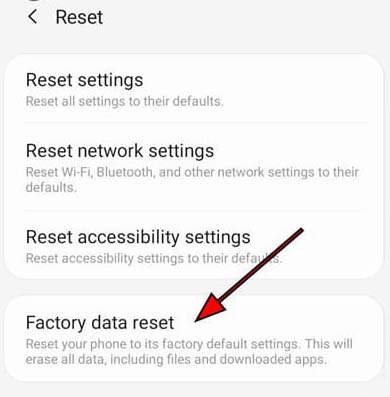
- Now, follow the on-screen steps to reset your phone.
Once the reset process is completed, set up your phone and then check whether the auto-rotate feature is working or not.
Fix 9: Contact Samsung Support
If you have tried all the above-listed DIY methods but still the auto-rotate feature is not working then it is likely that your Galaxy S24 has a hardware-related problem like a damaged sensor, or faulty connecting cables that could be preventing device orientation from working.
In such situations, you need to contact the Samsung Support team. Tell them your problem and they will try to solve the issue. You can also reach your nearest Samsung support center and if they find hardware damage on your phone then you need to replace the affected component.
If your phone is on warranty period then you can ask for replacement.
Wrap Up
We have provided almost all the possible solutions to fix the Samsung S24/S24 Plus/S24 Ultra auto-rotate not working issue.
So, firstly you should try all the DIY methods like restarting your phone, clearing cache partition, enabling and disabling Airplane mode, etc.
And if all these failed to resolve the issue then you can ask for replacement, if your Galaxy S24, S24 Plus, or S24 Ultra phone is running under warranty period.
If it is not laying under warranty period then you need to contact the official Samsung support team.
You May Also Like:
- How To Enable Dark Theme on SAMSUNG S24 Ultra/S24 Plus/S24
- How To Check Storage Space on Samsung S24 Ultra/S24 Plus/S24
- How To Clear App Cache and Data on Samsung S24 Ultra/S24+/S24
- Fix Samsung S24 Ultra, S24 Plus, S24 Not Charging Or Slow Charging

Max Field is a founder of Recover Android Data. He is an Android lover and loves to write tips, tricks, fixes for errors, data recovery solutions and more related to Android.