

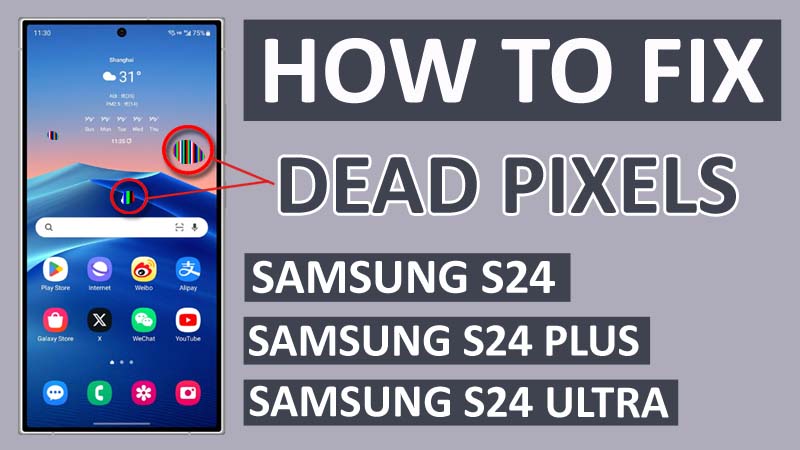
Are you encountering dead pixels on your Samsung Galaxy S24 Plus/S24 Ultra/S24?
Dead pixels can occur in any phone, whether the smartphone offers good quality built-in or bad quality built-in.
However, dead pixels do not interrupt the functioning of the device but it is surely very annoying as it is displayed on the screen causing distraction to the user.
As you are here then you must also be facing issues with dead pixels on Samsung S24/S24 Ultra/S24 Plus and want to get rid of them.
So, in this tutorial, I will guide you and provide you with all the possible solutions that will eventually help you to fix dead pixels on the Samsung S24 display.
Before we dive into the solutions, you should also know about the causes/reasons that could be leading dead pixels to appear on the display.
Causes: Dead pixels can appear on the screen due to Physical/Screen damage, Manufacture defect or it could occur due to excessive use of the device.
These could be the possible reason behind the appearance of dead pixels on the display of your Samsung S24/S24 Plus/S24 Ultra.
As you all are now familiar with the causes, you can prevent them from happening in the future so that you don’t encounter dead pixels again.
So, without any further do, let’s jump directly into the solutions to this issue.
Fix Dead Pixels on Samsung S24/S24 Plus/S24 Ultra (2024 Guide)
Fix 1: Pressing Method on Samsung
In this pressing method, you have to turn off your phone and locate the dead pixel on the screen of your Samsung Galaxy S24 phone.
After locating it, gently press on the dead pixel with the use of a soft and clean cloth around the area where the dead pixel is present.
Make sure you don’t press the screen too harshly as it could make the situation even worse.
Lastly, check if the dead pixels are gone or not.
Fix 2: Massaging Method on Samsung
Another method to solve this issue would be massaging the affected area.
This method is similar to the pressing method, in this method, you have to turn off your phone, locate a dead pixel, and use soft and clean clothes or tissue to gently massage around the area affected by the dead pixel in a circular motion.
Avoid massaging too hard on the screen.
After massaging the screen, turn on your Samsung S24 and check if the dead pixel is still visible on the screen or not.
Fix 3: Tapping Method
You can also fix dead pixels on your display by tapping on it. Like the above methods, this method is also very easy to do.
You have to turn on your device and locate the dead pixel.
After locating the dead pixel, tap on the dead pixel with your fingertip several times.
Avoid tapping too harshly as it could damage the device’s screen.
Now check whether the dead pixels are still shown on the display or not.
Fix 4: Heat Method
You have to be very careful while doing the heat method as it includes heat that is applied to your Samsung Galaxy screen.
To do this method, you have to locate the affected area, then with the help of a hairdryer, apply medium heat to the area around the dead pixel.
Be careful and make sure to keep the hairdryer at some distance from the screen. Do not warm up your device for too long as it can damage the device.
After this method, check if the dead pixel on the display is solved or not.
Fix 5: Use the Pixel Fixing App
If the above methods didn’t work for you and you are still visualizing dead pixels on your Samsung Galaxy S24/S24 Ultra/S24 Plus, then you should use third-party apps that claim to fix this issue.
Pixel-fixing apps are software programs that are designed to fix dead pixels.
You can install any trusted Pixel Fixing apps like “Touchscreen Dead Pixels Repair” or “Dead Pixels Test and Fix”.
After installing these apps, follow the instructions given on the app to fix dead pixels on the Samsung S24 Plus/S24/S24 Ultra.
FAQs
Can you fix dead pixels on Samsung phones?
Yes, you can fix dead pixels on Samsung phones. In this guide, we have discussed all the solutions to fix this issue. You can also search for more solutions on the Internet.
Can dead pixels worsen?
Dead pixels do not worsen until you damage your phone screen, as its main cause is damage to the screen. So, dead pixels will not be worsened or spread on their own.
Is there a way to avoid dead pixels?
Yes, Dead Pixels can be avoided. You should clean your phone screen regularly, avoid exposing your phone to high temperatures, and avoid dropping your phone.
Is it safe to use third-party apps for fixing dead pixels?
Usually, third-party apps are not very safe for our smartphones. But if you take caution before installing a third-party app then probably it will not cause any problems and fix the dead pixels.
Wrap Up
Dead pixels are colorful dots that unresponsively appear on the phone’s screen.
Dead pixels do not cause phone malfunctions; they distract users and annoy them.
If you are also encountering dead pixels, you must be Frustrated and annoyed.
With the use of this guide, you can solve this annoying problem because, in this article, we have provided all the possible solutions to fix dead pixels on the Samsung Galaxy display.
I hope you have followed all the steps carefully and were able to Fix Dead Pixels on the Samsung S24/S24 Plus/S24.
You May Also Like:
- Fix Unresponsive Screen on Samsung S24/S24 Plus/S24 Ultra
- How To Fix Pink Line On Samsung Phone Screen
- Fix Camera Shutter Lag & Blurry Photos On Samsung S24/S24+/S24 Ultra
- How To Fix Mic Not Working On Samsung S24, S24+, S24 Ultra

Max Field is a founder of Recover Android Data. He is an Android lover and loves to write tips, tricks, fixes for errors, data recovery solutions and more related to Android.