


Follow Effective Solutions To Fix Samsung S21 Series Smartphone Stuck In Boot Loop!
Is your Samsung S21 phone stuck in boot loop and not starting? Is it stuck in Samsung logo? Is it frozen and not turning ON? Is it stuck on startup screen? Or is it stuck in black screen?
If so, then you have landed on the right web page. In this article, you are going to learn some effective and working solutions that will help you to fix Samsung S21 stuck in boot. Just go through the fixes one-by-one until your problem gets resolved.
- Solution #1: Force Restart Your Samsung S21
- Solution #2: Check For Software Updates
- Solution #3: Charge Your Phone and Perform A Soft Reset
- Solution #4: Boot Your Samsung S21 Into Safe Mode
- Solution #5: Try Android Repair To Fix Samsung S21 Stuck In Boot
- Solution #6: Contact Samsung Customer Service
So, let’s start with real user practical scenarios!
Practical Scenario 1: Samsung Galaxy S21 Ultra Stuck In Boot Loop
So after the first May update I was getting the restars/crashes like everyone else. The second May update I updated via ota 2 days ago, but overnight, I’m not sure what happened but the phone fails to boot, it just loops between samsung logos. I need the data on the phone, so a factory reset isn’t viable. Any ideas or solutions on how I can at the very least backup some files from the storage? Source: XDA Forums
Practical Scenario 2: S21 Stuck In Reboot After Update
I have an issue with my corporate phone (S21 5G) that might be same as other people here on forum. New update was pushed 24th of February containing new One UI version release and after that phone is just stuck in the infinite reboot loop. Top part of the phone gets very hot and phone restarts just after couple of seconds. Full Discussion Mentioned On – Samsung Community
That was just two examples. You are not the only one facing such issue, there are many users out there who are experiencing this issue.
Now the question is – Why Samsung S21 phone stuck on boot or startup screen?
Let’s first find out the causes!
Also Read: Best Solutions On How To Fix Android Stuck On Bootloop
Causes: Why Samsung S21 Phone Stuck on Boot or Startup Screen?
There could be several reasons that can lead to Samsung S21 stuck on boot. This stuck in boot loop or stuck in black screen but vibrates issue can occur due to both software or hardware issue.
The common causes are as follows:
Software Updates: Sometimes updating the software led to the issue as the updates might have bugs.
Low Battery: If your Galaxy S21 has low battery power and when you try to boot it, then it gets stuck and it won’t go further than the boot screen.
Water Damage: If your phone falls into the water. Even then also you will encounter such issues.
App Problems: Did your Samsung S21 start to stuck in boot loop after you installed a particular app? Then that app is the issue creator. Sometimes outdated apps cause phone screen to stuck.
Not Having Enough Storage: If your phone is running out of storage space, then your device might stick in boot. Because if a device does not get enough storage, then the phone will take a longer time to reboot.
Hardware Problem: If your device falls heavily or from extent height. Or your phone has liquid spillage, then it means your device has hardware damage. So, if your Samsung S21 recently had an accident, then it could be the reason for phone stuck on Samsung logo.
Also Read: FIX: Samsung S22 (Plus)/S22 Ultra Freezing and Lagging After Update
How To Fix Samsung S21 Stuck In Boot
Fixing the Samsung S21 stuck in boot or stuck in black screen/startup screen, stuck in Samsung logo issue is not difficult. Most of the causes behind this issue can be solved easily.
So, below follow the effective solutions to fix Samsung S21 stuck in boot.
Note: Below solution is applicable for all Samsung Galaxy S21 models such as Samsung Galaxy S21, Galaxy S21 Plus and Galaxy S21 Ultra.
Solution #1: Force Restart Your Samsung S21
This is the very first step that you must follow which is to force restart your device when you encounter system issues like Galaxy S21 stuck on boot.
It will reset all the phone’s processes and flush out all the temporary system bugs.
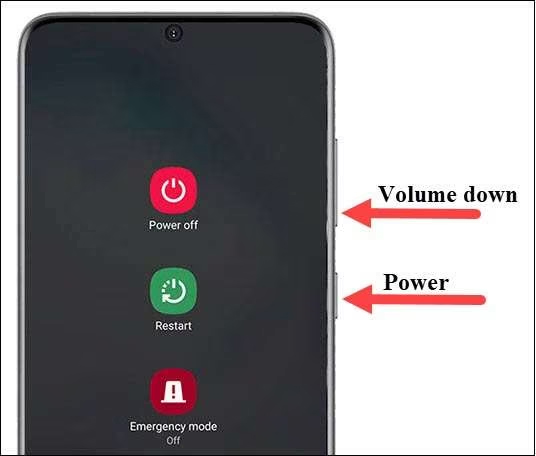
Here follow the steps to force restart Samsung S21 series smartphone:
- Press and hold Power + Volume Down buttons together.
- Hold them for over 7 seconds until Samsung logo appears.
Also Read: Android Stuck In Fastboot Mode? Here How To Fix It!
Solution #2: Check For Software Updates
If your Samsung S21 phone is stuck on Samsung logo after update, then you must wait or check for another software update for your phone.
If any updates have bugs, then Samsung releases another new update at a quick interval with the fix. So, check if your device has any new updates or not. If it is available, then update it.
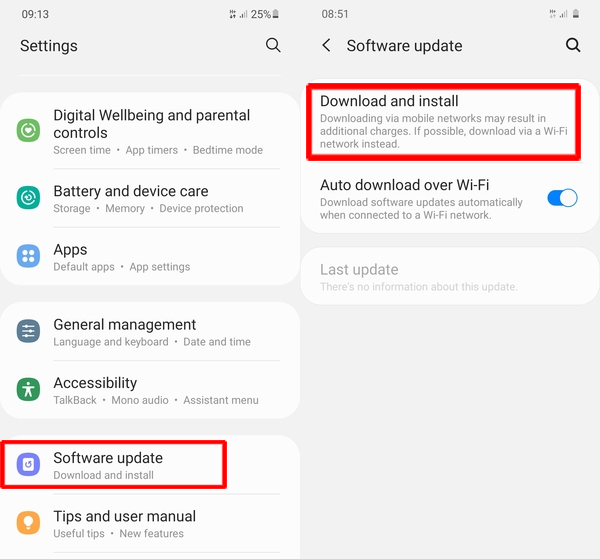
Below follow the steps to update software:
- Go to Settings > System > Check for System Update.
- If any new update is available, then tap on Download Now.
- Once downloaded, tap on Install Update.
Also Read: How To Fix Samsung Fold Unresponsive Screen
Solution #3: Charge Your Phone and Perform A Soft Reset
Sometimes, doing a soft reset also becomes an effective solution that can help you to fix your Samsung phone that is stuck on the Samsung logo.
So, here is what you need to do:
- First charge your phone for at least 10-15 minutes.
- And while your phone is charging, press and hold Power + Volume Down buttons together to shut down your phone.
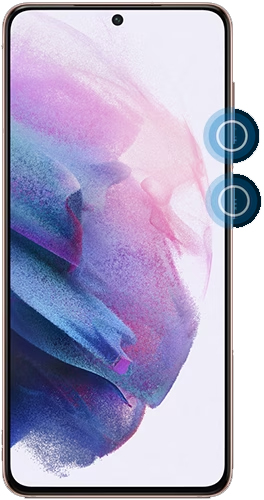
- Next, wait for a few seconds and then try restarting your phone and see if it gets bypassed to the Home screen.
Also Read: Fixed: Samsung Phone Stuck On Odin Mode
Solution #4: Boot Your Samsung S21 Into Safe Mode
As mentioned earlier in the causes section that third-party app problems can also lead to Samsung S21 phone to stuck on starting screen.
To fix the problem, you can boot your Samsung phone into safe mode in order to disable the malfunctioning of third-party apps and finally uninstall such apps.
Here is how to do it:
First, boot your Samsung S21 into Safe mode.

Once your device is in Safe Mode. You can then uninstall the fault app. Start by uninstalling the recently installed apps one-by-one after which you have started to see Samsung phone stuck in boot screen.
Also Read: Fixed: ‘No Command’ Error In Recovery Mode on Android
Solution #5: Try Android Repair To Fix Samsung S21 Stuck In Boot
If all of the above-mentioned solutions don’t help you to fix the problem, then it is time to use a professional repair tool that can help you to repair the Samsung S21 stuck in boot in the easiest and most secure way.
Since the internet is full of repair tools claiming to be the best, here experts recommend you to use Android Repair tool. It is one of the most trustable and most used tools to solve system issues in Android devices.
 |
 |
This Android System Repair tool can fix issues on more than 1000 Android phones. It can fix several phone system problems such as Samsung S21 stuck on Samsung logo after factory reset or after software update, Black Screen of death, App keeps crashing, bricked Android device, stuck in boot loop and more.
It has easy to understand interface, which ensures that you can use it and fix the issue with ease.
Here follow the steps to fix Samsung S21 stuck in boot with the use of Android Repair software.
Also Read: Samsung Phone Stuck on Airplane Mode? Here Is The Real Fix!
Solution #6: Contact Samsung Customer Service
If your Samsung S21 stuck in boot loop or went black due to hardware damage such as water damage or heavy falls, then in such case it is highly recommended that you must contact Samsung support.
Because no software can fix hardware issues on your device. Also, you should not do anything on your own, as it can damage your Galaxy S21 permanently. The recommended course of action is to contact your nearest Samsung customer service centre and request them to fix your device.
Wrap Up
System problems such as stuck in boot or black screen of death to Samsung S21 are not unique. It doesn’t matter which brand of smartphone you have; these phones are prone to these issues.
So, if your Samsung S21 phone stuck in boot, then you can follow the solutions mentioned in the article. However, it is highly recommended that you must try Android Repair which is mentioned in Solution 5, as it will help you to fix phone issues in minutes and with ease.
If you have found this article helpful and useful, then please share it as it can help other users as well!
Please support us by subscribing to our YouTube Channel.
You May Also Like:
- Fix Moisture Detected On Samsung S21, S21 Ultra, S21 Plus
- Samsung S21, S21 Ultra Sim Card Not Detected? Here Is The Fix!
- Fix Voicemail Notification Won’t Go Away On Samsung S22/S21
- Samsung Phone Display Is Black and White? Here How To Fix!

Max Field is a founder of Recover Android Data. He is an Android lover and loves to write tips, tricks, fixes for errors, data recovery solutions and more related to Android. Provide Gaming Tips, Tricks, Game Error/Issues Solutions (PC/Xbox/PlayStation/Mobile). He has 11+ years of experience in this field.