

Learn 16 Effective Solutions To Solve Moisture Detected Won’t Go Away Error On Samsung S21, S21 Ultra, S21 Plus!
Well, Moisture detected is a feature for your phone’s safety.
It’s provided by Samsung to take care of your Galaxy phone’s internal components from corrosion.
But the question is – Why Samsung S21 Moisture Detected won’t go away?
Well, find it by yourself by reading this article!
- Dry Your Samsung Device
- Switch Off Your Samsung Device And Connect To Charger
- Use Wireless Charger
- Make Sure Your Device Doesn’t Cause Liquid Damage
- Check For Updates
- Force Stop Android System
- Clear USB Settings Cache And Data
- Turn Off Fast Charging
- Charge Your Device Using Your PC
- Sign Out And Sign-In Back To Your Samsung Account
- Boot Your Device Into Safe Mode
- Wipe Cache Partition
- Avoid Moisture Detected Warning
- Use Another Charging Cable
- Factory Reset Your Phone
- Contact Samsung Support
- Frequently Asked Questions [FAQs]
Many people are suffering from this error and they can’t able to make it fixed.
So, we decided to provide a complete guide on how to fix Moisture Detected error on Samsung S21, S21 Ultra/Plus.
By following this guide, you can solve the problem and get rid of it.
There could be several reasons behind this error that you need to know before fixing it.
Now, let’s see what are the reasons behind it.
Causes: Why Samsung S21+ S21 Ultra Moisture Detected Error Won’t Go Away?
Check the mentioned below causes.
- Due to hardware issues.
- Third-party apps could also be the reason behind it.
- Corrupted cache files.
- Due to wet charging port.
- Software problems. For example, glitches or bugs can also malfunction your device, and it may pop-up this error randomly.
- Saltwater, can also be the culprit behind it.
- An outdated software version.
This is the common causes for Moisture detected error.
What is Moisture Detected Feature on Samsung?
Well, it is a safety feature that is provided by Samsung.
The major work for this feature is, it will alert you by popping up an error when it detected moisture.
Usually, this error occurs when your charging cable or charging port had in contact with moisture, this will directly allow your device to pop up this error.
So, the first tip is to try to avoid your phone and charger from water, it can damage your phone and charger and you face this problem.
Now, many people are wondering is Moisture Detection on Samsung is an error?
Sometimes, it occurs randomly even if your phone is not in contact with moisture.
As we mentioned earlier, it pop-up randomly due to several reasons.
If your Samsung device comes with an Ingress Protection or IP67, IP68, or IP69, then it actually means that the OEM has made of gaskets, seals, and adhesives.
It protects your devices from moisture and keeps them out of your phone.
Now, let’s move to the solutions to fix the problem.
Fix Moisture Detected Error On Samsung S21, S21 Ultra, S21 Plus
Here you will find out the solution which you can apply to fix the issue.
Also Read: Samsung Pay Transport Card Not Working? 6 Fixes That Worked!
1. Dry Your Samsung Device
First, if your phone is wet and detected the error, then you should dry your phone completely, before charging it or using it.
Use a soft clean cloth to dry your phone and gently clean your phone’s charging port and charging cable and also shake it so the water gets out of it.

It will fix the error and you may able to charge the device.
There are other methods mentioned below to dry your phone quickly.
- Put your phone’s charging port in the fan’s direction for a couple of minutes.
- Use petrol, distilled water, and alcohol to wash your Samsung S21, S21 Ultra USB port, as the phone is waterproof, there is no harm in doing this step.
- You can try to dry your phone by putting it on a filled bag of rice for 2-3 hours. This method has been used for years if your phone has been exposed or fallen in the water.
- Use of hairdryer, use it to dry the charging port’s moisture by blowing gently hot air at a slow speed for a few minutes and keep changing the angle so it completely dries it.
- You can also try to clean your USB port by using an alcohol swab for a couple of minutes.
- You can dry your phone by putting it in a Silica gel jar, it seems like the rice bag method, but Silica gel can provide you better results.
- Dry your phone’s charging port by blowing composed air.
- Use a toothpick wrapped with a thin soft cloth or tissue paper and move it inside the charging port.
- You can also use tweezers, simply gently rub it into the USB port.
- At last, try to contact a professional to dry the device perfectly.
2. Switch Off Your Samsung Device And Connect To Charger
After cleaning your phone, switch off your phone and connect it to the charger, once it is completely dries.
By doing this, the error will get fixed and you can able to charge your phone as well.
3. Use Wireless Charger
If the moisture detected error occurs and your Galaxy S21, S21 Ultra, S21 Plus stopped charging, then what will you do?
Well, in such a case, try charging your phone through wireless charge until the error gets fixed.
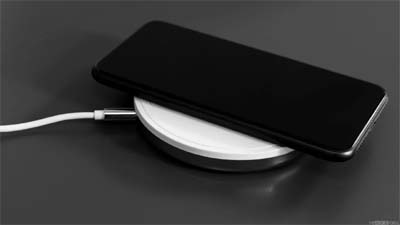
This is not a permanent fix, it’s just a way to handle the situation and make your phone charge.
By using wireless charge, it will not show the error message and you are able to charge your phone, it may also resolve the problem.
Also Read: Samsung S21, S21 Ultra Sim Card Not Detected? Here Is The Fix!
4. Make Sure Your Device Doesn’t Cause Liquid Damage
If your phone has fallen into the water or exposed, then the very first thing you should check is the Liquid Damage indicator.
First, remove the SIM card slot and look for a small sticker in that slot.
Now, check whether the sticker’s color is white, if yes, then your phone is safe from liquid damage.
If it turns purple, pink, and red, then it means your phone got liquid damage.
So, simply take it to your nearby Samsung service center.
5. Check For Updates
As we mentioned in our other article that an outdated software version can cause several issues.
Therefore, check for updates first, then update the OS version to the latest version, if available.
These are the steps to follow.
- Navigate to Settings > Software updates/System updates.
- Now, tap on Download and install, then the update will download automatically or you may manually select the Download Now.
- Once the downloading is complete, then install the update by following the on-screen instructions on your device.
You May Also Like:
- Fix Picture/Video Distortion Issue From A Samsung Phone’s Camera
- Common Snapchat Issues On Samsung S22 Series & Their Solutions
- If Your Samsung Watch 4 Overheating And Battery Draining
- Samsung Galaxy Watch 5/5 Pro Not Turning On? Here’s How To Fix!
6. Force Stop Android System
If your phone occurs a moisture detected error, then you should force stop the Android system.
Using this method, it will resolve the error easily. Follow the mentioned steps to do so.
- Open Settings and select Device Maintenance.
- Now, choose Battery, then tap on Battery Usage.
- Now, select Android System, then simply hit Force Stop.
7. Clear USB Settings Cache And Data
The moisture detected error can also cause by minor software glitches or bugs.
Don’t worry! You can fix it by clearing the USB Settings cache and data and it doesn’t cause any data loss.
These are the steps to do so.
- Navigate to Settings > Apps > Three-horizontal.
- Now, look for USBSettings, if you can’t find it, then hit the down button next to the apps.
- Now, choose Show System Apps, then select USBSettings.
- Now, simply hit “Clear Data” and “Clear Cache” one by one.
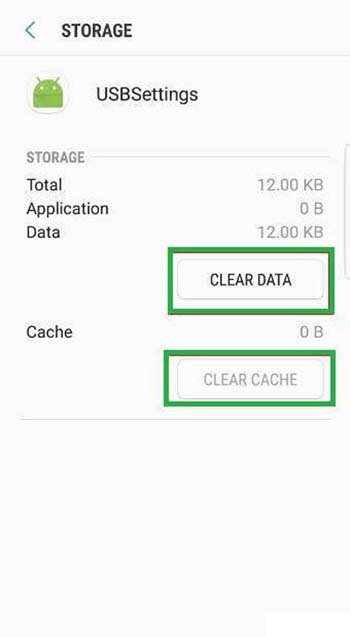
At last, check whether the error gets fixed or not.
Also Read: Password Autofill Not Working On Samsung? Here Is The Real Fix!
8. Turn Off Fast Charging
If you have encountered the Samsung S21 Plus Moisture Detected error, then you should disable the fast charging on your device.
It will fix the S21 Moisture detected in charging port error, but your phone will charge a little bit slowly after disabling it.
Follow the mentioned steps to do so.
- Navigate to Settings and select Battery and device care.
- Now, hit the Battery option and select More battery settings.
- Now, simply switch off the Fast charging, Super fast charging, and Fast wireless charging toggle present under Charging.

9. Charge Your Device Using Your PC
If your phone is dead and you can’t able to turn off Fast Charging, then you can try to charge your phone through your PC’s USB port.
It will charge your device at a lower voltage; in resultant it can fix the error quickly.
Many people often asked us how to disable moisture detected s21 (Ultra)/Plus?
Well, by using this workaround you may able to disable it.
First, connect the phone to the PC’s USB port, then charge it for 30-40 minutes.
After that, switch on your device, then charge it with your original charger.
Also Read: Samsung Phone Stuck on Airplane Mode? Here Is The Real Fix!
10. Sign Out And Sign-In Back To Your Samsung Account
Many users report that they have fixed the Samsung Galaxy S21 Ultra moisture detected error by performing this workaround.
So, you can also try this workaround if the error won’t go away.
First, sign out to your Samsung account, then sign in back. Doing this can resolve the issue.
Here’s how it looks like.
- Launch Settings and select your Profile, then scroll down and hit Sign out.
- Now, again hit Sign out, then enter your account password.
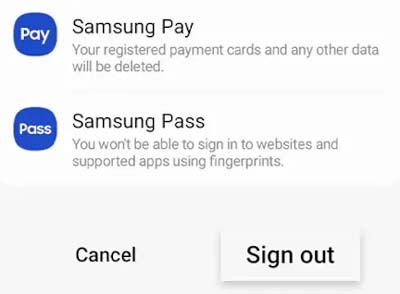
- Now, select Samsung Account, then Sign-in by entering the credentials.
- At last, check whether the problem gets solved or not.
11. Boot Your Device Into Safe Mode
If none of the methods help you, then you can try this workaround of booting the device into Safe mode.
In safe mode, none of the third-party apps will work.
So, if any third-party apps are causing the issue, then you can find it easily.
Here you will find the steps to boot your phone into safe mode.
After that, check if the Moisture detected error exists in safe mode or not, if not, then it could be the third-party apps that are causing the error.
Simply, uninstall the recently installed third-party apps and check if the S21 moisture detected won’t go away error is fixed or not.
Also Read: My Emoji Keyboard Disappeared On Samsung? Here How To Fix!
12. Wipe Cache Partition
You can also try to wipe the cache partition on your device if you weren’t able to fix the Samsung Galaxy S21 Ultra/Plus moisture detected problem.
These are the steps to do so.
- Press and hold the Power button, then select the Switch Off option.
- Now, keep pressing on Volume Down, Bixby, and Power keys simultaneously until the Android Logo appears.
- Now, your device may show you Installing System Update, simply select “wipe cache partition” by using your phone’s volume keys.
- Now, select it by using the power option.

Lastly, check whether the problem gets fixed or not.
Also Read: [Samsung Help] Wireless Charging Not Working
13. Avoid Moisture Detected Warning
You can also try this method to bypass the error, but make sure your charging port is clean and your device doesn’t have any liquid damage.
By doing this, you can able to charge your device, because moisture detected error doesn’t allow charging.
Follow the mentioned steps to do so.
- First, connect your phone to the charger, then you will see the warning.
- In such a case, restart your phone and left it while connected to the charger.
- Now, your phone will start charging.
14. Use Another Charging Cable
There might be chances that your USB cable was damaged and a damaged cable can lead to several problems.
If your cable is in contact with moisture, then also clean it using a soft cloth.
Now, check if the problem exists or not, if it still exists, then change the cable and try charging your device with another cable.
Also Read: Samsung Keyboard Not Working/Not Responding Properly? Here Is The Fix!
15. Factory Reset Your Phone
If none of the solutions help you in fixing the problem of the Samsung Galaxy S21 Plus/Ultra moisture detected, then you should perform a factory reset.
It can bring the default settings back and resolve the problem.
But, keep in your mind that it can wipe all your saved data on the device.
So, back up your essential data and remove your Google account before performing the factory reset workaround.
Here are the steps to perform factory reset.
- Navigate to Settings and select General Management.
- Now, tap on Reset, then select Factory data reset.
- Now, scroll down to the end of the page and hit Reset.
- Now, hit Delete All, then enter the password of your Samsung Account, then select Confirm.
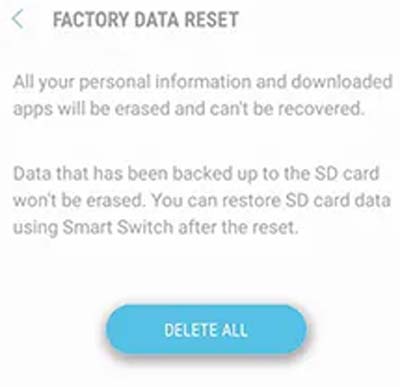
Note: If you have set up a Samsung Account on your phone, then it will ask for the password. Otherwise, it will directly reset without any password.
16. Contact Samsung Support
If you are still suffering from this error and are not able to fix it, then try contacting Samsung Support Team.
There might be chances that your phone had hardware damage, which leads the phone to cause a Moisture detected error on Samsung S21 Ultra/Plus.
In such a case, contacting Samsung Support would be the best option, they can properly check the problem and fix it easily.
Also Read: Fixed: Can’t Add Card To Samsung Pay On Samsung Phone
Frequently Asked Questions [FAQs]
Answer. You can get rid of the Moisture notification in such a simple step. To do so.
Answer. Well, the moisture detected notification will pop up when it detects moisture on your phone. It’s not an error instead it’s a safety feature provided by Samsung. But if it keeps popping up without any valid reason, then you should fix it manually. You can read through the above-mentioned article to solve it.
Answer. You should clean the USB Port completely, once your phone detects moisture in the port. Clean the USB port using a toothpick that is wrapped with a soft cloth, then gently rub it into the charging port. Another method, you can try to use a hairdryer. Simply blow mildly hot air into the port for a couple of minutes. You can read the above-mentioned guide to know different ways to dry your phone and charging port.
Answer. If the error still persists on your Samsung S21, S21 Plus/Ultra, then try contacting your nearby Samsung service center. Because there might be chances that it had hardware damage that is fixed by the technician.
Answer. Well, the moisture notification won’t go away until you dry the moisture from your phone completely.
Wrap Up
This is the complete guide on how to fix Moisture detected on Samsung S21, S21, S21 Plus.
If you have followed the provided solutions carefully, then you may have successfully fixed the Moisture detected error.
As there are 16 effective solutions, which you can try to fix this error.
Please support us by subscribing to our YouTube Channel.

Max Field is a founder of Recover Android Data. He is an Android lover and loves to write tips, tricks, fixes for errors, data recovery solutions and more related to Android.