


You have completed installation of iOS 18 update on your iPhone and excited to use the new feature but, you started facing black screen issue on your device.
If yes then you don’t need to panic as there are some methods that you can try to fix iOS 18 black screen after update.
In this article, we have covered almost all possible way to solve black screen on iOS 18 and also the reasons why your phone screen gets black after update.
So, we will first examine the causes of the black screen of death after the iOS 18.1 update.
Why iPhone Stuck On Black Screen After iOS 18 Update?
There can be multiple reasons why you face back screen on iPhone after iOS 18 Beta update. But, here we have mentioned some of the important reasons.
So, let us look at the reasons:
Software Bug: The iOS 18 update may contain some software bugs, which are causing compatibility issues and, hence, a black screen on the iPhone.
Low Storage Space: If your smartphone has low storage, this can also cause a black screen because it can prevent the latest update from installing properly.
Incomplete Update: If the iOS update was interrupted due to crashed apps, a power supply failure, or other reasons, your iPhone can also get stuck at black screen.
Hardware issue: If your device is hardware damaged (iPhone’s display, connectors, or other components) then a black screen issue can occur after an update.
So, above we have discussed the reasons for black screen on iPhone iOS 18. Now we will explore the solutions to solve this problem.
How To Fix Black Screen On iPhone After iOS 18 Update
Are you ready to resolve the screen black? Here we have listed multiple solutions to fix it. So, let’s go through them one by one.
Note: All the solutions that I am going to discuss below will be applicable for iPhone models like – iPhone 16 series, iPhone 15 series, iPhone 14 series, iPhone SE (3rd generation), iPhone 13 series, iPhone XS & XS Max, iPhone XR, iPhone 11 series, iPhone SE (2nd generation), iPhone 12 series.
Fix 1: Make Sure Your Device Has Enough Battery
If your device has insufficient charging while downloading or installing iOS 18 update then it can interrupt the installation and cause a black screen.
Charging your phone can help to fix the problem. So, below follow the steps to do it:
- Plug your phone into a power source via the original charger.
- Wait for the charging screen to appear and keep it on charging for some minutes.
- Now, check if your phone turns on automatically. If it is, then you have bypassed the iOS 18 black screen.
But if your device doesn’t show up the charging screen then in that case your device won’t turn on and you need to follow next solution.
Fix 2: Force Restart iPhone
Force restart is a very easy way to fix black screen on iPhone iOS 18 after update.
This will solve any minor software bugs that may be leading black screen of death issue.
Below, learn how to force restart iPhone:
- Press and release the Volume Up button quickly.
- Then again press and release Volume Down button quickly.
- Now, you need to press and hold the Side button until you see the Apple logo on your phone screen.
Fix 3: Restore iPhone Via iTunes/Finder
If charging or force restarting the device doesn’t fix the problem that you are currently facing then you can restore your iPhone using iTunes/Finder.
For this method, you need to first put your iPhone into recovery mode.
Remember that this method will erase your device data, therefore you should first create a backup of your iPhone data.
Now, follow the below steps to fix iOS 18 black screen after update:
- First, put your iPhone into Recovery Mode. For this, press the Side button and hold it until the message appears about connecting your phone to a computer.
- Now, with the help of a USB cable connect your iPhone to your computer/Mac.
- Open Finder on your PC and choose your iPhone name from the left panel. It is situated under the “Location” section.
- Now, you will get a popup message, here tap on the “Restore” button.
- Next, click on “Restore and Update” and follow the on-screen steps to begin the restoration process.
- Use iTunes to restore your iPhone on a Windows or a MAC PC with version 10.14 or older. So, install it on your PC and open it.
- Then, you will see a pop-up, there click on “Restore” and then follow the on-screen steps. Doing this will erase your iPhone and install iOS 18 again.
The black screen should go away when your smartphone restarts. If this solution doesn’t help then follow the next method.
Fix 4: Enter DFU Mode
You can also put your iPhone into DFU (Default Firmware Update) mode to fix black screen after iOS 18 update.
Here are the steps to enter your iOS device into DFU mode to fix iOS 18 iPhone black screen.
- Connect your iPhone to your computer using a USB cable and then open iTunes.
- Press and quickly release the Volume Up button.
- Do the same with the Volume Down button.
- Then press and hold the Side button unless the screen turns black.
- Keep holding the Side button and also start holding the Volume Down button for a few seconds.
- Leave the Side button but continue holding the Volume Down button unless iTunes detects your iPhone in DFU mode.
- Now, you need to wait till your Mac recognizes your iPhone. After this, release the Volume Down button and put your handset down.
- Then, click on “Restore iPhone” on the Finder window and follow the steps to complete the restore process.
Now, you need to wait till your iPhone is restored completely. Then, hard reset your iPhone to exit DFU mode. If your iPhone screen shows the Apple logo then it means that you have solved the iPhone being stuck on black screen after iOS 18 update.
Method 5: Contact Apple Support
If the above methods are still not working to fix the iPhone iOS 18 black screen of death, then you need to contact Apple Support or visit the nearest Apple store.
Take your device to the Apple Store and tell them about the issue you are facing now. This solution will help you to get rid of black screen on iPhone after iOS 18 Beta update.
However, this process can take a few days before getting your phone in normal condition. So, if you don’t have time then you can try the below solution to solve this problem in just few minutes.
Method 6: Fix Black Screen On iPhone After iOS 18 Update Using iOS System Repair
If you have tried the other methods but your iPhone screen is still black then don’t worry as the iOS System Repair tool can fix iOS 18 black screen after update in just few steps.
iPhone System Repair software solve any system issue due to which you are encountering this issue.
 |
 |
The most important thing about this tool is that it will solve the issue without any data loss.
Besides, you can also fix your iOS device if it is stuck on DFU or Recovery mode, downgrade, or upgrade your device without jailbreak.
You don’t need any technical knowledge to use this tool.
Steps to use iOS System Repair to fix iOS 18 black screen after update
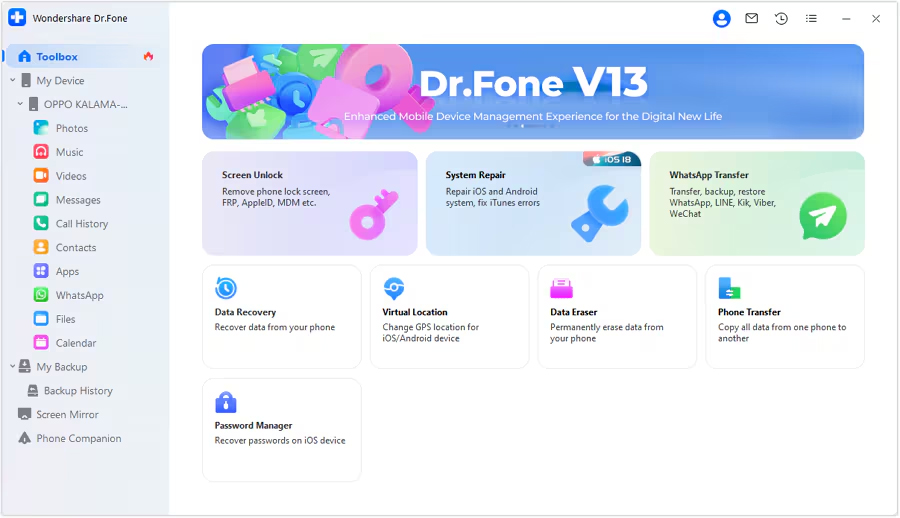
Step 1: Launch the iOS System Repair Tool after installing the tool on your computer. Go to the Toolbox section from the top left side of the screen. Now, select System Repair from the list displayed on the home screen.
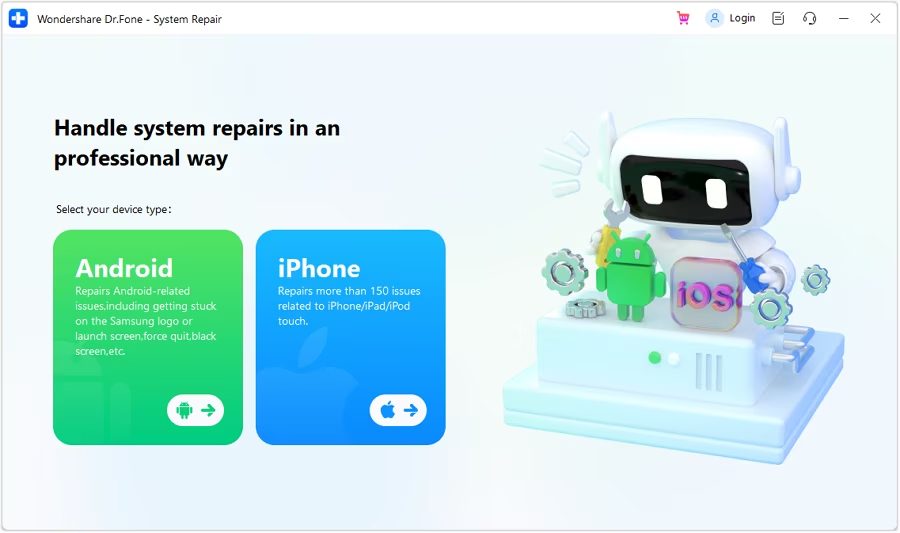
Step 2: You will be redirected to a new window as you connect your iOS device to your computer with a cable connection to select the nature of the device. So, select iPhone since we are performing iOS System Repair.
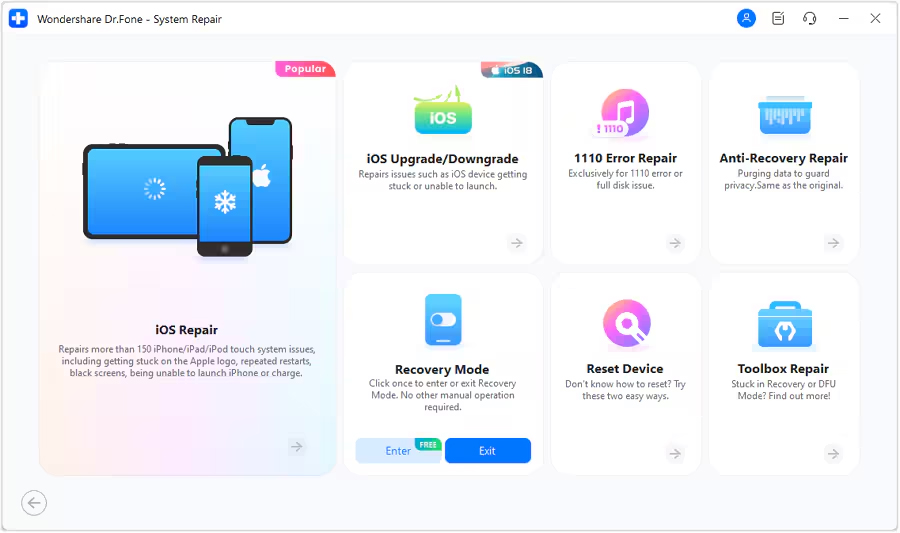
Step 3: Select iOS Repair among the set of options appeared on the screen to continue system repair.
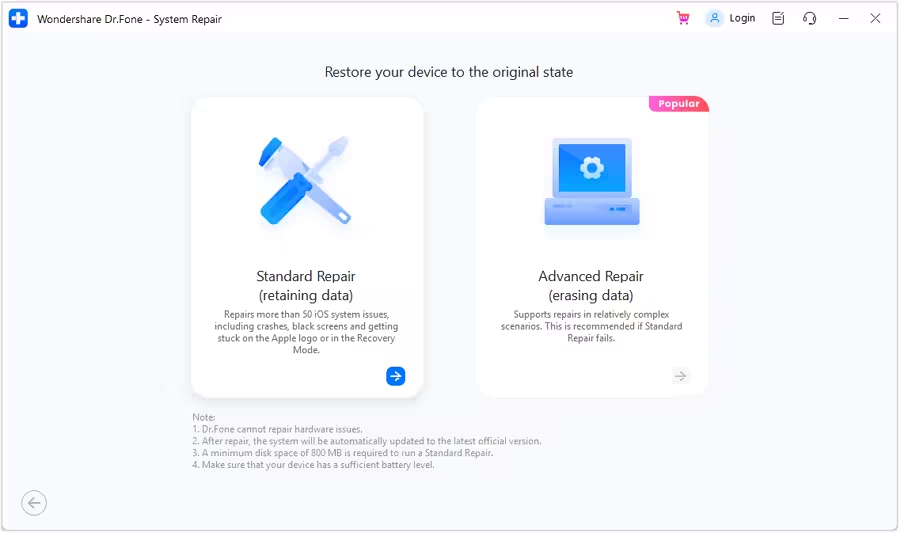
Step 4: Select Standard Repair as a mode of repairing for your iOS device.
Step 5: Next, you have to enter your iOS device into Recovery Mode by following the on-screen instructions. After that, click on Enter Recovery Mode. But if not entered your iOS device into Recovery Mode, click on Guide and follow the ongoing instructions to enter your iOS device into Recovery Mode.
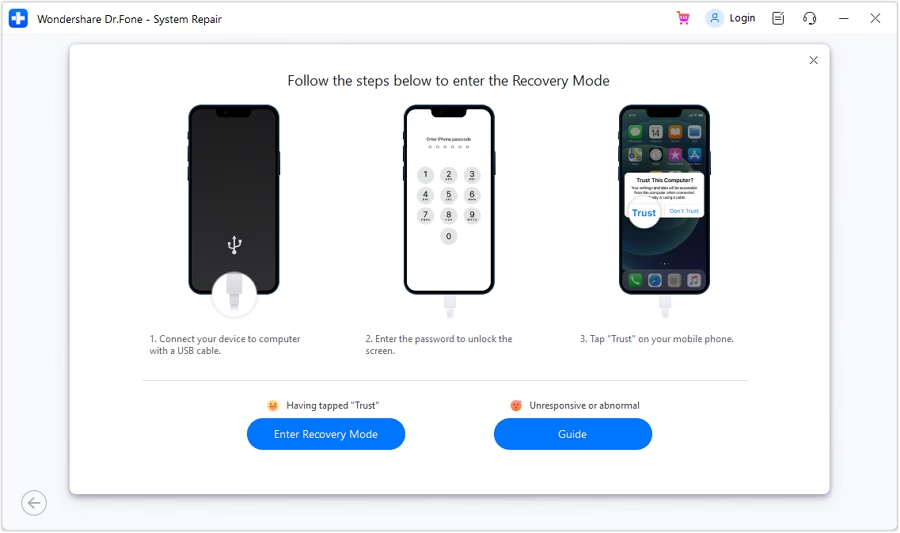
Step 6: After entering your iOS device into Recovery Mode, the platform will automatically detect the iOS firmware to be installed in the device. Click Download next to the iOS firmware you wish to install.
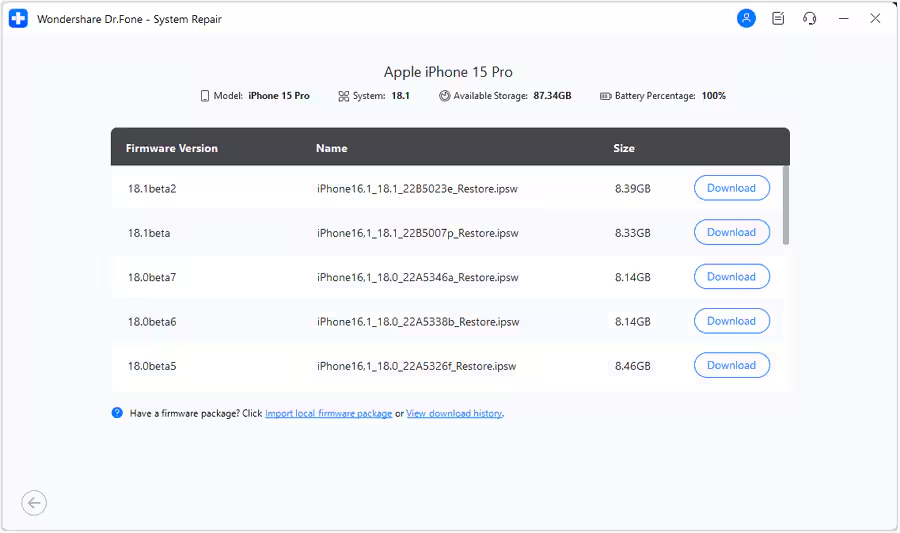
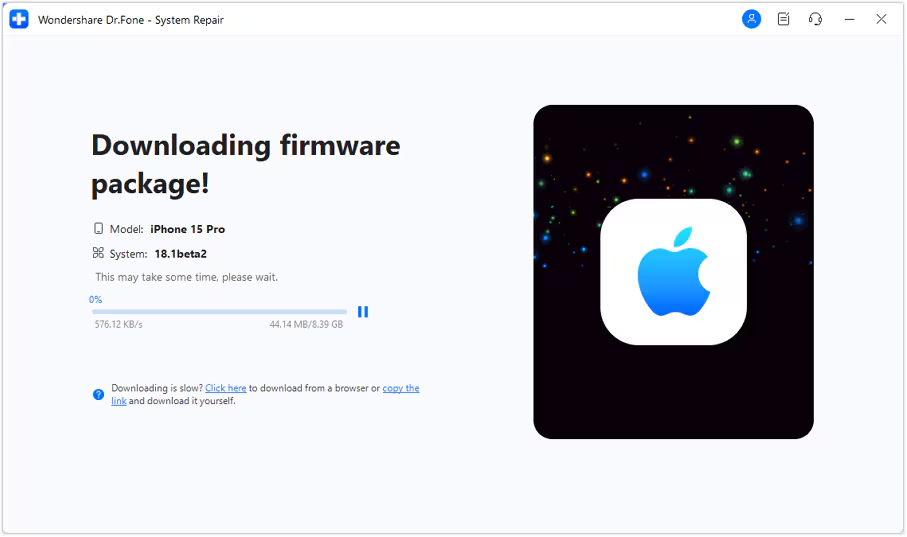
Step 7: The iOS firmware will automatically start downloading on the platform.
Step 8: Next, click on Repair Now to continue the repairing process.
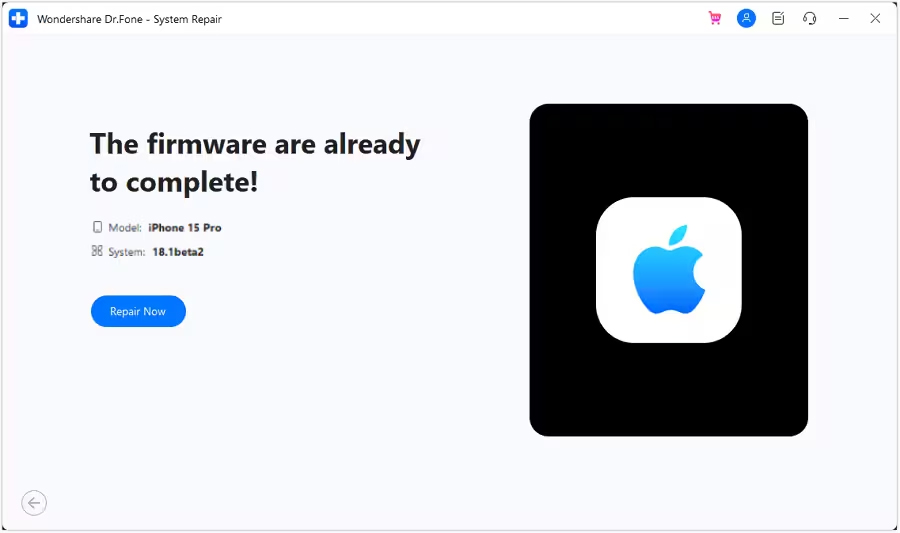
Step 9: Now, wait for the process to complete and make sure your iOS device is connected to the computer.
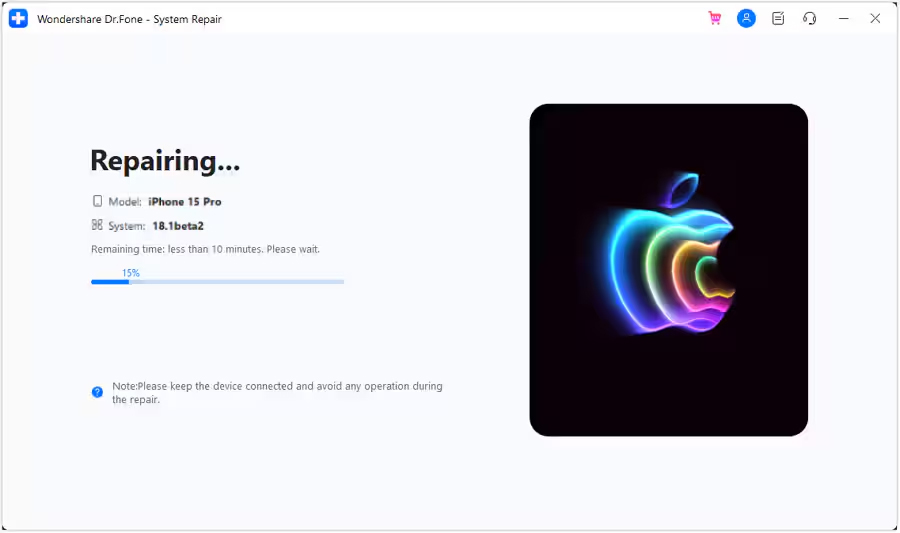
Step 10: The screen will now show the completion of the process. Select Done to complete the whole repairing process.

|
|
Wrap Up
Dealing with black screen on iPhone after iOS 18 update is quit frustrating, but there are multiple ways to solve it.
Try the methods which I have discussed above. And if all fails then you can use iOS System Repair software to fix iOS 18 black screen after update.
If this guide has helped you then you can share it with others.
You May Also Like:
- How To Fix iPhone Stuck on iOS 18 Terms And Conditions
- How To Fix iPhone Overheating After iOS 18 Update
- How To Fix Notifications Not Working on iOS 18
- Fix White/Pink/Green/Red/Purple Vertical Line On iPhone Screen

Max Field is a founder of Recover Android Data. He is an Android lover and loves to write tips, tricks, fixes for errors, data recovery solutions and more related to Android.