

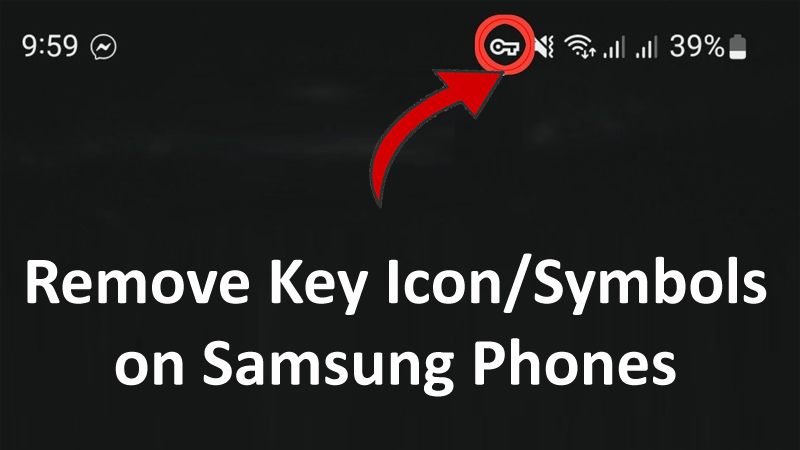
Do you see a key icon or symbol on your Samsung phone’s status bar at the top or in the notification area?
Do you want to remove the key icon/symbol on Samsung phones?
If so, then read this article. Here you will learn how to remove key icon on Samsung phones.
What Is The Key Icon On Samsung Phone
The key icon appears on your Samsung phone’s status bar when you are connected to VPN (Virtual Private Network).
It actually represents a secure connection, which encrypts your internet traffic and helps in protecting your online privacy and security.
Using a VPN service can be useful when you want to browse the internet anonymously or access content that is region-restricted.
Also Read: How To Fix Samsung Pass “Couldn’t Verify Fingerprints”
How To Remove Key Icon on Samsung Phones
To remove key icon or symbol on Samsung phone, you should disconnect/disable VPN.
Besides that, you can delete VPN profile.
If that does not help then turn on/turn off Airplane mode, clear cache and data of VPN app, Remove VPN from connection or simply uninstall VPN app.
Solution 1: Disconnect VPN
This is a very simple and easy solution to remove key icon on Samsung phones.
Just open your VPN app that you are using and then turn it off.
Solution 2: Delete VPN Profile
- On your phone, go to Settings > Connections > More connection settings.
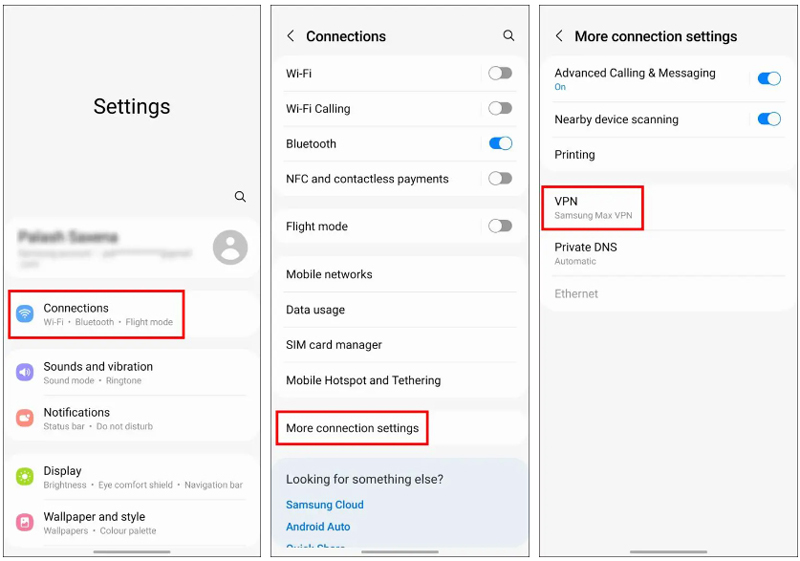
- Tap on VPN and then tap on settings icon which shows VPN is connected.
- Tap on Delete VPN Profile. Tap Delete to confirm.
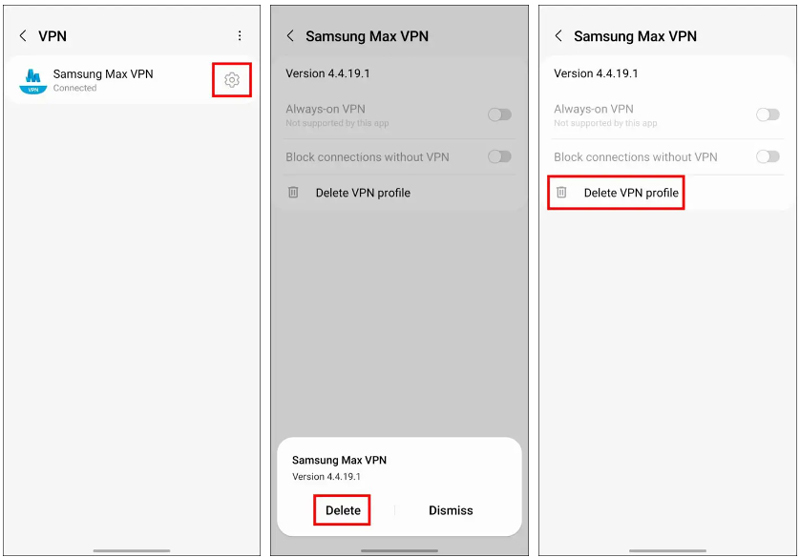
That’s it, you will not see a key icon on your phone now.
If it is still there, then follow other solutions.
Also Read: Samsung Phone Display Is Black and White? Here How To Fix!
Solution 3: Restart Your Phone
If the above two solutions don’t help then you have to restart your phone. It will delete the VPN profile completely.
- Press and hold Power button and select “Restart/Reboot” option.
Solution 4: Enable/Disable Airplane Mode
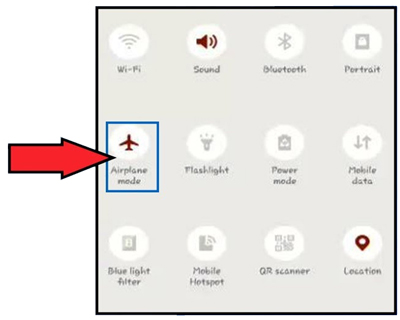
Turn on Airplane mode, it will remove all networks, including VPN key symbol.
- Swipe down on your phone screen to bring up the notification panel and tap on Airplane mode icon to enable it.
- Wait for a few seconds and then tap on Airplane mode icon again to disable it.
Solution 5: Clear Cache and Clear Data of VPN App
If all other solutions fail, then clearing the cache and data of the VPN app can fix the issue and can help you to get rid of key icon showing on the status bar on your phone’s screen.
- Open Settings app.
- Go to Apps.
- Search for VPN app and tap on it.
- Tap Storage.
- Tap on Clear Cache and Clear Data.

Also Read: Can’t Share Wifi Password on Samsung Phone? Here What To Do?
Solution 6: Forget VPN From Connections
In some cases, turning off VPN does not remove the key icon. It is because it is still connected to device connections. In such cases, you have to remove it from establishing the connections by forgetting the VPN.
Here are the steps to do so:
- Go to Settings > Network and Internet.
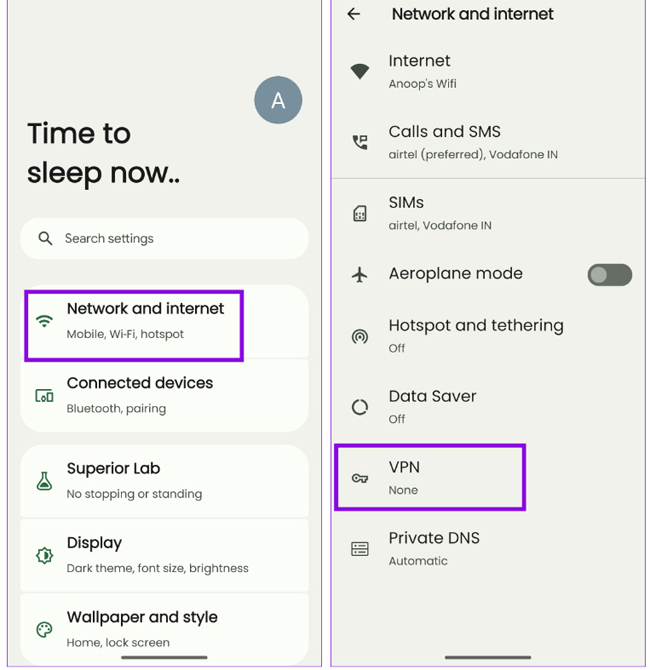
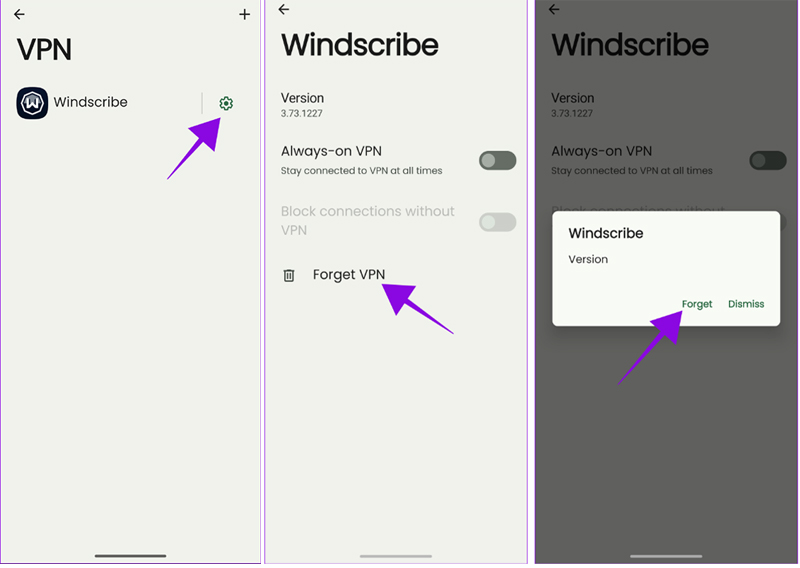
- Select VPN. Tap the Settings icon next to it.
- Select Forgot VPN. Tap Forgot to confirm.
Solution 7: Uninstall VPN App
If you don’t need VPN service anymore then simply uninstall the VPN app from your phone and thereby it will also remove key symbol from the Samsung phone’s status bar.
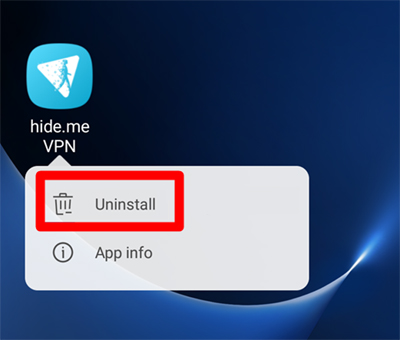
- Tap and hold VPN app icon until some options appear.
- Select Uninstall option.
Wrap Up
The status bar is the best place that show updates about your phone via notifications and symbols.
But, if you see VPN (key) icon that is annoying you and you want to remove key icon on Samsung phone, we hope this article was useful for you.
If you have found this article helpful, then please share it as it can help others!
Please support us by subscribing to our YouTube Channel.
You May Also Like:
- How Do I Get My Android Phone Out Of Headphone Mode?
- How To Fix “Don’t Cover The Earphone Area” on Redmi Phones
- Quick Tips To Fix Blue Line On Samsung Galaxy Phone
- How To Report Problem In Samsung Members With Crash Logs

Max Field is a founder of Recover Android Data. He is an Android lover and loves to write tips, tricks, fixes for errors, data recovery solutions and more related to Android. Provide Gaming Tips, Tricks, Game Error/Issues Solutions (PC/Xbox/PlayStation/Mobile). He has 11+ years of experience in this field.