


In This Article, you will learn How to Transfer WhatsApp Chats from Android to Android.
To transfer WhatsApp chat, first you have to take backup on your current Android and then restore the chats on a new/another Android.
Part 1: Step To Backup WhatsApp Chats On Current Android
Step 1: On your current Android phone, open WhatsApp.
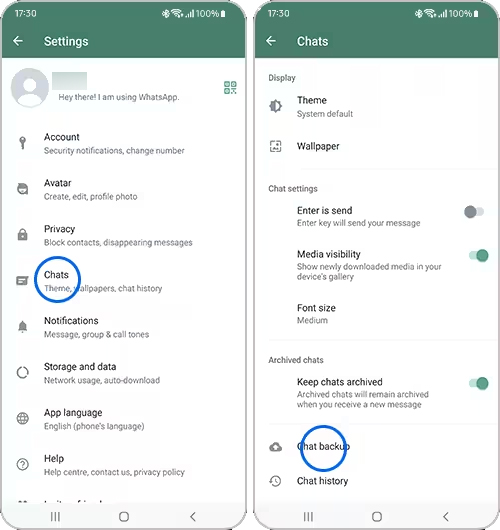
Step 2: Tap on 3 dots on the top right and then click on “Settings”.
Step 3: Tap on Chats > Chat backup.
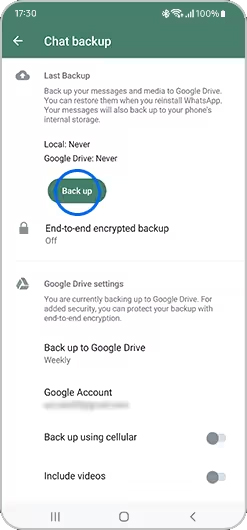
Step 4: Tap on “Back up”. Wait for the backup process to be complete.
Part 2: Step To Restore WhatsApp Chats on New/Another Android
Now, on your new Android or another Android on which you want to transfer your WhatsApp chat. Make sure your phone has the same phone number and Google account as the original one.
Step 1: Open WhatsApp on your new phone.
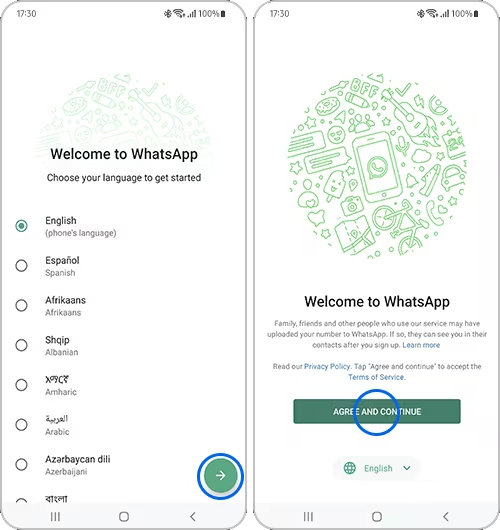
Step 2: Select the language you want to use on your WhatsApp, then tap Arrow > Agree and Continue.
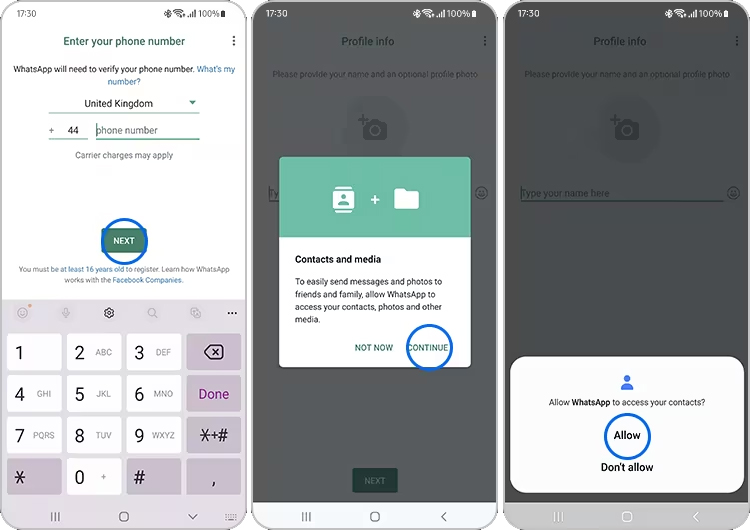
Step 3: Next, enter your phone number (it should be same mobile number) and tap NEXT. Verify your number.
Step 4: Tap Continue in the Contacts and media popup and then tap Allow on the popups.
Step 5: WhatsApp will then tell you “Backup found”, so tap on “RESTORE”.
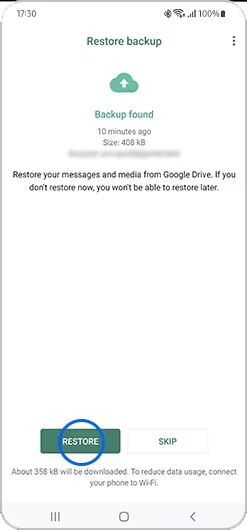
Step 6: WhatsApp will restore your chats and media to your new phone from Google Drive. So, wait for the restore process to get complete.
That’s It!
If you have found this guide helpful, then please share it, as it can help others!
Please support us by subscribing to our YouTube Channel.
You May Also Like:
- How To Find and Follow Channels on WhatsApp
- How To Use ChatGPT In WhatsApp
- How To Create a WhatsApp Channel (Guide With Images)
- [Android] Recover Deleted WhatsApp Messages Without Backup

Max Field is a founder of Recover Android Data. He is an Android lover and loves to write tips, tricks, fixes for errors, data recovery solutions and more related to Android. Provide Gaming Tips, Tricks, Game Error/Issues Solutions (PC/Xbox/PlayStation/Mobile). He has 11+ years of experience in this field.