

In This Article, You Will Learn How To Change Country or Location on Roblox On Mobile and PC (2024 Guide).
How To Change Country or Location on Roblox
Steps To Change Country/Location on Roblox (On Mobile)
- Open Roblox app on your phone.
- If not logged in, then login to your Roblox account.
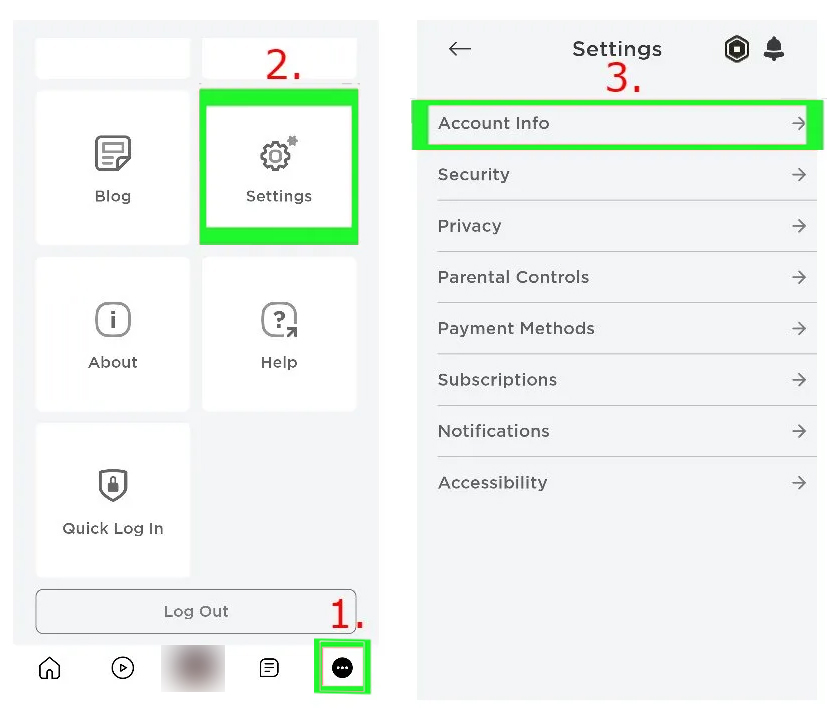
- Tap on 3 horizontal lines (menu), located at the bottom right.
- Tap on Settings > Account info > Personal.
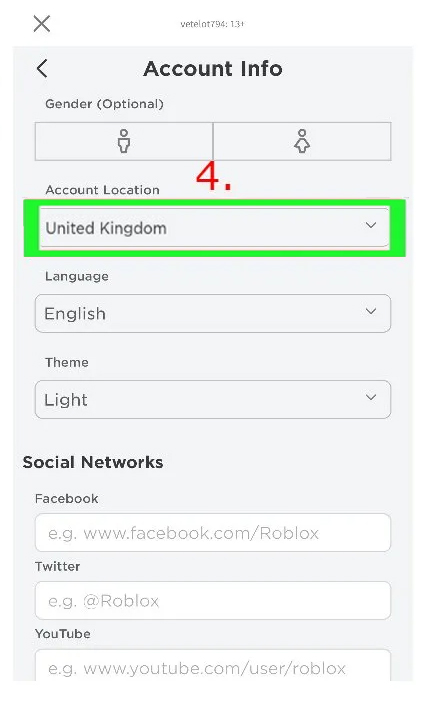
- Under “Account Location”, tap on dropdown option.
- Now, select the country that you want to change to.
- Tap on “Save”.
That’s It!
Steps To Change Country/Location on Roblox (On PC)
- On any web browser, visit: https://www.roblox.com/login and log in to your Roblox account.
- Click on gear icon (settings icon) on the top right and select “Settings”.
- Next to “Account Location”, click on dropdown option.
- Now, select the country that you want to change to.
- Tap on “Save”.

That’s It!
If you have found this post helpful, then please share it as it can help other users!
Please support us by subscribing to our YouTube Channel.
You May Also Like:
- How To Fix “We are aware that there is an issue with saving changes to avatars on Roblox”
- Forgot Roblox 4 Digit PIN? Here How To Reset!
- 6 Ways To Fix An Error Occurred and Roblox Cannot Continue
- How To Get Unsuspended From Roblox Voice Chat

Max Field is a founder of Recover Android Data. He is an Android lover and loves to write tips, tricks, fixes for errors, data recovery solutions and more related to Android. Provide Gaming Tips, Tricks, Game Error/Issues Solutions (PC/Xbox/PlayStation/Mobile). He has 11+ years of experience in this field.