


Updating to the new iOS version brings the latest features and improvements but also unexpected issues. If you have updated your iPhone to iOS 18 and are facing Wi-Fi issues, such as not working or connecting, don’t worry. You can fix Wi-Fi issues on your iPhone after iOS 18 update.
For this, you need to follow the methods we have discussed below. But before moving to the solutions, we will first determine the causes of your Wi-Fi not working after the iOS 18 update.
Reasons For Wi-Fi Issues On iPhone After iOS 18 Update
If you encounter a Wi-Fi issue after updating your iPhone to iOS 18, it could be for multiple reasons.
Let’s look at some of the important causes behind it:
- When the new update has bugs or glitches and it is messing up with different features including wifi.
- The iPhone OS update might have affected your network settings.
- When there is some issue with the wifi router or modem like compatibility with the new iOS update or signal strength.
- If you have set incorrect date and time settings then it will cause a WiFi connectivity issue.
- When the network settings of your iPhone are incorrect or the settings of an older version of iOS might not work with the new one.
- Other electronics or objects around the wifi router can harm the wi-fi signal strength, making it hard for your iPhone to stay connected.
- VPN or particular security settings may interfere with the wifi connectivity.
- If the DNS settings are misconfigured.
- Though it is rare, if there is any hardware issue on your iPhone like the issue with the Wi-Fi antenna then also your wifi will not work.
Fix Wi-Fi Problem On iPhone After iOS 18 Update
The causes of why Wi-Fi suddenly does not work on iPhones are mentioned above, now we will look at the solutions to solve the problem.
Fix 1: Restart Your Router
You should first restart your router to fix Wi-Fi connection issue after update.
To restart it, you need to turn off the router power. Then wait for a few minutes and then turn it on.
Now, check whether the problem is solved or not. If not, check the signal strength of the wi-fi by moving closer to the Wi-Fi router. Then look at Wi-Fi signal strength on your iPhone’s status bar.
Fix 2: Enable & Disable Airplane Mode
You can enable and disable the Airplane/Flight mode to reset the smartphone’s connections and this can also resolve the iOS 18 wi-fi issue.
To do this, you need to swipe down from the top of the screen and then tap on the Airplane mode icon to enable it. Now, wait for a few seconds and tap on it again to turn it off.
Fix 3: Forget And Reconnect To Wi-Fi Network
It is also possible that the wifi issues may occur due to problems with the saved network settings. In this case, you can forget the wifi network and connect to it again.
Note: Please note down the Wi-Fi password before you start the steps as you will need to enter it at the time of reconnecting.
Now, learn how to forget and reconnect to wifi on your iPhone.
- Open the Settings app on your iPhone.
- Then tap on WiFi.
- Find your wifi network in the list.
- Now, to forget the network press the info button (i).
- Next, hit on “Forget This Network”.
- Confirm your selection when asked.
- After this, you need to reconnect to it. For this, again go back to the list of WiFi networks.
- Hit on your wifi network again and reconnect to it by entering the WiFi password.
Fix 4: Force Restart iPhone To Fix iOS 18 Wi-Fi Issue
Another way to solve wifi not connecting after the iOS 18 update is by doing a force restart.
When you force restart your iPhone then it clears out junk and cache memory that might be affecting the Wi-Fi feature.
So, follow the below steps to force restart your iPhone:
- Press and quickly release the Volume Up button.
- Then press and quickly the Volume Down button.
- After this press and hold the Power/Side button until you see the Apple logo on your phone’s screen.
- Now, release the Power or Side button and let the iPhone restart.
Once your phone gets restarted try to connect to wifi to check if it is working fine or not.
Fix 5: Reset Network Settings
You can reset the network settings on your iPhone to solve the problem you are facing now.
Here, follow the steps to reset network settings:
- Navigate to Settings and then tap on General.
- Then, tap on “Transfer or Reset iPhone”.
- Next, tap on “Reset” again.
- Now, tap on “Reset Network Settings”.
- After this, enter your lock screen password to confirm your action.
Now, your iPhone will restart. Once it gets restarted reconnect to your wifi and check if it is connecting or not. If not, then follow the below steps.
Fix 6: Disconnect VPN
If you have a strong wifi signal but slow internet connection then it might be because you are connected to a VPN.
VPNs are a great way to protect IP addresses but sometimes they reduce your internet speed.
So, you can disconnect your VPN to check if it solves the issue:
- On your iPhone open the Settings app.
- Now, scroll down the menu and tap on VPN.
- Next, turn off the VPN by tapping on it.
Now, check your internet speed. For this, Open Safari browser and search for online internet speed test. Run the test to check if your internet speed has been improved or not.
Fix 7: Wait For The New iOS Update
If the above solutions are not working then it might be possible that the WiFi issue is causing due to significant bugs in the iOS 18 update. And to solve it Apple will launch the new update.
So, you need to just wait for the new iOS update. For this, you need to regularly check the software update section on your handset.
Fix 8: Use iOS System Repair Tool To Fix Wi-Fi Issue On iPhone After iOS 18 Update
If you have tried all the above-listed methods but still the problem is not solved then you can use third-party iOS System Repair software as it can fix various iOS system issues including WiFi issues on iPhone after iOS 18 update without any data loss.
iPhone System Repair tool is able to fix various types of issues like stuck in the boot loop, Apple Logo, black screen, etc. You can Upgrade or downgrade to iOS without iTunes or Jailbreak.
 |
 |
The best part about iOS Repair tool is that it solves the issue without any data loss. It is easy to use and compatible with all iOS models and versions.
Steps to Use iOS System Repair tool to fix wifi issuer on iPhone after iOS 18 update
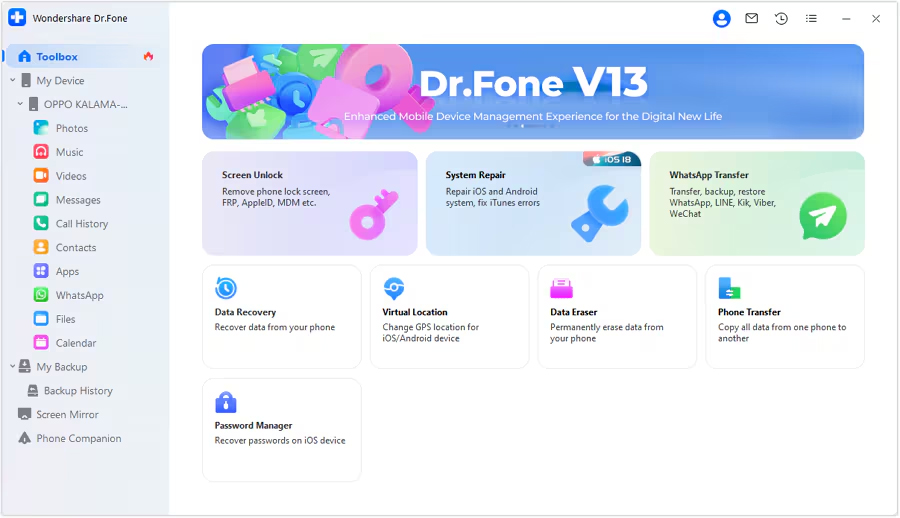
Step 1: Launch the iOS System Repair Tool after installing the tool on your computer. Go to the Toolbox section from the top left side of the screen. Now, select System Repair from the list displayed on the home screen.
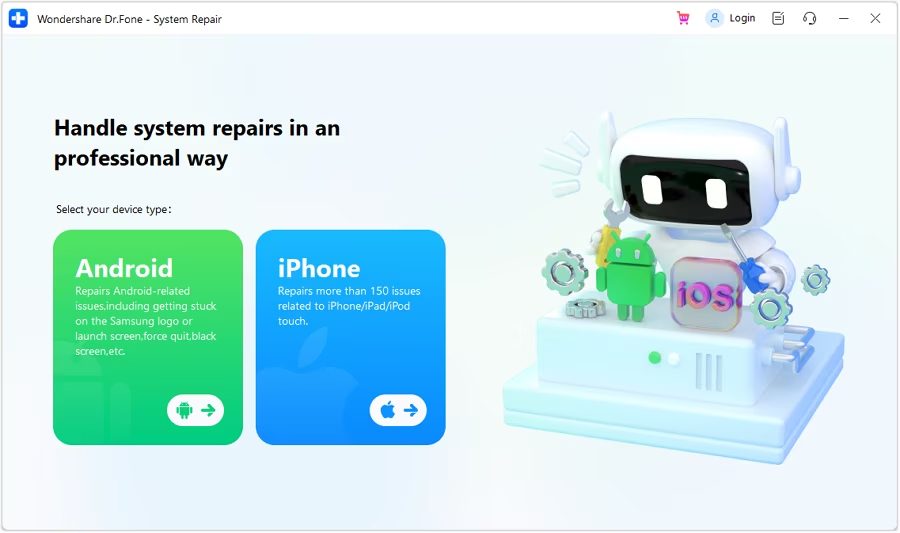
Step 2: You will be redirected to a new window as you connect your iOS device to your computer with a cable connection to select the nature of the device. So, select iPhone since we are performing iOS System Repair.
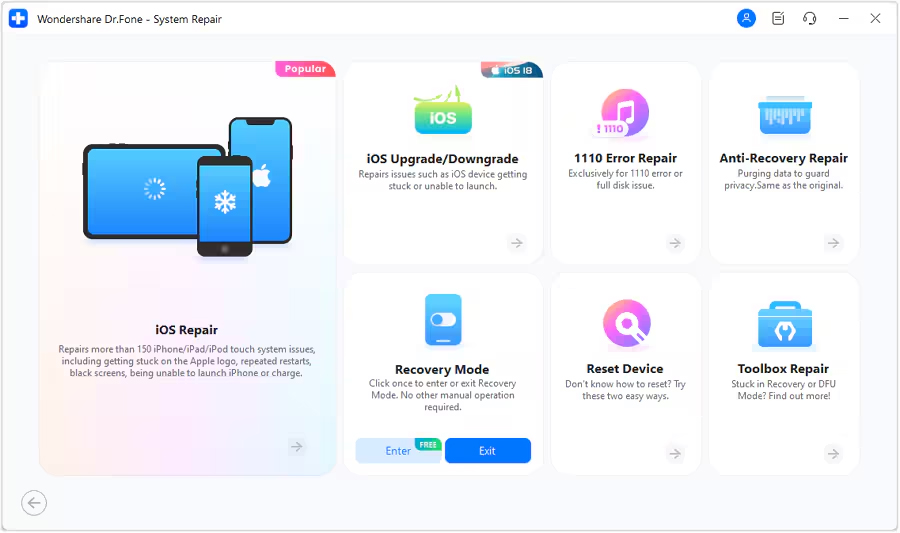
Step 3: Select iOS Repair among the set of options appeared on the screen to continue system repair.
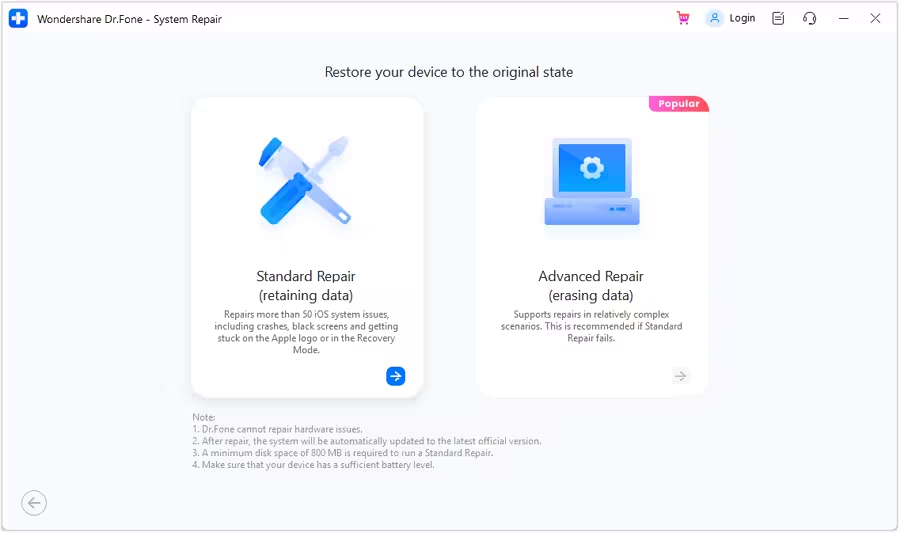
Step 4: Select Standard Repair as a mode of repairing for your iOS device.
Step 5: Next, you have to enter your iOS device into Recovery Mode by following the on-screen instructions. After that, click on Enter Recovery Mode. But if not entered your iOS device into Recovery Mode, click on Guide and follow the ongoing instructions to enter your iOS device into Recovery Mode.
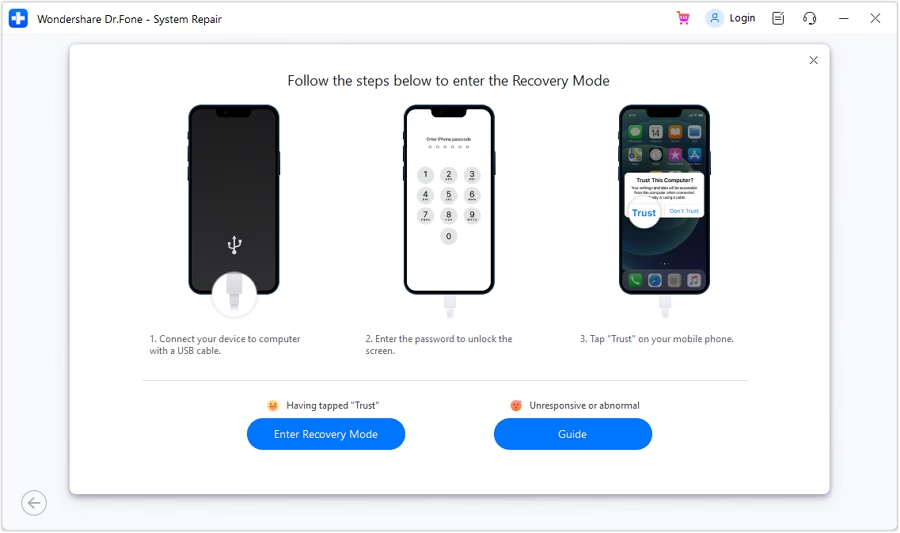
Step 6: After entering your iOS device into Recovery Mode, the platform will automatically detect the iOS firmware to be installed in the device. Click Download next to the iOS firmware you wish to install.
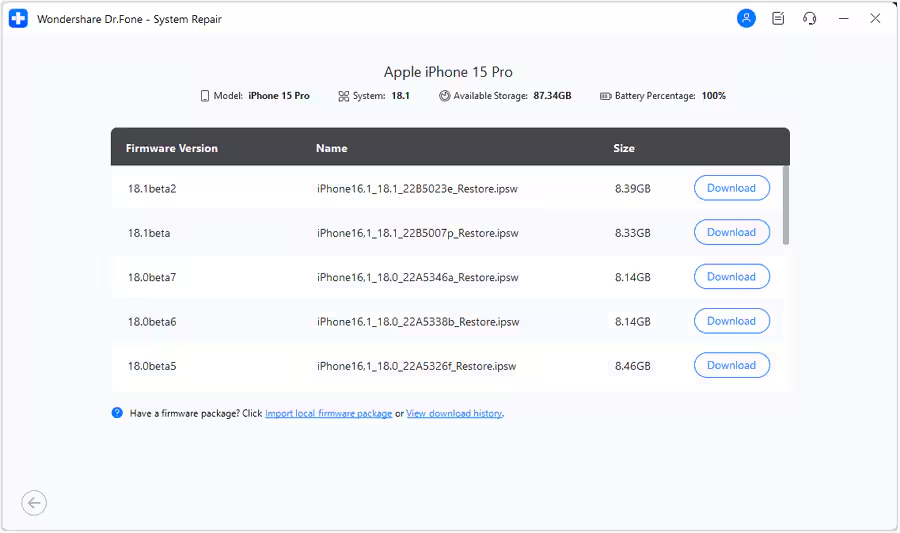
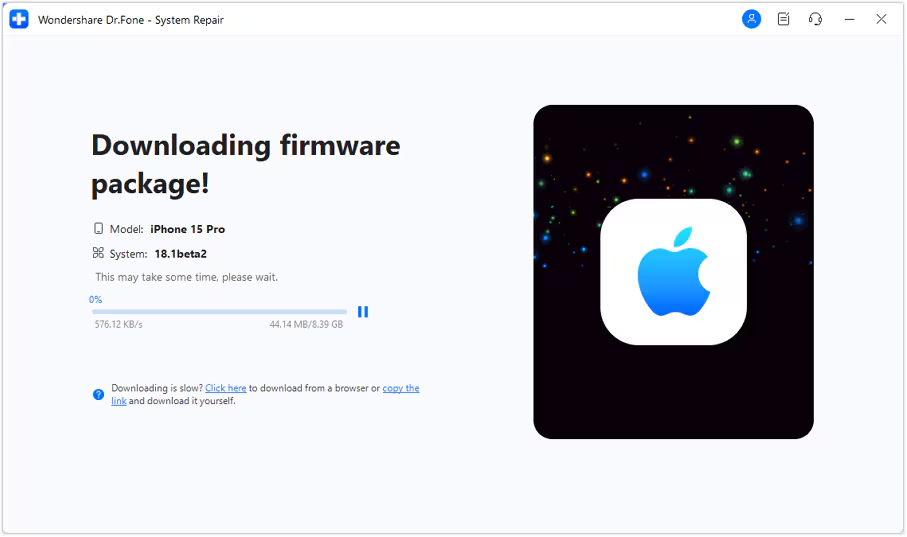
Step 7: The iOS firmware will automatically start downloading on the platform.
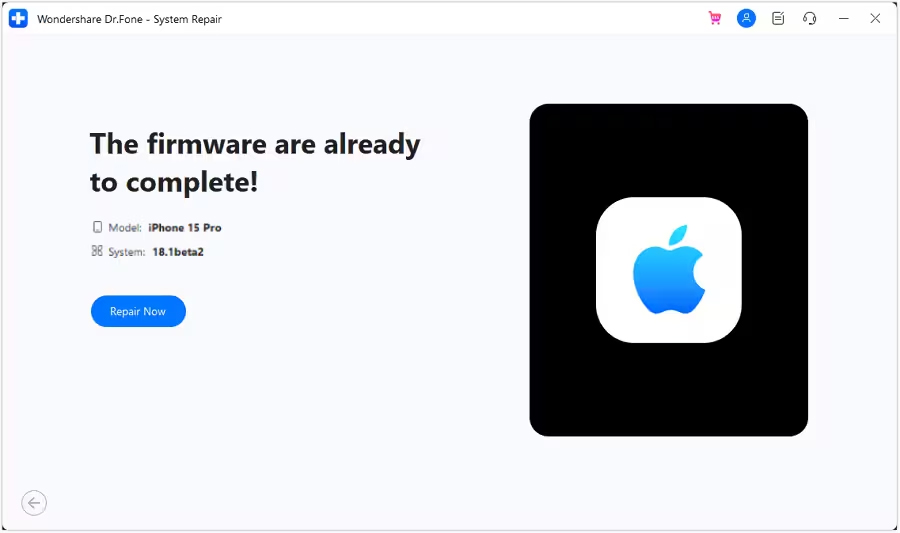
Step 8: Next, click on Repair Now to continue the repairing process.
Step 9: Now, wait for the process to complete and make sure your iOS device is connected to the computer.
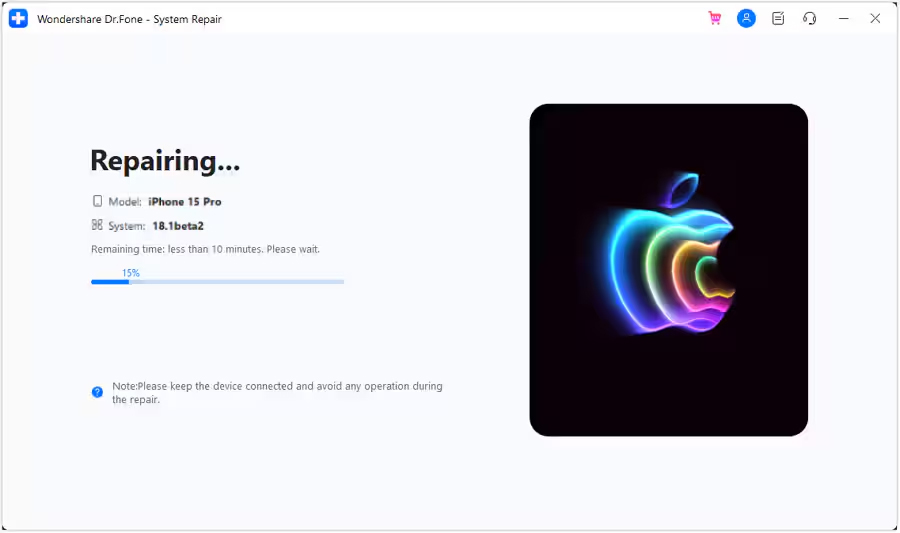
Step 10: The screen will now show the completion of the process. Select Done to complete the whole repairing process.

|
|
Wrap Up
So, these are some of the easiest and most effective solutions to fix wifi issues on iPhone after iOS 18 update. All the solutions listed above will help you to resolve wifi not working or connecting issues.
However, if they fail to work, iOS System Repair software is the best option. It will help you to fix almost all system issues on iPhone including wifi issues without any data loss.
You May Also Like:
- How To Fix iPhone Boot Loop Issue After iOS 18 Update
- How To Fix iPhone Emails Not Working After iOS 18 Update
- [2024] Android App Not Installed Error – Here How To Fix
- How To Fix iOS 18 Black Screen After Update

Max Field is a founder of Recover Android Data. He is an Android lover and loves to write tips, tricks, fixes for errors, data recovery solutions and more related to Android.