
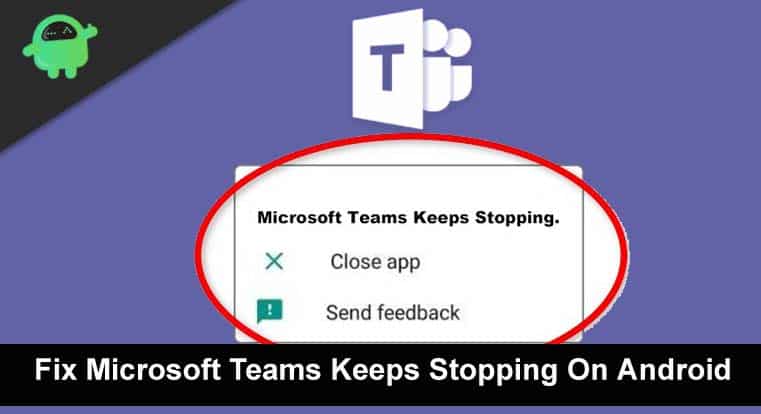

Learn Different Solutions To Fix Microsoft Teams Keep Stopping On Android Phone And Tablet!
Microsoft Team is a business communication platform that allows its users to create team chats, group conversations, meetings, teams live events, screen sharing, and much more.
You use this app on your Android phone according to your purpose but now it stops working properly and you wish to fix it. If YES, then this guide will help you to know some solutions on how to fix Microsoft Teams keeps stopping on Android.
- Solution 1: Restart Your Android Device
- Solution 2: Check Internet Connection
- Solution 3: Update Your Android Device
- Solution 4: Update Your Microsoft Teams App
- Solution 5: Clear Cache And Data Of Microsoft Teams
- Solution 6: Uninstall And Reinstall Microsoft Teams
- Solution 7: Check Microsoft Teams Status
- Solution 8: Wipe Cache Partition In Recovery Mode
- Solution 9: Try Android Repair Tool To Fix Microsoft Teams Keep Stopping On Android
I know you are eager to know the solutions to fix this issue but before that, you should first know why Microsoft Teams stop working on Android.
Reasons: Why Microsoft Teams Keeps Stopping On Android
There can be various factors that can result Teams to stop working on your Android phone or tablet. Some of the common but major reasons behind this problem are listed be below.
- Your Microsoft Teams app is not updated to the latest version.
- Outdated Android OS.
- Poor internet connection.
- Corrupted cache and data of Microsoft Teams app.
Now, you have a basic understanding of the cause of Teams app keeps stopping issue that will help you to fix the issue easily.
So, let’s go direct to the solutions to fix Microsoft Teams keeps stopping on Android.
Also Read: Microsoft Excel Not Working On Android? Here Is The Real Fix!
Solution 1: Restart Your Android Device
The first and most simple way to fix any Android related is to restart the device. So, you should first restart your Android device and check it worked or not.
To restart the Android device, press and hold the Power button. Now tap on restart. Some phones may not have the restart option, in which case you will have to power it off and switch it on and restart the phone manually.

Solution 2: Check Internet Connection
Secondly, you need to check the internet connection. To do this, you can browse anything on any web browser. Or you can run speedtest on any web browser to check internet speed. If the internet connection is not stable then you can switch from mobile data to wi-fi or vice versa.
Also Read: Here How To Fix Outlook Keeps Stopping On Android
Solution 3: Update Your Android Device
It is of utmost importance to keep your device updated with the latest version of Android. This may sound silly but there are lots of people who do not update their Android or simply don’t know how to. These updates might roll out for fixing issues like Microsoft keep stopping.
To manually update your Android OS to the latest versions, follow the steps below.
Step 1: Open Settings on your Android device.
Step 2: Then, tap on About Phone.
Step 3: After that, hit on System Update or Check for update (depending on your Android phone model).

Step 4: Now, if you get any latest update then simply install the update.
After updating the device, check Microsoft Teams app crashing/stopping issue on Android is resolved or not.
Solution 4: Update Your Microsoft Teams App
You need to also check that your Teams app is running on the latest version. If it is not updated then it can also cause Microsoft Teams not working or keeps stopping issues on Android.
Below, follow the steps to do the same.
Step 1: Launch Google Play Store app from Home screen on your Android.
Step 2: After that, enter the name of the app in the search box and then tap on Update button.
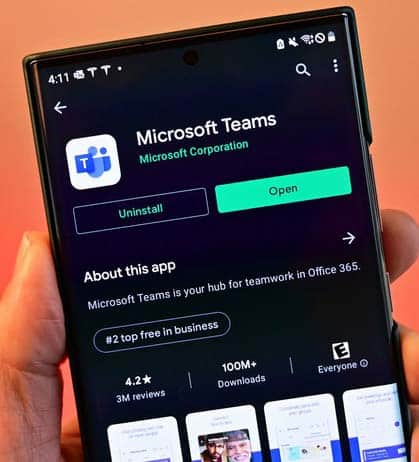
You can also update the Teams app by opening the Google Play Store app. Then hit on your profile icon. Next, go to Update section and find update for Microsoft Teams app. If you get then simply, tap on Update button just beside the Teams app.
Also Read: How To Fix GroupMe Crashing or Not Working On Android
Solution 5: Clear Cache And Data Of Microsoft Teams
Like every app, Microsoft Teams store temporary data so that it will take less time when you open it. But sometimes the cache files of the app get corrupted and due to this your Teams app start creating the problem.
So, in order to fix it, you need to clear the cache and data of the app. Below, follow the steps to do the same.
Step 1: Navigate to Settings > Apps & notifications.
Step 2: Then hit on See All apps/All Apps.
Step 3: Now, choose Teams from the app’s list and open it.
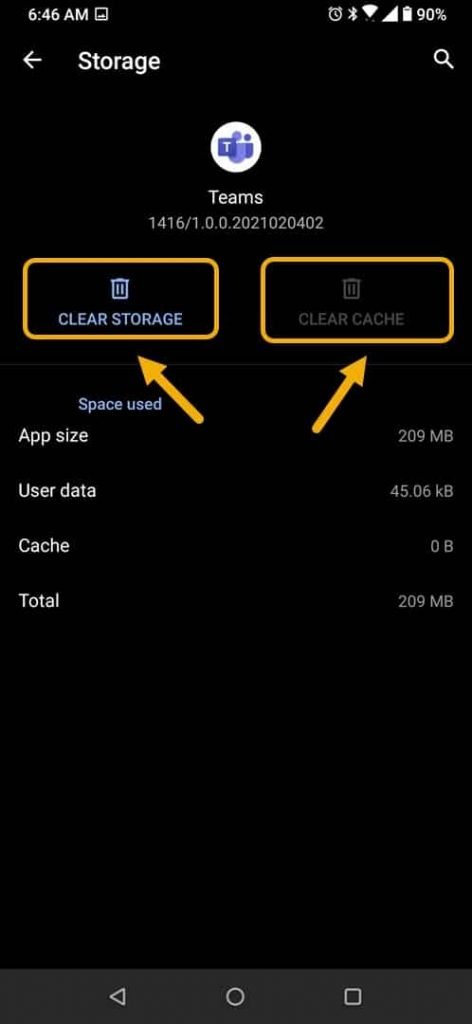
Step 4: Next, hit on Storage & Cache.
Step 5: Then, tap on Clear Storage and Clear Cache button.
Now, check the issue is solved or still occurring.
Solution 6: Uninstall And Reinstall Microsoft Teams
Uninstalling and reinstalling the Teams app also helps you to fix Teams app keeps stopping problems on Android phones and tablets.
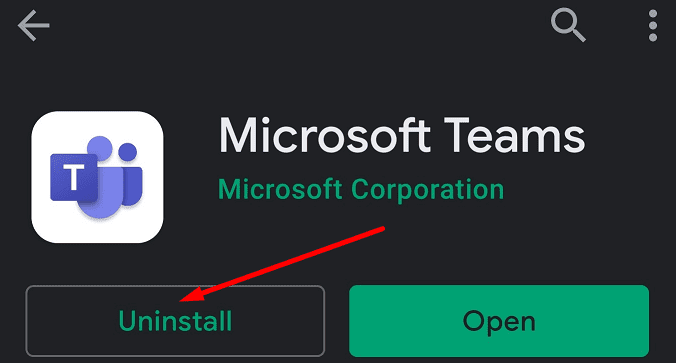
To uninstall Microsoft Teams app, go to Settings > Apps & notifications > All Apps. Open Teams app and then hit on Uninstall button to uninstall the app.
Once you uninstall the app, reinstall it again. For that, open Google Play Store app. Then enter the name of the app in the search box. After that, hit on Install button.
Solution 7: Check Microsoft Teams Status
It is also possible that the Microsoft Teams app is down and that is why the Teams app keeps stopping on your Android device. So, you need to check the status of the Microsoft Teams app to confirm it is down or not.
For this, you can launch downdetector website in your desired browser and check if it is down or not. If it is down then you need to wait until it gets solved on its own.
Also Read: [Fixed] “Unfortunately, YouTube Has Stopped” On Android
Solution 8: Wipe Cache Partition In Recovery Mode
If still the issue is not solved then you can wipe the cache partition to fix this issue. To do that, you need to first boot your Android into recovery mode.
The key combinations are different to boot the Android device into Recovery mode so it is not possible to provide all the key combinations. Hence you are requested to find the key combinations in Google for your specific Android model.
Once your Android entered recovery mode, follow the below steps to do further.
Step 1: Use the Volume Down button to scroll down and highlight Wipe Cache partition option.

Step 2: Select that option using Power key.
Step 3: After that, highlight Reboot option and select it by pressing the Power button.
Also Read: How To Fix “Unfortunately Settings Has Stopped” On Android
Solution 9: Try Android Repair Tool To Fix Microsoft Teams Keep Stopping On Android
If there is any problem in your Android OS and due to this Microsoft Teams keeps stopping then you are highly suggested to try Android System Repair tool to fix this issue. It will repair Android OS and thereby fix Teams App keeps stopping/crashing/won’t open problems on Android.
 |
 |
Besides fixing this, it also helps to fix many other issues such as Android stuck in bootloop/black screen, Play Store stopped working, Android OTA update failed, etc.
Note: Currently, the software only supports Samsung phones and tablets.
You May Also Like:
- How To Fix “Unfortunately, Google App has Stopped” Error on Android
- How To Fix “Unfortunately, Voice Command Has Stopped” On Android?
- Fix Wi-Fi Calling Not Working On Samsung Galaxy S20 (Plus)/S20 Ultra
- How To Fix Android White Screen Of Death (WSOD)
Related Frequently Asked Questions [FAQs]
Answer – When Microsoft Teams keeps stopping then you should follow some tips to fix this problem. Some of the tips are listed below. Answer – There are some possible reasons which can cause Teams not working on Android. They are – poor network connection, outdated Android OS and Teams app, Teams is down, etc. Answer – You can easily get your Microsoft Teams to work on your Android device. For this, you need to follow the above-mentioned solutions. Answer – To fix Microsoft Teams keeps logging out on Android is to update the Teams app. For that, you need to open Google Play Store app on your phone and then enter the name of the app in the search box. After that, hit on Update button. We hope whatever solutions discussed in this guide were helpful for you to fix Microsoft Teams keeps stopping on Android. If you are a Samsung phone or tablet user then we recommend you to try Android Repair software to fix this issue in just a few clicks. You can also contact the app developer if the above-discussed solutions didn’t help. Please support us by subscribing to our YouTube Channel. Max Field is a founder of Recover Android Data. He is an Android lover and loves to write tips, tricks, fixes for errors, data recovery solutions and more related to Android. Provide Gaming Tips, Tricks, Game Error/Issues Solutions (PC/Xbox/PlayStation/Mobile). He has 11+ years of experience in this field.
Wrap Up
