


13 Solutions To Fix Outlook App Keep Stopping/Crashing/Not Working On Android!
Outlook is a famous email and personal information for business. You can use this Microsoft Outlook app to send and receive emails, store calendar, emails, contacts, notes, etc. There are times when the Outlook app keeps stopping which affects your work.
This guide will discuss the solutions to fix Outlook keeps stopping on Android. Not only solutions you will also know the reasons why Outlook keeps stopping on Android.
 Expert Tip: One of the best and hassle-free ways to fix Outlook keeps stopping on Android is to use Android Repair software.
With the help of Android System Repair, one can:
- Easily fix Outlook app keeps stopping/not working/crashing issue.
- Also fix other issues such as black/white screen of death, system update failure, Play Store app not responding, stuck in boot loop/recovery mode, etc.
- Works only on Samsung phones and tablets.
- 100% safe, secure, and easy to use.
Free Download Trial Version/Buy Now Android Repair Tool Tool Fix Outlook App Keeps Stopping On Android
 |
 |
Let us first check out a real user practical scenario.
Practical Scenario: An Android Users Is Unable To Use Outlook App Due To “Outlook Keeps Stopping” Error Prompt
Outlook keeps stopping in android and only gives a option to stop or close.
This is happening every time I open and within a minute “Outlook keeps stopping ” message pops up and I have to close. I am unable to use the app.
Source: Microsoft Community
Like this, many Android smartphone users facing the same problem but they didn’t understand why they get this error on the Outlook app.
So, let us first know the causes why Microsoft Outlook keeps stopping or crashing on Android. After this, we will learn the solutions to fix it.
Also Read: Solved: There Was A Problem Communicating With Google Servers
Reasons: Why Does Outlook App Keep Stopping/Crashing On Android?
There are many reasons which can cause this issue on your Android device like- outdated Outlook app, corrupted cache files of Outlook app, poor or unstable internet connection, and missing app permissions.
Whatever could be the reasons there are always some solutions to fix any issue.
So, now we will directly go ahead to the solutions to fix Outlook keeps stopping on Android.
Solution 1: Check Internet Connection
You need a good internet connection so that Outlook can work or sync your email accounts and when it doesn’t have an internet connection then your Outlook app stops working/keeps stopping.
Hence, you should check your internet connection. To check it you can search anything on any web browser and see if it is giving the result or not. If you don’t get the result of the search item then it indicates that there is some problem with the internet connection which you are using.
In this situation, you need to check if your phone has an active data plan or if you have connected to Wi-Fi then disable and then enable it. You can restart your Wi-Fi router. If this doesn’t help then you can contact your internet service provider and ask for help.
Solution 2: Force Stop Outlook App
The second solution to deal with this issue to by force stopping Outlook app and then open it again. This will shut down all operations of Outlook app and gives a fresh restart which helps you to solve the problem.
Now, follow the simple steps to force stop Outlook app.
Step 1: Go to Settings.
Step 2: Tap on Apps/Applications/Apps & notifications.
Step 3: Now find Outlook app and tap on it to open app’s detail.
Step 4: Next, tap on Force Stop and then choose OK to confirm the action.
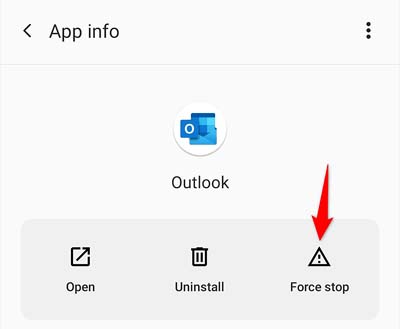
After this, go back to home screen and open the Outlook app again and check Outlook keeps stopping error prompt is disappeared or not.
Also Read: Microsoft Excel Not Working On Android? Here Is The Real Fix!
Solution 3: Update Outlook App
Your apps should be updated to the latest version to run any app without facing problems. Therefore, when you face any problem on any app then you must check update for that particular app and install that update.
Below, learn how to update Outlook app on Android.
Step 1: Run Google Play Store app.
Step 2: Then go to its search box and write the name of the app.
Step 3: If you get Update button beside Outlook app then simply tap on it. But if you find Open button instead of Update then it means that your app is already running to the latest version.
Solution 4: Disable Power Saving Mode
If you have turned on power saving mode on your phone then it will restrict Outlook as well as other apps’ ability to work properly. So, you should turn off the power saving mode feature on your device to fix this issue.
Here, follow the below steps to do the same.
Step 1: Launch the Settings app on your device and tap on Battery.
Step 2: After that, go to Battery Saver option and then hit on Turn off now.
You can also disable battery saver mode by going to quick settings menu and tapping on battery icon.
Solution 5: Clear Outlook App Cache
Sometimes the cache files of the app get corrupted and cause issues with it. Maybe this is also happening with Outlook app which is why Outlook app keeps crashing/stopping on Android. So, to fix it you need to clear the cache of Outlook app.
Don’t worry! You will not lose any data from Outlook app.
Hence, to troubleshoot this problem, use the below steps to clear the cache of Microsoft Outlook app.
Step 1: Navigate to Settings > Apps/Application manager.
Step 2: Now, look for Outlook app and hit on it.
Step 3: After that, tap on Storage & cache.
Step 4: Next, tap on Clear cache.
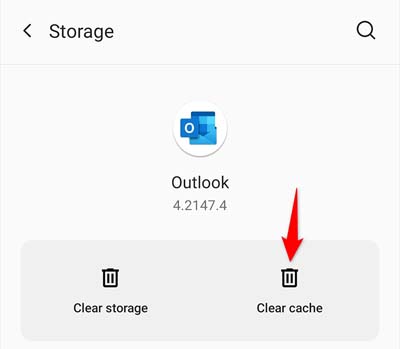
Now, restart your phone and then launch the Outlook app again and see if it is working fine or not.
Also Read: How To Fix Microsoft Teams Keeps Stopping On Android
Solution 6: Update Android System WebView
Android System WebView is a core component power of all Google-developed and third-party applications. Hence it is important to keep the Android System Webview app updated.
So, if you have not updated it then, follow the simple steps to update Android System WebView app.
Step 1: Launch Google Play Store app on your phone.
Step 2: Then enter the name of “Android System WebView” in the search box at the top of the screen.
Step 3: Now, hit on Update button next to the app.
Now, check Outlook app keeps stopping issue is solved or not.
Solution 7: Reset Email Account From Outlook App
You can reset your email accounts from Outlook app in order to solve the error. This method is good when you realize that Outlook is not syncing your emails.
Here, follow the steps to reset your email account from Outlook app.
Step 1: Run the Outlook app on your device.
Step 2: Then hit on your profile icon at the top-left corner of the screen.
Step 3: Now, tap on Settings icon.
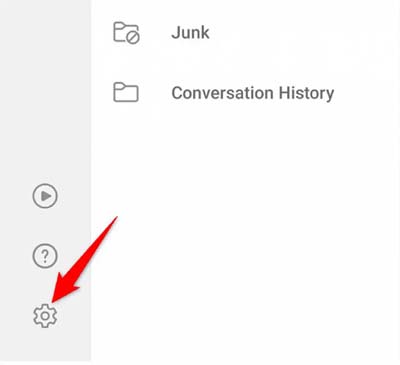
Step 4: After that, select your email account at the top.
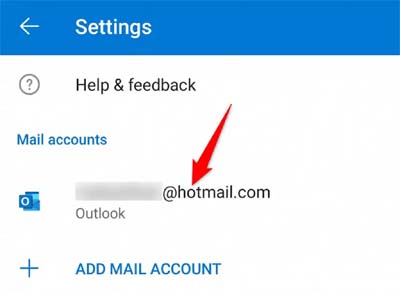
Step 5: Next, scroll down and hit Reset Account option.
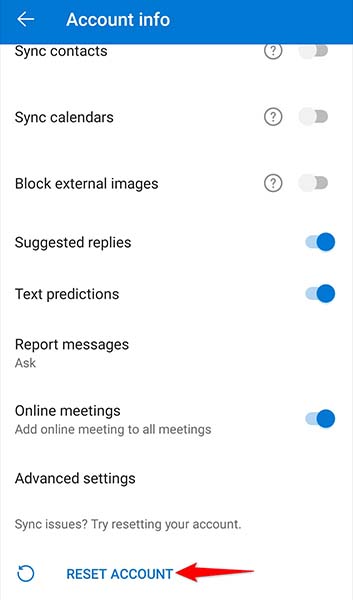
Step 6: A pop-up message will appear, there you need to tap on Continue to confirm the reset process.
Also Read: [FIXED] “Unfortunately, Facebook Lite Has Stopped” On Android
Solution 8: Disable Outlook Add-Ins
Add-ins tool of Outlook app provides various features but sometimes it can cause some problems to the app. So, if this is the culprit then you can disable the add-ins tool of Outlook app to solve the error. Later on, you can enable it.
Here, follow the steps to do the same.
Step 1: Run Outlook application on your Android device.
Step 2: Then tap on your profile icon.
Step 3: Tap on Settings icon.
Step 4: Then you need to scroll down and tap on Add-ins option.
Step 5: Now, you will get a checkmark icon next to the add-ins that you have enabled. You can disable these add-ins by tapping on the checkmark icon for every turned-on add-in.
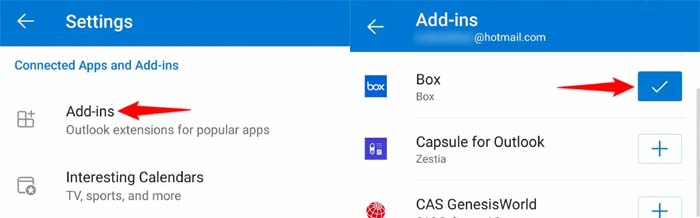
After this, close and reopen the Outlook app on your Android device.
Solution 9: Remove And Re-add Email Account
When you face an issue with Outlook app then you can delete your email account from the app and add it again. But before removing make sure you remember your email account detail as you need to enter it while re-adding it.
Now, follow the simple steps to remove and re-add email account from Outlook app.
Step 1: On your phone, open the Outlook app.
Step 2: Hit on your profile icon.
Step 3: Then select Settings icon.
Step 4: Now, choose your email account.
Step 5: Then, scroll down and hit on Delete Account.
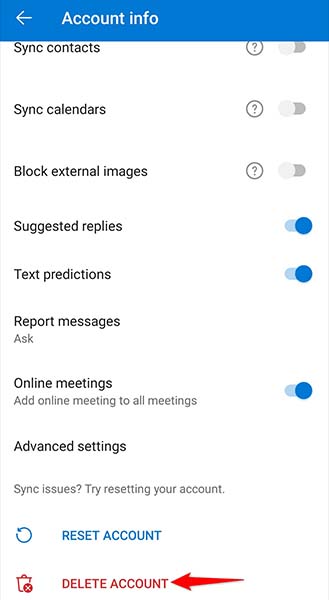
Step 6: Tap on Delete in the pop-up window.
Once your account gets removed, add it again by typing that email account’s login credentials.
Solution 10: Check Outlook App Permissions
If you have not permitted the necessary permissions to Outlook app then it will not work well. So, check that you have provided all important permissions on Outlook app.
Here’s learn how to do this.
Step 1: Navigate to Settings > Apps/Apps & notifications.
Step 2: Look for Outlook app and open it.
Step 3: Then tap on Permissions on Outlook information page.
Step 4: Next, tap and allow all permissions available there.
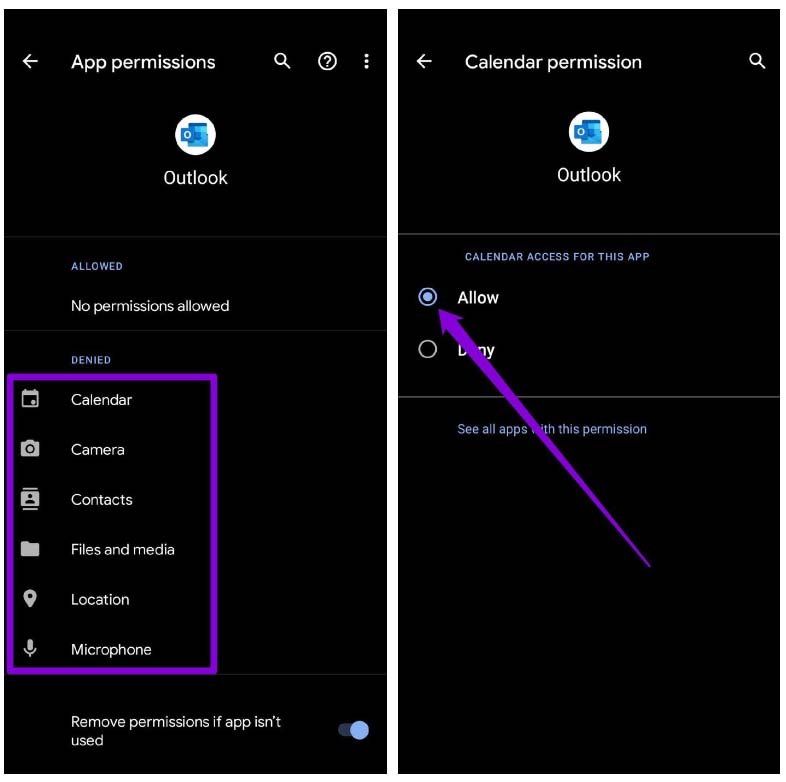
After this, open Outlook app again and see if the issue is solved or still persisting.
Solution 11: Uninstall And Reinstall Outlook
You can also uninstall and then reinstall Outlook app to fix this problem. Don’t Worry! Your emails will not be deleted. When you reinstall Outlook app then login to it using your email account details and the emails will be back to your phone.
Now, follow the below steps to do the same.
Step 1: Tap and hold the Outlook app icon and tap on Uninstall.
Step 2: Then tap on OK to confirm the process.
Step 3: After this, open the Google Play Store app.
Step 4: Enter Microsoft Outlook in the search box.
Step 5: Now, tap on Install button next to the app to reinstall Outlook app on your Android device.
After this, open the Outlook app and log in to it using your email account details.
Also Read: How To Fix “Unfortunately, Twitter Has Stopped” On Android
Solution 12: Download Older Version Of Outlook App
If reinstalling the Outlook app didn’t fix the problem then it might be possible that there is a core problem in the app. In this situation, you can download and use an older version of Outlook app and check if it is working fine or not.
There are various safe APK download sites from where you can easily download the older version of Outlook app and install the APK file to get the older version of the app on your Android device.
Solution 13: Use Android Repair Tool To Fix Outlook Keeps Stopping On Android
If you are using Outlook app on your Samsung phone and the Outlook app keeps stopping or crashing on Android due to some problem in your Android OS, then in this situation you can use Android System Repair tool to fix it.
|
|
Note: Currently Android Repair tool only works on Samsung phones and Samsung tablets. So, if you use other brands of Android phones other than Samsung then this tool will not work.
Here, follow the steps to fix outlook keeps stopping on Android using Android System Repair tool.
You May Also Like:
- [Fixed] “Unfortunately, the process android.process.media has stopped”
- How To Fix “Unfortunately Settings Has Stopped” On Android
- How To Fix Tinder Not Opening On Android [14 Fixes]
- [FIXED] Android System WebView Update Problem
Steps To Use Android Repair Tool To Fix Outlook Keeps Stopping On Android
Step 1: Connect Your Android To PC
First download and install Android Repair on your computer and launch it.
Next, select the “Repair” from the available options.

Now connect your Android phone or tablet to computer and select “Android Repair” among the available options.

In next Window, select the correct brand name, model number, country/region, carrier. After that confirm the warning message and click “Next”.

The Android Repair software may delete all data on your device. Simply, type in “000000” to confirm to continue.

Note: It is strongly recommended that you must back up your Android data before repairing your Android using Android Repair Tool.
Step 2: Repair Android Phone In Download Mode
Prior to Android Repair, it is important that you must boot your Android device in Download Mode.
Below follow the steps to boot Android phone/tablet in DFU mode!
For Android phone/tablet with home button:
- Power off your device.
- Press and hold “Home + Power + Volume Down” button for few seconds (5-10 seconds).
- Release all the buttons and press “Volume Up” button to enter Download Mode.

For Android phone/tablet with no home button:
- Power off your device.
- Press and hold “Power + Volume Down + Bixby” buttons for few seconds (for 5-10 seconds).
- Release all the buttons and press “Volume Up” button to enter Download Mode.

After that click “Next”. The software will start to download the firmware.

After the download and verification of the firmware, the software will automatically start to repair your Android device.

In just few minutes of time, your Android phone or tablet will have all the system issues, errors, problems fixed.

|
|
Wrap Up
So, whenever you face Outlook keeps stopping or crashing issues on Android then at that time you can use the above-listed solutions to fix it. If the issue is causing due to some issue with your Android OS then in this situation I would suggest you to try Android Repair tool as it fixes Outlook keeps stopping/crashing/not working on Android in just a few seconds.
Please support us by subscribing to our YouTube Channel.
If you have found this article helpful, then please share it as it can help other users as well.

Max Field is a founder of Recover Android Data. He is an Android lover and loves to write tips, tricks, fixes for errors, data recovery solutions and more related to Android. Provide Gaming Tips, Tricks, Game Error/Issues Solutions (PC/Xbox/PlayStation/Mobile). He has 11+ years of experience in this field.