

Learn 14 Simple Solutions To Fix Tinder Won’t Open, Keeps Stopping/Crashing On Android Phones or Tablets!
Tinder is a popular online dating and geosocial networking application. This app is available for both Android and iOS. There are 100 Million+ users who have downloaded the Tinder app on their Android devices.
There are some users who are complaining that their Tinder app is not opening on Android. Are you also facing the same issue? If YES, then read this troubleshooting guide. Here I have shared all potential solutions on how to fix Tinder not opening on Android.
Note: Like Tinder not opening issue, there are some other issues on the Tinder app. They are as follows:
- Tinder not working.
- Error messages showing that something is wrong with the app and to try again later.
- Unable to send or receive messages.
- Problem while logging in and out of the app.
- Tinder app crashing or loading issue.
- Unfortunately, Tinder Has Stopped Working” On Android
- Tinder not responding
- Tinder keeps stopping or won’t open
- And so on…
All these issues/problems can be fixed by applying the solutions mentioned in this post.
So, before you move to the solutions, it is better to know first – Why Tinder not opening on Android?
Also Read: [Fast Fixes] 6 Android Problems and Possible Solutions
Reasons: Why Tinder Not Opening On Android?
There are multiple factors due to which Tinder app is not opening on Android. Some of the reasons among them are listed below.
- Low storage space on your Android device.
- Tinder app is down.
- Outdated Tinder app and Android OS.
- Internet connection problem.
- Corrupted cache and data of the app.
- Not allowed all permissions to the app.
Well, you have seen the common reasons. And now, it is time to move to solutions to fix Tinder not opening on Android.
So, let’s start with the solutions.
Solution 1: Restart Your Android Device
The first solution I always suggest is to try when you face any minor problems on your phone is restarting the device. When you restart the device then it helps to clear all apps from the background and fix minor glitches on the device.
To restart your Android phone, you need to press and hold the Power key for a few seconds. When you see the options on the screen then release the key. Now, from there tap on Restart/Reboot option.
Solution 2: Force Close Tinder App
You can simply force-close the app to fix the problem. Force closing the app helps to fix the issues with the app.
So, to force close the app, go to Settings > Apps/Apps & Notifications. Now, look for Tinder app and open it. Then hit on Force Close button.
After this, try to open the Tinder app to see if it is opening or not.
Also Read: How To Fix “Unfortunately, Messenger Has Stopped” Error on Android
Solution 3: Check Tinder Status
You should check whether Tinder app is down or not. If it is down then it means that due to this Tinder app is not opening on Android.
To check the status of the app you can open downdetector website in any web browser. See if it is down or not. If it is down then you need to wait until it gets fixed on its own.
Solution 4: Update Tinder App
If you are running Tinder app on the older version then it can create errors in the app. Therefore, you should check the update for the app, and if it is available then install the update.
Below follow the steps to update Tinder app.
Step 1: Open Google Play Store app on your phone.
Step 2: Then type the name of the app in the search bar.
Step 3: After this, hit on Update button next to the app.

Note: If you get the Open button instead of Update then it indicates that Tinder app is updated to its latest version.
Also Read: If An Error Says “This Person Is Unavailable On Messenger”
Solution 5: Check Internet Connection
If there is some problem with the internet connection then your Tinder app will not open properly or you will face problems while logging into it.
So, if you are using Wi-Fi data then disable it and then enable it again. You can also restart your Wi-Fi router. And if you are using mobile data then ensure that you have an active data plane.
Solution 6: Clear Cache And Clear Storage Of Tinder App
Though cache data helps to open the app in less time but when it gets corrupted then it can cause problems while opening the app. So, to fix this you need to clear the cache and clear storage of the app.
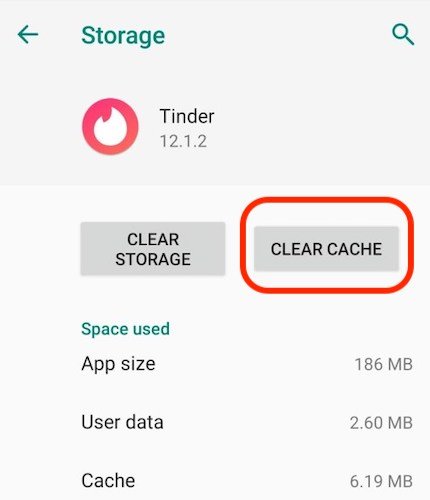
Here are the simple steps to clear cache and storage of Tinder app.
Step 1: Run the Settings app and then tap on Apps.
Step 2: After this, find Tinder app and tap on it.
Step 3: Then Storage and then on Clear Storage and Clear Cache button.
Also Read: How To Fix Microsoft Teams Keeps Stopping On Android
Solution 7: Install Latest Update For Your Android OS
Many times when your Android operating system is not updated to its latest version then some apps don’t work properly. Hence you are suggested to update your Android OS to the latest version.
Follow the below steps to update Android OS to the latest version.
Step 1: Tap on Settings icon and then tap on About Device.
Step 2: Next, hit on Software Update.
Step 3: If the new update is available then you will find the option to install it. Simply download and install it.
Now, check Tinder app is opening properly or not.
Solution 8: Allow All Permissions To Tinder App
The Tinder app will not open properly if you have not provided all permissions to Tinder app.
So, to fix this, log in to your Facebook account. Then tap on “Manage Apps” and find Tinder app. Next, tap on “Allow” option.

Check that Date and Time are correct and your Google account is right. Also, make sure that Tinder is correctly synced with Facebook by going to Settings > Account > Facebook. Then, hit on “Sync Now” if it is not synced.
Also Read: How To Fix “Unfortunately, Twitter Has Stopped” On Android
Solution 9: Switch To Cellular Data If Using Wi-Fi
You can try to switch to mobile data if you are using Wi-Fi data. Though this can be expensive but this will troubleshoot the issue. First disable Wi-Fi and then enable mobile data on your phone.
After doing this, ensure Tinder app is working fine or not.
Solution 10: Update Google Play Services
Many users have reported that they have fixed this issue. So, you can also try it to solve Tinder not opening issue. Generally, Google Play Services is automatically updated using the app but sometimes it can’t. So, you need to manually update the Google Play services.
To update it, open Google Play Services on Google and hit on the app. You will get Update or Uninstall button. Tap on Update button if available.
Solution 11: Disable VPN
VPNs are third-party apps that protect your phone and data from hackers and other things. Some VPNs don’t work well as they should and cause problems with your network connection.
If Tinder app is not opening or working on Android then disable VPN and then check whether the issue is fixed or not.
You can also use a more stable VPN provider such as PureVPN if you don’t want to go online without any protection. PureVPN provides high-speed servers around the world for fast and secure connections.
Also Read: [Fixed] “Unfortunately, YouTube Has Stopped” On Android
Solution 12: Uninstall And Reinstall Tinder App
If the above solutions are not working to solve Tinder not opening/working/crashing on Android then you can simply uninstall the app and install it again from Google Play Store.
Below, learn the steps to do the same.
Step 1: Head to Settings > Apps > Manage Applications.
Step 2: Find Tinder app and hit on “Uninstall”. Or open the Play Store, find Tinder and tap on “Uninstall“.

Step 3: Once it is successfully get uninstalled, open Google Play Store app.
Step 4: Enter the name of the app (Tinder) in the search box at the top of the screen.
Step 5: Hit on Install button to install it again.

Step 6: Now, login with your username and password.
Also Read: How To Fix “Unfortunately Settings Has Stopped” On Android
Solution 13: Try Android Repair To Fix Tinder Not Opening/Crashing/Keeps Stopping On Android
It may be possible that there might be a problem in your Android OS and due to this Tinder app is not opening, crashing, won’t open, keep stopping, not responding, not working and creating other problems. So, in this situation, you need to try Android Repair software to fix the problem.
 |
 |
Android System Repair tool help to fix other issues such as system crash, stuck in bootloop, system update failure, apps keep crashing, black/white screen, etc.
Note: You can only use this tool if you are using Samsung phone or tablet as it currently only supports Samsung devices.
Here, follow the steps to fix Tinder not opening on Android using the third-party Android Repair tool.
Solution 14: Report Problem To Tinder
If still, Tinder app is not opening then you should take help from professionals. Simply visit Tinder’s Help Center and submit a request to report the problem that you are facing in Tinder app. You can also search the guides on their page and check if you are able to find other methods to fix problem.
Also Read: How To Fix “Unfortunately, Google App has Stopped” Error on Android
Tinder Related Frequently Asked Questions [FAQs]
Answer 1 – Your Tinder app can keep saying “Oops something went wrong” due to some reasons and they are discussed below:
Answer 2 – When you don’t get matches on Tinder then you can do few things that will help you to get matches on Tinder. They are:
Answer 3 – The main reason why your Tinder is not loading is your unstable internet connection. Some of the other reasons for this can be outdated Tinder app and Android OS, corrupted cache and data of Tinder app, Tinder is down, etc.
Wrap Up
So this guide has provided 14 effective solutions to fix Tinder not opening on Android. I hope any of these solutions has helped you to solve this issue. And now you can open the Tinder app easily without facing the problem.
Please support us by subscribing to our YouTube Channel.

Max Field is a founder of Recover Android Data. He is an Android lover and loves to write tips, tricks, fixes for errors, data recovery solutions and more related to Android. Provide Gaming Tips, Tricks, Game Error/Issues Solutions (PC/Xbox/PlayStation/Mobile). He has 11+ years of experience in this field.