
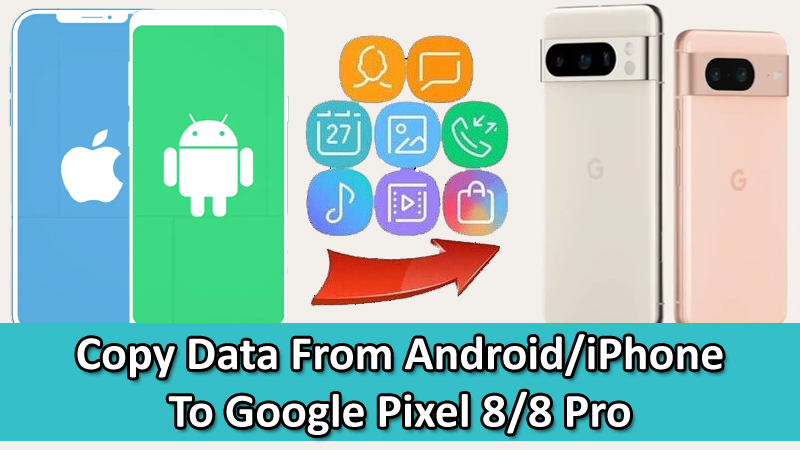
Purchased Google Pixel 8 or Pixel 8 Pro?
Excited to use it?
Just hold on! Have you transferred all your data from your previous phone to your new Pixel 8 (Pro) phone?
If not, then this article is for you. Here you will learn how to transfer/copy/switch/move data from an Android or iPhone to Google Pixel 8 or Pixel 8 Pro.
Part 1: Transfer Data From an Android To Pixel 8/8 Pro
You can transfer photos, videos, audio, contacts, messages, apps and app data, call history, alarms, wallpaper, passwords from Google password manager if you use the same Google account.
Alright, below follow the steps to transfer data from an Android to Pixel 8/8 Pro.
Step 1: Prepare Your New Pixel 8/8 Pro
- Make sure both devices are fully charged – old Android phone and new Pixel phone.
- Turn ON Bluetooth and Location Services on both devices.
- A stable wi-fi connection. SIM card tool that came with your Pixel phone.
- And a Google Account.
Step 2: Connect Your Old Phone and New Pixel 8/8 Pro
- Make sure your old phone is switched ON.
- Turn ON your Pixel 8/8 Pro and tap on “Get Started”.
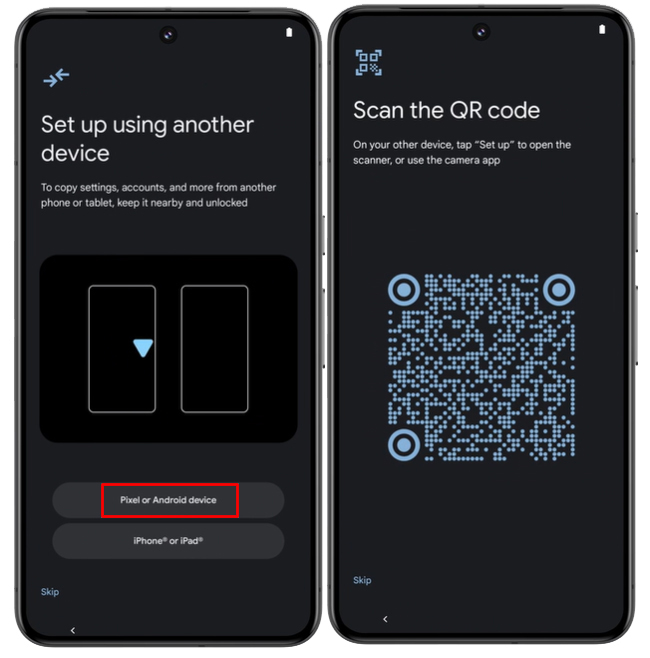
- Tap on “Pixel or Android device”. A QR code will be displayed on the screen.
- Now, on your old phone tap on “Set up” from the notification or you can manually open the phone camera and scan the QR Code that is displayed on your Pixel 8 (Pro) phone’s screen.
Step 3: Get Ready Your Pixel 8 or 8 Pro
Your new Pixel phone will get connected to same wi-fi network as your old Android phone.
Note: If your old Android is not connected to wi-fi, then you will be notified to connect to a wi-fi network on your Pixel.
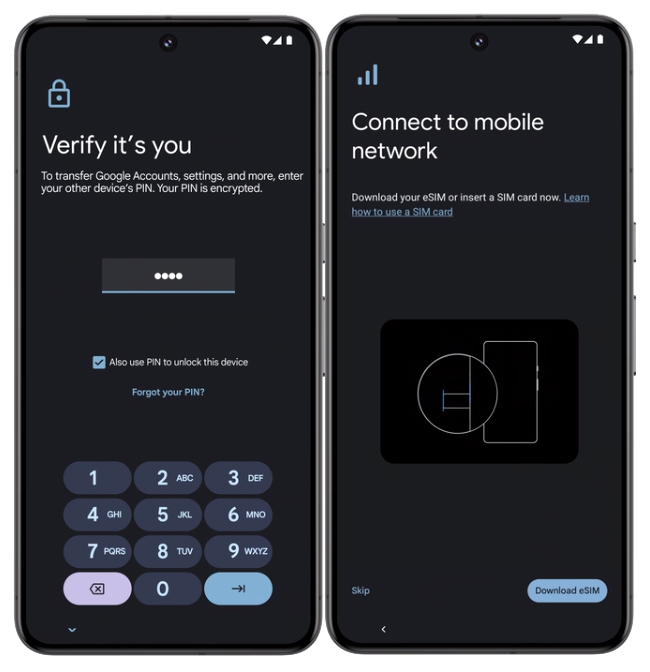
- On your new Pixel, enter your old Android phone’s screen lock.
- Your Google account will start the transfer to your Pixel
- Next, if available then you can download an eSIM from your carrier. Simply follow the onscreen instructions to transfer your SIM or eSIM to your new Pixel.
- Thereafter, set up Fingerprint and face unlock.
Step 4: Transfer Apps and Data Wirelessly To Pixel 8/8 Pro
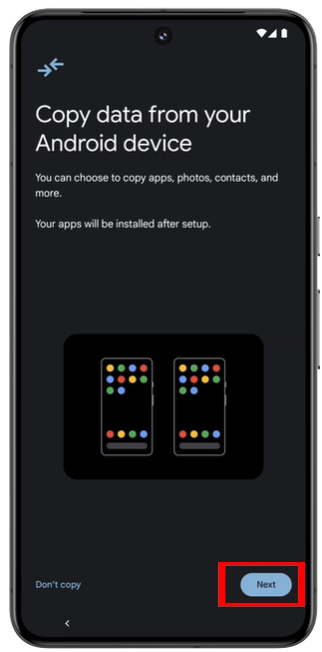
- When you are on “Copy data from your Android device” screen on the new Pixel 8/8 Pro, tap Next.
- When you are on “Use your old device” screen, tap “Next”.
- When you are on “Find your old phone’s cable,” screen tap “No Cable?”.
- Unlock your old phone and tap on “Set up” from the notification.
- Now, on your Pixel 8/8 Pro, you will get the list of your data.
- Tap on “Copy” to transfer all data.
- If you want to copy only some data, then uncheck what you don’t want and then tap on “Copy”.
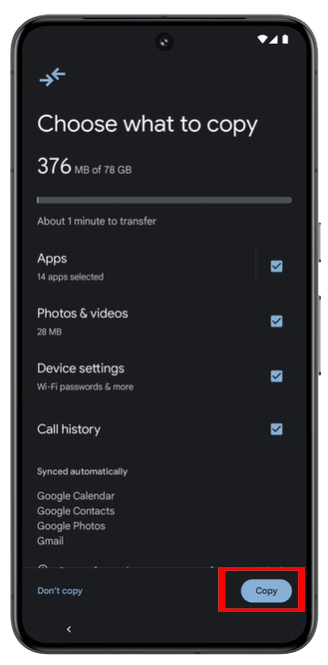
When the transfer process is finished, you can use your phone.
Note: Your apps may require time to load after your data transfer.
Also Read: Google Pixel 8 or Pixel 8 Pro Overheating? Here What To Do!
Transfer Data From Android To Pixel 8/8 Pro Using Cable
Note: You will need USB cable and Quick Switch Adapter that came along with your Pixel 8 Phone.
If you want to move data from an Android/Samsung/Pixel to new Pixel 8/8 Pro, then follow the same steps from Step 1 to Step 3 as mentioned above and then follow the below steps.
- When you are on “Copy data from your Android device” screen on the new Pixel 8/8 Pro, tap Next.
- When you are on “Use your old device” screen, tap “Next”.
- Now plug one end USB cable to your old Android phone and plug the other end into your new Pixel phone or into the Quick Switch Adapter and then plug it into your Pixel phone.
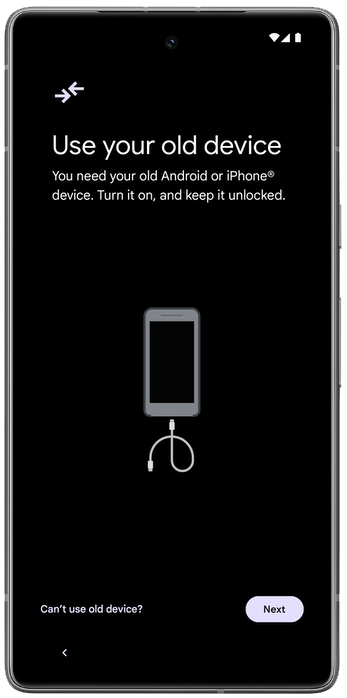
- Next, unlock your old phone and tap on “Trust” from the notification.
- Now, on your Pixel 8/8 Pro, you will get the list of your data.
- Tap on “Copy” to copy all data.
- If you want to copy only some data, then uncheck what you don’t want and then tap on “Copy”.
When the transfer process is finished, you can use your phone.
Note: Your apps may require time to load after your data transfer.
Also Read: How To Fix WiFi Issues on Google Pixel 8/Pixel 8 Pro
Part 2: Transfer Data From iPhone To Pixel 8/8 Pro
Step 1: Things You Need
- Both devices should be fully charged (old iPhone and new Pixel 8/8 Pro).
- SIM card ejector tool, USB cable and Quick Switch Adapter that came with Pixel 8.
- Your iPhone charging cable.
- And a good Wi-Fi internet connection.
Step 2: Get Your iPhone Ready
Before you transfer data, you need to turn off “iMessage” and “Facetime”.
While the SIM card is in your iPhone.
- Go to Settings > Messages > Turn off iMessage.
- Go to Settings > FaceTime > Turn off FaceTime.
Step 3: Get Your Pixel 8/8 Pro Ready
- Turn On your Pixel 8/8 Pro and tap on “Get Started”. Tap on “iPhone or iPad”.
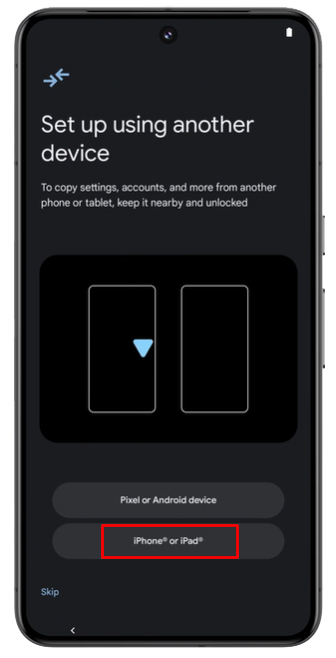
- Connect to Wi-Fi.
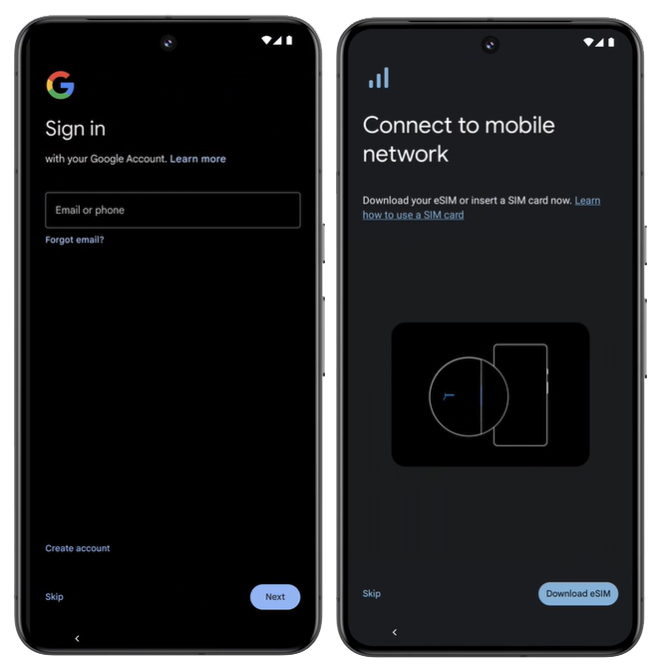
- Sign-in to your Google Account. On your Pixel phone, enter your Google account password and then tap “Next”.
- If you have a SIM card, then insert it, or you can tap on “Download a new eSIM” or tap on “Skip”.
- Follow the onscreen instructions to set-up PIN, Fingerprint and Face unlock.
Step 4: Connect Your Devices
- On “Copy data from your iPhone or iPad” screen tap “Next” on Pixel 8 (Pro).
- When “Find your iPhone’s cable” appears on the screen, tap on “Next”.
- Here you need to plug the old cable into your old iPhone. Then on your Pixel tap on “Next”.
- Now, plug the other end of the cable into your Pixel Phone. If the cable doesn’t fit, then use the Quick Switch adapter that came with the Pixel phone.
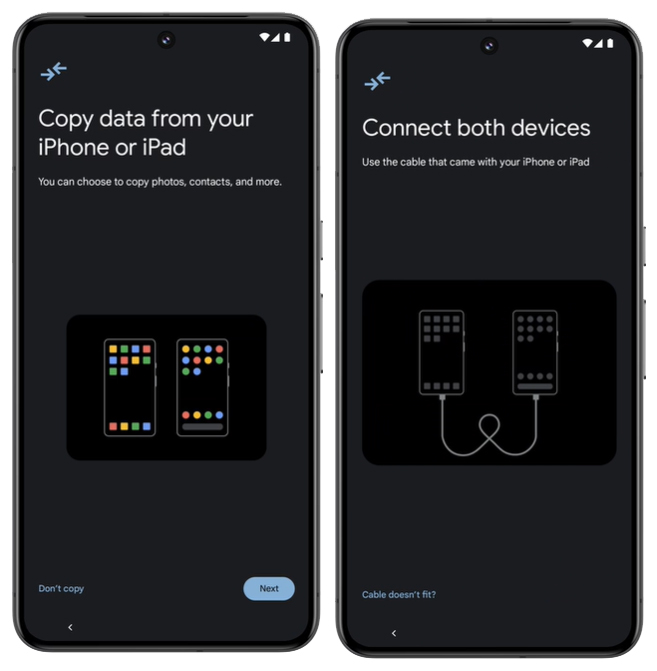
- Your devices are now connected. Tap Next to continue.
Step 5: Transfer Your Data
- Now, on your Pixel 8/8 Pro, you will get the list of your data.
- Tap on “Copy” to copy all data.
- If you want to copy only some data, then uncheck what you don’t want and then tap on “Copy”.
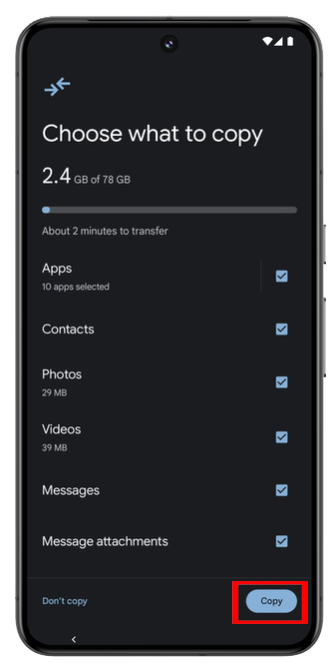
When the transfer process is finished, you can use your phone.
Also Read: How To Fix Google Pixel 6/6 Pro Screen Wakes Up Automatically/Randomly
Part 3: Transfer Data From any iPhone/Android To New Pixel 8/8 Pro
Whether you want to transfer data from any Android phone or iPhone to Google Pixel 8 or 8 Pro, you can always use Phone Transfer software.
You can use this tool even after the initial set-up of Pixel 8/8 Pro to selectively migrate data.
With the use of Phone Transfer software, one can transfer the following types of data:
- From Android (Samsung/Any Android) To Pixel 8/8 Pro: Transfer 11 file types: photos, videos, contacts, messages, call history, bookmarks, calendars, voice memos, contact blacklists, music, and apps.
- From iOS (iPhone/iPad) To Google Pixel 8 (Pro): Transfer 12 file types: photos, videos, contacts, contact blacklists, messages, bookmarks, calendars, voice memos, music, alarm records, voicemail, and ringtones.
The Phone Transfer software is available for Windows and Mac computers and it is compatible with the latest Android OS and iOS.

|

|


So, try Phone transfer now and move data selectively.
Here follow the steps to transfer data from an Android/iPhone to Google Pixel 8/8 Pro using Phone Transfer software.
Wrap Up
So, that was all about the different methods to transfer data from any Android or iPhone to Google Pixel 8 or 8 Pro.
If you have found this post helpful, then please share it with others as this can help others!
Please support us by subscribing to our YouTube Channel.
You May Also Like:
- How To Show Battery Percentage on Google Pixel 8/8 Pro
- How To Fix App Crashing on Google Pixel 8/8 Pro
- How To Recover Deleted Voicemail From Google Pixel
- How To Fix Pixel 8 Pro Uneven Discoloration on AOD

Max Field is a founder of Recover Android Data. He is an Android lover and loves to write tips, tricks, fixes for errors, data recovery solutions and more related to Android. Provide Gaming Tips, Tricks, Game Error/Issues Solutions (PC/Xbox/PlayStation/Mobile). He has 11+ years of experience in this field.