
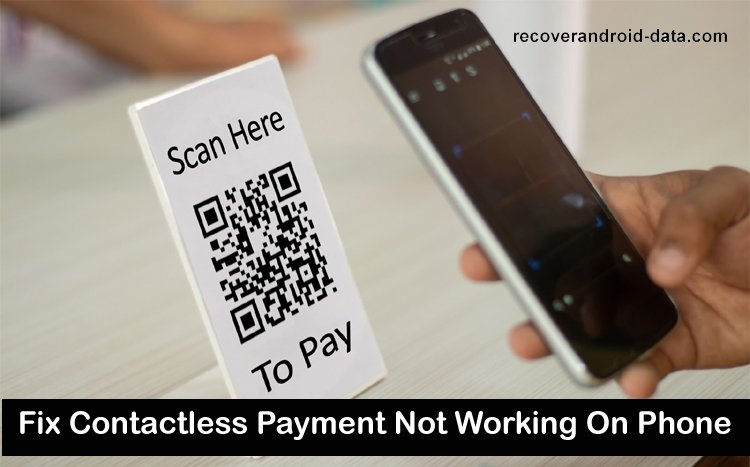

Technology has made human work easy and simple. But when technology stops working then it becomes very much frustrating. From internet lagging to malfunctioning of virtual assistants, the inconvenience can make your day much harder.
And when it comes to contactless payment like Google Pay (GPay), the consequences of interrupted service are a more serious problem than a minor inconvenience.
Having unaffected access to all of your payment methods is important, but technology doesn’t work all the time perfectly. So, if your contactless payment (Google Pay) is not working, then fixing the problem quickly would be essential in keeping up with your day.
Luckily, we’ve put together a couple of quick fixes that should help you to fix contactless payment (Google Pay) not working on your phone.
Also Read: Fixed: Can’t Add Card To Samsung Pay On Samsung Phone
How To Fix Contactless Payments Not Working
If you are not able to complete a contactless payment, then follow the below solutions and their steps to fix the problem.
Note: Before you begin, please make a note that Google Pay app frequently releases updates. Hence, the solutions and their steps may vary depending upon the app version or the country/region you are located in.
Solution 1 – Check Your Contactless Payment Set Up
1 – Make sure you have properly set-up a contactless payment method.
2 – Check NFC is turned on.
- On your phone go to settings.
- Type NFC in the “search settings” bar.
- Now, make sure that NFC is turned on. If it is not then turn it on. Note: If your phone does not have NFC, then it can’t make contactless payments.
3 – Make sure to make Google Pay as your default payment app.
4 – Make sure a screen lock is set-up.
Now, once you have checked and updated your contactless payment set up on your device, try to make the payment again.
Solution 2 – Try Again With These Contactless Payment Troubleshooting Tips
- Ensure that your phone is unlocked and awake.
- Your phone might have NFC antenna near the top or middle of the device. So, hold your device in a different way.
- Bring and hold your phone closer to the payment reader.
- Bring and hold your phone closer to the payment reader for a few more seconds.
Fixing Other Problems That Does Not Allow You To Make Contactless Payment
Problem 1 – If You Can’t Set Up Contactless Payments
Fixes – To set-up contactless payments, your phone must have NFC and it should be enabled. Your phone runs on Android 5.0 or higher version (Android Lollipop), and must have HCE.
Besides that, you must add card that is supported for contactless payments.
If your phone has NFC and it is enabled and you have a supported card, but still you are not able to set up contactless payment, then in such case, you must contact your bank.
You May Also Like:
- Android Accessibility Service Not Working? Here How To Fix!
- Samsung Pay Transport Card Not Working? 6 Fixes That Worked!
- Solved: There Was A Problem Communicating With Google Servers
- Google Calendar Not Syncing With Android? Here Is The Fix!
Problem 2 – When Cashier Says Payment Cancelled/Didn’t Work
Fixes – When you make a contactless payment, if a check mark displayed on your phone’s screen when you hold it up to the payment reader (barcode), but the cashier says you that the payment got canceled or it didn’t work, then is such situation, you can:
- Try to make payment via different payment reader (barcode).
- Make sure that store/shop accepts mobile payments.
- Contact your bank, to check if there is any problem with your card.
Problem 3 – When Your Device Is Not Certified Or It Does Not Meet Security Requirements
Fixes –
1. Make sure your software is Play Protect certified.
2. If you were able to make contactless payments earlier, but now you are no longer able to make payments via Google Pay, then contact your device manufacturer. It might be possible that a software update has impacted the functionality.
3. If you’re in a beta program, then Google Pay might become unreliable or it may completely stop working on your phone. In such case, you may leave the beta program. You can also contact your device manufacturer to know more about how this beta program can impact the use of Google Pay.
4. If you have made changes to your phone, make sure device is certified and it meet security requirements. GPay, may not work in stores/shops with the phone that:
- Run custom ROM, rooted, or have software that can be modified. Due to security risks, Google Pay will not work on these phones.
- Have developer versions of Android.
- Are not tested and has not been approved by Google.
- Have an unlocked bootloader.
5. If you have installed a modified operating system, then in such case, you must reinstall the phone’s original operating system, and thereafter you can make a contactless payment.
Important Note: So, it is clear. If your phone is not certified and if it does not meet security standards, you will not be able to make contactless payments immediately. Hence, it is suggested that you must use a phone that runs on the original version of the Android operating system.
Please support us by subscribing to our YouTube Channel.

Max Field is a founder of Recover Android Data. He is an Android lover and loves to write tips, tricks, fixes for errors, data recovery solutions and more related to Android. Provide Gaming Tips, Tricks, Game Error/Issues Solutions (PC/Xbox/PlayStation/Mobile). He has 11+ years of experience in this field.