

Nowadays, Gmail is very important for us in our day-to-day life and we often use it for sending/receiving mail. It is famous all over the world and many people depend on it for sending and receiving mail on it.
Sometimes, it causes some issues and you may face the problem of notification not working. So, what can you do in this situation? Well, you don’t need to worry about it, because in this guide you will learn about how to troubleshoot it.
So, this is the complete guide on how to fix Gmail notifications not working on Android. You can read this article carefully to easily fix the problem.
- Check Notification Settings Of Gmail
- Disable Snooze
- Disable Airplane Mode
- Turn Off Battery Optimization For The Gmail App
- Turn On Auto Sync On Android Devices
- Turn Off Data Saver
- Allow All The Necessary Permissions For Gmail
- Update Phone OS Version & App
- Ensure “Notify For Every Message” Is Turned On In The App
- Update Settings Of Manage Labels Sync
- Enable Time Zone & Network Provided Time
- Clear The Cache And Data Of Gmail App
- Force Stop Gmail
- Log Out And Login Back To Your Account
- Try Uninstalling The Update Of Gmail App
- Uninstall The App And Install It Back
- Factory Reset Your Device
- Frequently Asked Questions [FAQs]
Before going to effective solutions, you need to know what causes the problem. So, let’s check what are the common causes.
Causes: Why Gmail Notifications Not Popping Up?
There are the common causes for this issue, some of them are given below.
- Maybe the notifications settings are turned off in the Gmail app.
- If the data saver mode is enabled on your phone, then simply turn it off.
- Due to an out-of-date app version.
- It could be you didn’t allow all the required permissions.
- It might be the Gmail auto-sync feature is turned off.
- The battery saver feature doesn’t allow your phone to receive any notifications, if it’s enabled, then this could be the reason behind it.
- Maybe your Gmail account causes some issues.
There are some of the common causes behind the problem, if any of the situations is with you, then fix it immediately.
Also Read: How To Fix Samsung Earbuds Only Playing In One Ear
How To Solve Android Not Receiving Gmail Notifications
Here you can finally learn about how can you fix the issue, you can follow the mentioned solutions one by one and check whether the problem is fixed or not.
Video Tutorial: Fix Gmail Notifications Not Working On Android
1. Check Notification Settings Of Gmail
If the Allow Notifications Settings is disabled on your smartphone, then it will prevent the phone to receive notifications.
So, make sure this feature is enabled, and also check that DND (Do Not Disturb) mode is disabled. Follow the below-mentioned steps.
- Navigate to Gmail app and hit the Menu icon (three horizontal lines) located at the top left corner.
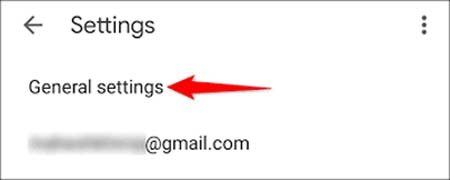
- Now, select Settings and tap on General settings.
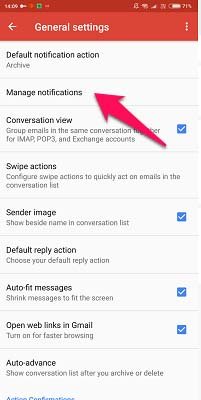
- Now, choose Manage Notifications.
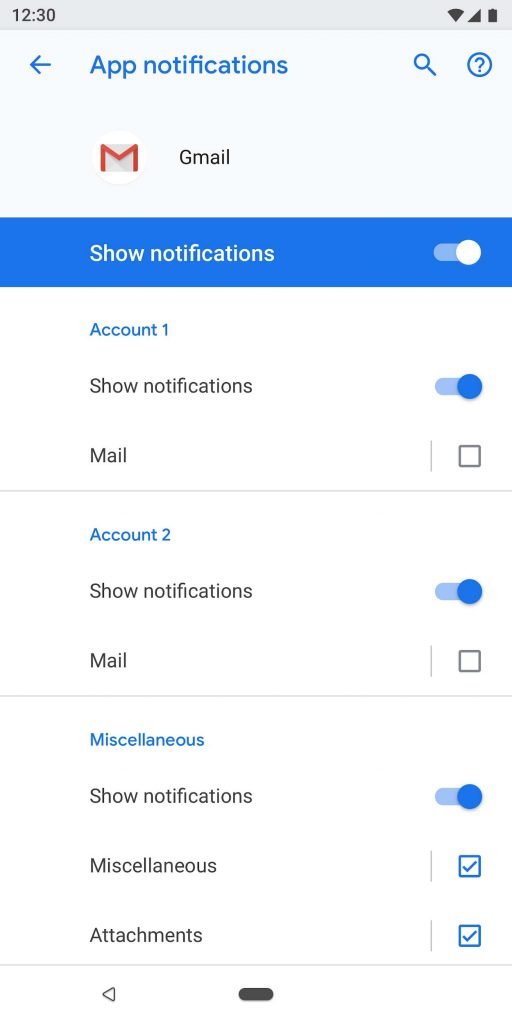
- Now, if the Show notifications settings is turned off then simply turn it on.
- At last, simply Restart your phone and check whether the problem is solved or not.
Also Read: Disney Plus Not Working On Samsung Smart TV? Why & Fixes!
2. Disable Snooze
Well, this feature helps the users to snooze someone, once you snooze someone, then you can’t able to see their mails in your inbox and you can’t receive any message notifications from that person.
If you want to disable this feature, then follow the mentioned steps.
- Navigate to Gmail and hit the Menu Icon (3 horizontal lines) located at the top left corner.
- Now, tap on Snoozed, then press and hold the person’s name.
- Now, hit 3 Dots, then tap on “Unsnooze”.
3. Disable Airplane Mode
If you have enabled the Airplane/Flight mode on your phone, then this might be the reason behind the issue. Because if you enable this feature, then it automatically disables all the network settings like Mobile data and you can’t receive notifications on your phone anymore.
These are the steps to follow.
Note: The steps may vary on your phone-to-phone model.
- Go to Settings, and select Connection & Sharing.
- Now, you will able to see the option of Aeroplane mode.
- Now, if this feature is enabled, then disable it.
- You can also disable it from the Control centre of your device.
4. Turn Off Battery Optimization For The Gmail App
The battery optimization feature helps in saving your phone’s battery and buy some time for your phone to work. But this feature is not helpful in every situation. Because it can restrict the operations that function in your device’s background.
So, turn it off by following the mentioned below steps.
- Navigate to Settings and tap on Battery & Performance.

- Now, simply tap on Choose apps.
- Now, look for the Gmail app from the list, then simply select it.
- At last, tap on “No Restrictions/Don’t Optimize”.
Also Read: Right or Left Samsung Galaxy Bud Not Charging – Fix It Now!
5. Turn On Auto Sync On Android Devices
Well, the auto sync feature helps the apps to push notifications on the phone. So, if this feature is not enabled on your phone, then you can’t able to receive notifications.
So, make sure auto-sync is enabled on your device, these are the steps to follow.
- Navigate to Settings and select Accounts & Sync.
- Now, check the Auto-sync data option is turned on.
- Now, tap on Google, then look for Gmail.
- Now, make sure the Auto-sync is turned on, if not, then turn it on.
6. Turn Off Data Saver
Well, the data saver mode helps the users to save their data. So, if you don’t have enough, then you use this feature. But keep remembering this mode restricts the background operations that use data.
As you all know, Gmail needs data to sync emails and it helps to show you notifications. So, if you have enabled this feature, then turn it off immediately. These are the steps to follow.
- Go to Settings and select Data Usage.
- Now, find the Gmail app from the list, then select it.
- At last, ensure that the below options are turned on such as Mobile, Wi-Fi, and background data.
After performing the above-mentioned steps, Gmail uses your data to sync emails. So, check whether the issue is fixed or not, if not, then move to the other solution.
7. Allow All The Necessary Permissions For Gmail
There might be chances that you didn’t allow all the required permissions and that’s why the notification not working on Android phones.
So, it’s better to allow all the permissions, it can fix the problem, and the Gmail app works flawlessly. These are the steps to follow.
- Navigate to Settings and tap on Apps.
- Now, hit Manage Apps or Application Manager.
- Now, select Gmail, then tap on Permissions.
- Now, allow all the necessary permissions.
- Now, tap on the 3 dots menu from the app list, then select Default apps.
- Now, simply set Gmail app to default.
8. Update Phone OS Version & App
This is one of the best and easy ways to troubleshoot any problem, the solution is updating the software and the app. It can fix minor bugs and glitches. So, it’s better to update the OS version to the latest version and the app too.
Update Software Version: –
- Navigate to Settings and select About Phone.
- Now, choose System Update.
- Now, tap on Download update, if available.
- Then, restart your device and check whether the issue is solved or not.
Update The App: –
- Navigate to the Google Play Store and go to your Profile.
- Now, select Manage apps & device.
- Now, simply hit Updates Available.
- Now, look for Gmail app, then tap on the Green Update option, if available.
After updating both of them, restart your phone and check if the problem still exists, then move to the other solution.
You May Also Like:
- How To Fix IMS Service Keeps Stopping On LG Phone
- How To Turn On and Set Up Visual Voicemail On Samsung
- How To Stop Phone From Overheating While Charging
- How To Fix MeChat Keeps Crashing or Not Loading
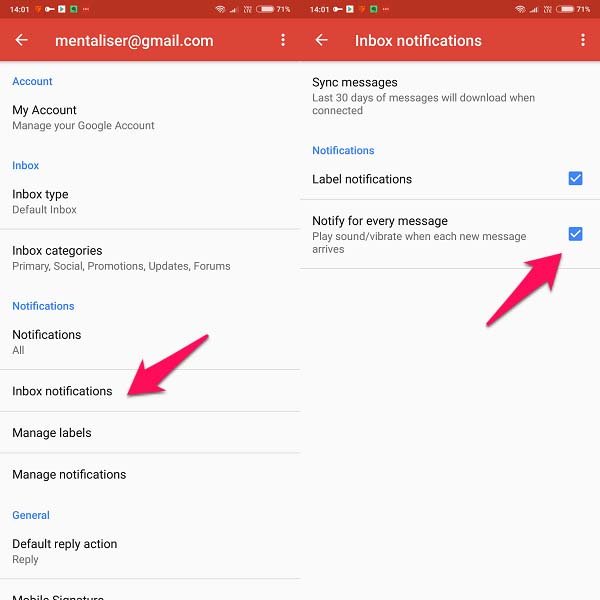
9. Ensure “Notify For Every Message” Is Turned On In The App
If you have disabled the “Notify for every message” option, then this might be the reason that the notification not working for you.
In such a situation, enabling this option can resolve the problem, you can easily do it by following the below-given steps.
- Navigate to Gmail and tap on the Menu icon (3 horizontal lines) located at the top left.

- Now, tap on Settings and select the account in which you are having issues.
- Now, choose “Inbox Notifications”.
- Now, you will see an option that is “Notify for every message” if it’s disabled, then enable it.
10. Update Settings Of Manage Labels Sync
If you are suffering from the issue of Gmail notifications not popping up on your device, then you can change the settings of labels sync, it may solve the problem. These are the steps to follow.
- Navigate to Gmail and select the Menu Icon (3 horizontal lines) located at the top left corner.
- Now, tap on Settings and select your account in which you are facing the issue.
- Now, select Manage Labels, then select any mail type.
- Now, hit Sync message, then select Last 30 days.
11. Enable Time Zone & Network Provided Time
Well, if your device date & time is not correct or not the same as your location’s date & time, then there might be a possibility, this causes the problem of Gmail not showing notifications.
So, check if it’s correct or not, if not, then you can try to enable the network-provided time and network-provided time zone. These are the steps to follow.
- Navigate to Settings and tap on System.
- Now, select Date & Time.
- Now, you will able to see the option called “Use network-provided time” and “Use network-provided time zone”.

- Now, enable the options, and check whether the problem is fixed or not.
12. Clear The Cache And Data Of Gmail App
As, you all know, a corrupted cache and data can lead the app to several problems, it might be the same situation with Gmail, it could be its also cause the corrupted cache and data.
So, clearing it can be the better option to do, because it’s clear the corrupted one and starts with a new cache file and also the app works more smoothly. These are the steps to follow.
- Open Settings on your device and tap on Apps.
- Now, tap on All apps, then look for Gmail and tap on it.
- Now, select Storage.
- Then, select Clear Cache, then Clear Data.
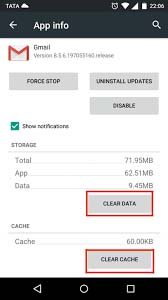
- Now, reboot your device and check whether the issue still exists or not.
Also Read: Google Voice Outgoing Calls Failing? Here’s How To Fix!
13. Force Stop Gmail
This workaround is one of the working ones, just like clearing the cache and the data, you can also force-stop the application. It can troubleshoot the issue easily and quickly. These are the steps to follow.
- Open Settings and choose Apps.
- Now, look for Gmail, then tap on it.
- Now, you will see the option of Force Stop, simply hit it.
- Now, restart the app and see if it’s working fine or not.
14. Log Out And Login Back To Your Account
If you are still not succeeding in troubleshooting the problem, then you can try to log out of your account and log in back to it. There might be chances that your account causes some viruses and malware and it prevents the app from pushing notifications.
So, it’s better to perform this workaround and rectify the issue quickly before going worse. These are the steps to follow.
- Launch Gmail on your phone, and hit the Menu Icon (3 horizontal lines) present at the top left.
- Now, select Settings, then choose your account in which you are having problems.
- Now, hit the 3 dots present at the top right corner.
- Now, from there choose Manage Accounts, then select Google.
- Now, hit the More option and tap on Remove Account.
- Then, reboot your device, and open the app’s Settings
- Now, tap on Add Account and then enter the details and log in to your account.
At last, don’t forget to check the issue, if it’s still existing, then move to the other solution.
15. Try Uninstalling The Update Of Gmail App
Just like other apps, Gmail also launch updates to keep their apps safe and secure from malware and viruses. But a faulty update can also cause the problem of not receiving notifications.
So, uninstalling the recently installed update can resolve the issue. So, it’s better to perform it and quickly solve the problem. These are the steps to follow.
- Go to Settings and tap on Apps.
- Now, look for Gmail, then tap on it.
- Lastly, select Uninstall Updates.

After performing it, reboot your device and check whether the issue is solved or not.
Also Read: How To Fix Google Maps Keeps Rerouting on Android or iPhone
16. Uninstall The App And Install It Back
If you are still suffering to solve the issue, then you can try to uninstall the app and install it again. This workaround works in many situations and helps the users a lot.
So, you can also try it, and always check for the issue is fixed or not. Follow the below-mentioned steps to do it.
- Go to Google Play Store.
- Now, tap on the Search bar and find Gmail.
- Now, tap on it, then select Uninstall
- After that, tap on the Green Install
At last, reboot your smartphone and look the app shows notifications or not.
17. Factory Reset Your Device
If none of the solutions help you in fixing the issue, then you can try the factory reset workaround as it is effective and one of the best workarounds, but it can erase all your data and bring the phone to default settings.
So, I would recommend you to perform the above-mentioned solution first, if those solutions do not work properly, then you can perform it but keep in your mind that it can erase all your essential data.
So, before performing it, back up all your essential data as you can restore it after a factory reset. These are the steps to follow.
- Navigate to the phone’s Settings and select About Phone.
- Now, tap on Factory Reset.
- Now, hit erase all data located below.
- After that, reboot your smartphone and check whether the issue is fixed or not.
Also Read: How To Fix Missed Call Notification Won’t Go Away On Android
Frequently Asked Questions [FAQs]
Answer. There are many reasons behind this issue and many users are facing this problem. Well, the most common causes behind it are notifications turned off in the app or your account causes viruses are malware. Another, possibilities are the app might not be updated to the latest version, or your device software version is outdated. If you have enabled the data saver mode, then this also could be the reason behind it.
Answer. Well, you can try some quick fixes to fix it such as turning off power saving mode, turning on background data usage, updating the software version and the app, restart the device. You can go through the above-mentioned solutions to fix the problem as per your convenience.
Answer. It could be your phone setup procedure is not performed perfectly. So, follow the mentioned steps to get Gmail notifications on your Samsung.
Wrap Up
Nowadays, many Android users depend on the Gmail app for receiving and sending emails. And if you are suddenly not getting notifications on your phone, then this might be the worst case and you need to troubleshoot it quickly.
So, in this article, you have learned about how to fix Gmail notifications not working on Android. You should read the above-mentioned article carefully to solve the problem.
Please support us by subscribing to our YouTube Channel.
I hope this guide has helped you, if it does, then do share it with others, as it can help them also.

Max Field is a founder of Recover Android Data. He is an Android lover and loves to write tips, tricks, fixes for errors, data recovery solutions and more related to Android.