


Learn Top Solutions And Fix Do Not Disturb (DND) Turns On By Itself On Android Phones or Tablets!
Do Not Disturb is a handy feature and it comes useful when you are at meetings, watching a movie in the theatre, sleeping at night and during focus hours.
However, If Do Not Disturb gets turned on by itself, then it can result in major inconvenience. You will miss important calls, messages and notifications, while you are busy somewhere else.
If you are also going through this trouble, then read this article and apply the solutions one by one and fix Do Not Disturb turns on by itself on Android phones or tablets.
We will begin the real user practical scenarios!
Practical Scenario 1: Do Not Disturb Activated By Its Own On Pixel Phone
The last 2 months or so, my Do Not Disturb has activated outside of my requested times. I have a standard nighttime setting and a few day times during meetings. Those had been in place, without issue, since August. I have no call-related apps that should affect this and it seems to turn on when I have a calendar event…. no DND settings are tied to my calendar. What steps should I take from here? Source: Google Community
Practical Scenario 2: DND Keeps Turning On Galaxy S21 Series Phones
Do not disturb keeps turning on automatically. When driving or walking ,I need phone to work. Source: Samsung Community
Also Read: How To Fix Missed Call Notification Won’t Go Away On Android
Solutions To Fix Do Not Disturb Turning On By Itself
Anyway, below is the solutions that you can follow to fix DND turning on by itself on Android devices.
Solution 1: Restart Your Android Device
This is the very first steps that you must take.
Restarting the device gives a fresh restart to everything and thereby fixing the things on your device. Every minor to the major issue can be fixed by a simple restart.
To restart your Android phone, press and hold Power button until a Menu appears. Here, tap on “Restart” option.
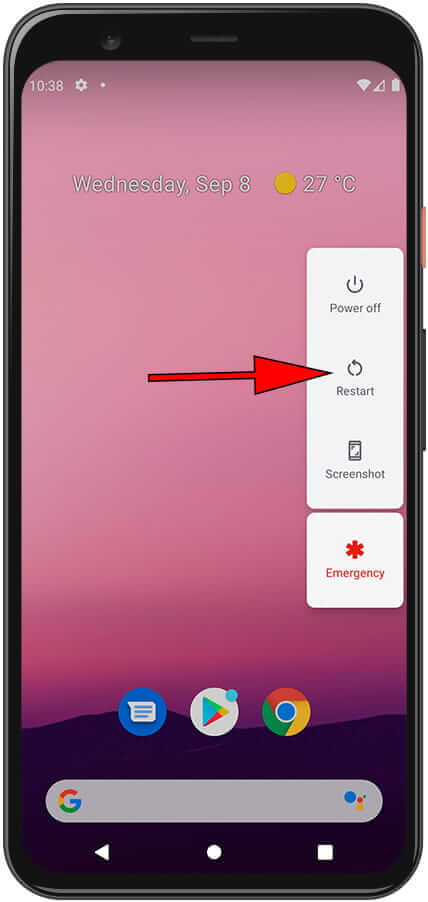
Once done, check DND issue has been fixed or not.
Also Read: Fix Voicemail Notification Won’t Go Away On Samsung S22/S21
Solution 2: Check Do Not Disturb Schedule Settings
If you have set the schedule for Do Not Disturb to get ON and OFF at a set time, then the device will do it automatically for you.
You can check these schedule settings on your Android and make the necessary changes.
- Go to Settings > Notifications > Do Not Disturb.
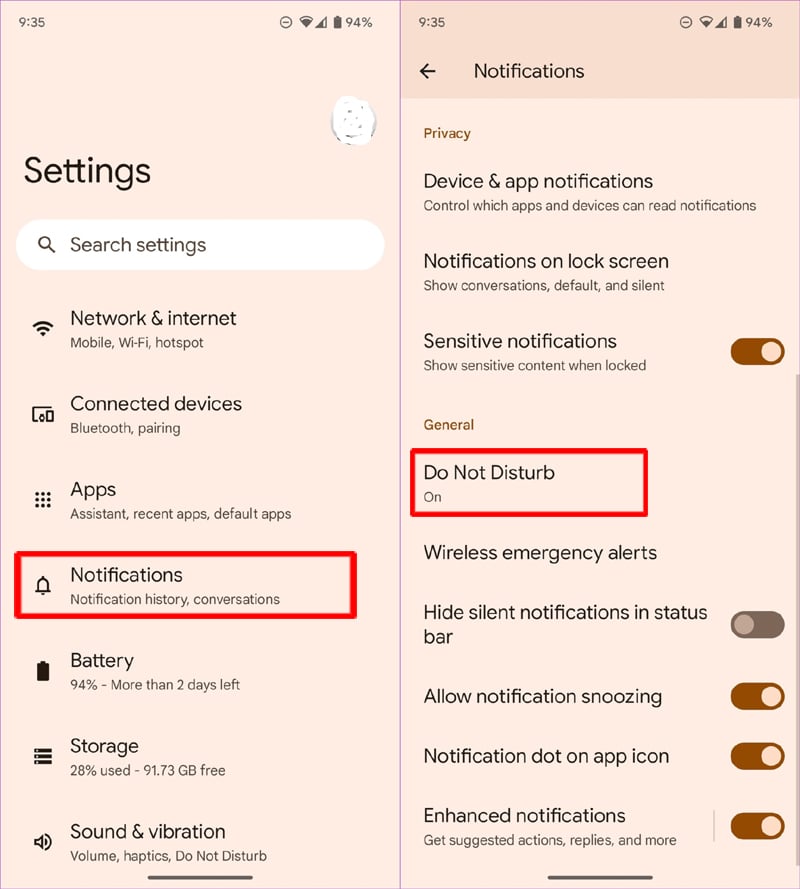
- Tap on Schedules.

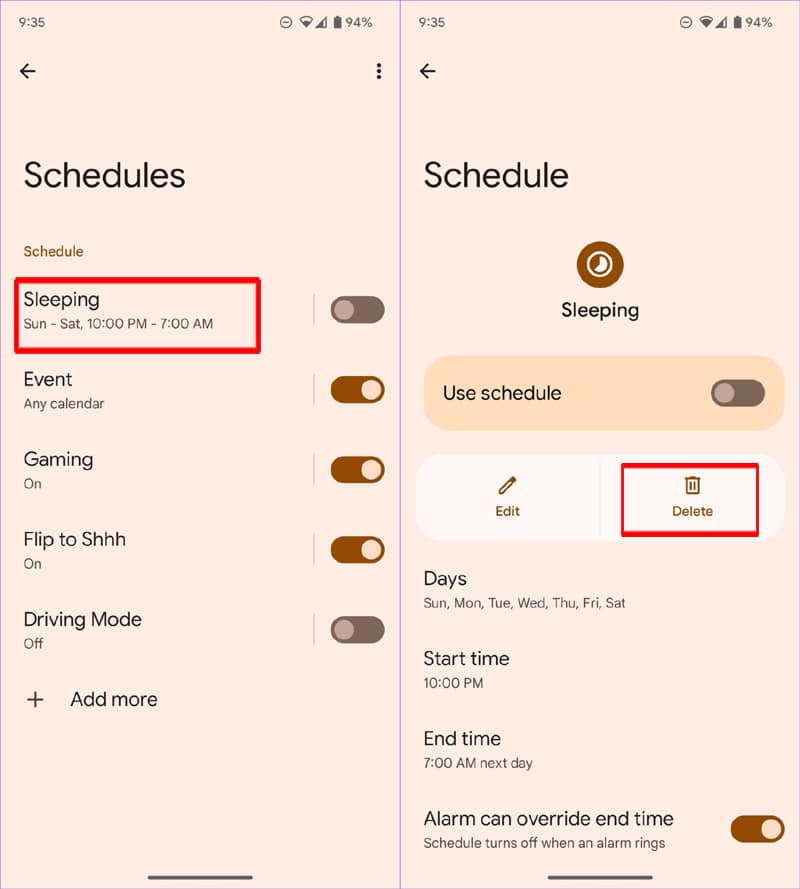
- You can check your active Schedule.
- Tap on any Schedule. You can edit time (Start/End), days, Turn Off Schedule and even delete the schedule.
Solution 3: Check The Volume Down Button
In some Android devices, if the Volume Down button is pressed repeatedly or for a long time, then it activates DND mode.
So, make sure that you do not press the Volume down button repeatedly or hold on to it for too long while adjusting the Volume.
Solution 4: Turn OFF Do Not Disturb During Bedtime
If you are using Bedtime mode in the Clock app, then it keeps your phone in silent mode, changes the screen to black and white, dims wallpaper at bedtime. It just allows important calls and alarms only.
You can turn off Do Not Disturb during bedtime mode.
- Go to Settings.
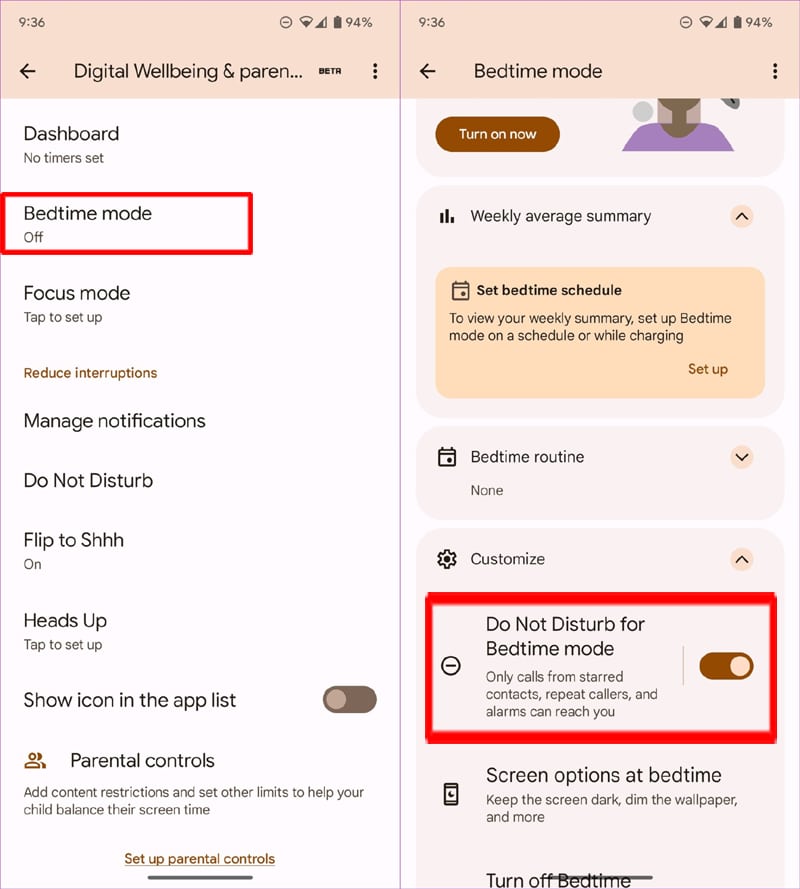
- Scroll down and tap on ‘Digital Wellbeing & parental controls.’
- Tap on Bedtime Mode and then tap on Customize menu to expand.
- Toggle the button to OFF position, next to ‘Do Not Disturb for Bedtime mode.’
Also Read: FIXED: Wi-Fi Calling Notification Keeps Popping Up On Android
Solution 5: Disable Focus Mode
When Focus Mode is turned ON, then the device pauses the distracting apps and their notifications are hidden. It just works like DND.
However, you will get a notification from Digital Wellbeing when Focus is enabled.
Here follow the steps to turn off Focus Mode when it is ON:
Simply, swipe down from the Home Screen to bring up the notification panel and tap on “Turn off now”.
See the image below, you will get the idea.

Also, you can edit the changes to Focus mode. Here is how to:
- Go to Settings.
- Scroll down and tap on ‘Digital Wellbeing & parental controls.’
- Tap Focus Mode.
- Tap on Turn off now or exclude the app from the list.

Also Read: Here How To Fix Outlook Keeps Stopping On Android
Solution 6: Turn Off Do Not Disturb While Playing Games
There are users who do not want to get disturbed by the call or app notification while they play games on their mobile. The system automatically turns on the Do Not Disturb mode while playing games.
Below follow the steps to disable DND while gaming:
- Go to Settings > Notifications > Do Not Disturb.
- Tap on Schedules.
- Next to Gaming option, toggle the button to OFF position.
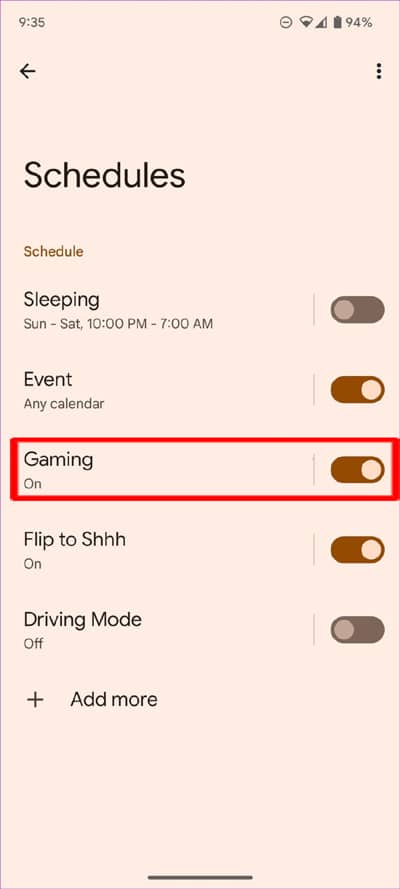
Now, DND won’t turn on by itself while you play Games on your Android phone.
Also Read: If Your Chrome Keeps Crashing, Stopping Or Won’t Open On Android
Solution 7: Disable Do Not Disturb While Driving
For your own safety, the phone has the feature to turn on Do Not Disturb mode automatically while you drive. Your phone detects and connects to your vehicle Bluetooth and thereby it enables the DND mode itself.
Follow the below steps to disable DND and like to receive calls and messages while driving.
- Go to Settings > Notifications > Do Not Disturb.
- Tap on Schedules.
- Next to Driving Mode option, toggle the button to OFF position.
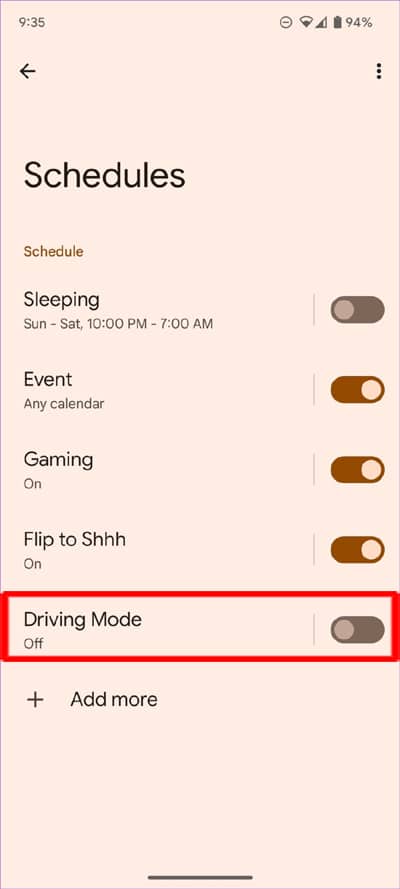
Following the same steps, you can disable the Do Not Disturb during calendar events.
Also Read: How To Fix Google Maps Keeps Rerouting on Android, iPhone
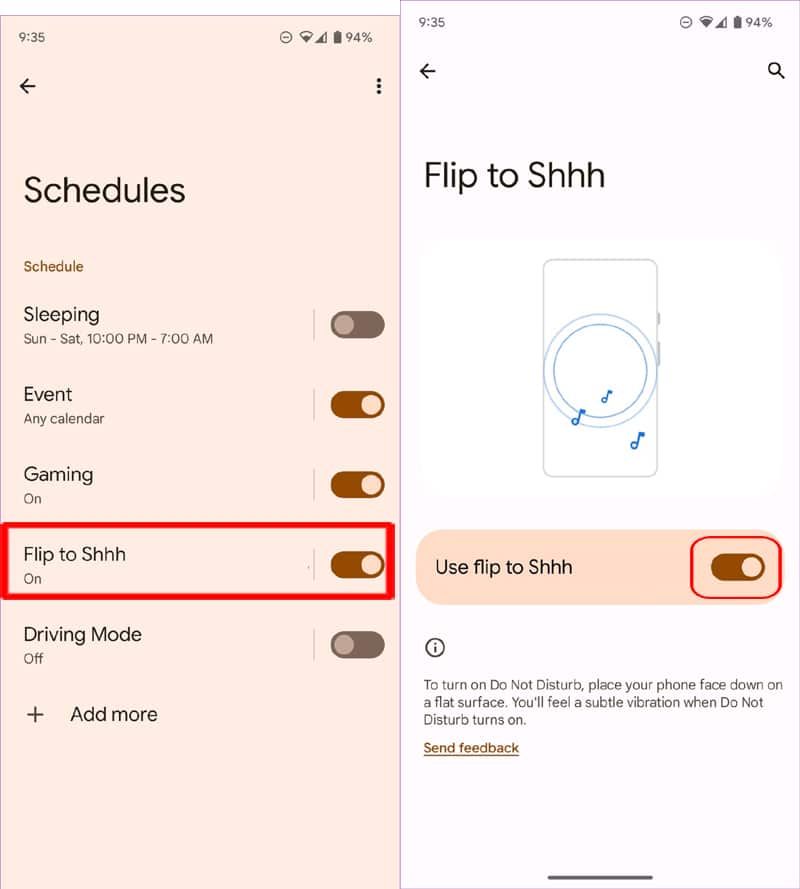
Solution 8: Disable Flip To SHHH For Pixel Phone Users
Flip to Shhh is an extra add-on for Google Pixel phones. It enables the Do not disturb mode automatically when you keep your phone with face down. The phone will give you a subtle vibration feeling when it turns on the DND mode.
Below, follow the steps to disable Flip to Shhh:
- Go to Settings > Notifications > Do Not Disturb.
- Tap on Schedules.
- Tap on Flip to Shhh and toggle the button to OFF position.
Solution 9: Update Android Operating System
If your phone is running on older version of Android OS, then it could be one of the reasons behind the malfunctioning of the Do Not Disturb feature.
The Android updates, bring new features and fix bugs and issues. Hence, it is highly recommended that you must update your phone OS for the proper functioning of the device.
Updating Android OS to the latest version might fix Do Not Disturb keeps turning on problem.
Here follow the steps to update Android OS:
- On your device go to Settings.
- Tap System > System Updates.
- You will see the update status. If there is an update, then kindly download and install it.

I hope after updating the Android OS, DND will stop turning on by itself.
Also Read: How To Fix IMS Service Keeps Stopping On LG Phone
Solution 10: Try Android Repair Tool To Fix Android OS To Normal
If you think that your phone’s Android OS has been malfunctioning with the issue on your device and that keeps enabling the Do Not Disturb on your Android phone, then in such cases, it is highly recommended that you must try Android Repair tool.
 |
 |
It will repair the Android OS and bring it back to normal, thereby eliminating the bugs and issues from your phone.
So, what are you waiting for? Simply download the Android Repair tool and give it a try. Here follow its user guide.
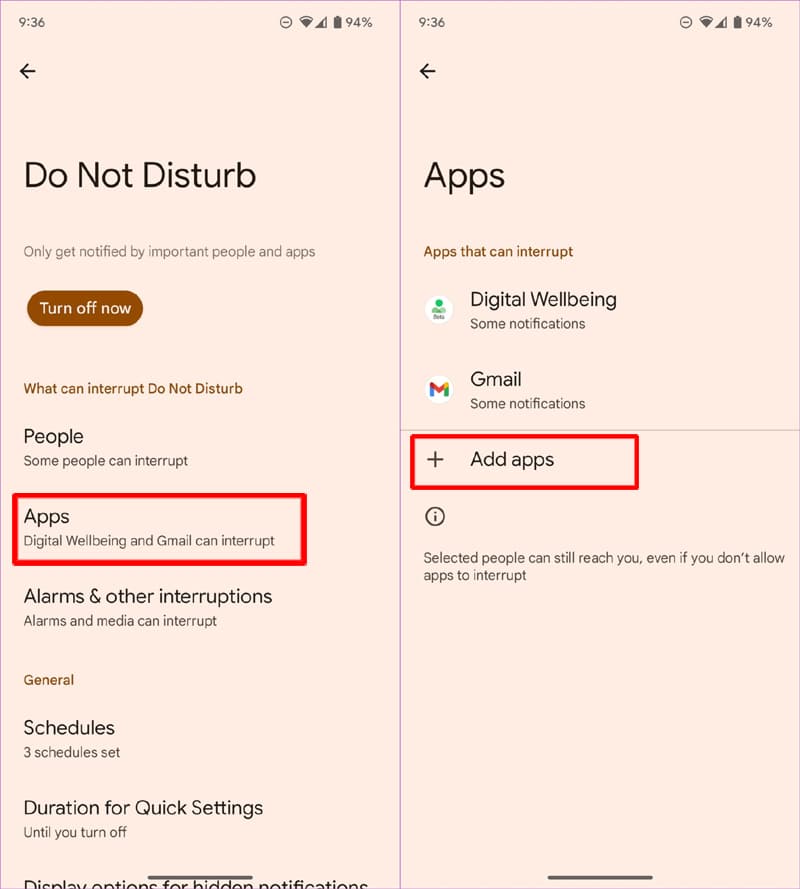
Bonus Tips: Allow Apps and Contacts In Do Not Disturb Mode
Even when you enable or phone automatically turn on Do Not Disturb mode, you can still allow specific apps and contacts to be active and receive notifications, calls and messages.
Here how to do that:
- Go to Settings > Notifications > Do Not Disturb.
- Tap on People and chose the contacts from which you want to receive calls and messages.

- Tap on Apps and add apps from which you want to receive notifications.
Wrap Up
Though Do Not Disturb is a useful feature, but if it keeps turning on by itself, then it can put you in an uncomfortable situation and makes others to worry for you.
DND is handy and useful in specific activities, but it should not be getting turned on by itself without your consent.
I hope, by following the solutions mentioned in the article has helped to fix Do Not Disturb turns on by itself and prevent it from happening again.
If you have found this post helpful or useful, then please share it as it can help others!
Please support us by subscribing to our YouTube Channel.
You May Also Like:
- Global | How To Fix YouTube Keeps Crashing On Android
- Fix S Pen Keeps Disconnecting On Samsung S23 Ultra, S23 (Plus)
- YouTube Music App Keeps Pausing: How To Fix In No Time
- How To Fix Spotify Music Keeps Pausing On Android and iOS

Max Field is a founder of Recover Android Data. He is an Android lover and loves to write tips, tricks, fixes for errors, data recovery solutions and more related to Android. Provide Gaming Tips, Tricks, Game Error/Issues Solutions (PC/Xbox/PlayStation/Mobile). He has 11+ years of experience in this field.