

Well, Google translate tool helps us to translate any language to our preferred language. But sometimes it is having issues and it did not respond.
This issue gets quite annoying and disturbing, because whenever you try to translate anything, it keeps popping up a “please try again” message.
So, how can you fix it?
Don’t worry! In this article, we provided proven ways to troubleshoot the problem of Oops! Google translate did not respond please try again! You can follow the solutions and get rid of it.
So, let’s start with the solutions.
Fix Google Translate Not Working On Android
1. Check The Internet Connection
It might be your internet connection is slow and unsteady that’s why it’s not working. Google translate needs the internet to work properly. So, if you notice that your connectivity is fluctuating, then it may cause the problem.
First, check and see if you have enough data, if not then boost it by adding data packs and then try again.
- If the data isn’t the case and you have enough, then you can try to enable the Airplane/Flight mode, because it can disable all the connectivity, after that turn it off. It can improve the internet connectivity.
- If you have connected to Wi-Fi and still the issue exists, then you can restart the Wi-Fi router.
- If you are using mobile data, then you can try to switch to Wi-Fi as it can have a more steady connection.
2. Restart Your Phone And The App
This is the easiest method to fix any bugs and glitches. So, if any bugs and glitches are causing the issue, then you can easily fix it by restarting your phone and the app.
So, first, try to restart the device and the application before performing any aggressive workaround. These are the steps to restart your device.
- Press and hold the Power Key until the Restart menu appear.
- Now, simply tap on the Restart option.
- Once the phone gets switched on, then go to the app and check whether the issue is fixed or not.
Also Read: Google Voice Outgoing Calls Failing? Here’s How To Fix!
3. Clear Cache And Data Of Google Translate
Just like the other Android apps, Google translate also needs cache to work properly and flawlessly. And long use of an app can cause corrupted cache data, then it starts misbehaving and it may not work properly.
So, you can try to clear its cache and data, because it can delete the corrupted one and start with a new cache file. These are the steps to follow.
Note: If you have the app for translation, then you can follow these steps.
- Navigate to the Settings and select Apps/Application Manager.
- Now, look for the Translate app, then tap on it.
- Now, hit Storage, then clear the cache and data one by one.
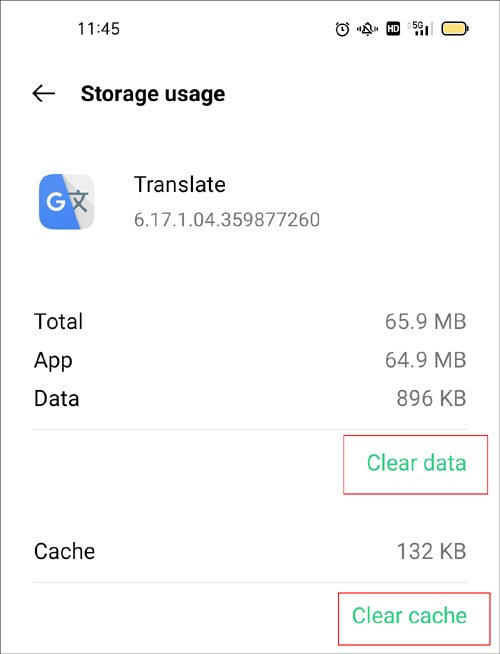
- At last, tap on the Force Stop option, and restart the app and check whether the problem is solved or not.
4. Check For Updates
As you all know, that an outdated software version can cause the problem. If you are using an older version of software, then it might be the culprit behind the issue.
So, first, check for updates and if it is available, then you need to update your phone to troubleshoot the error. These are the steps to follow.
Note: These steps may vary on your phone-to-phone model.
- Navigate to the Settings and select System.
- Now, tap on System update, then you will able to see its status.
- Now, simply follow the on-screen instructions.
Also Read: How To Fix Google Maps Keeps Rerouting on Android or iPhone
5. Update The Tranlation App
If updating the software version didn’t help you, then try to update the app, because it can fix the minor bugs and glitches in the app.
So, it’s better to update it, if any bugs and glitches or other major problems are causing it. These are the steps to follow.
- Navigate to the Play Store App and tap on your profile located next to the microphone option.
- Now, tap on Manage apps and device, then select Updates available.
- After that, look for the Google Translate app, then tap on it.
- Now, tap on the Green Update option, if available.
6. Re-Install Google Translate
If any of the above methods didn’t help you in solving the issue, then you can try the simplest workaround which is re-install the application.
So, you have to uninstall the app first, then download and install it again. it can easily rectify the problem and you can get rid of it. These are the steps to follow.
Uninstall The Application: –
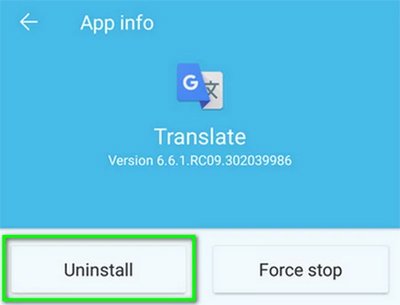
- Press and hold the app icon on your home screen until the uninstall menu appears.
- Now, simply tap on uninstall option, then confirm the uninstallation.
- Now, restart your phone.
Install The Application: –
- Open Play Store and search for Google Translate.
- Now, tap on the Green Install option, then it will start installing.
- After that, open it and check whether the issue is solved or not.
You May Also Like:
- Google Contacts Not Syncing On Android? Here’s How To Fix!
- How To Fix Error Code 963 In Google Play Store
- [Fixed]: This device was reset. To continue, sign in with a Google Account that was synced on this device.
- How To Fix “Unfortunately, Google App has Stopped” Error on Android
Fix Google Translate Not Working On PC
Note: In this guide, we provide the steps for Chrome browser.
1. Update The Browser
If you are using the older version of Chrome browser which is not compatible with the Google Translate, then it can cause the problem. Updating the browser can troubleshoot the minor bugs and glitches that are causing the issue.
If you don’t know how to update Chrome, then follow the mentioned steps.
- Open Chrome on your PC and click on the 3 dots located at the top right corner of the screen.
- Now, select Settings, then hit About Chrome present in the left side of the Settings bar.
- Now, simply choose Check for Updates.
- After that, check if it’s working properly or not.
2. Turn On Translate Prompts
Well, Chrome is configured to automatically translate the foreign website by default, if not, then you need to check the language settings is turned on or not. These are the steps to follow.
- Open Chrome and click on 3 dots present in top right corner of the screen, then select Settings.
- Now, select Languages from the settings bar present in the left side.
- Now, choose Language to bring more existing options.
- Now, check the “Offer to translate pages that aren’t in a language you read” setting is enabled.

Also Read: How To Import Birthdays From Facebook To Google Calendar
3. Manually Translate Web Pages
If Chrome didn’t translate the website automatically, then how can you do it?
Don’t worry! You have another option to do that, you can manually translate the web pages by clicking the right button. First, open any foreign web page, then right-click on any area, then you will see the option of “Translate to English” simply click it.
4. Try Using Incognito Window
It might be extensions are conflicted and prevent Google translate to work properly. If the “This page could not be translated” issue keeps popping up, then you can try to disable the extensions.
Disabling the extension can rectify the issue and it may work fine. If the problem still exists and not going away, then you can use the Incognito mode. In this mode Chrome didn’t save your browsing history, Cookies and site data, and also the extensions are not allowed to work here.
Steps To Disable Extensions
- Open Chrome and tap on 3 dots, then choose Settings.
- Now, click on More tools and select Extensions.
- Now, disable the extensions and check the problem fixed or not.
Steps To Open Incognito Mode
- Navigate to Chrome and click on 3 dots.
- Now, you will able to see the New Incognito window option.
- Now, simply click on it and reload the websites that you want to translate.
Also Read: (Solved) “Unfortunately, Google Play Services Has Stopped” On Android
5. Clear Cookies And Site Data
As you all know, a corrupted cache file can cause several problems which may really annoying and disturbing. If “This page could not be translated” error message only pop-up in one or two websites, then you can try to clear it cache.
These are the steps to follow.
- Load the website you are having problem with and click on the lock icon located beside the URL of the website.
- Now, select Site Settings, then simply choose Clear Data.
- Now re-load the site and check the problem solved or not.

If you are having the error messages on multiple websites, then you can try to clear the Chrome browser cache, but before performing this workaround keep in your mind that you need to sign in again in all of the websites.
Now, let’s move to the steps: –
- Open Chrome and click on 3 dots, then select More tools option.
- Now, choose Clear browsing data.
- Now, go to the Advanced tab, then select the Time Range to “All Time”.
- Now, select the “Cache Images and Files” and “Cookies and Site Data”, then choose Clear Data.
- Don’t select these options “Autofill from data” and “Passwords and other sign-in data”, if you select it, then you saved passwords and autofill data will be removed.
Also Read: Solved: There Was A Problem Communicating With Google Servers
6. Try Using Google Translate Extension
If none of the methods help you, then you can try to add the Google Translate extension on your browser. Using this extension can help you in translating any text and the entire page.
You can add the extension on your browser, if the Google translate website popping up the error messages or having any major problems. These are the steps to do so.
- Open Chrome and go to the Chrome web store to add Google Translate extension.
- Now, you will able to see an Add to Chrome option, simply click it.
- Now, select Add extension located in the dialogue box.
- If you want to test it, then open a foreign web page.
- Then, choose the Translate symbol present on right side of the address bar, then type the text and it would be translated.
- Select “Translate this page” by clicking on this page, then the entire page will be translated.
7. Turn On Detect Language Feature
Well, in this feature it detects the language automatically and you don’t have to choose the specific language. For example, if you enter the text in German and you enable the Detect language, then it will detect it automatically.
So, if you are translating the text that has multiple languages on it, then you can enable this feature. These are the steps to do so.
- Open Google translate and enter the text.
- Now, choose Detect Language from the dropdown box and see the issue solved or not.
- In case, if it didn’t help you, then you can select the particular language from the dropdown box.
Also Read: Google Calendar Not Syncing With Android? Here Is The Fix!
8. Reset The Browser Settings
There might be chances that some sudden tweaks in the settings are causing the problem. Some users change their browser settings according to their needs, but if you change the wrong one, then it may prevent the translator to work.
So, in such a situation, resetting the browser settings can bring its to default, and it may fix the issue. so, it’s better to perform this workaround. Simply follow the mentioned steps.
- Open Chrome and hit the 3 dots present in the top right corner.
- Now, select Settings, then choose Reset and Clean Up present on the left side panel.
- Now, select Reset Settings to their Original Defaults, then check if the browser works properly and so translation.
9. Scan Your PC
It could be some malware and viruses are causing the problem. So, you need to scan your PC using the security software, it can properly scan your system and if it finds any malware, then it will warn you instantly. These are the steps to follow.
- Search Windows Security in the search option, then click on it.
- Now, click on Virus & threat protection and choose Scan.
- Now, select Microsoft Defender Offline scan, then hit Scan now.
- Now, it starts the Scan and your system will be restarted.
10. Uninstall And Re-install Chrome
If any of the solutions didn’t help you, then you can try this workaround. Simply uninstall Chrome and then install it again as it can fix the bugs and glitches that prevent the browser to work flawlessly.
If you don’t know the steps to uninstall it, then follow the mentioned steps.
- First, right-click on the Start option and select Installed apps.
- Now, look for Chrome, then click the 3 dots next to it.
- Now, simply select uninstall option.
- Now, Download the Chrome Browser from the official Website of Google.
Also Read: FIXED: Google Play Store Error DF-DFERH-01
11. Use Another Browser
It might be bugs and glitches in your current browser, and if you didn’t succeed on fixing it, then you can try to use another browser as you can open Google translate in it and use it. These are the steps to follow.
- Open another browser, if you haven’t installed it, then install it and then use it.
- Now, navigate to Google translate and check the issue solved or not.
Wrap Up
Google Translate helps us in many situations, and if it suddenly shows error, then many users suffer from it and can’t able to translate.
So, in this guide, we provided proven ways to troubleshoot the problem of Oops! Google Translate did not respond please try again! You can read the above-mentioned article and easily fix it.
Please support us by subscribing to our YouTube Channel.
I hope this article has helped you, if it does, then do share it with others, as it can help them also.

Max Field is a founder of Recover Android Data. He is an Android lover and loves to write tips, tricks, fixes for errors, data recovery solutions and more related to Android. Provide Gaming Tips, Tricks, Game Error/Issues Solutions (PC/Xbox/PlayStation/Mobile). He has 11+ years of experience in this field.