

Learn Some Prevention Tips To Stop Phone Keeps Calling Emergency Number In Pocket!
Overview: Is your phone accidentally dialing the emergency number while you keep your phone in the pocket (front or back) of your pants, jacket, coat, or purse? Do you want to get rid of this trouble on your Android phone? If so, then this article is for you. In this guide, you will know some effective tips that will help you to stop pocket dialing emergency number.
Let’s start with the real user’s practical scenarios!
Practical Scenario 1: A User Looking To Stop Pocket Dialing On Samsung Galaxy S20 FE
The only sure way I know of to keep this from happening is to turn my phone. Does anyone know of any other way? My phone is a Galaxy S20 FE. Source: Google Community
Practical Scenario 2: Samsung S21 Keeps Pocket Dialing The Emergency Number While Running
Has anyone else had this problem and found a solution? On a 35min run today it rang the emergency services 3 times! It’s is completely unacceptable. The only way I can tell it’s doing it is activity the pin code entry then tapping emergency call. I can’t find any way to disable this feature which is more frustrating Ive resorted to disabling tap to way but don’t really wan to do that. Source: Reddit
That was just two examples. Similarly, you won’t believe there are numerous people out there encountering this problem.
Anyway, follow the below-mentioned tips to prevent and get rid of pocket dialing emergency number.
Also Read: How To Remove or Bypass LG Screen Locks – [PIN, Pattern, Password Or Fingerprint]
Tip #1: Lock Your Phone
Locking the phone screen can help you to prevent pocket dialing.
You can have PIN lock, pattern lock, fingerprint lock, face lock or combination of these.
To lock your phone screen, follow the below steps.
On your Android, go to Settings > Security > Screen Lock. And then select your preferred lock option.

These steps may vary from phone to phone, for example, Samsung phones have this screen lock feature in Biometrics and Security.
On your iPhone, go to Settings > Touch ID & Password. And then select your preferred lock option.
Also Read: How To Fix Do Not Disturb Turns On By Itself On Android
Tip #2: Disable Smart Lock (On-body detection)
Many Android phones come with a feature that keeps your phone unlocked, that is – Smart Lock (On-body detection feature on Samsung phones). It means when you are at home, connected to a specific Bluetooth device (such as your car), Trusted devices or Trusted place, then no password is required.
This feature is handy, but it can also allow your pocket to make a crank call to emergency services, friends, colleague or relatives, so you may want to disable it, if you notice that your phone is repeatedly pocket dialing in those situations.
To disable Smart Lock or On-body detection feature, follow the below steps.
On Android phone, go to Settings > Security > Smart Lock > On-body detection. Toggle the button to OFF position to deactivate it.
On Samsung phones, go to Settings > Lock Screen and security > Smart Lock > On-body detection > Toggle the button to OFF position to deactivate it.
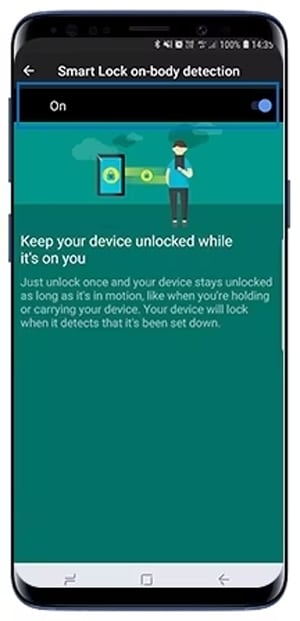
Also, turn OFF Trusted places, Trusted devices and see if that help.
Tip #3: Disable “Tap To Wake” Feature
There are a few features such as Tap to wake, Lift to wake, Double tap to wake up, that let you wake up your phone’s screen by simply tapping on it (instead of pressing the physical button).
So, turning OFF this feature can help you to reduce the frequency of accidental wakeups in your pocket and avoid calling emergency numbers by mistake.
Here how to disable tap to wake feature:
On your Android phone go to Settings > Display > Lock Screen Display > toggle the button to the OFF position, next to “Tap to wake” or “Double tap to wake up” feature.
On your Samsung phones, go to Settings > Motions and gestures > turn off the “Double tap to wake” up and “Lift to wake” features.

On OnePlus Phones, go to Settings > System Settings > Gestures & motions > turn off “Raise to wake”.
On your iPhone, go to Settings > Accessibility > Touch > turn off “Tap to Wake” feature.
Also Read: Realme Double Tap To Wake Not Working – Here How I Fixed It!
Tip #4: Unlock With Home Button
Some smartphones have the option to unlock phone only with a quick press of Home button. It means the phone will get unlocked until and unless you press Home button.
With the use of this feature, you can easily lock all other features in order to avoid the screen from waking up and doing an accidental touch.
This will definitely help you to decrease pocket dialing emergency calls.
Here how to enable “Unlock with Home button” feature:
Note, the steps may vary from phone to phone.
On Android or Samsung phones, go to Settings > Display > Navigation bar > switch ON the button, next to “Unlock with Home button”.

Also Read: How To Fix Google Pixel 6/6 Pro Screen Wakes Up Automatically/Randomly
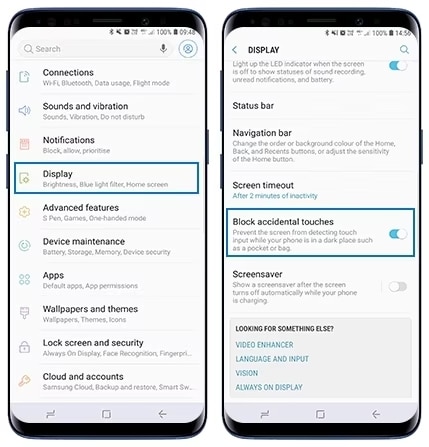
Tip #5: Enable “Block Accidental Touches” Feature
Some smartphones also come with a feature, called – Block accidental touches.
If this feature is enabled, then it will prevent the screen from detecting touch input while your phone is in a dark place, such as pocket, bag, etc.
So, turning on this feature can also help you to stop auto dialing when your phone is in a pocket or bag.
Here how to turn on “Block accidental touches” feature:
Again, note that the steps may vary from phone to phone model.
On your Android or Samsung phone, go to Settings > Display > now switch ON the button, next to “Block accidental touches”.
Also Read: How To Fix Unresponsive Touch Screen Android Phone
Tip #6: Use Pocket Lock App

This is one of the simple, yet effective tips. If nothing solves your problem, then it is suggested that you must give a try to Pocket Lock app.
As the app name suggests – it does one and only one thing, it locks your phone when you slip in your phone into your pocket and unlocks it when you take it out.
Here how to activate this Pocket Lock app on your Android phone.
Step 1: On your phone, go to Play Store.
Step 2: Type “Pocket Lock” in the search box. To make thing easy, you can visit this official Play Store link to download and install Pocket Lock app on your Android device.
Step 3: Once installed, open it. From the main interface, tap on “STOPPED” button to get started.

Step 4: Since this is the first time you are opening the app, you have to activate the device administrator. Simply tap on “Activate this device administrator”. The Pocket Lock app will start and will take you back to the main interface.

That’s It! Now, put your phone into your pocket and it will get locked. Pull it out, it will wake up. But it will not unlock your phone, you still have to enter your screen lock password to access your device.
Also Read: How To Remove or Bypass Samsung Screen Locks – [PIN, Pattern, Password or Fingerprints]
Frequently Asked Questions [FAQs]
Answer 1: In such a case, the first thing you must do is to – Not Hangup. Instead, you must stay on the line and explain to the operator on the other side of the line that the call was done by accident. The phone automatically dialed the emergency number while it was in my pocket. You must convince them that the call was made by mistake and you guys do not need to worry. This is perfect Pocket dial etiquette.
Answer 2: Well, you can follow the same tips that are mentioned above in this article and this stop butt dial as well. In short, you can take these measures:
Wrap Up
And that’s it. Six tips for preventing and stopping the dreaded pocket dialing emergency number.
Hopefully, one of these tips will help you.
If you have found this article helpful and useful, then please share it as it can help others!
Please support us by subscribing to our YouTube Channel.
You May Also Like:
- Haptic Feedback Not Working On Android? Here’s Is The Fix!
- What Is Bixby Routines & How To Use It On Samsung Phone
- How To Turn On and Set Up Visual Voicemail On Samsung
- How To Bypass Huawei Phone Passcode Without Losing Data

Max Field is a founder of Recover Android Data. He is an Android lover and loves to write tips, tricks, fixes for errors, data recovery solutions and more related to Android. Provide Gaming Tips, Tricks, Game Error/Issues Solutions (PC/Xbox/PlayStation/Mobile). He has 11+ years of experience in this field.